 Hacker News
Rebuilding the Computer Room
https://alexwlchan.net/2026/computer-room/
#HackerNews #Rebuilding #Computer #Room #Tech #Renovation #Retro #Computing #Hackerspace
Rebuilding the Computer Room
https://alexwlchan.net/2026/computer-room/
#HackerNews #Rebuilding #Computer #Room #Tech #Renovation #Retro #Computing #Hackerspace
Wasserkühlung für Notebooks ist auch bei den derzeitigen Temperaturen nur so semi clever.
Mal sehen, ob das Teil die Dusche des Kollegen überlebt hat. Aber erstmal lufttrocknen.


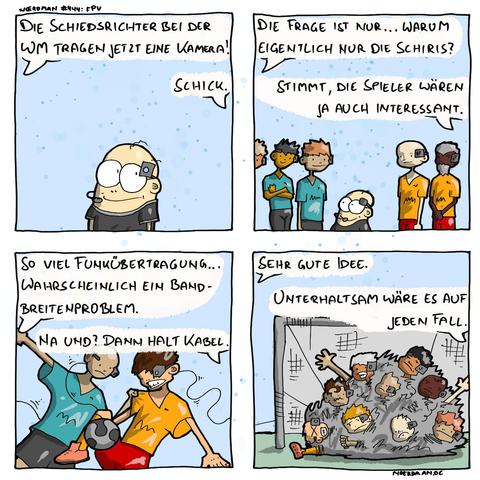
Ich meine, natürlich ist diese Schiri-Ansicht toll... Aber stellt euch mal vor wie toll es wäre, eine Videowand mit VIELEN Ansichten zu haben... Von jedem Spieler! Das wäre bestimmt... 23 mal besser! Mindestens!
#noerdman #comic #comics @noerdman #informatik #digital #digitalisierung #technologie #technik #computer #fußball #fifaworldcup #worldcup2026 #technik @DFKI @unibremen @dsc_bremen @informatik @jus
Linux 7.2 RC1 released!
After the release of Linux 7.1, which brought many features and improvements across different portions of the Linux kernel, such as hardware support and other improvements, an upcoming version of Linux is in the works.
Linux 7.2 RC1 is now live for developers and power users who are willing to try out a pre-release version of Linux that is yet to be released. All the interesting changes from performance improvements to bug fixes have been integrated to this release candidate, including, but not limited to:
The below announcement from Linus Torvalds in the mailing list says:
So two weeks have passed, and the merge window is closed. Things look reasonably normal for this release (knock wood), and I'm appending my merge shortlog below, since we obviously have much to many changes to list individually.Linux v7.2 will be the third version from the v7.x series that will be released after Linux 7.1, which will bring many improvements and additions to enhance your user experience.
Arch Linux and other distributions will be updated to utilize Linux 7.2 once it officially releases to the public, with rolling distros being updated first, then the subsequent distributions will utilize this version of Linux according to the distro’s release schedule. Meanwhile, keep checking for updates in your Linux distro (such as pacman -Syu as root in Arch Linux), or compile it from source.
Please note that, if you’re going to try out this pre-release version of Linux, be sure that it might contain more bugs than the final release, as it’s an experimental version not intended for production use. We advise you to back up all critical data before you utilize this version.
To download Linux 7.2’s source code, click on the below button:
Source code #Computer #Computers #Kernel #Laptop #Laptops #Linux #Linux7 #Linux72 #LinuxKernel #news #Tech #Technology #update
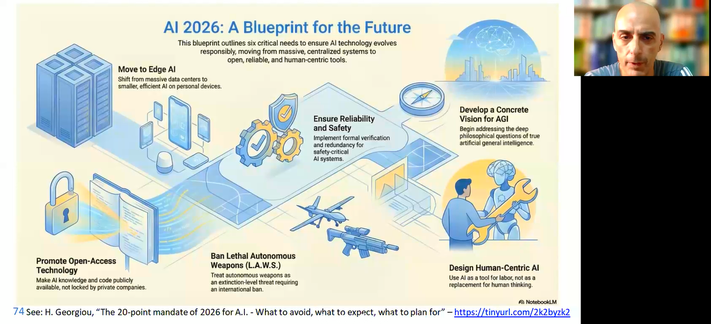
«Ηθική, εμπιστοσύνη και το Α.Ι. που έρχεται» | #AI #lecture
>> https://youtu.be/mp-pjlJmBy4
>> https://creators.spotify.com/pod/profile/apneacoding/episodes/-e3lc0d3
#Computer #lecture #EPE #HIU #ΕΠΕ #μαθηματα #ΤεχνητηΝοημοσυνη #ArtificialIntelligence #AI #alignment #LLM #robots #weapons #LAWS #AIact
#ΈνωσηΠληροφορικώνΕλλάδας

Dell Latitude 5300 2-in-1 Laptop
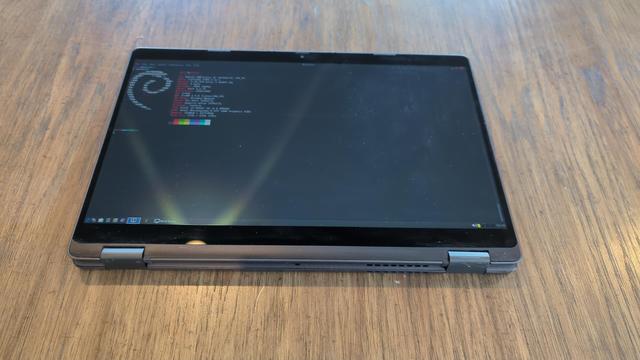
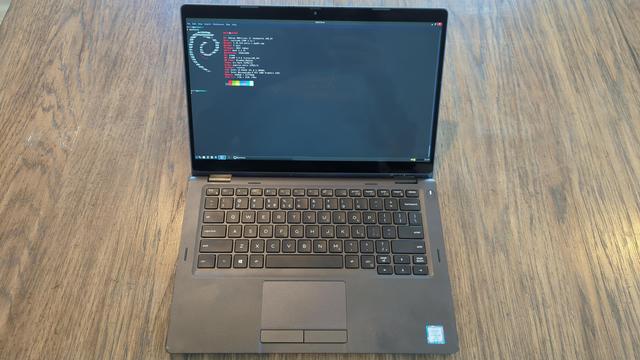
Convertible laptop (screen folds 180 degrees to turn into a hefty tablet). Currently running antiX Linux, but will come with NO OS. Touchscreen; Linux support works great with the touchscreen. No charger included, works with either a Dell properitary 19V barrel jack charger or a USB-C PD charger (60W+ recommended). Has the usual collection of dings and scratches expected on an older laptop, but no substantial damage.
As an optional bonus, I have a bunch of extra parts for Dell 5300 laptops. If you're a tinkerer I'll include them at no extra cost; if you don't want the parts that's fine too!
Specs are:
256GB SSD
Intel i5 8365U (4C8T @ 4.10 GHz)
16GB RAM
Intel UHD integrated GPU
1920x1080 touchscreen display
$150 shipped



 Lutz G.
 z0rg
z0rg Noerdman
 Aptivi
 DieSachsen
 HarryK61
 Harris Georgiou
 Script Kiddie
 Delta Sierra