Ich antworte mir mal selber: Zoom-Videos scheinen Probleme zu machen, und nicht die Übergänge. Die mp4-Dateien von Zoom führen dazu, dass das Bild im aus Screenflow exportierten Video erst nach ein paar Sekunden zu sehen ist, der Bildschirm bleibt so lange schwarz, während der Ton aber zu hören ist.
Einmal durch Adobes Media Encoder gejagt ohne sonstige Konvertierungen und es funktioniert.

#SoKannManAuchSeineZeitVerbringen
#Screenflow #Zoom

Nutzt hier jemand Screenflow am Mac und kann mir vielleicht bei einem Problem mit den Übergängen helfen?

EDIT: Liegt wohl eher am importierten Video.

#Screenflow #Videoschnitt
#PleaseBoost

Top Spring ’26 Salesforce Flow Features

What are the new features about? Spring 26 brings new screen, usability and platform enhancement features. Let’s dive into the details.

Top Screen Flow Spring 26 Features

It seems like most of the new features involve screen flows.

I will not go into further detail, but this release introduces yet another file upload component for screen flows: LWR File Upload Component for Experience Cloud.

Here are the rest of the screen flow improvements.

Screen Flow Screen Element and Component Style Enhancements

Screen flow screen element gets features that allow you do set the background, text and border colors. Border weight and radius can be adjusted. For input components, in-focus color for text can be differentiated. Flow buttons also get similar adjustments gaining the ability to change colors on hover over.

Any styling changes you set override your org or Experience Cloud site’s default theme.

Remember to keep your color and contrast choices in check for accessibility. Don’t do it as I did below. Go to the WebAIM contrast checker website and plug in your color codes to check whether their contrast is sufficient for accessibility.

Screen Flow Message Element

Screen Flow Message Element leverages the new styling options to display a message on the screen. It has a pulldown that allows you to create an information, success, warning or an error message. These come with standard color sets, which will direct flow developers in using a standard visual language.

This functionality is compliant with A11y for accessibility.

See all the four types on the same screen below.

Screen Flow Kanban Component (Beta)

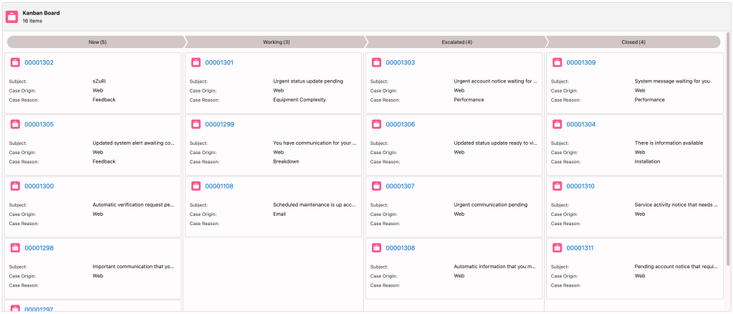
The new Kanban component allows you to organize records into cards and columns. This is particularly useful for visualizing process phases and managing transitions across your workflow.

Use the new Kanban Board component to show records as cards in columns that represent workflow stages, without custom Lightning implementations. The Kanban Board is read-only, so users can’t drag cards between stages at run time.

Data Table Column Sort and Row Value Edit (TBD)

Now the user can sort the data table by columns and edit text fields in rows. This feature is not available in the preview orgs. The product team is working hard in the background to make this into the Spring 26 release. This functionality is slated to make it to the release at the last minute.

Preview Files Natively in Screen Flows

Elevate document-based processes by enabling your users to review file content directly within a screen flow. The new File Preview screen component removes the requirement to download files externally, ensuring easier document review and approval workflows.

This component seems to be already in production.

Open Screen Flows in Lightning Experience with a URL

Previously, when you opened a flow via URL, it did not launch in lightning experience. Now, it will launch in lightning preserving the experience your user is used to especially when they are working on a customized lightning console app.

I will quote the release notes for this one.

“To open a flow in Lightning Experience, append /lightning/flow/YourFlowNameHere to your URL. To run a specific flow version, append /lightning/flow/YourFlowNameHere/versionId to your URL. Flows that open in Lightning Experience have improved performance because most required Lightning components are already loaded into the browser session. In Lightning console apps, your tabs are preserved when a flow opens, and you can switch to other tabs while the flow is working. Using the new URL format also ensures that your browser behaves consistently, with forward, back, and your browser history working as expected.

To pass data into a flow through its URL, append ?flow__variableIdHere=value to the end of your URL. For example, to pass a case number into a flow, /lightning/flow/YourFlowNameHere?flow__variableIdHereID={!Case.CaseNumber}.

Use & to append multiple variables into a flow. For example, /lightning/flow/YourFlowNameHere?flow__varUserFirst={!$User.FirstName}&flow__varUserLast={!$User.LastName} passes both the user first name and last name into the flow.”

Usability and Platform Features

I listed all of the screen flow features above. The following two items are huge usability improvements that also involves screen management for the flow canvas, not just only for screen flows.

Collapse and Expand Decision and Loop Elements

When your flow gets to big and you need to Marie Kondo (tidy up) your flow canvas, you can collapse the decision and loop elements that take up a lot of real estate. You can always expand them back when needed.

Now you can collapse and expand branching elements with Flow Builder, including Wait, Decision, Loop, Path Experiment, and Async Actions, helping you focus on the key parts of your flow.

This layout is saved automatically and locally in your browser, making it easier to return to your work without changing the view for other users.

Mouse, Trackpad and Keyboard Scroll

Now you don’t have to drag or use the scroll bar to move the flow around on the flow canvas. You can use vertical and horizontal wheels on your mouse, the arrows keys on your keyboard or your trackpad if you have one.

No need to use Salesforce Inspector Reloaded to get this functionality any more. Thanks to Salesforce Inspector Relaoded for filling the gap in the mean time.

Content Document and Content Version Flow Triggers for Files and Attachments (Beta)

Salesforce delivered a new event type in the last release that could trigger flows for standard object files and attachments. The functionality was limited. In this release, Salesforce gave us the ability to trigger on all new files/attachments and their updates for all objects.

I was told by the product team that this functionality will be released as beta.

Flow Logging

I am not exactly sure what has been improved here. Salesforce had previously announced additional flow logging capabilities leveraging Data Cloud. Now, a new flow logging tab has been added to the Automation Lightning App.

Debug Improvements

The debug in the flow builder will now remember the record that it ran on and the updated field value if it is running in an update scenario. Debug inputs such as triggering record values, debug options, and input variable values now remain set when you save flow changes within your Flow Builder session. The user will need to click a reset button to disassociate the debug run from the input for the last run. This change is intended to make debug reruns faster.

Flow builder will preserve debug configurations when you save changes to your flow. Refreshing your browser or closing Flow Builder clears all debug settings.

Conclusion

Salesforce product teams work hard delivering new features for every release. Spring 26 release brings significant new improvements for the flow builder. I would have liked to see additional capabilities coming for flow types other than screen flows. This release seems to be a lighter release in that area.

Additional bonus features include request for approval component for lightning page layouts (highly-requested feature), compare screen flow versions, and associating flow tests with flow versions.

The release notes are still in preview. And we could still have new functionalities removed or added in the release cycle.

This post will be updated as additional details are made available.

[youtube https://www.youtube.com/watch?v=eZC_8W1IbUs?feature=oembed&w=800&h=450]

Explore related content:

Salesforce Optimizer Is Retired: Meet Org Check

One Simple Salesforce Flow Hack That Will Change Your Workflow Forever!

Automate Permissions in Salesforce with User Access Policies

Spring ’26 Release Notes: Highlights for Admins and Developers

​​​​What Is Vibe Coding? And What’s New in Agentforce Vibes for Developers?

#Kanban #Salesforce #SalesforceAdmins #SalesforceDevelopers #SalesforceTutorials #SalesforceUpdate #ScreenFlow #Spring26
«La sede» es un mini-corto dirigido por A. Cambronero y producido en #Grok con imágenes de partida de #Gemini. El guion es de A. Cambronero con temática relacionada con el próximo 25º aniversario de Blogpocket. Música: #Suno Montaje final: #screenflow Página de créditos: #Canva #IA #aiart

PSA - To get #Screenflow to “hear” audio on a iPhone-recorded video, set the Camera > Record Sound option on your iPhone to Stereo (instead of Spacial Audio).

I have been struggling to fix this issue for YEARS. I could not find it at all in #Telestream's support and refuse to pay a premium to get better support.

Honestly, if my laptop could run DaVinci Resolve, I'd stop using Screenflow entirely. It’s just not worth it to have loaded desktop AND laptop systems.

#today
Is it normal for me to get excited when I build out a working screen in a #ScreenFlow? Ok it's a simple screen but I'm very proud of myself. I figured out how to do this without help from the notes i have. this muscle memory thing is real. The debug actually worked!
#Salesforce #Admin #Excitement
Dass #screenflow auch in Version 10 (!) keinen einfachen Weg anbietet, diese ollen Chapter Marker in einem für #YouTube brauchbaren Format zu exportieren kann man auch nur als Arbeitsverweigerung bezeichnen.
ChatGPT wird es (wieder mal) richten.

New video (finally!) on my YouTube channel: How I set up the Elgato Stream Deck+ Wavelink software so I could monitor myself in my headphones. I really was ready to return the Stream Deck+ XLR until I figured this out. https://youtu.be/mvvh6oj2Iu8

#elgato #WaveLink #screenflow

This One Tip Stopped Me From Returning My Elgato Stream Deck+ XLR

YouTube

Should You Leave Unused Input and Output Flow Variables?

In Salesforce Flow, input variables are special placeholders that allow data to be passed into a flow from an external source, such as a Lightning page, a button, another flow, or even an Apex class, so that the flow can use that data during its execution. When you create an input variable in Flow Builder, you mark it as Available for Input, which makes it visible and ready to receive values from outside the flow. Output variables, on the other hand, are used to send data out of a flow so it can be consumed by whatever triggered or called the flow, such as another flow, a Lightning web component, or an Apex class. When you create a variable and mark it as Available for Output, the flow can pass its final or intermediate values back to the caller once it finishes running.

Input variables are especially useful for building modular, reusable flows. You can design them to handle different scenarios based on the values provided at runtime. For example, a record ID provided as an input variable can help the flow retrieve and update that specific record without needing user input. By leveraging input variables, you can keep flows flexible, reduce duplication, and make them easier to maintain.

Similarly, output variables are powerful when building modular, subflow-based solutions. The parent flow can feed inputs to the subflow, receive outputs in return, and then continue processing without extra queries or logic. For example, a subflow might calculate a discount amount or generate a new record ID. It can then return it as an output variable for the parent flow to use. Output variables make flows more reusable, keep processes streamlined, and allow different automation components to share data seamlessly.

Security Implications of Variables Available for Input and Output

In programming, a variable’s scope defines the region of code where it exists and can be used, such as within a specific method, a class, or an entire module. For example, a variable defined inside a method is local to that method and cannot be seen or changed by code outside it, much like keeping notes in your own locked desk drawer. This “privacy” ensures that internal details remain protected from unintended interference, which is a key aspect of encapsulation in programming. If you want other parts of the program to access the data, you must explicitly expose it through return values, public properties, parameters, or other controlled interfaces. This principle not only prevents accidental bugs but also supports security. Sensitive data and logic remain inaccessible unless intentionally shared, helping keep the system stable, predictable, and easier to maintain.

When you allow input variables for your flow, you allow external environments that run this flow to pass parameters into it. This potentially makes your flow vulnerable to outside attacks. When you configure output variables for your flow, you are creating a risk of external environments accessing flow output data. This is often data recorded in your Salesforce org. This data may include personally identifiable information or sensitive data.

In addition, avoid using inputs that are easy to guess. If you look up a contact record based on their email address, attackers may guess the email address after a few tries ([email protected] for example).

What About Flows Built for Digital Experience Guest Users?

When you build a flow and deploy it on a digital experience site, where the guest user can execute it without logging in, you are exposing your flow to the outside world. This scenario makes your flow even more vulnerable to outside attacks.

Guest User Means Anybody Can Access Any Time

First of all, please know that this is a very risky approach. You should assume anybody can run that flow anytime, which is what you allowed. Make sure that only limited inputs and outputs are defined and used. The flow should only execute a limited scope that it absolutely needs. You should not allow the flow to perform a multitude of operations because you aim for flexibility. Test many scenarios to ensure attacks can not derail your flow and trick it to perform operations that it is not intended to perform.

Limit the Data

Furthermore, you should not allow the flow to access any information it does not need to see. If you are dealing with records or record collections, make sure your gets specify fields that are absolutely necessary. Do not get the drivers license number for the contact when you just need the name. In this scenario, do not let Salesforce automatically decide what fields to get. Also, when performing updates, do not update all the field values on the record. Just update whichever field is important to update for your process.

Isolate the Elevated Functionality

Finally, you may be tempted to set your flow to run in system context without sharing, or to allow a guest user to view records in the org through sharing rules. Both scenarios introduce additional risks that must be carefully considered.

When allowing your automation to run in system context without sharing, isolate the necessary part into a subflow. Ensure that logic is tightened well from a security standpoint. Do not run the whole flow in system context without sharing mode. Just run the necessary part in a subflow using this elevated setting.

Screen Flows and Reactivity

Whether you allow elevated access or not, screen flows present a couple of inherited risks.

When you pass information to a data table, lightning web component or a screen action, that information is accessed by your browser locally. If you feed a collection of contact records to a datatable and get all field values before you go to the data table screen, the local browser will see all the field values on the record. This happens before the user interacts with the table. The user can see these values.

Recent developments of reactivity for screen flows are fantastic from a UI standpoint, but further complicate the security risks. The more reactive functionality you use in your flow, the more data you handle locally in your browser.

Conclusion

When flow builders, especially new starters, build flow variables, they often freely check available for input and available for output checkboxes. They do this thinking the alternative would limit them. This is risky and not necessary. You can change these settings at any time without having to create or recreate variables.

Always plan your inputs and outputs carefully and review them at the end of development. Make sure you don’t have any unused variables still accepting inputs or producing outputs.

In this era, where we hear the Salesforce name associated with client data security breach incidents, apply extreme security caution when dealing with automation.

This post is part of our Flow Best Practice series. See the other posts HERE.

Sources and references:

Building Secure Screen Flows For External User Access by Adam White

Data Safety When Running Screen and Autolaunched Flows in System Context – Salesforce Help

Explore related content:

How To Attach Files Using the Flow Email Action in Salesforce

Getting Started with Salesforce Data Cloud: Your Roadmap to Unified Customer Insights

How To Build Flex and Field Generation Prompt Templates in the Prompt Builder

#Apex #BestPractices #InputVariables #LowCode #OutputVariables #Salesforce #SalesforceAdmins #SalesforceDevelopers #SalesforceTutorials #ScreenFlow #Security

Maker Conference Center 1.1

PeerTube