The Ultimate Guide to the Salesforce Screen Flow File Preview Component

The Spring ’26 Release introduced the File Preview Screen Flow Component. This native tool allows Admins to embed document viewing directly into the flow of work. In this post, we’ll explore the technical requirements, real-world observations, and the strategic implications of this functionality.

Beyond the “Files” Tab: Why This Matters

Historically, viewing a file in Salesforce required navigating to the “Files” related list, clicking the file, and waiting for the standard previewer to launch in a separate overlay. If you were in the middle of a Screen Flow, perhaps a guided survey or a lead conversion process, leaving that flow to check a document meant breaking your concentration.

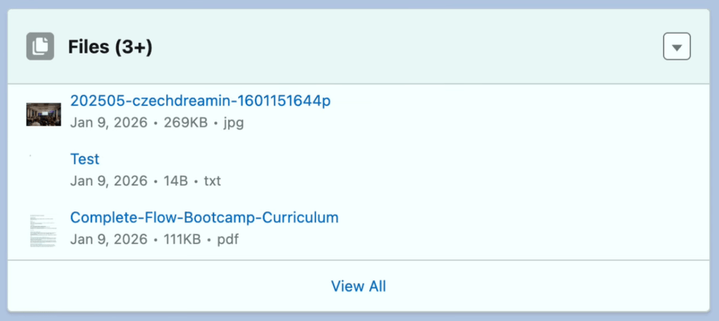
Salesforce introduced a file thumbnail preview that shows visually what is in the file without having to click into it. Please note that the thumbnails show beautifully in the Single Related List component for lightning record pages. In the multiple related list view, I did not see the thumbnails.

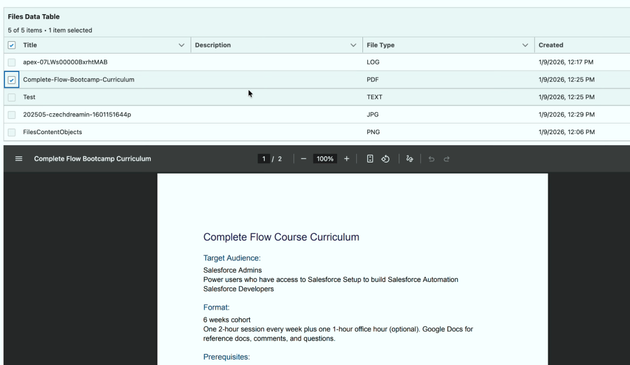
In addition to the lightning record page and related list functionality, Salesforce introduced a file preview component that allows the user to see the preview of the file they have just uploaded, or they find attached to an object record in Salesforce.

Technical Blueprint: Configuring the Component

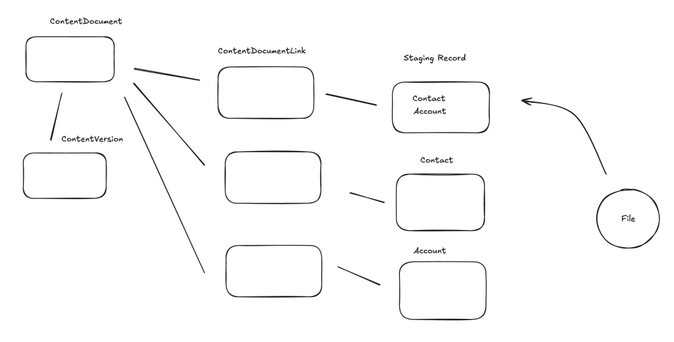
Setting up this component requires a shift in how Admins think about file data. Files data model is unique. To make the component work, you need to navigate the relationship between ContentDocumentLink, ContentDocument, and ContentVersion.

Core Attribute Requirements

 When you drag the File Preview component onto a screen in Flow Builder, you must configure the following:

  • Content Document ID (Required): This is the most critical field. The component needs the unique 18-character ID of the ContentDocument record. It will not accept the ContentVersion ID (which represents a specific iteration) or the Attachment ID (the legacy file format). Please note: the preview component always shows the latest version of the file.

  • Label: This attribute allows you to provide instructions above the preview window. This is highly effective for compliance-heavy roles, where the label can say: “Verify that the signature on this ID matches the physical application.”

  • API Name: The unique identifier for the element within your flow logic, following standard alphanumeric naming conventions.

Using Conditional Visibility

Because the preview window takes up significant screen real estate, it should not be set to “Always Display”, if it will be driven by a data table reactively. Salesforce allows you to specify logic that determines when the component appears. You can set it to display only if a specific file type is selected in the collection and hide the component if the ContentDocumentID variable is null to avoid showing an empty box.

Lessons from the Field: Our “Around the Block” Test

In our recent hands-on testing, we put the component through its paces to see where it shines and where its boundaries lie.

[youtube https://www.youtube.com/watch?v=_k3F2eX4rdM?version=3&rel=1&showsearch=0&showinfo=1&iv_load_policy=1&fs=1&hl=en-US&autohide=2&wmode=transparent&w=640&h=360]

The File Extension

The previewer is highly dependent on the browser’s ability to interpret file headers and extensions. During our test, we uploaded a standard log file. While the content was technically plain text, the file had a .log extension. The component struggled to render this because it didn’t recognize it as a standard format. However, once we switched to a .txt extension, the preview was crisp and readable. The admin takeaway here is that if your business process involves non-standard file types, you may need to implement a naming convention to ensure files are saved in formats the previewer can handle: primarily .pdf, .jpg, .png, and .txt.

Real-World Use Case

How can you use this component in a live production environment? Here is a scenario where the File Preview component adds immediate value:

Imagine a customer service representative handling a shipping insurance claim. The customer has uploaded a photo of a broken item. Instead of the agent navigating to the “Files” tab, the Screen Flow surfaces the photo on the “Review Claim” screen. The agent sees the damage, verifies the details, and clicks “Approve” all on one page.

Conclusion: A New Era of Flow

The File Preview component represents Salesforce being a holistic workspace. By integrating document viewing into the automation engine of Flow, Salesforce has empowered Admins to build tools that feel like custom-coded applications without writing a single line of Apex. As we saw in our testing, the component is robust and user-friendly. Most importantly, it keeps users focused. Whether you are streamlining an approval process or simplifying a complex data entry task, the ability to see what you are working on without leaving the screen is *chef’s kiss.*

Explore related content:

What’s New With Salesforce’s Agentblazer Status in 2026

Add Salesforce Files and Attachments to Multiple Related Lists On Content Document Trigger

Profiles and Permissions in Salesforce: The Simple Guide for Admins

#Automation #Salesforce #SalesforceAdmins #SalesforceDevelopers #SalesforceHowTo #SalesforceTutorials #Spring26 #Winter25

Add Salesforce Files and Attachments to Multiple Related Lists On Content Document Trigger

Flow builders, rejoice! Now with the Spring 26 Release you can trigger your flow automations on ContentDocument and ContentVersion Flow objects for Files and Attachments. Salesforce had delivered a new event type in the previous release that supported flow triggers for standard object files and attachments. The functionality was limited. In this release, Salesforce gave us the ability to trigger on all new files/attachments and their updates for all objects.

Use case: When a document is uploaded to a custom object with lookups to other objects like contact and account, add links to these objects, so that the same file is visible and listed under the related lists.

You could easily expand this use case to add additional sharing to the uploaded file, which is also a common pain point in many organizations. I will leave out this use case for now which you can easily explore by expanding the functionality of this flow.

Objects that are involved when you upload a file

In Salesforce, three objects work together to manage files: ContentDocument, ContentVersion and ContentDocumentLink.

Think of them as a hierarchy that separates the file record, the actual data, and the location where it is shared. The definition for these three core objects are:

ContentDocument: Represents the “shell” or the permanent ID of a file. It doesn’t store the data itself but acts as a parent container that remains constant even if you upload new versions.
ContentVersion: This is where the actual file data (the “meat”) lives. Every time you upload a new version of a file, a new ContentVersion record is created. It tracks the size, extension, and the binary data.
ContentDocumentLink: This is a junction object that links a file to other records (like an Account, Opportunity, or Case) or users. It defines who can see the file and what their permissions are.

Object Relationships:

The relationship is structured to allow for version control and many-to-many sharing:
ContentDocument > ContentVersion: One-to-Many. One document can have many versions, but only one is the “Latest Published Version.
ContentDocument > ContentDocumentLink: One-to-Many. One document can be linked to many different records or users simultaneously.

ContentDocumentLink is a junction object that does not allow duplicates. If you attempt to create the relationship between a linked entity and the content document when it already exists, your attempt will fail.

What happens when a file is uploaded to the files related list under an object?

Salesforce creates the ContentDocument and ContentVersion records. Salesforce will also create the necessary ContentDocumentLink records; often one for the object record relationship, one for the user who uploaded the file.

For each new file (not a new version of the same file) a new ContentDocument record will be created. You can trigger your automation based on this record being created, and then create additional ContentDocumentLink records to expand relationships and sharing.

Building Blocks of the Content Document Triggered Automation

For this use case I used a custom object named Staging Record which has dedicated fields for Contact and Account (both lookups). This method of uploading new documents and updating new field values to a custom record is often used when dealing with integrations and digital experience users. You can easily build a similar automation if a ContentDocumentLink for the Account needs to be created when the file is uploaded to a standard object like Contact.

Follow these steps to build your flow:

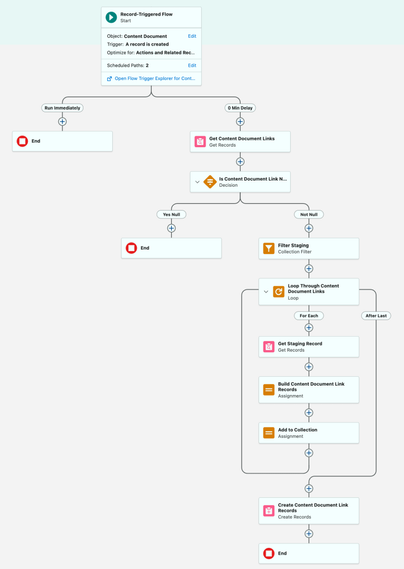
  • Trigger your record-triggered flow when a ContentDocument record is created (no criteria)
  • Add a scheduled path to your flow and set it up to execute with 0 min delay. Under advanced settings, set up the batch size as 1. Async seems to work, as well. I will explain the reason for this at the end of the post.
  • Get all ContentDocumentLink records for the ContentDocument
  • Check null for the get in the previous step (may not be necessary, but for good measure)
  • If not null, use a collection filter to filter for all records where the LinkedEntity Id starts with the prefix of your custom object record (I pasted the 3 character prefix into a constant and referenced it). Here is the formula I used: LEFT({!currentItem_Filter_Staging.LinkedEntityId},3)= {!ObjectPrefixConstant}
  • Loop through the filtered records. There should be only one max. You have to loop, because the collection filter element creates a collection as an output even for one record.
  • Inside the loop, get the staging record. I know, it is a get inside the loop, but this will execute once. You can add a counter and a decision to execute it only in the first iteration if you want.
  • Build two ContentDocumentLink records using an assignment. One between the ContentDocument and the Contact on the staging record, the other one between the ContentDocument and the Account. You could add additional records here for sharing.
  • Add your ContentDocumentLink records to a collection.
  • Exit the loop and create the ContentDocumentLink records using the collection you built in one shot.
  • Here is a screenshot of the resulting flow.

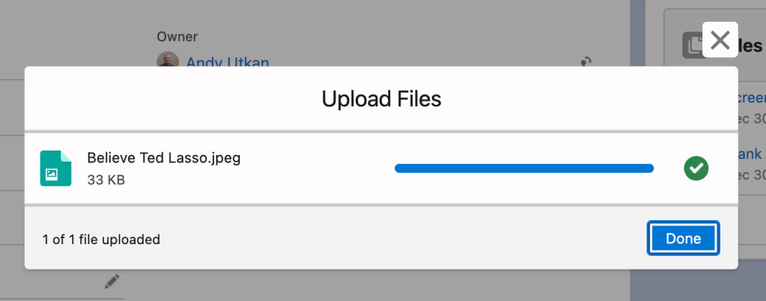
    Here is what happens when you create a staging record and upload a file to Salesforce using the related list under this record.

    Here is the resulting view on the Contact and Account records.

    Why is the Scheduled Path or Async Path Necessary?

    When a file is uploaded, a ContentDocument record and a ContenDocumentVersion record are created. The junction object for the ContentDocumentLink record will need to be created after these records are created, because the relationship is established by populating these Ids on this record. When you build the automation on the immediate path, your get will not find the ContentDocumentLink record. To ensure Salesforce flow can find the record, use either async path or scheduled path.

    When you build the automation on the immediate path, the ContentDocumentLink records are not created. You don’t receive a fault email, either, although the automation runs well in debug mode. I wanted to observe this behavior in detail, and therefore I set up a user trace to log the steps involved. This is the message I have found that is stopping the flow from executing:
    (248995872)|FLOW_BULK_ELEMENT_NOT_SUPPORTED|FlowRecordLookup|Get_Contact_Document_Links|ContentDocumentLink
    According to this the get step for ContentDocumentLink records cannot be bulkified, and therefore the flow cannot execute. Flow engine attempts to always bulkify gets. There is nothing fancy about the get criteria here. What must give us trouble is the unique nature of the ContentDocumentLink object.

    The async path seems to bypass this issue. However, if you want to ensure this element is never executed in bulk, the better approach is to use a scheduled path with zero delay and set the batch size to one record in advanced settings. I have communicated this message to the product team.

    Please note that the scheduled path takes a minute to execute in my preview org. Be patient and check back if you don’t initially see the new ContentDocumentLink records.

    Conclusion

    In the past, handling file uploads gave flow builders a lot of trouble, because the related objects did not support flow triggers.

    Now that we have this functionality rolling out in the latest release, the opportunities are pretty much limitless. The functionality still has its quirks as you can see above.

    I would recommend that you set up a custom metadata kill switch for this automation so that it can easily be turned off for bulk upload scenarios.

    Watch the video on our YouTube channel.

    [youtube https://www.youtube.com/watch?v=Gl0XCtMAhmc?feature=oembed&w=800&h=450]

    Explore related content:

    Top Spring 26 Salesforce Flow Features

    Should You Use Fault Paths in Salesforce Flows?

    How to Use Custom Metadata Types in Flow

    See the Spring 26 Release Notes HERE.

    #Automation #Salesforce #SalesforceAdmins #SalesforceDevelopers #SalesforceTutorials #Spring26 #UseCases

    Top Spring ’26 Salesforce Flow Features

    What are the new features about? Spring 26 brings new screen, usability and platform enhancement features. Let’s dive into the details.

    Top Screen Flow Spring 26 Features

    It seems like most of the new features involve screen flows.

    I will not go into further detail, but this release introduces yet another file upload component for screen flows: LWR File Upload Component for Experience Cloud.

    Here are the rest of the screen flow improvements.

    Screen Flow Screen Element and Component Style Enhancements

    Screen flow screen element gets features that allow you do set the background, text and border colors. Border weight and radius can be adjusted. For input components, in-focus color for text can be differentiated. Flow buttons also get similar adjustments gaining the ability to change colors on hover over.

    Any styling changes you set override your org or Experience Cloud site’s default theme.

    Remember to keep your color and contrast choices in check for accessibility. Don’t do it as I did below. Go to the WebAIM contrast checker website and plug in your color codes to check whether their contrast is sufficient for accessibility.

    Screen Flow Message Element

    Screen Flow Message Element leverages the new styling options to display a message on the screen. It has a pulldown that allows you to create an information, success, warning or an error message. These come with standard color sets, which will direct flow developers in using a standard visual language.

    This functionality is compliant with A11y for accessibility.

    See all the four types on the same screen below.

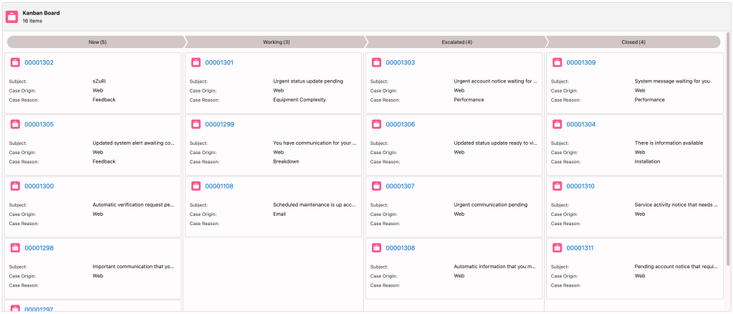
    Screen Flow Kanban Component (Beta)

    The new Kanban component allows you to organize records into cards and columns. This is particularly useful for visualizing process phases and managing transitions across your workflow.

    Use the new Kanban Board component to show records as cards in columns that represent workflow stages, without custom Lightning implementations. The Kanban Board is read-only, so users can’t drag cards between stages at run time.

    Data Table Column Sort and Row Value Edit (TBD)

    Now the user can sort the data table by columns and edit text fields in rows. This feature is not available in the preview orgs. The product team is working hard in the background to make this into the Spring 26 release. This functionality is slated to make it to the release at the last minute.

    Preview Files Natively in Screen Flows

    Elevate document-based processes by enabling your users to review file content directly within a screen flow. The new File Preview screen component removes the requirement to download files externally, ensuring easier document review and approval workflows.

    This component seems to be already in production.

    Open Screen Flows in Lightning Experience with a URL

    Previously, when you opened a flow via URL, it did not launch in lightning experience. Now, it will launch in lightning preserving the experience your user is used to especially when they are working on a customized lightning console app.

    I will quote the release notes for this one.

    “To open a flow in Lightning Experience, append /lightning/flow/YourFlowNameHere to your URL. To run a specific flow version, append /lightning/flow/YourFlowNameHere/versionId to your URL. Flows that open in Lightning Experience have improved performance because most required Lightning components are already loaded into the browser session. In Lightning console apps, your tabs are preserved when a flow opens, and you can switch to other tabs while the flow is working. Using the new URL format also ensures that your browser behaves consistently, with forward, back, and your browser history working as expected.

    To pass data into a flow through its URL, append ?flow__variableIdHere=value to the end of your URL. For example, to pass a case number into a flow, /lightning/flow/YourFlowNameHere?flow__variableIdHereID={!Case.CaseNumber}.

    Use & to append multiple variables into a flow. For example, /lightning/flow/YourFlowNameHere?flow__varUserFirst={!$User.FirstName}&flow__varUserLast={!$User.LastName} passes both the user first name and last name into the flow.”

    Usability and Platform Features

    I listed all of the screen flow features above. The following two items are huge usability improvements that also involves screen management for the flow canvas, not just only for screen flows.

    Collapse and Expand Decision and Loop Elements

    When your flow gets to big and you need to Marie Kondo (tidy up) your flow canvas, you can collapse the decision and loop elements that take up a lot of real estate. You can always expand them back when needed.

    Now you can collapse and expand branching elements with Flow Builder, including Wait, Decision, Loop, Path Experiment, and Async Actions, helping you focus on the key parts of your flow.

    This layout is saved automatically and locally in your browser, making it easier to return to your work without changing the view for other users.

    Mouse, Trackpad and Keyboard Scroll

    Now you don’t have to drag or use the scroll bar to move the flow around on the flow canvas. You can use vertical and horizontal wheels on your mouse, the arrows keys on your keyboard or your trackpad if you have one.

    No need to use Salesforce Inspector Reloaded to get this functionality any more. Thanks to Salesforce Inspector Relaoded for filling the gap in the mean time.

    Content Document and Content Version Flow Triggers for Files and Attachments (Beta)

    Salesforce delivered a new event type in the last release that could trigger flows for standard object files and attachments. The functionality was limited. In this release, Salesforce gave us the ability to trigger on all new files/attachments and their updates for all objects.

    I was told by the product team that this functionality will be released as beta.

    Flow Logging

    I am not exactly sure what has been improved here. Salesforce had previously announced additional flow logging capabilities leveraging Data Cloud. Now, a new flow logging tab has been added to the Automation Lightning App.

    Debug Improvements

    The debug in the flow builder will now remember the record that it ran on and the updated field value if it is running in an update scenario. Debug inputs such as triggering record values, debug options, and input variable values now remain set when you save flow changes within your Flow Builder session. The user will need to click a reset button to disassociate the debug run from the input for the last run. This change is intended to make debug reruns faster.

    Flow builder will preserve debug configurations when you save changes to your flow. Refreshing your browser or closing Flow Builder clears all debug settings.

    Conclusion

    Salesforce product teams work hard delivering new features for every release. Spring 26 release brings significant new improvements for the flow builder. I would have liked to see additional capabilities coming for flow types other than screen flows. This release seems to be a lighter release in that area.

    Additional bonus features include request for approval component for lightning page layouts (highly-requested feature), compare screen flow versions, and associating flow tests with flow versions.

    The release notes are still in preview. And we could still have new functionalities removed or added in the release cycle.

    This post will be updated as additional details are made available.

    [youtube https://www.youtube.com/watch?v=eZC_8W1IbUs?feature=oembed&w=800&h=450]

    Explore related content:

    Salesforce Optimizer Is Retired: Meet Org Check

    One Simple Salesforce Flow Hack That Will Change Your Workflow Forever!

    Automate Permissions in Salesforce with User Access Policies

    Spring ’26 Release Notes: Highlights for Admins and Developers

    ​​​​What Is Vibe Coding? And What’s New in Agentforce Vibes for Developers?

    #Kanban #Salesforce #SalesforceAdmins #SalesforceDevelopers #SalesforceTutorials #SalesforceUpdate #ScreenFlow #Spring26