Unanimous Flow Approvals – No More Workarounds

The Summer ’26 release is packing some serious Flow upgrades that move us closer to smoother automation. For the Flownatic community, this release represents a strategic shift: Salesforce is removing the roadblocks that have slowed us down, closing permission gaps, and allowing us to handle enterprise-grade complexity without the need for custom-coded workarounds.

In this post, we’re diving into two of the biggest wins for Flow Approvals this cycle: native unanimous consent for group approvals and expanded dependency visibility. Both are overdue fixes that change how we build compliance-ready automation.

Unanimous Consent

If you have ever had to build a compliance-heavy workflow that requires sign-off from an entire committee, you know the previous “administrative nightmare.” To ensure ten people all granted approval, admins were often forced to create ten separate, sequential approval steps: a maintenance disaster that was as fragile as it was tedious.

Summer ’26 introduces native unanimous consent for group approvals, turning what used to be a complex workaround into a single, elegant configuration. Here is the explanation of how these native mechanics operate:

  • Individual Work Items: When a step is assigned to a group needing unanimous consent, every single member of that group receives their own unique work item in their queue.
  • Approval Logic: The process is strictly gated by total agreement. The approval step only advances to the next stage if every member of the group grants their approval.
  • Rejection Behavior: Accountability is immediate and efficient. A single rejection by any group member closes the step instantly. Most importantly, the system automatically withdraws all other pending work items for that group, effectively cleaning up user queues and preventing “zombie” work items from lingering.
  • Security Guardrail: To maintain the integrity of the specific stakeholder group and ensure compliance, work items in these unanimous approval steps cannot be reassigned.

This is a massive architectural lever for those responsible for high-stakes data integrity, allowing us to build multi-stakeholder reviews without the bloat of previous releases.

Dependency Visibility

Historically, “god-mode” permissions have gated visibility into how your automation interacts with approval processes. Therefore, business analysts and process designers were flying blind. Summer ’26 lets teams see process logic without handing over admin access.

Previous Requirement: Previously, access to view flow dependencies within the Approvals app was restricted to users with the Manage Flow permission. This forced admins to give high-level, backend access to users who simply needed to understand process connections, creating a significant security risk.

New Requirement: Users with the Approval Designer permission can now view dependencies directly within the Approvals app.

This is a huge win for admins concerned with security. We can now empower our team members to understand the underlying logic and connections of their approval processes without handed out the keys to the entire Flow Builder backend.

Compatibility and Availability

Salesforce built these updates for the modern Lightning experience, and they’re available across all flagship editions.

Platform: These updates apply specifically to Lightning Experience.

Salesforce Editions:

  • Enterprise
  • Performance
  • Unlimited
  • Einstein 1
  • Developer

Closing the Gap on Compliance

The updates to Flow Approvals in Summer ’26 are significant architectural improvements. Salesforce is eliminating the need for complex, manual workarounds that have historically crowded our orgs. These changes move us closer to a “no-code/low-code” enterprise reality where automation is both compliant and powerful. For admins who have spent years patching approval logic together, this release is a genuine exhale. And for organizations managing strict regulatory requirements, tighter permission scoping is a real compliance architecture upgrade.

As we march toward the Agentic Enterprise, these controls ensure that our frameworks remain scalable and secure. Now it’s time to put them to work. Head into your sandbox, pull up Flow Builder, and see how much simpler your next approval process can be. Happy building, Flownatics!

Explore related content:

Visual Comparison and Beyond – Flow Versions Just Got Easier

Supercharge Your Approvals with Salesforce Flow Approval Processes

Start Autolaunched Flow Approvals From A Button

11 Flow Updates in Summer 26 Release

#FlowApprovals #HowTo #SalesforceAdmin #SalesforceUpdate #Summer26 #Tutorial

Visual Comparison and Beyond – Flow Versions Just Got Easier

As we dive into the massive Salesforce Summer ’26 release, it is clear that the platform is delivering some serious automation upgrades. We have been watching a clear pattern for a few cycles now: Salesforce is steadily removing the friction points that have historically slowed admins down and is giving teams more control over how their automations behave. Today, we are focusing on one specific, highly anticipated quality-of-life win for Flow Builder that will change how you manage your automation versions: Visual Flow Version Comparison.

If you have ever taken over a flow mid-project, handed one off to a colleague, or simply tried to remember what you changed three weeks ago before hitting deploy, you already know the pain this feature is solving. In this article, we are breaking down exactly how Visual Flow Version Comparison works, what types of changes it surfaces, and why it is one of the most practical governance upgrades Salesforce has shipped in recent memory. Whether you are a solo admin trying to move faster or part of a team that needs tighter deployment controls, this feature has something for you.

What Are Flow Versions?

To truly understand the value of this new feature, we first need to talk about what flow versions are and how Salesforce handles automation architecture. In Salesforce, Flow Builder does not simply overwrite your active automation when you make a change. Instead, it utilizes a strict versioning system. Every time you open an existing flow, make adjustments, and click “Save As,” you create a new version of that flow.

This means a single flow can have dozens of versions, each capturing a snapshot of the automation’s logic at a specific point in time. However, only one version can be active at a time. This architecture is absolutely crucial for safe deployments and enterprise governance. It allows administrators to build and test new logic in a draft version while the older, active version continues to run uninterrupted in the production environment.

Furthermore, if a new deployment causes unexpected errors, this versioning system provides an immediate fallback mechanism, allowing admins to quickly deactivate the broken version and reactivate a previous, stable version.

The Old Way of Flow Version Comparison

Despite the benefits of having multiple versions, comparing them has historically been a nightmare for Salesforce administrators. Before the Summer ’26 release, if you took over a flow from another admin or simply forgot what you changed a month ago and needed to know the exact differences between Version 12 and Version 13, you had very few good options.

You generally had to open two browser tabs and manually click through every single node on the canvas, playing a tedious game of “spot the difference.” Alternatively, developers had to export the flow metadata and manually parse through raw, abstract XML files to find changes in the code. For a platform championing “low-code” and “no-code” solutions, this was a highly technical, time-consuming, and error-prone process. It often led to deployment risks when undocumented or accidental changes slipped through the cracks unnoticed.

The Summer ’26 Solution: Visual Flow Version Comparison

The Summer ’26 release completely revolutionizes flow management by solving this exact problem. Flow Builder now includes a visual comparison tool that allows you to identify flow version changes at a glance. Instead of relying on abstract tables or manually comparing complex XML files, admins can now visually identify differences side-by-side directly on the Flow Builder canvas. This tool improves overall readability and significantly reduces the risk of deployment errors by bringing transparency directly to the builder interface.

Types of Changes Highlighted

When you use the comparison tool, Flow Builder highlights modifications at a highly granular level, tracking everything from broad element changes down to specific configuration adjustments. When comparing versions, the interface will highlight elements and tag them with specific terms to indicate what happened:

Added: This indicates a brand-new element that exists in the newer version of the flow but was entirely absent in the older version being compared.

Updated: This status applies to elements that exist in both versions but have undergone configuration adjustments. The underlying logic, variable assignments, routing rules, or properties of the element have been altered between the two versions.

Removed: This highlights an element that was present in the older version but has been actively deleted or removed from the canvas in the newer version.

Changed Connector: Connector(s) are tied to different elements.

Compare Transform Element Changes

One of the most powerful aspects of this new visual tool is its deep integration with Transform elements. Data transformations can be incredibly complex, often containing dozens of individual field mappings. The Flow Version Comparison tool now provides a detailed breakdown of transform mappings, joins, and formulas.

If you modify complex data transformations, the tool makes it incredibly simple to easily identify any added, updated, or removed field mappings. You can review detailed configuration changes for complex transformations without having to manually inspect every single mapping line.

Supported Flows and Conditions

So, how do you access this new feature? The process is wonderfully straightforward and supported under standard Flow Builder conditions. To compare versions, you simply open a flow and navigate to the version dropdown menu at the top of the screen. From there, you select Compare Versions.

Once initiated, the tool provides flexibility in how you view the data. You can switch seamlessly between a table view (for a list-based breakdown) and the visual canvas view. To dive deeper into a specific modification, simply click an element with changes to get more granular details and see exactly what configuration adjustments were made.

Supported Licenses and Availability

Salesforce has made sure this highly anticipated feature is widely available to the ecosystem, not just restricted to premium tiers. The Visual Flow Version Comparison tool applies to both Lightning Experience and Salesforce Classic. It is available across a comprehensive range of licenses, specifically in Essentials, Professional, Enterprise, Performance, Unlimited, and Developer editions. Whether you are a solo admin in a small business or part of a massive enterprise deployment team, you will have access to these critical visibility tools to keep your automations safe and predictable.

The Automation Visibility You’ve Been Waiting For

The ability to visually compare flow versions is exactly the kind of quality-of-life win that Flownatics have been asking for. No more tab-switching, no more XML spelunking, no more hoping you remember what you changed three weeks ago.

For admins managing complex orgs, this feature is a genuine risk reducer. Deployment reviews get faster. Handoffs between team members get cleaner. Audits stop being a scramble. And for any admin who has ever activated a flow and immediately wondered what actually changed since the last version, this is the answer.

Salesforce is taking the no-code and low-code automation story seriously at the enterprise level, and Visual Flow Version Comparison is proof that robust lifecycle management tooling is no longer reserved for developers. It belongs in the builder interface, and now it finally is. If you are not already reviewing your most critical flows and documenting version histories, Summer ’26 is the perfect time to start. This tool makes it easier than ever to build that habit.

Explore related content:

11 Flow Updates in Summer 26 Release

Open a Page Action: Redirect Users After a Screen Flow

Choices, Choices: What Are Radio Button Groups Best Used For

Warn and Inform with Native Toast Messages in Salesforce Flow

#Automation #SalesforceAdmin #SalesforceHowTo #SalesforceTutorial #SalesforceUpdate #Summer26

Open a Page Action: Redirect Users After a Screen Flow

For years, Salesforce administrators and developers building Screen Flows have run into a familiar, frustrating wall: the post-flow navigation gap.

Picture this scenario: Your user opens a flow on an Account record. They carefully fill out a series of screens to log an issue or create a related record, clicks “Finish,” and then… nothing. They are left sitting exactly where they started. To see their work or continue their task, they are forced to manually scroll down to a related list, hit refresh, or use global search to find the record they literally just spent two minutes creating.

How Admins Can Solve Screen Flow Navigation Issues

The ecosystem relied on custom Aura components, LWCs, or unofficial open-source extensions like UnofficialSF. These handled simple browser redirects but came with real tradeoffs. Code maintenance, package dependencies, and unnecessary complexity piled up fast. What should have been a standard declarative process required custom development instead.

With Salesforce’s introduction of the native Open a Page core action, that workaround era is officially over. You can now dynamically launch Salesforce records or any external URL directly from your flow, seamlessly bridging screen transitions or gracefully redirecting users upon flow completion. Let’s dive deep into how this feature works, its availability, and step-by-step instructions on implementing it using a real-world, high-impact use case.

Use Case: Instant Case Redirection from an Account Page

Consider a customer service team working out of a busy account view. When a client calls to report an urgent operational issue, the service agent launches a localized Screen Flow directly from the Account layout to capture critical case details. Once that case is generated, the agent immediately needs to review the case details, add internal notes, or apply an entitlement process.

Instead of forcing the agent to hunt for the new case in the related lists, we will use a Screen Flow that captures the context, creates the Case record, and uses the Open a Page action to automatically pop open the newly created Case record in a clean browser window or tab upon completion.

Flow Configuration

As visualized in our Flow Builder layout, the architecture of this solution is exceptionally clean and entirely declarative, requiring only five steps from start to finish:

  • Start (Screen Flow): Initiated directly via an action button or embedded component on the Account record page. It establishes a context variable, recordId, to automatically pull the parent Account’s ID.

  • Assign Account (Assignment Element): Maps the inbound recordId to a structured record variable (CaseRecordVar.AccountId). This ensures that the newly created Case is perfectly related back to the calling Account from day one.

  • Case Screen (Screen Element): A clean user interface containing input components where the service agent fills out essential details such as the Subject, Description, and Priority.

  • Create Case (Create Records Element): Takes the values collected in the Case Screen alongside the mapped Account ID and writes the new Case record directly to the Salesforce database. Crucially, this element stores the resulting Case ID back into our single record variable (CaseRecordVar.Id).

  • Open Page (Action Element): The magic step. Positioned right before the end node, this core action consumes the freshly minted Case ID and redirects the agent’s browser focus instantly.

  • Why it works: The action executes directly within the flow transaction and acts as the ultimate user-friendly transition point. The user experiences a logical, smooth progression from gathering details to reviewing the finalized record.

    How to Configure the “Open a Page” Action Step-by-Step

    Setting up the action inside your Flow properties panel requires minimal configuration but yields incredible utility. Once you drag a new Action element onto your canvas or click the plus sign below your Create Records element, search for and select Open a Page. Fill out the parameters as follows:

    • Label: Open Page (or a highly descriptive name like “Redirect to New Case”)

    • API Name: Open_Page

    • Page Type: Select Salesforce Record Page from the dropdown. (Note: You can also choose External Page for arbitrary web URLs).

    • Record ID: Bind this dynamically to your case creation variable: {!CaseRecordVar.Id}

    • Object Name: Type or select Case to tell the framework which layout style to load.

    • View Mode: Select the radio button for View (loads the standard record detail view) or Edit (pops open the record in edit mode). For this use case, choose View.

    • Where to Open the Page: Select New Browser Window to open the record in an independent tab, keeping the original Account window pristine and undisturbed. Our tests for this use case showed that all options produced the same result opening the case on a new browser tab and changing the focus of the browser to the case (tested on MacOS using Chrome).

    Availability & Deployment Scope

    This enhancement isn’t locked behind premium tiering. Salesforce has made it widely available across the platform ecosystem to immediately improve user experiences:

    • Environments: This change applies fully to both modern Lightning Experience and classic desktop layouts (Salesforce Classic).

    • Editions: Supported across a massive suite of tiers, including Essentials, Professional, Enterprise, Performance, Unlimited, and Developer editions.

    Pro-Tips for Salesforce Admins

    Use Stored Record Id: If you use a record variable to create the record, your brand new Id will be populated in the record variable. For all other methods you can refer to the create step to use the new Id.

    Leverage External URL Redirection: Don’t limit your thinking entirely to standard Salesforce records! By switching the Page Type parameter to an external configuration, you can dynamically pass parameters via a query string. This launches third-party legacy ERPs, internal document management portals, or customized external tracking systems right inside your flow sequence.

    Don’t Over-Rely On “Where to Open the Page”: OS and browser settings often dictate what happens next. Your outcome may not match what is listed as a choice in the pulldown.

    Why Better Flow Navigation Drives Salesforce User Adoption

    Small friction reductions transform a CRM into a platform users actually enjoy. For years, the post-flow navigation gap was a persistent pain point for admins. The common fix involved Aura components, LWCs, and community-built extensions. These workarounds got the job done, but they were never the right long-term answer.

    The Open a Page action delivers a seamless experience with zero custom code. Use it to redirect users to a new record, launch an external portal, or guide next steps. The use case we walked through is just one of dozens of high-impact scenarios where this action can eliminate confusion and keep your users moving forward.

    Let me know, if you plan on using this action: Where will you use it?

    Explore related content:

    11 Flow Updates in Summer 26 Release

    Choices, Choices: What Are Radio Button Groups Best Used For

    Field Access Summary

    How to Create, Customize, and Share List Views in Salesforce

    #NewRelease #SalesforceAdmin #SalesforceHowTo #SalesforceTutorial #SalesforceUpdate #ScreenFlow

    Choices, Choices: What Are Radio Button Groups Best Used For

    Salesforce’s Summer ’26 release is packing some serious automation upgrades. Whether you are managing multi-stakeholder approvals, scaling orchestration across your org, or building complex integrations without code, the platform is steadily removing friction points for admins. Among the most anticipated and highly visible improvements are the user interface enhancements coming to Screen Flows.

    If you have ever built a screen flow and felt like you just couldn’t find the exact picker component you really needed, you are not alone. For years, Salesforce admins have relied on a standard set of inputs, but sometimes those options don’t quite fit the modern, streamlined aesthetic required for consumer-facing or high-efficiency internal apps. With the Salesforce Summer ’26 release, we are finally getting a massive UI upgrade to solve this: the Radio Button Group component.

    The Problem with Traditional Inputs

    Historically, when admins wanted to present users with a single-select choice, they relied heavily on traditional radio buttons, checkboxes, or picklists. While highly functional, these standard inputs can take up significant screen real estate. In complex flows, vertically listed radio buttons or extraordinarily long picklists often force users to scroll excessively, leading to a clunky and outdated user experience.

    The Solution: Compact, Responsive Radio Button Groups

    The new Radio Button Group component solves this real estate problem by offering a more compact and easily scannable alternative. It retains the core functionality of traditional radio buttons, meaning users can still only select a single option at runtime, but it completely overhauls the visual layout.

    Visually, these actually look like “proper buttons” rather than old-school radio circles, giving your users a completely different interface experience than what we previously had inside Flow Builder. This component is fully responsive and adapts intelligently to the user’s device:

    On Desktop: Choices are presented as horizontally stacked options, making excellent use of wider screens and drastically reducing vertical scrolling.

    On Mobile: Choices automatically shift to a vertically stacked layout to accommodate narrower touch screens

    Example Use Cases and Pro-Tips

    Because these look like actual buttons, they are perfect for making quick, high-level decisions obvious to the user.

    Action Selection: Give your users a clear, button-driven choice to “Create,” “Update,” or “Delete” a record

    Shipping & Checkout: Instead of burying delivery speeds in a dropdown, present horizontal, button-like choices for “Standard,” “Express,” and “Overnight” shipping.

    Adding this to your flows is incredibly simple. Inside Flow Builder, you just drag the Radio Button Group component from the left panel directly onto your screen, and configure it by adding your desired choices.

    A Pro-Tip on Customization (Icons vs. Emojis): If you are looking to make these buttons even more visual, there is one important design limitation to keep in mind. If you select a standard Salesforce icon for your choice, it is not going to display inside the Radio Button Group.

    If you absolutely need native Salesforce icons, you will still want to use the Visual Picker component. However, there is a fun and easy workaround: you can use emojis directly in your choice text labels. Many Trailblazers have already started using emojis while demoing this new functionality to add a pop of color and visual context to these new button groups.

    A Comprehensive Review of Choice Components in Salesforce Flows

    While the new Radio Button Group is exciting, Salesforce Flows offer a wide variety of choice components, each suited for specific scenarios. Here is a short review of all the choice components currently available to help you build the best user experience.

    Standard Radio Buttons

    What it is: The classic vertical list of circular clickable options.

    When to use it: Use this when you have a small number of mutually exclusive choices (usually 2 to 5) and you want all options to be immediately visible to the user without requiring them to click a dropdown.

    Drawbacks: As noted in the Summer ’26 updates, standard radio buttons stack vertically and can take up too much vertical screen space, causing excessive scrolling on longer forms

    Picklists (Dropdowns)

    What it is: A standard dropdown menu that reveals a list of choices when clicked.

    When to use it: Picklists are ideal when you have a long list of mutually exclusive options (e.g., a list of 50 US States) and you need to conserve screen real estate.

    Drawbacks: They require an extra click to view the options, which hides information from the user until they interact with the component.

    Dependent Picklists

    What it is: A set of picklists where the choices available in the second (dependent) picklist are dynamically filtered based on the value selected in the first (controlling) picklist.

    When to use it: Perfect for hierarchical data, such as selecting a “Country” and then selecting a “State/Province” within that specific country.

    Summer ’26 Update: As of Summer ’26, Dependent Picklists are one of the expanded components that now support styling overrides. You can customize their look and feel to override your org’s default theme, giving you more branding control.

    Checkboxes (and Checkbox Groups)

    What it is: Square selection boxes that allow for multiple selections.

    When to use it: Use checkboxes when the user is allowed to select more than one option at a time (“Select all that apply”), or as a standalone boolean (True/False) toggle.

    Drawbacks: Like standard radio buttons, long lists of checkboxes can clutter the screen and force scrolling.

    Visual Picker

    What it is: A highly visual, tile-based selection component that supports the inclusion of native Salesforce icons and rich text.

    When to use it: Use the Visual Picker when you want to create a visually engaging, card-like selection experience. As mentioned previously, if you need to display standard Salesforce icons alongside your choices, the Visual Picker is the component you must use, as the new Radio Button Group does not support them.

    Choice Lookup

    What it is: A search-based input field that allows users to type and dynamically filter through a massive list of choices or records.

    When to use it: Use this when your list of choices is too large for a standard picklist, and you want to provide a “search-as-you-type” experience to help the user find their desired option quickly.

    Summer ’26 Update: Just like Dependent Picklists, the Choice Lookup component has been upgraded in the Summer ’26 release to support full styling overrides. You can now customize its style and layout to perfectly match your Experience Cloud site or custom Lightning app.

    Ready to Build Better Screen Flows? Start With Summer ’26

    With the addition of the new Radio Button Group component, admins now have more flexibility than ever to design intuitive, low-friction screen flows. By understanding the strengths and limitations of each choice component, from the visual flair of the Visual Picker to the space-saving utility of Picklists and the modern layout of the Radio Button Group, you can ensure your Salesforce automations look just as good as they function.

    The best part? These are not just cosmetic upgrades. When users can scan choices faster, make decisions with fewer clicks, and navigate flows without excessive scrolling, you see real downstream impact: higher completion rates, fewer errors, and less admin rework. Whether you are building a customer-facing Experience Cloud app or an internal ops tool used by your sales team every day, thoughtful component selection is what separates a flow that users tolerate from one they actually enjoy. Take some time in a sandbox this release cycle to swap out those legacy radio button stacks and long picklists for their Summer ’26 counterparts. The difference will be immediately obvious.

    Explore related content:

    11 Flow Updates in Summer 26 Release

    Summer ’26: What the New Accessibility Release Updates Mean for Your Org

    Warn and Inform with Native Toast Messages in Salesforce Flow

    Field Access Summary

    Summer ’26: What the New Accessibility Release Updates Mean for Your Org

    #Admin #NewRelease #SalesforceTutorial #SalesforceUpdate #ScreenFlow #Summer26

    Master Custom Batch Sizes for Schedule-Triggered Flows

    The wait is finally over! Summer ’26 has officially arrived, and while some might call this release “light,” those of us deep in the automation trenches have found some gems. If you’ve spent any time on Salesforce Break, you know I’m passionate about Flow performance and scalability. That’s why my #1 item for this release is the arrival of custom batch sizes for scheduled flows.

    This is a functionality I’ve been asking for for years, and it finally got rolled out to our Flow Builder toolset. Let’s get into why this matters, the technical hurdles it solves, and how you can use it to build more resilient automations.

    What is a Schedule-Triggered Flow?

    Before we get into the new settings, let’s define the foundation. A Schedule-Triggered Flow is a type of background automation that launches at a specific time and frequency (once, daily, or weekly).

    Unlike Record-Triggered flows that fire the moment a record is edited, these flows are often used for “maintenance” tasks, such as:

    • Sending follow-up emails for stale opportunities.
    • Updating status fields on records that have reached an expiration date.
    • Nightly data cleanups or syncing with external systems.

    You define a start date, time, and an optional object with filter criteria. Salesforce then finds every record in your org that meets those criteria and runs a “flow interview” for each one.

    Understanding Bulkification and Batching

    Efficiency is at the heart of Salesforce’s architecture. To handle thousands of records without crashing the servers, Salesforce uses bulkification and batching.

    By default, when a scheduled flow runs, Salesforce groups records into batches of 200. For example, if you have 300 accounts that need updating, Salesforce won’t run 300 separate transactions. Instead, it creates two transactions:

  • Transaction 1: Processes 200 records.
  • Transaction 2: Processes the remaining 100 records.
  • While this is great for overall system efficiency, it can lead to significant problems when your automation logic is complex or touches sensitive data.

    The Danger Zone: Governor Limits and Errors

    To ensure no single process hogs all the resources in a multi-tenant environment, Salesforce enforces Governor Limits, strict “usage caps” on things like the number of SOQL queries, DML statements (updates/inserts), and CPU time allowed in a single transaction.

    When you process 200 records at once in a single transaction, the “math” of these limits adds up quickly. If your flow performs a few queries per record, multiplying those by 200 can easily blow past the 100-query limit, resulting in a dreaded `System.LimitException`.

    Here is another potential issue: One of the most common, and frustrating, issues we face is record locking. When Salesforce updates a record, it “locks” that record to prevent other processes from changing it at the same time. It also locks the parent (master) for this record.

    Let’s say you have a custom course record in Salesforce, and you have a cohort record under it. The relationship is master-detail. When Salesforce updates a cohort record, it will attempt to lock both records first. If it can’t lock these records, the system will throw an error.

    The Error Scenario:

    If multiple batches of 200 contain child records that all belong to the same parent, Transaction A might try to lock the parent to update cohort 1. Simultaneously, another part of the batch (or a parallel transaction) tries to lock that same parent to update cohort 2. The second attempt fails because it cannot “reach in” and get the lock, resulting in an UNABLE_TO_LOCK_ROW error.

    The Solution: Custom Batch Sizes

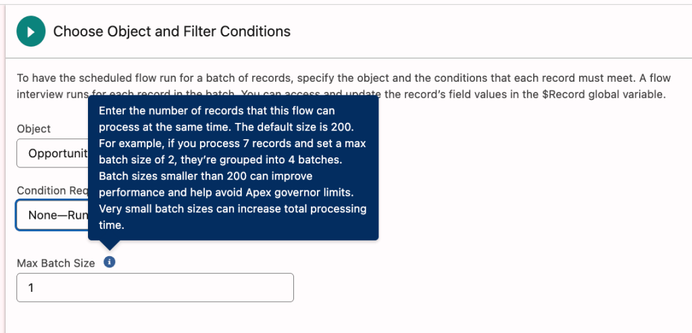
    In Summer ’26, we finally have the control to mitigate these issues. Under the “Select Object” settings of a scheduled flow, you can now enter a custom number for the records processed at the same time.

    The Default: 200 records.

    The Power Move: You can decrease this number, even down to 1.

    Why set a batch size of 1?

    If you are experiencing frequent locking errors or hitting CPU limits, running the automation “one-by-one” (each transaction processing a single record) ensures that the parent record is only locked for that specific record’s update and then immediately released. This will decrease the possibility of locking errors.

    Another potential solution for locking issues is sorting by parent before updating child records. Since we cannot sort records by Parent ID in a schedule-triggered flow, decreasing the batch size is often your only tool to prevent parent-record locking conflicts.

    Since scheduled flows often run at night or on weekends when user activity is low, the increased total processing time is usually a fair trade-off for 100% reliability.

    Best Practices and Recommendations

    To get the most out of this new feature, keep these recommendations in mind:

  • Identify High-Risk Objects: Pay extra attention to flows running on Task, Event, Contact, and Opportunity objects, or any custom object that is a child in a Master-Detail relationship, as these are high-risk for locking issues. Remember that standard object relationships are not really technically classified as master-detail, but they could act like one in some respects. These are special relationships that have their own rules. For example: Account is not a required lookup for Opportunity, but you can still add a rollup summary field to the Account for the Opportunity.
  • 2. Monitor Your Error Rates: Keep an eye on the new Element Error Rate column in your Flow list view. If you see a high percentage of errors on a scheduled flow, it’s a prime candidate for a smaller batch size. Disclaimer: This is a brand new functionality, and I have not played with this, yet.

    3. Test the “Middle Ground”: You don’t always have to drop to a batch size of 1. If 200 is too high, try 50 or 100 to balance speed and stability.

    This update is a huge win for Salesforce Admins and Architects alike. It provides the granular control we need to ensure our “heavy lifting” automations run smoothly without constant manual intervention or error emails.

    Take Control of Your Automations

    The arrival of custom batch sizes in Summer ’26 is a testament to Salesforce listening to the community’s “real world” pain points. While it might seem like a small setting in the Flow Builder, it is a massive architectural lever for those of us responsible for high-volume data integrity.

    No longer are we forced to “hack” our way around governor limits or cross our fingers that record locking doesn’t tank our nightly cleanups. We finally have the precision to tune our automations like a high-performance engine. So, take a look at your most troublesome scheduled flows, experiment with those batch sizes, and turn those “failed flow” emails into a thing of the past. Happy flowing!

    A quick heads-up: this feature is specific to the Summer ’26 release.

    Explore related content:

    What’s New in the Salesforce Mobile App: Summer ’26 Release

    11 Flow Updates in Summer 26 Release

    Get Your Org Ready: Summer ’26 Admin Highlights

    Field Access Summary

    #HowTo #SalesforceAdmins #SalesforceDevelopers #SalesforceRelease #SalesforceUpdate #Summer26 #Tutorial

    Top Spring ’26 Salesforce Flow Features

    What are the new features about? Spring 26 brings new screen, usability and platform enhancement features. Let’s dive into the details.

    Top Screen Flow Spring 26 Features

    It seems like most of the new features involve screen flows.

    I will not go into further detail, but this release introduces yet another file upload component for screen flows: LWR File Upload Component for Experience Cloud.

    Here are the rest of the screen flow improvements.

    Screen Flow Screen Element and Component Style Enhancements

    Screen flow screen element gets features that allow you do set the background, text and border colors. Border weight and radius can be adjusted. For input components, in-focus color for text can be differentiated. Flow buttons also get similar adjustments gaining the ability to change colors on hover over.

    Any styling changes you set override your org or Experience Cloud site’s default theme.

    Remember to keep your color and contrast choices in check for accessibility. Don’t do it as I did below. Go to the WebAIM contrast checker website and plug in your color codes to check whether their contrast is sufficient for accessibility.

    Screen Flow Message Element

    Screen Flow Message Element leverages the new styling options to display a message on the screen. It has a pulldown that allows you to create an information, success, warning or an error message. These come with standard color sets, which will direct flow developers in using a standard visual language.

    This functionality is compliant with A11y for accessibility.

    See all the four types on the same screen below.

    Screen Flow Kanban Component (Beta)

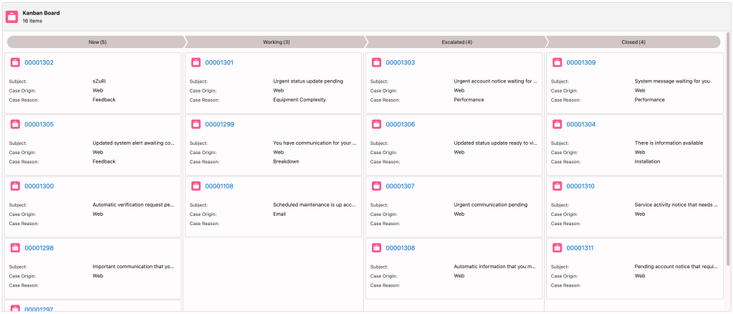
    The new Kanban component allows you to organize records into cards and columns. This is particularly useful for visualizing process phases and managing transitions across your workflow.

    Use the new Kanban Board component to show records as cards in columns that represent workflow stages, without custom Lightning implementations. The Kanban Board is read-only, so users can’t drag cards between stages at run time.

    Data Table Column Sort and Row Value Edit (TBD)

    Now the user can sort the data table by columns and edit text fields in rows. This feature is not available in the preview orgs. The product team is working hard in the background to make this into the Spring 26 release. This functionality is slated to make it to the release at the last minute.

    Preview Files Natively in Screen Flows

    Elevate document-based processes by enabling your users to review file content directly within a screen flow. The new File Preview screen component removes the requirement to download files externally, ensuring easier document review and approval workflows.

    This component seems to be already in production.

    Open Screen Flows in Lightning Experience with a URL

    Previously, when you opened a flow via URL, it did not launch in lightning experience. Now, it will launch in lightning preserving the experience your user is used to especially when they are working on a customized lightning console app.

    I will quote the release notes for this one.

    “To open a flow in Lightning Experience, append /lightning/flow/YourFlowNameHere to your URL. To run a specific flow version, append /lightning/flow/YourFlowNameHere/versionId to your URL. Flows that open in Lightning Experience have improved performance because most required Lightning components are already loaded into the browser session. In Lightning console apps, your tabs are preserved when a flow opens, and you can switch to other tabs while the flow is working. Using the new URL format also ensures that your browser behaves consistently, with forward, back, and your browser history working as expected.

    To pass data into a flow through its URL, append ?flow__variableIdHere=value to the end of your URL. For example, to pass a case number into a flow, /lightning/flow/YourFlowNameHere?flow__variableIdHereID={!Case.CaseNumber}.

    Use & to append multiple variables into a flow. For example, /lightning/flow/YourFlowNameHere?flow__varUserFirst={!$User.FirstName}&flow__varUserLast={!$User.LastName} passes both the user first name and last name into the flow.”

    Usability and Platform Features

    I listed all of the screen flow features above. The following two items are huge usability improvements that also involves screen management for the flow canvas, not just only for screen flows.

    Collapse and Expand Decision and Loop Elements

    When your flow gets to big and you need to Marie Kondo (tidy up) your flow canvas, you can collapse the decision and loop elements that take up a lot of real estate. You can always expand them back when needed.

    Now you can collapse and expand branching elements with Flow Builder, including Wait, Decision, Loop, Path Experiment, and Async Actions, helping you focus on the key parts of your flow.

    This layout is saved automatically and locally in your browser, making it easier to return to your work without changing the view for other users.

    Mouse, Trackpad and Keyboard Scroll

    Now you don’t have to drag or use the scroll bar to move the flow around on the flow canvas. You can use vertical and horizontal wheels on your mouse, the arrows keys on your keyboard or your trackpad if you have one.

    No need to use Salesforce Inspector Reloaded to get this functionality any more. Thanks to Salesforce Inspector Relaoded for filling the gap in the mean time.

    Content Document and Content Version Flow Triggers for Files and Attachments (Beta)

    Salesforce delivered a new event type in the last release that could trigger flows for standard object files and attachments. The functionality was limited. In this release, Salesforce gave us the ability to trigger on all new files/attachments and their updates for all objects.

    I was told by the product team that this functionality will be released as beta.

    Flow Logging

    I am not exactly sure what has been improved here. Salesforce had previously announced additional flow logging capabilities leveraging Data Cloud. Now, a new flow logging tab has been added to the Automation Lightning App.

    Debug Improvements

    The debug in the flow builder will now remember the record that it ran on and the updated field value if it is running in an update scenario. Debug inputs such as triggering record values, debug options, and input variable values now remain set when you save flow changes within your Flow Builder session. The user will need to click a reset button to disassociate the debug run from the input for the last run. This change is intended to make debug reruns faster.

    Flow builder will preserve debug configurations when you save changes to your flow. Refreshing your browser or closing Flow Builder clears all debug settings.

    Conclusion

    Salesforce product teams work hard delivering new features for every release. Spring 26 release brings significant new improvements for the flow builder. I would have liked to see additional capabilities coming for flow types other than screen flows. This release seems to be a lighter release in that area.

    Additional bonus features include request for approval component for lightning page layouts (highly-requested feature), compare screen flow versions, and associating flow tests with flow versions.

    The release notes are still in preview. And we could still have new functionalities removed or added in the release cycle.

    This post will be updated as additional details are made available.

    [youtube https://www.youtube.com/watch?v=eZC_8W1IbUs?feature=oembed&w=800&h=450]

    Explore related content:

    Salesforce Optimizer Is Retired: Meet Org Check

    One Simple Salesforce Flow Hack That Will Change Your Workflow Forever!

    Automate Permissions in Salesforce with User Access Policies

    Spring ’26 Release Notes: Highlights for Admins and Developers

    ​​​​What Is Vibe Coding? And What’s New in Agentforce Vibes for Developers?

    #Kanban #Salesforce #SalesforceAdmins #SalesforceDevelopers #SalesforceTutorials #SalesforceUpdate #ScreenFlow #Spring26