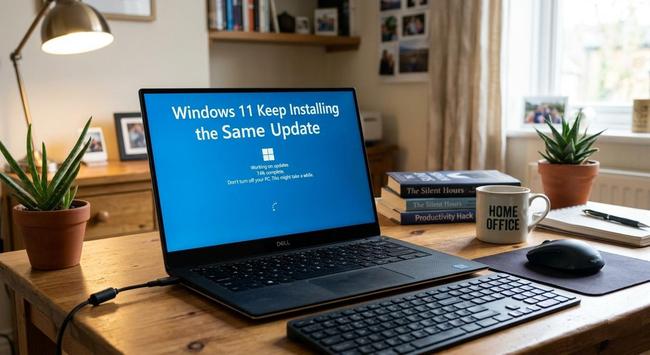

Windows 11 is trying to install an update that is already installed. This is usually because corrupted files in the SoftwareDistribution folder prevent the system from detecting that the update is already installed, or because incomplete or failed installation attempts leave Windows in a loop.

Here is how to fix and install the update: https://www.windowscult.com/windows-keeps-installing-same-update/

Clear the Windows Update cache by stopping the Windows Update service and deleting the contents of the C:\Windows\SoftwareDistribution folder.

Run the Windows Update Troubleshooter to automatically detect and repair typical update issues.

Reset Windows Update components using Command Prompt commands to stop services, rename folders, and restart services.

Uninstall and reinstall the problematic update from the Update History settings.

Fix corrupted system files by running sfc /scannow and DISM commands in an administrator Command Prompt.

Use Microsoft’s Show or Hide Updates tool to block specific problematic updates if they persist.

#Windows11 #HowTo #techarticle #tech #technology #windows #windows10 #Update #updates

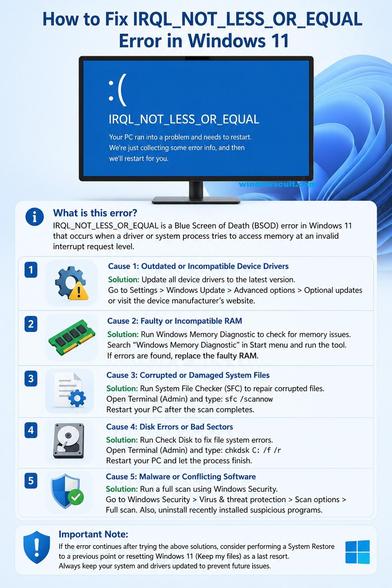
The IRQL_NOT_LESS_OR_EQUAL error occurs when a system process or device driver attempts to access a memory address it does not have permission to access, or accesses paged memory at an interrupt request level (IRQL) that is too high. This issue is usually caused by incompatible or faulty device drivers, particularly for graphics cards (like Nvidia GeForce) or network adapters. Again, it can also stem from corrupt system files, faulty RAM, or hardware conflicts.

Read the Fixes for IRQL_NOT_LESS_OR_EQUAL error https://www.windowscult.com/irql-not-less-or-equal/

Update or Roll Back Drivers: The primary cause is faulty drivers, particularly for network adapters or graphics cards. Use Device Manager to update or "Roll Back" recent driver updates.

Run System File Checker (SFC): Open Command Prompt as administrator and run sfc /scannow to repair corrupted system files.

Run DISM Commands: In CMD, execute dism /online /cleanup-image /restorehealth to fix Windows image issues.

Check Memory (RAM): Type "Windows Memory Diagnostic" in the search bar, select "Restart now," to check for faulty RAM.

Disable Overclocking/XMP: If your CPU or RAM is overclocked, revert to stock speeds in BIOS.

Perform a Clean Boot: Start Windows with minimal drivers and programs to rule out software conflicts.

If these do not work, consider performing a system restore to a point before the errors started.

#BSOD #IRQL_NOT_LESS_OR_EQUAL #bluescreenofdeath #Windows11 #howto #Tech #techarticle

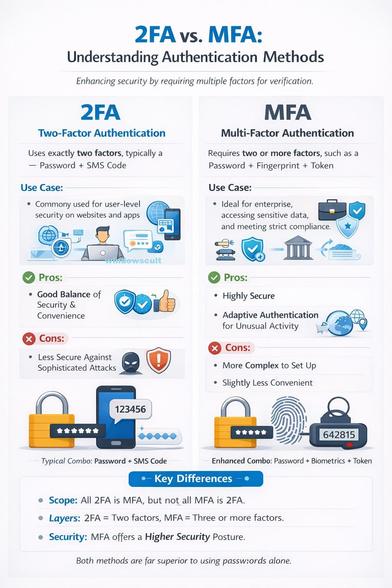
Two-Factor #Authentication (2FA) typically combines a password with a code, whereas Multi-Factor Authentication (MFA) adds more layers, such as biometrics (fingerprint/face) or hardware tokens. Read MFA vs 2FA: What's the difference https://windowspost.com/2fa-vs-mfa/

Key Differences Between 2FA and MFA

Number of Factors: 2FA limits authentication to two layers (e.g., password + OTP), while MFA can incorporate three or more (e.g., password + OTP + fingerprint).

Security Level: MFA generally provides superior security against sophisticated attacks because it relies on multiple independent factors.

Complexity & UX: 2FA offers a more streamlined user experience with fewer steps. MFA may cause more user friction due to additional login steps, but it enhances security.

Flexibility: MFA offers greater flexibility, allowing organizations to adopt adaptive, risk-based authentication, while 2FA is a fixed two-step process

2FA Example: Entering a password (knowledge) and a code texted to your phone (possession).

MFA Example: Entering a password, a code from an app, and using a biometric scan (fingerprint or face)

#2FA #MFA #security #password #otp #Fingerprint #twostepverification #MFAverification #photochallange #technology #tech #TechGuide #techterms #techarticle

Default Windows 11 settings prioritize compatibility and convenience, not speed, privacy, or gaming performance. Here are the essential steps to take with your Windows 11 PC to keep it fast and secure in 2026.

1. Run Windows Update & Drivers: Go to Settings > Windows Update to check for updates. Check Advanced options > Optional updates for driver updates to ensure components work correctly.

2. Install Drivers: Visit your manufacturer’s website (e.g., ASUS, HP, Dell, NVIDIA) to download the latest BIOS, chipset, and graphics drivers, as these are often better than those provided by Windows Update.

3. Customize Settings & Privacy:

Privacy: Review Settings > Privacy & security to turn off toggles for diagnostic data, advertising ID, and app permissions you don't use.

Taskbar: Right-click the Taskbar to align icons to the left (like Windows 10) or remove unnecessary icons like "Search" or "Widgets".

4. Remove Bloatware: Right-click and uninstall pre-installed, unnecessary apps from the Start menu and "All Apps" list to free up space and resources.

5. Enable Security Features: Ensure Windows Security is active, or install a third-party antivirus.

6. Create a Backup Strategy: Set up a Restore Point or connect to a backup service (e.g., OneDrive or external drive) to protect your new system.

Read more details here https://windowspost.com/things-to-do-after-installing-windows/

#Windows11 #windows #Microsoft #technology #tech #hwoto #techarticle

Unable to copy and paste from local computer into a Remote Desktop Server? You need to enable Clipboard access in your Remote Desktop Connection settings.

1.Open Remote Desktop Connection (mstsc)
2.Click on Show Options
3.Go to the Local Resources tab
4.Under Local devices and resources, make sure Clipboard is checked
5.Reconnect to the server
That’s it ✅
#remotedesktop #tech #troubleshooting #howtoguide #techarticle

No excuses anymore! This is the article you need to make money as an indie developer 💸 🙌🏻

In my longest and most complex to write article to date, I explain step by step how to set up subscriptions with different levels of service and unlock content in a centralized, easy to maintain and generalized way.

This is the blueprint you can use for your SwiftUI app to finally jump over (1/2)

#BuildInPublic #Dev #IndieDev #iOS #iOSDev #Swift #SwiftUI #CreateWithSwift #TechArticle #Tutorial #Article

Why free VPNs aren't always safe to use? Because they often make money by selling your data, injecting ads (which can carry malware), using weak security, and offering poor performance with data limits.
#VPN #FreeVPN #BestVPN #TopVPN #Privacy #Tech #Technology #TechArticle
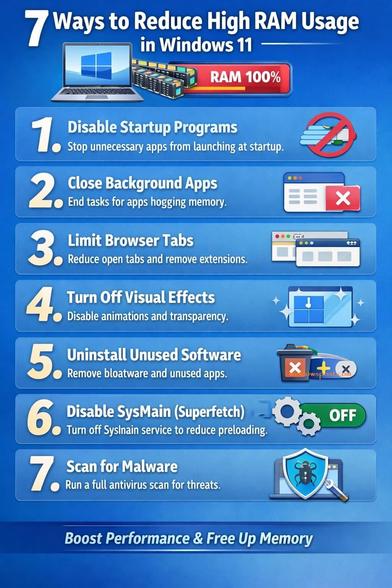
Here are few Practical tweaks to reclaim system memory, reduce background load, and make Windows 11 feel faster.
#Windows11 #Windows #Tech #HowtoGuide #Technology #TechArticle #RAM #memory #Computer #PC

My last article of the year was the most interesting one to write for me 🙌🏻

Consumables are heavily used but I was always interested in the psychological and ethical implications often leading to dark patterns and people spending more than they can afford 💸

During my research I found an over 10 year old, but still relevant article with a fantastic idea, by @_Davidsmith 🫰🏻 Why (1/3)

#BuildInPublic #Dev #IndieDev #iOS #iOSDev #Swift #SwiftUI #CreateWithSwift #TechArticle #Tutorial #Article