 Aptivi
Installing TDE to Arch Linux
Trinity Desktop Environment (TDE) is a complete desktop environment that gives you a blast from the past to the KDE 3 days, designed for Linux and other Unix-based operating systems. It’s made for users who wish to use a traditional desktop model rather than a modern desktop model. TDE originally started as a fork of KDE 3.5 in 2010. Since then, it has become fully independent and has its own branding.
TDE doesn’t conflict with the modern KDE Plasma 6 desktop environment. It also focuses on giving you a traditional desktop environment under the X11 protocol for those who don’t like Wayland desktops.
To install TDE to an Arch Linux system, follow these steps:
-
1. Add TDE repositories
You’ll need to add the TDE repositories before you can install the desktop environment. In order to do so, follow these steps:
- Run
sudo vim /etc/pacman.conf - Scroll to the end of the file, then add the below two lines to a new line:
- Save changes with
:wq -
2. Configure the keys
Before the repository can be used, you must configure the keys used by this repository by importing the necessary key and trusting it in your side.
- Run
sudo pacman-key --recv-keys 0x8685AD8B. You should see the below output like this: - Verify the fingerprint of the key using
sudo pacman-key --finger 0x8685AD8B. The below output should look similar to this: - Locally sign the imported key using
sudo pacman-key --lsign-key 0x8685AD8B. You should see the below output like this: -
3. Install TDE
Now, you can install the TDE desktop environment. To do so, follow these steps:
- Verify that data for the TDE repository can be obtained. You should be able to see trinity’s database being downloaded:
- Once all upgrades are complete, you can now install the TDE desktop environment.
- If you want a minimal installation, install the
tde-tdebasepackage. - Else, install the
tde-metapackage.
- If you want a minimal installation, install the
-
4. Configure TDE
After installation is complete, it’s time to configure it. You can run TDE either manually or with a graphical login manager. To do so, assuming that you’re using a graphical login manager, follow these steps:
- Verify that no other graphical login managers, such as
lightdm,gdm, orsddm, are enabled. Check the output ofsudo systemctl status <dm>for more info, and usesudo systemctl disableto disable such managers if the status shows enabled. - Now, enable the
tdm.serviceunit, and restart your computer.
[trinity] Server = https://mirror.ppa.trinitydesktop.org/trinity/archlinux/$arch gpg: key C93AF1698685AD8B: public key "Trinity Desktop Environment Archive Signing Key" imported gpg: Note: third-party key signatures using the SHA1 algorithm are rejected gpg: (use option "--allow-weak-key-signatures" to override) gpg: marginals needed: 3 completes needed: 1 trust model: pgp gpg: depth: 0 valid: 1 signed: 5 trust: 0-, 0q, 0n, 0m, 0f, 1u gpg: depth: 1 valid: 5 signed: 86 trust: 0-, 0q, 0n, 5m, 0f, 0u gpg: depth: 2 valid: 74 signed: 18 trust: 74-, 0q, 0n, 0m, 0f, 0u gpg: next trustdb check due at 2026-10-21 gpg: Total number processed: 1 gpg: imported: 1 pub rsa4096 2019-04-19 [SC] D6D6 FAA2 5E9A 3E4E CD9F BDBE C93A F169 8685 AD8B uid [ unknown] Trinity Desktop Environment Archive Signing Key sub rsa4096 2019-04-19 [E] -> Locally signed 1 key.
==> Updating trust database...
gpg: Note: third-party key signatures using the SHA1 algorithm are rejected
gpg: (use option "--allow-weak-key-signatures" to override)
gpg: marginals needed: 3 completes needed: 1 trust model: pgp
gpg: depth: 0 valid: 1 signed: 6 trust: 0-, 0q, 0n, 0m, 0f, 1u
gpg: depth: 1 valid: 6 signed: 86 trust: 1-, 0q, 0n, 5m, 0f, 0u
gpg: depth: 2 valid: 74 signed: 18 trust: 74-, 0q, 0n, 0m, 0f, 0u
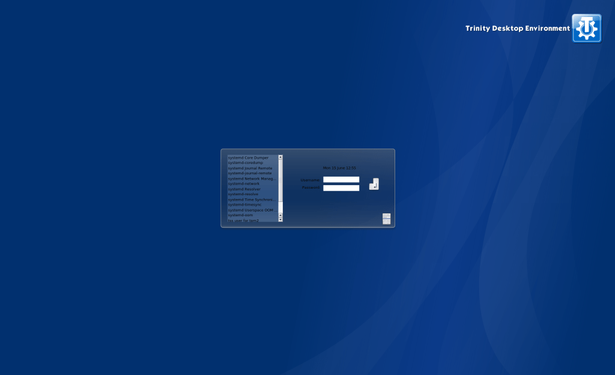
gpg: next trustdb check due at 2026-10-21 [aptivi@archapt ~]$ sudo pacman -Syu :: Synchronizing package databases... core 126.4 KiB 188 KiB/s 00:01 [######################] 100% extra 5.8 MiB 757 KiB/s 00:03 [###############-------] 70% trinity 32.0 KiB 29.8 KiB/s 00:01 [######################] 100% ● lightdm.service - Light Display Manager Loaded: loaded (/usr/lib/systemd/system/lightdm.service; disabled; preset: disabled) Active: active (running) since Mon 2026-06-15 11:59:13 +03; 24min ago Invocation: 4ad2c9137ffe433cabd99fe7072f53d5 Docs: man:lightdm(1) Main PID: 563 (lightdm) Tasks: 6 (limit: 9449) Memory: 379.7M (peak: 386.9M) CPU: 10.638s CGroup: /system.slice/lightdm.service ├─563 /usr/bin/lightdm └─574 /usr/lib/Xorg :0 -seat seat0 -auth /run/lightdm/root/:0 -nolisten tcp vt7 -novtswitch Jun 15 11:59:13 archapt systemd[1]: Starting Light Display Manager... Jun 15 11:59:13 archapt systemd[1]: Started Light Display Manager. [...] If everything looks OK, you should be able to see the TDM login screen that looks like below:
Afterwards, switch the desktop environment to TDE (if you have multiple desktop environments installed) and follow the instructions in the setup wizard. If everything is configured properly, the TDE desktop should start.
#ArchLinux #Linux #news #TDE #Tech #Technology #Trinity #TrinityDesktop #TrinityDesktopEnvironment #update

 📷 Birgit 👒
 opensourcefeed
 Fossery Tech

 fosstopia 🇩🇪

 Luis Ricardo
 TronNerd82

 TiKXI
TiKXI