 Andy Engin Utkan
Master Custom Batch Sizes for Schedule-Triggered Flows
The wait is finally over! Summer ’26 has officially arrived, and while some might call this release “light,” those of us deep in the automation trenches have found some gems. If you’ve spent any time on Salesforce Break, you know I’m passionate about Flow performance and scalability. That’s why my #1 item for this release is the arrival of custom batch sizes for scheduled flows.
This is a functionality I’ve been asking for for years, and it finally got rolled out to our Flow Builder toolset. Let’s get into why this matters, the technical hurdles it solves, and how you can use it to build more resilient automations.
What is a Schedule-Triggered Flow?
Before we get into the new settings, let’s define the foundation. A Schedule-Triggered Flow is a type of background automation that launches at a specific time and frequency (once, daily, or weekly).
Unlike Record-Triggered flows that fire the moment a record is edited, these flows are often used for “maintenance” tasks, such as:
- Sending follow-up emails for stale opportunities.
- Updating status fields on records that have reached an expiration date.
- Nightly data cleanups or syncing with external systems.
You define a start date, time, and an optional object with filter criteria. Salesforce then finds every record in your org that meets those criteria and runs a “flow interview” for each one.
Understanding Bulkification and Batching
Efficiency is at the heart of Salesforce’s architecture. To handle thousands of records without crashing the servers, Salesforce uses bulkification and batching.
By default, when a scheduled flow runs, Salesforce groups records into batches of 200. For example, if you have 300 accounts that need updating, Salesforce won’t run 300 separate transactions. Instead, it creates two transactions:
While this is great for overall system efficiency, it can lead to significant problems when your automation logic is complex or touches sensitive data.
The Danger Zone: Governor Limits and Errors
To ensure no single process hogs all the resources in a multi-tenant environment, Salesforce enforces Governor Limits, strict “usage caps” on things like the number of SOQL queries, DML statements (updates/inserts), and CPU time allowed in a single transaction.
When you process 200 records at once in a single transaction, the “math” of these limits adds up quickly. If your flow performs a few queries per record, multiplying those by 200 can easily blow past the 100-query limit, resulting in a dreaded `System.LimitException`.
Here is another potential issue: One of the most common, and frustrating, issues we face is record locking. When Salesforce updates a record, it “locks” that record to prevent other processes from changing it at the same time. It also locks the parent (master) for this record.
Let’s say you have a custom course record in Salesforce, and you have a cohort record under it. The relationship is master-detail. When Salesforce updates a cohort record, it will attempt to lock both records first. If it can’t lock these records, the system will throw an error.
The Error Scenario:
If multiple batches of 200 contain child records that all belong to the same parent, Transaction A might try to lock the parent to update cohort 1. Simultaneously, another part of the batch (or a parallel transaction) tries to lock that same parent to update cohort 2. The second attempt fails because it cannot “reach in” and get the lock, resulting in an UNABLE_TO_LOCK_ROW error.
The Solution: Custom Batch Sizes
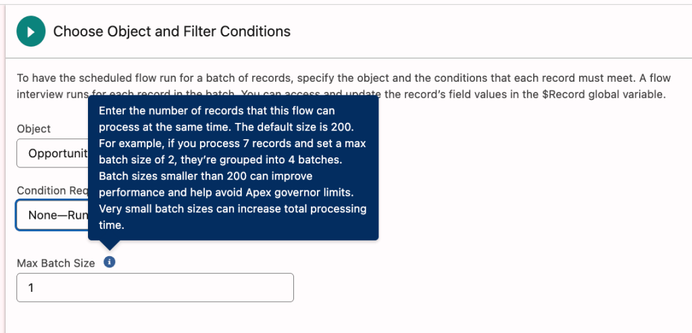
In Summer ’26, we finally have the control to mitigate these issues. Under the “Select Object” settings of a scheduled flow, you can now enter a custom number for the records processed at the same time.
The Default: 200 records.
The Power Move: You can decrease this number, even down to 1.
Why set a batch size of 1?
If you are experiencing frequent locking errors or hitting CPU limits, running the automation “one-by-one” (each transaction processing a single record) ensures that the parent record is only locked for that specific record’s update and then immediately released. This will decrease the possibility of locking errors.
Another potential solution for locking issues is sorting by parent before updating child records. Since we cannot sort records by Parent ID in a schedule-triggered flow, decreasing the batch size is often your only tool to prevent parent-record locking conflicts.
Since scheduled flows often run at night or on weekends when user activity is low, the increased total processing time is usually a fair trade-off for 100% reliability.
Best Practices and Recommendations
To get the most out of this new feature, keep these recommendations in mind:
2. Monitor Your Error Rates: Keep an eye on the new Element Error Rate column in your Flow list view. If you see a high percentage of errors on a scheduled flow, it’s a prime candidate for a smaller batch size. Disclaimer: This is a brand new functionality, and I have not played with this, yet.
3. Test the “Middle Ground”: You don’t always have to drop to a batch size of 1. If 200 is too high, try 50 or 100 to balance speed and stability.
This update is a huge win for Salesforce Admins and Architects alike. It provides the granular control we need to ensure our “heavy lifting” automations run smoothly without constant manual intervention or error emails.
Take Control of Your Automations
The arrival of custom batch sizes in Summer ’26 is a testament to Salesforce listening to the community’s “real world” pain points. While it might seem like a small setting in the Flow Builder, it is a massive architectural lever for those of us responsible for high-volume data integrity.
No longer are we forced to “hack” our way around governor limits or cross our fingers that record locking doesn’t tank our nightly cleanups. We finally have the precision to tune our automations like a high-performance engine. So, take a look at your most troublesome scheduled flows, experiment with those batch sizes, and turn those “failed flow” emails into a thing of the past. Happy flowing!
A quick heads-up: this feature is specific to the Summer ’26 release.
Explore related content:
What’s New in the Salesforce Mobile App: Summer ’26 Release
11 Flow Updates in Summer 26 Release
Get Your Org Ready: Summer ’26 Admin Highlights
#HowTo #SalesforceAdmins #SalesforceDevelopers #SalesforceRelease #SalesforceUpdate #Summer26 #Tutorial