Beyond the URL Button: The Salesforce Request Approval Lightning Component

Are you finding that as your company grows, the complexity of your approval workflows grows along with it? What once might have been a simple sign-off from a single manager can quickly transform into a multi-step process involving input from multiple departments, stakeholders, and even external partners. This complexity often leads to delays, inefficiencies, and frustration as approvals get stuck in bottlenecks or lost in email chains.

Salesforce’s free Flow Approval Processes, built on Flow Orchestrator, automate even the most intricate workflows. A previous post explored launching these Autolaunched Approval Orchestrations via a custom URL button. Today, we are taking that functionality a massive step forward. We will explore the new Request Approval Lightning component and its tie-in to autolaunched flow functionality. This component expands automation by allowing dynamic user inputs directly from the record page.

The Foundation: Autolaunched Flow Approvals

Before diving into the new component, let’s quickly recap how autolaunched flow approvals function. When you build an autolaunched approval process, you are essentially building an autolaunched automation that can be executed on demand, very similar to an autolaunched Orchestration or flow. However, the traditional method of launching Salesforce automations (the quick action button) has strict limitations. Quick actions can only be used to add an active screen flow to the page layout; orchestrations are simply not supported. Furthermore, quick actions do not allow you to pass additional input parameter values into your automation beyond the standard recordId.

Because of these limitations, the standard workaround has been to build an autolaunched Approval Orchestration and assign it to a custom URL button on the page layout. For example, a common use case is to escalate a case to a queue of level 2 experts when a second opinion is required. By appending variables to the custom URL, such as ?recordId={!Case.Id}&submitter={!$User.Id}&retURL={!Case.Id}, administrators could successfully pass the necessary parameters to kick off the orchestration. While highly effective, this URL button method is a bit rigid. It automatically submits the record based on predefined flow logic without giving the submitter much runtime flexibility.

Enter the Request Approval Lightning Component

This is where the new Request Approval component completely changes the game. Instead of relying on a custom URL button to trigger your background orchestration, you can now add a native, user-friendly interface directly to your Lightning record pages. This component bridges the gap between the UI of a screen flow and the processing power of an autolaunched orchestration.

To utilize this feature, you must first design, test, and activate an autolaunched flow approval process. Once your flow is ready, you can simply open the record page where you want to place the component. Click the gear icon on the navigation bar, and select Edit Page to open the Lightning App Builder. From the Components tab, search for “Request” and drag the Request Approval component directly onto the layout.

Straightforward Setup

You can customize the title of the component to display user-friendly text at run time. Then search for and select your active, autolaunched flow approval process to run whenever the user clicks the “Start” button. You can also assign a specific label to identify the associated flow approval process to your users.

Expanding the Use Case: What Can Be Added?

So, how exactly does this new component expand the capabilities of your autolaunched flow use cases? The true power of the Request Approval component lies in its ability to gather critical, dynamic inputs directly from the submitter at the exact moment of submission. When using the old custom URL button method, the approver destination (such as the Level 2 expert queue) was hardcoded into the flow steps. With the new component, you can dramatically increase the flexibility of your processes through two main enhancements:

Dynamic Approver Selection

The component allows you to require submitters to actively select an approver before the flow runs. To enable this, you must configure your underlying autolaunched flow approval process to assign one or more approval steps to a specific resource named firstApprover. In the Lightning App Builder, you then select the Require submitter to select an approver setting.

It is critical to ensure your flow is properly configured to accept this input. Consider whether the flow approval process you selected assigns one or more steps to the firstApprover resource. If it does, you must select this requirement on the component to prevent the flow approval process from failing when a submitter attempts to use it. This means a single autolaunched flow can now be routed to entirely different managers, departments, or external stakeholders on the fly.

Submission Comments

Another massive expansion of your use case is the ability to capture submission comments. Often, an approver needs context as to why a record is being submitted. The Request Approval component shows an Approval Request Comments field by default. This exposes optional submitter comments directly to the approvers via the submissionComments resource.

If your business process dictates that comments are unnecessary, or if you want to streamline the UI to prevent the submitter from adding comments about a submission, you easily have the option to select Hide submitter comments within the component configuration. These comments are stored cleanly in the new data model under the Approval Submissions object, specifically within the Comments field, making them accessible via queries if you wish to display them in custom approver screen flows.

The Impact on Your Org’s Architecture

By tying the Request Approval component to your autolaunched orchestrations, you unlock a highly scalable and flexible architecture. You no longer need to build dozens of slightly different flows for different queues or approvers. Instead, you can rely on a single autolaunched flow that dynamically adapts based on the firstApprover and submissionComments variables passed from the component.

This ties seamlessly into the broader Flow Approval Process ecosystem. Once submitted, the process still leverages the brand-new UI and audit trail, including the Approvals Lightning app, Approval Submissions, and Approval Work Items. The orchestration sequences stages and steps behind the scenes. It potentially triggers automated background steps like updating records or sending notifications without requiring further user interaction. Approvers still receive their email notifications with links to the Work Guide, and they can still reply directly to the emails with keywords like “Approve” or “Reject” to complete their action. Furthermore, administrators must still remember to add the Flow Orchestration Work Guide component to the record page. It approvers have a centralized interface to actually interact with the assigned approval step.

It is important no note that this component allows the user to recall the approval process once it is started.

Conclusion

The Request Approval component takes the Autolaunched Flow Approval Process and makes it more dynamic and user-centric. By moving away from static URL buttons and embracing this native Lightning component, administrators can empower their users to select appropriate approvers and provide vital context through comments. All while leveraging the free, robust automation engine of Salesforce Flow Orchestrator.

Whether you are routing cases to level 2 experts or managing multi-million dollar contracts, this functionality ensures your approval workflows are as efficient, user-friendly as possible. Save and activate your record page layout, exit the Lightning App Builder, and watch your new approval processes in action.

Explore related content:

How to Build Custom Flow Approval Submission Related Lists

Start Autolaunched Flow Approvals From A Button

Supercharge Your Approvals with Salesforce Flow Approval Processes

#FlowApprovals #HowTo #LightningComponent #Salesforce #SalesforceAdmins #SalesforceDevelopers #SalesforceTutorial #useCase

How to Build Custom Flow Approval Submission Related Lists

In the Spring ’25 release, Salesforce introduced Flow Approvals to replace the legacy approval processes. This approval platform was based on the orchestration functionality. I recorded and released two videos and posts to share this functionality on Salesforce Break. The videos saw great interest from the community, they are about to reach 20K views soon. So, why is everyone talking about flow approvals?

There are multiple reasons:

  • Flow approvals are orchestration-based, but they are entirely free unlike other orchestrations.
  • Legacy approvals are really old. Salesforce has not been investing in them. They are past due for a remake.
  • Legacy approvals are limited. To enhance the functionality, clients had to use AppExchange solutions or paid alternatives by Salesforce like advanced approvals for CPQ.
  • Flow approvals allow for parallel approvals, dynamic steps, and flexibility in the approval process.
  • This is why I decided to create more content in this area, starting with:

  • A live course that teaches Flow Approval processes in depth, with hands-on practice. See the details here, and reach out if you’re interested.
  • Additional resources focused on solutions that bridge the gaps between Flow Approvals and Legacy Approvals, addressing the limitations of the new platform.
  • Here is the first post detailing a solution filling one of the gaps.

    Flow Approvals Don’t Provide Sufficient Detail In The Related Lists

    Here is the first point I would like to address: Flow approvals don’t provide good detailed information in the related lists of the object record like the legacy approvals did.

    Solution: Build a screen flow with reactive data tables to show the approval submission records and their related records. Add the screen flow to a tab on the record page.

    Salesforce provided a component that can be added to the record page. It is called the Approval Trace component. This provides some information about the approval process, but is not customizable. I asked myself how I can go beyond that, and decided to build a reactive screen flow with data tables to fill this functionality gap. Here is what the output looks like:

    To build and deploy this flow, you need to follow these steps:

  • Build the screen flow.
  • Build the autolaunched flow that will fetch the data you will need. This flow will be used as the screen action in step one.
  • After testing and activation, add the screen flow to the record page.
  • If you have never built a screen flow with screen actions before, let me be the first one to tell you that step one and two are not really completed in sequence. You go back and forth building these two flows.

    Let’s get started.

    Build the Flow Approval Submission Screen Flow

    What I usually do, when building these flows is that I first get the screen flow started. Then I build the autolaunched flow, and go back to the screen flow to build out the rest of the functionality. The reason is that the screen flow data tables will need the outputs from the autolaunched flow to be fully configured.

    This is what the screen flow looks like, once it is completed.

    For now, you can just ignore the loop section. This is there to ensure that there is a default selection for the first data table, when the flow first runs.

    This is the structure of the flow excluding that part:

  • Get all approval submission records for the recordId that will be provided as input into the flow.
  • Check if there are approval submissions found.
  • Display a screen saying “no records were found,” if the get returns null.
  • Display a reactive screen mainly consisting of three data tables with conditional visibility calling an autolaunched flow as a screen action.
  • Here is what this screen looks like:

    After you build, test, and activate the autolaunched flow, configure the screen action under the screen properties as shown below.

    How the Loop Section Works

    The first data table has an input parameter that determines the default selection, when the flow first runs. This is a record variable representing one of the members of the collection record variable that supplies the data. You need to loop the collection of records to get to the record variable. Follow these steps:

  • Loop the collection record variable which is the output of your get step. Sort the data by last modified date in your get step.
  • Assign the first member to a record variable.
  • Exit the loop without condition. Connect the path to the next element outside the loop.
  • Add the resulting record variable to the default selection parameter under the configure rows section of your data table.
  • This loop always runs once, setting the default selection to the most recent approval submission. This populates the related data tables when the flow first runs.

    Build the Screen Action Autolaunched Flow for Related Lists

    The autolaunched flow receives a single approval submission recordId as input. Then it gets the related records and data the screen flow needs, and returns the data as output.

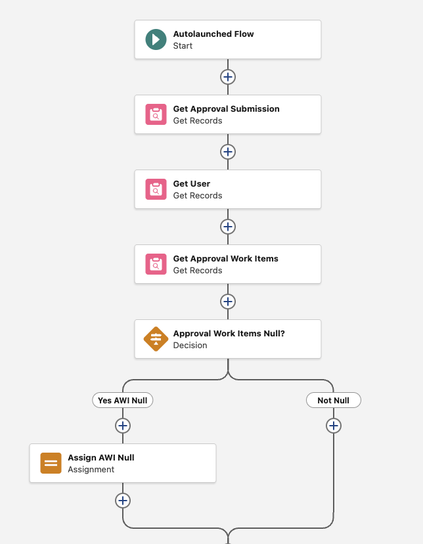
    Here is a screenshot of the autolaunched flow.

    This flow executes the following steps:

  • Gets the approval submission data.
  • Gets the user data for the submitter to resolve the full name.
  • Gets approval work items.
  • Checks null and sets a boolean (checkbox) variable when the get returns null. The output uses this variable to control conditional visibility of the relevant data table. If found this method yields the best results.
  • Get approval submission details.
  • Checks null and sets a boolean variable when the get returns null. This variable is then used in the output to drive conditional visibility of the relevant data table.
  • Assigns the get results to output collection record variables.
  • Final Deployment Steps

    After testing and activating the autolaunched flow, you need to add the flow to the screen flow as the screen action. The flow input will be fed from the selection of the first data table. You will see that this step will make all the outputs of the autolaunched flow available for the screen flow. Using these outputs build the additional two data tables and configure the conditional visibility.

    After testing and activating your screen flow, add the flow to the record page on a dedicated new tab (or to a section on an existing tab). Select the checkbox to pass the recordId to the flow. Note that this flow will work with any record for any object.

    Limitations and Suggested Improvements

    While this screen flow provides a lot of detail and customization options it has two limitations:

  • By default, the data table does not resolve and display record names in lookup fields when you add these fields as columns. To address this, I added the submitter’s full name in a read-only text field for display on the screen. Workaround: Create formula fields on the object and display those in the data table.
  • The data tables do not provide a clickable link. Combined with the limitation above, you can create a formula field on the object to address both of these gaps: show the record name and make it a clickable link. Here is the formula example you need for this (shout out goes to Brad Weller for his contribution): HYPERLINK("/" & Id, Name, '_self')
  • While I wanted to make these additions to these flows, I did not want to add custom fields to the objects. It should be your decision whether you want to do that or not.

    Install the Package to Your Dev Org

    Here is the second generation unprotected package for these two flows that you can install in your Dev Org:

    Install the Unprotected 2GP

    For a more visual walk through of how these flows are built, watch the Salesforce Break YouTube video below.

    [youtube https://www.youtube.com/watch?v=0QDdUNBh3qo?version=3&rel=1&showsearch=0&showinfo=1&iv_load_policy=1&fs=1&hl=en-US&autohide=2&wmode=transparent&w=640&h=360]

    With Salesforce phasing out legacy approvals, mastering Flow Approvals is essential to keep your org’s processes modern, flexible, and future-ready. Gain the confidence to handle any approval challenge with solutions that work seamlessly in real-world Salesforce environments HERE.

    Explore related content:

    Supercharge Your Approvals with Salesforce Flow Approval Processes

    When Your DMLs Have Criteria Conditions Other Than Id

    Start Autolaunched Flow Approvals From A Button

    Get Ready for the New Time Data Type – Summer ‘25 Flow Goodness

    #AutolaunchedFlow #FlowApprovals #FlowBuilder #Salesforce #SalesforceAdmins #SalesforceDevelopers #SalesforceTutorials