 Bryan King
Pro-Grade Ham Radio Displays: Integrating OpenHamClock into PiSignage
758 words, 4 minutes read time.
A Helping Hand Needed for a Fellow Programmer
I’m reaching out to see if you can lend a hand to a talented software developer who’s currently on the job hunt. With over 30 years of experience in C#, .NET (Core/6–8), REST APIs, SQL Server, Angular/Razor, Kubernetes, and cloud CI/CD, he’s a seasoned pro with a proven track record of leading modernization projects and delivering production systems.
Some of his notable accomplishments include DB2 to SQL migrations, building real-time SignalR apps, and developing full-stack API and frontend projects. Based in Southeast Michigan, he’s looking for senior engineering, architecture, or technical lead roles that will challenge him and utilize his skills.
If you’re in a position to help, you can check out his resume and portfolio at http://charles.friasteam.com.
Let’s all look out for each other – if you know of any opportunities that might be a good fit, could you please consider passing this along to your network?
—
If you are a ham radio operator, you know that a HamClock is the ultimate shack companion. But what if you want to move beyond a dedicated small screen and integrate that data-rich display into a professional digital signage environment?
By using PiSignage, you can rotate your HamClock with other station metrics, weather, or club announcements. However, getting a clean, secure, and “pop-up free” experience requires a few tricks.
In this post, I’ll show you how to deploy OpenHamClock using Docker and how to strip away the UI clutter for a seamless kiosk experience.
The Setup
To follow along, you will need a PiSignage server instance. I personally run mine as a Docker container, which keeps the server stack isolated and easy to back up.
1. The Docker Compose Configuration
PiSignage and modern browsers often require secure contexts (HTTPS) for certain features. Since the standard HamClock output is HTTP, we’ll use a two-service setup: the clock itself and a lightweight SSL-wrap sidecar using socat and openssl.
docker-componse.yml
services: openhamclock: image: ghcr.io/accius/openhamclock:latest container_name: openhamclock expose: - "3000" environment: - CALLSIGN=<CALL SIGN> - LOCATOR=<Grid Square Locator> - THEME=dark - UNITS=imperial restart: unless-stopped ssl-wrap: image: alpine container_name: hamclock-ssl ports: - "3000:3000" command: > sh -c "apk add --no-cache socat openssl && openssl req -x509 -newkey rsa:2048 -keyout /tmp/key.pem -out /tmp/cert.pem -days 365 -nodes -subj '/CN=localhost' && cat /tmp/cert.pem /tmp/key.pem > /tmp/combined.pem && socat OPENSSL-LISTEN:3000,cert=/tmp/combined.pem,verify=0,fork,reuseaddr TCP:openhamclock:3000" restart: unless-stopped 2. Silencing the “What’s New” Pop-ups
When using HamClock as a signage element, you want it to be “set and forget.” The “What’s New” slide-ins are helpful for desktop users but ruin a clean kiosk display.
While there is a formal change request pending for a toggle, you can currently “force” these elements to stay hidden by injecting a bit of CSS directly into the distribution files. Run this command within your app environment:
find /app/dist -name "*.css" -exec sh -c 'echo "div[style*=\"whatsNewSlideIn\"], div[style*=\"backdrop-filter\"] { display: none !important; }" >> {}' \;3. Setting Up the Slide in PiSignage
Once your containers are humming along, you need to tell PiSignage how to display the clock.
Create the Weblink Asset
- Name: OpenHamClock
- Link Address:
https://<YOUR-HOSTNAME>:3000/?kiosk=true
Pro Tip: The ?kiosk=true suffix is critical. It tells HamClock to hide its own internal menus and headers, giving you a dedicated, high-contrast dashboard perfect for a wall-mounted display.
Deploy to Your Player
0 for a permanent display, or a high number (like 300 for 5 minutes) if it’s part of a rotation.Your screen should refresh and show a beautiful, clean HamClock interface within seconds!
Running PiSignage in Docker?
For those of you looking to keep your entire server stack contained, running the PiSignage central server in Docker is the way to go. It keeps your host OS clean and makes management a breeze.
If you’d like me to discuss how to set up a dockerized PiSignage server, please comment below!
— 73 —
Call to Action
Getting this stack to play nice wasn’t a “one-and-done” install. It was a hard-fought process that took multiple attempts to finally crack the code on bypassing those “What’s New” screens and forcing a clean kiosk display. But the victory is in the uptime.
Don’t just lurk. If you’ve got the guts to show how you’re rebuilding your station on the wreckage of the old ways, drop a comment below. How are you occupying the victory today?
SUPPORTSUBSCRIBECONTACT MED. Bryan King
Sources
- OpenHamClock GitHub Repository (accius)
- Original HamClock Source by Clear Sky Institute
- PiSignage Official Documentation
- Docker Compose Specification and Documentation
- Alpine Linux Official Docker Image
- Socat Man Page – Multipurpose Relay Tool
- OpenSSL Official Documentation
- Maidenhead Locator System Overview
- Deep Dive: HamClock on Raspberry Pi
- PiSignage Server Docker Implementation
- Raspberry Pi Kiosk Mode Configuration
- MDN Web Docs: CSS Display Property
- Docker CMD vs Entrypoint Explained
- Understanding Self-Signed SSL Certificates
- ARRL: Understanding Grid Squares
- CSS Attribute Selectors (For Style Injection)
- Docker Container Networking Guide
- Linux Find Command Documentation
- Portainer: Managing Dockerized Signage Stacks
- PiSignage Community Support Forum
Disclaimer:
I love sharing what I’m learning, but please keep in mind that everything I write here—including this post—is just my personal take. These are my own opinions based on my research and my understanding of things at the time I’m writing them. Since life moves way too fast and things change quickly, please use your own best judgment and consult the experts for your specific situations!
#AlpineLinux #AmateurRadioDashboard #amateurRadioTechnology #Automation #containerization #CSSInjection #CustomCSS #DetroitHamRadio #devops #DigitalDashboard #DigitalSignage #DisplaySolutions #Docker #DockerCompose #DXCluster #EN82le #GHCR #gridSquare #hamRadio #HamRadioKiosk #hamRadioSoftware #hamRadioTools #HamClock #HomeLab #HTTPSWrapper #KioskMode #KioskSetup #KioskTrue #Linux #MaidenheadLocator #networkSecurity #OpenSource #OpenHamClock #OpenSSL #piSignage #PiSignageDocker #PiSignageTips #RadioStationDisplay #RaspberryPi #RaspberryPiProjects #realTimeData #RemoteMonitoring #ScreenRotation #SelfHosted #ServerManagement #ShackClock #SignalTracking #SmartShack #Socat #SoftwareWorkaround #SolarData #SSLWrap #StationIntegration #TechGuide #TechnicalTutorial #UITweaks #W8DBK #WebDevelopment #WebLinkAsset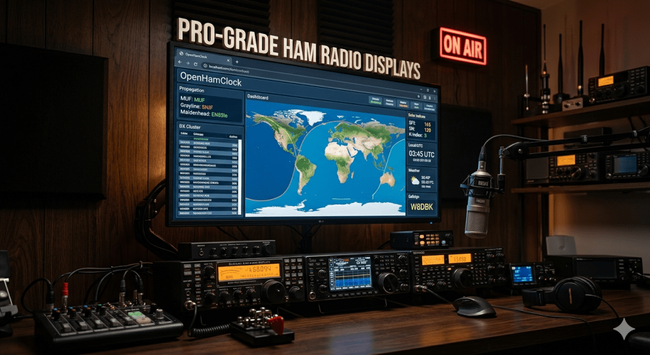
 xoron
xoron