Tip #767

アドレスバーとタブバーを統合して画面領域を増やす方法

ノートパソコンのような小さめの画面でも効率的に作業したい、ブラウザをコンパクトに利用したい、いずれにしても、ツールバーのカスタマイズ設定には目的に沿った設定が備わっています。

アドレスバータブバー を統合するには、以下のようにしてアドレスバーのコンポーネントをタブバーに移動させてください。

  • ツールバーエディター を開くには、メインメニューから、表示 > ツールバーをカスタマイズ に移動する、あるいは、ツールバーのコンポーネントを右クリックして、ツールバーをカスタマイズ を選択する
  • アイコンがその場で揺れている間に、アドレスバーでよく使うコンポーネントをタブバー(あるいは他のツールバー)にドラッグする
  • テーマのハイライトカラーで線が表示されたら、コンポーネントを新しい場所にドロップする
  • エディターのウィンドウで「完了」をクリックする
  • その後、メインメニュー > 表示 に移動して、「アドレスバーを表示する」をクリックしてアドレスバーを非表示にする
  • #customisation #TabBar #Tabs #vivaldi #VivaldiBrowser #アドレスバー #ツールバー

    https://vivaldi.com/ja/blog/tips/desktop-tips/tip-767/

    Tip #767

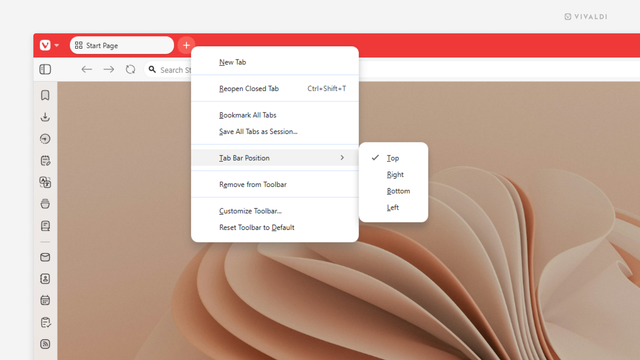
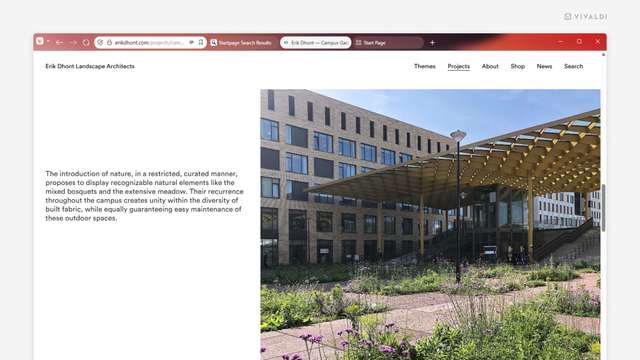
    Gain screen real estate by merging Address and Tab Bars.

    Whether you’re working on a small laptop screen where every pixel counts or just prefer a more compact look, Vivaldi’s toolbar customisation settings are here to help you achieve a configuration that works for you.

    To combine the Address Bar and the Tab Bars, you need to move components from the Address Bar to the Tab Bar. Here’s how!

  • Open the Toolbar Editor from the main menu > View > Customize Toolbar, or right-click on a component on the toolbars and select Customize Toolbar.
  • While the icons are wiggling in their place, drag components you regularly use from the Address Bar to the Tab Bar (or to other toolbars).
  • When you see a line in your theme’s highlight color appear, drop the component to its new place.
  • When you’re happy with the result, click “Done” in the editor window.
  • Then, in the main menu > View, click on “Show Address bar” to hide the Address Bar.
  • #addressBar #customisation #TabBar #Tabs #toolbar #Vivaldi #VivaldiBrowser

    https://vivaldi.com/blog/tips/tip-767/

    Exclusive: From ‘Salim Langda’ to ‘Court Kachehri’, Pavan Malhotra shares why he still gets nervous, how real-life moments shape his roles and why acting remains a never-ending learning process. https://english.mathrubhumi.com/movies-music/interview/exclusive-from-salim-langda-to-court-kachehri-pavan-malhotra-reveals-why-he-still-feels-nervous-before-every-role-vrmpl88x?utm_source=dlvr.it&utm_medium=mastodon #PavanMalhotra #CourtKacheri #BlackFriday #SalimLangda #Tabbar
    I added an Emacs icon on the left side of the tab bar. Clicking on it reveals the menu bar contents, and I moved Telega's message notifications to the right side of the tab bar. #tabbar #emaca #telega

    If any peeps might be unsure of, or curious about, the #TreeStyleTab #AddOn in #Mozilla-based #browsers, hopefully this might help you to decide. The pic shows my current tree [more info in #AltText] in my lovely #Floorp #Stable 11.5.0-1 ​ The following #CSS pertains to the aesthetic style of my TST.

    /* "Show title of unread tabs with pink italic font"
    ***Meeeee 15/9/22***: I updated this today from Dev's latest code at https://github.com/piroor/treestyletab/wiki/Code-snippets-for-custom-style-rules#for-version-2x */
    tab-item.unread .label-content {
    color: #ff93fe !important;
    font-style: italic;
    font-size: 12px;
    }


    /* "Add private browsing indicator per tab" */
    .tab.private-browsing .label:before {
    content: "🕶";
    }
    /* Show Private Browsing tabs with distinctive green background [Meeeee 20/2/19] */
    .tab.private-browsing .label {
    background-color: #00ff7f;
    }


    /* "Highlight active tab. This makes the active tab very noticeable increasing its height and modifying the color and font"
    ***Meeeee 15/9/22***: I updated this today from Dev's latest code at https://github.com/piroor/treestyletab/wiki/Code-snippets-for-custom-style-rules#for-version-2x */
    tab-item.active tab-item-substance {
    height: 20px !important;
    }
    tab-item.active .background {
    background-color: #aaaaff;
    }
    tab-item.active .label-content {
    font-weight: bold;
    font-size: 14px;
    }
    tab-item.active tab-twisty,
    tab-item.active .label-content,
    tab-item.active tab-counter {
    color: #5907FF;
    }


    /* "Change styling of pending (unloaded) tabs"
    ***Meeeee 15/9/22***: I updated this today from Dev's latest code at https://github.com/piroor/treestyletab/wiki/Code-snippets-for-custom-style-rules#for-version-2x */
    tab-item.discarded tab-item-substance {
    opacity: 0.75;
    font-style: italic;
    font-size: 12px;
    }
    tab-item.discarded .label-content {
    /* color: #818162; */
    color: #FFEB3B;
    }


    /* "Control font-size of background tabs" */
    tab-label {
    font-size: 12px;
    }


    /* "Show scrollbar in the tab bar rightside"
    ***Meeeee 15/9/22***: I updated this today from Dev's latest code at https://github.com/piroor/treestyletab/wiki/Code-snippets-for-custom-style-rules#for-version-2x
    ***Meeeee 17/10/22***: I've now DISABLED this, coz i found it breaks a more-preferred mod ["Custom scrollbar colors #2911"].
    :root.left #tabbar {
    direction: ltr;
    overflow-x: hidden;
    } */


    /* "Show scrollbar with regular width" */
    #tabbar {
    scrollbar-width: auto;
    }


    /* "Custom scrollbar colors #2911"
    "It can be controlled via scrollbar-color. The first value is for the thumb, the second value is for the background."
    ***Meeeee 15/9/22***: I updated this today from Dev's latest code at https://github.com/piroor/treestyletab/wiki/Code-snippets-for-custom-style-rules#for-version-2x
    ***Meeeee 15/9/22***: Hmmm, this seems to NOT work, neither with my colours, nor Dev's.
    ***Meeeee 17/10/22***: Aha, it works nicely, once i disable mod "Show scrollbar in the tab bar rightside" */
    #tabbar {
    scrollbar-color: #aaaaff #5500ff;
    /* scrollbar-color: red blue; */
    }


    /* "Change tab height #236, #2389" | 4/6/21: Needed coz of new FF Proton UI design, which otherwise enlarged everything. Also, use TST's `Photon` theme not `Proton` theme, for best control.
    ***Meeeee 15/9/22***: I updated this today from Dev's latest code at https://github.com/piroor/treestyletab/wiki/Code-snippets-for-custom-style-rules#for-version-2x */
    tab-item {
    --tab-size: 17px !important;
    }
    tab-item tab-item-substance {
    height: var(--tab-size);
    }


    /* "Only show tab close button on hover #1448"
    4/6/21: Needed coz of new FF Proton UI design, which otherwise makes all tabs have the big ugly cross permanently visible. Also, use TST's `Photon` theme not `Proton` theme, for best control.
    ***Meeeee 15/9/22***: I updated this today from Dev's latest code at https://github.com/piroor/treestyletab/wiki/Code-snippets-for-custom-style-rules#for-version-2x */
    #tabbar tab-item tab-item-substance:not(:hover) tab-closebox {
    display: none;
    }


    /* "Put closebox left side, even if I choose "Left side" style", https://github.com/piroor/treestyletab/wiki/Code-snippets-for-custom-style-rules#put-closebox-left-side-even-if-i-choose-left-side-style
    ***Meeeee 17/10/22***: See detailed back-story [today's date] down at the bottom of this customisation section.
    :root.left tab-item tab-twisty {
    order: 10000;
    }
    :root.left tab-item tab-closebox {
    order: -1;
    } */


    /* "As little space before the tab name as possible."
    "The fold/unfold icon is not affected."
    ***Meeeee 15/9/22***: I updated this today from Dev's latest code at https://github.com/piroor/treestyletab/wiki/Code-snippets-for-custom-style-rules#for-version-2x */
    tab-item:not(.pinned) tab-item-substance {
    padding-left: 0px !important; /* !important is required when there are enough tabs to cause a scrollbar */
    }


    /* "Change tab border"
    Make the dividing line less prominent.
    ***Meeeee 15/9/22***: I updated this today from Dev's latest code at https://github.com/piroor/treestyletab/wiki/Code-snippets-for-custom-style-rules#for-version-2x */
    /* Less visible tab dividers.
    A black border with a very low alpha slightly darkens any color. */
    tab-item-substance {
    border: solid 1px #00000012;
    }


    /* "Hovered tab" | This makes the hovered tab noticeable by modifying the color and font.
    4/6/21: On laptop, with a Light FF Theme, `white` is good below. On tower, with a Dark FF Theme, `black` is good below. Otoh, it seems that `green` is ok for both.
    ***Meeeee 15/9/22***: I updated this today from Dev's latest code at https://github.com/piroor/treestyletab/wiki/Code-snippets-for-custom-style-rules#for-version-2x */
    tab-item tab-item-substance:hover {
    background: green !important;
    opacity: 1;
    }


    /* "Change favicon for "group tab"'s folder icon [SVG flexible-color icon]"
    ***Meeeee 15/9/22***: I updated this today from Dev's latest code at https://github.com/piroor/treestyletab/wiki/Code-snippets-for-custom-style-rules#for-version-2x */
    :root {
    /* The "Default Browser" icon at https://design.firefox.com/icons/viewer/ */
    --icon-heart: url('data:image/svg+xml,<svg xmlns="http://www.w3.org/2000/svg" width="16" height="16" viewBox="0 0 16 16"><path fill="context-fill" d="M8 6s0-4 3.5-4S15 5 15 6c0 4.5-7 9-7 9z"></path><path fill="context-fill" d="M8 6s0-4-3.5-4S1 5 1 6c0 4.5 7 9 7 9l1-6z"></path></svg>');
    }
    :root:not(.simulate-svg-context-fill) tab-item.group-tab .favicon-builtin::before {
    background-image: var(--icon-heart) !important;
    }
    :root.simulate-svg-context-fill tab-item.group-tab .favicon-builtin::before {
    mask-image: var(--icon-heart) !important;
    }
    /* header icon in the group tab's content area */
    :root.group-tab h1::before {
    mask-image: var(--icon-heart) !important;
    }
    Tab Bar Animation

    Tab Bar Animation designed by Yunus Karaca. Connect with them on Dribbble; the global community for designers and creative professionals.

    Dribbble
    Today I will be using the #Mona app. Just fixed my #TabBar at the bottom. You can not only arrange the tabs in the order you want, but you can also add your #list as tabs. And in addition, you also get to say how many tabs you want! The #customAbility of this app is one of its strong #features! #Mona #Rocks
    How to switch back to Firefox' old style of tabs?

    The recent update (89 I think) causes all tabs to render in the same continuous shading, which makes it somehow more difficult to spot each tab's start and end (regardless of the favicon, I'm sorry,

    custom CSS for the firefox extension “tree style tabs” to make it not horrible, paste this into the extension settings

    tab-item:not([data-child-ids]) tab-twisty { margin-left: -12px; } tab-item tab-label { padding-bottom: 0; } tab-item { align-items: center; } :root #tabbar-container { top: 0 !important; } :root { --tab-surface-hover: #1b1b1b; } tab-item[data-parent-id].active { border-left: 1px solid #0a84ff; }
    Pleroma