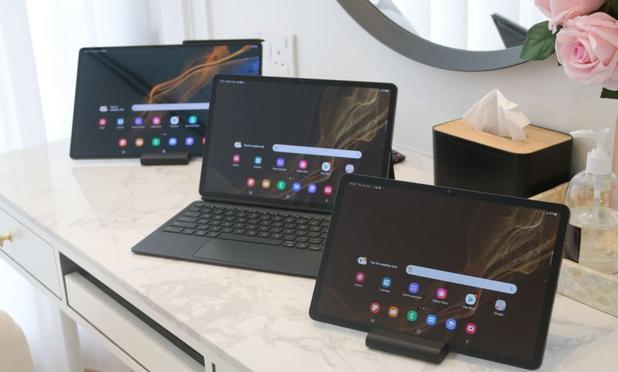
One UI 8.5 Beta 2 released, One UI 8.5 Beta goes Phase 2!

One UI 8.5 Beta 2 has been released for the following countries:

In addition to that, the beta program is finally open to those who are living in the following countries:

This means that everyone living in the above countries can now try out One UI 8.5 in its beta form! If you still don’t have the banner in your Samsung Members app, wait for a few minutes up to a few hours, and you should start seeing the banner.

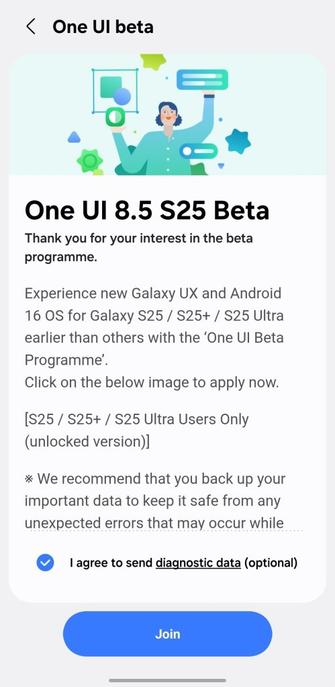
To join the Beta program, open Samsung Members, go to Beta Program section, and find “One UI 8.5 S25 Beta.”

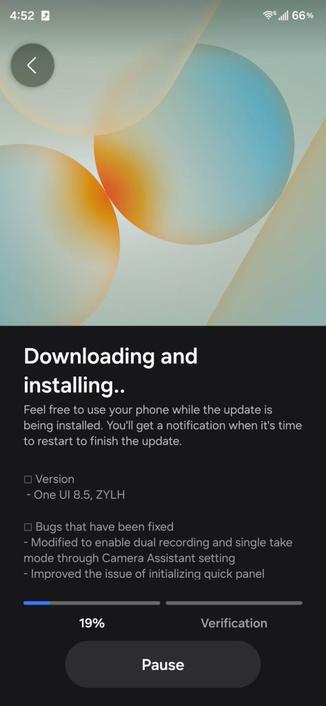
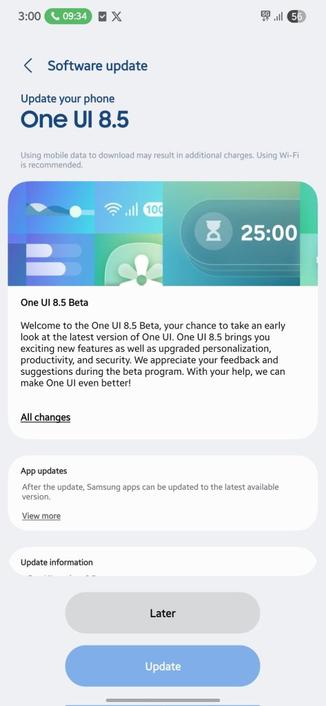
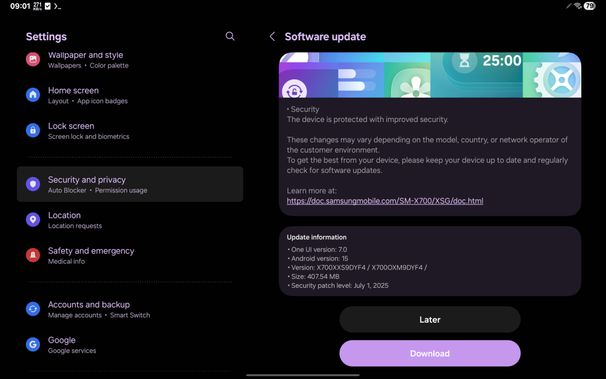
Afterwards, follow the instructions on the screen. If everything is OK, go to Settings > Software update > Download and install. You’ll get the screen that looks similar to this:

Let it download, but it’s going to take a bit of time depending on your Internet connection. Afterwards, click on the Install button.

Remember: never interrupt the update process during the installation phase, and make sure that your phone is fully charged before proceeding. This is a precaution intended to avoid interruptions. For some markets, it’s advisable to put your device in a well-ventilated room to avoid green lines caused by heat in some AMOLED panels.

Are you excited?

#Android #Android15 #AndroidV #GalaxyS24 #GalaxyS24Ultra #news #oneUi #OneUI7 #OneUI70 #OneUI71 #S24 #S24Ultra #Samsung #SamsungGalaxyS24 #SamsungGalaxyS24Ultra #smartphone #Tech #Technology #update

Google Play System Update (October 2025) rolls out for Samsung devices

Google Play System Update was a feature that was introduced for devices that ship with Android 10 or newer. It’s mandatory for device manufacturers that plan to release their devices with Android 10 to support Google Play System Updates. As a result, non-Google devices, such as Samsung Galaxy phones and tablets released with Android 10 (One UI 2.1), can receive such updates, too.

These updates don’t require security updates from the manufacturer to work, as Project Mainline modules work independently to give you better experience with Android phones and tablets.

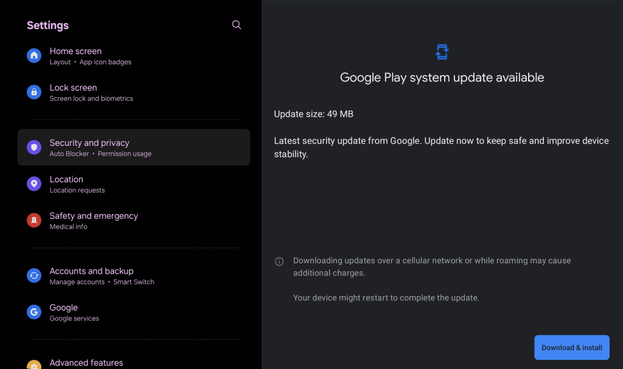
On October 28th, a new Google Play System Update has been pushed to Samsung devices. This update upgrades your Project Mainline modules to the October 1st, 2025 version. This update weighs around 49 MB.

To be able to get this version, follow these steps:

  • Go to your device’s settings
  • Open the security settings
  • Find “Google Play System Update” and tap on it
  • If everything goes OK, you should see the below update dialog:
  • Click on Download and Install, wait for it to download, then reboot your device by clicking on the blue Restart button. The next time your device boots up, the revised update gets installed, so it’s going to take about 3 minutes maximum to install all the updates.

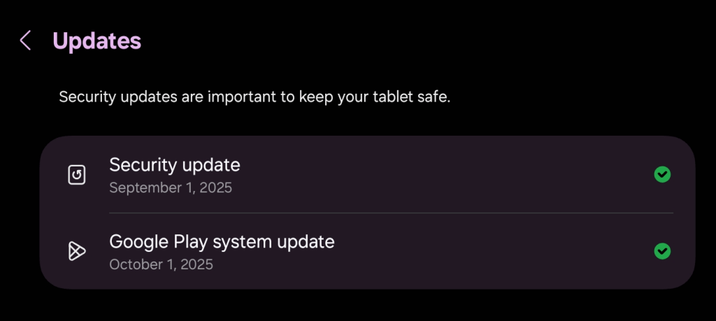
    There is no progress bar, so don’t panic if it looks stuck. Your device will eventually boot up. Now, open your settings app and check your Google Play System Update. If everything is well, you should see October 1st, 2025 below the appropriate button.

    In case your device didn’t receive the update, wait for a few days, and it will be available shortly.

    Stay tuned for the November patch of 2025!

    Google play icons created by Pixel perfect – Flaticon

    #Android #Android12 #Android12L #Android13 #Android14 #Android15 #Android16 #Android17 #AndroidB #AndroidC #AndroidT #AndroidU #AndroidUpdate #AndroidV #December #google #googlePlay #GooglePlaySystemUpdate #mainline #news #operatingSystem #ProjectMainline #smartphone #system #systemUpdate #Technology #update

    Exclusive: Screen off animation broken after the September patch for the Galaxy Tab S8

    Recently, Samsung has pushed the security patch for the Galaxy Tab S8 series that allowed the tablet to be updated to the September 2025 security patch (build DYI1), according to the quarterly security update schedule for the tablet. It is built on top of One UI 7 with Android 15 as the base system.

    While evaluating the version, we’ve noticed an odd bug where the screen off animation wouldn’t play when either the screen turns off by itself or you turn it off by pressing the side button. This bug didn’t exist in the July security patch (build DYF4). However, it didn’t impact the functionality of the tablet; applications open very fast and everything works perfectly in One UI 7.

    You can see the bug in action in a video we posted here:

    https://twitter.com/OfficialAptivi/status/1975608523569709539

    As we are just a few days away from the rollout of the One UI 8 update for the Galaxy Tab S8, we hope that this bug gets fixed in the update that is being worked on right now. According to Güncel Miyiz, the tablet should receive the update globally on the 16th of October, with the Korean release date being earlier according to recent rollout logs.

    To obtain the update, follow these steps:

  • Open the Settings app
  • Navigate to Software update
  • Tap on Download and Install
  • You should be able to see the update information. Verify the version with your device model posted above.
  • Click on Download, let it download, and click on Install. Make sure that you download the update through Wi-Fi.
  • This security update should take 5 to 10 minutes maximum to install once your phone reboots. Make sure that you have the phone charged fully before initiating the update process to avoid interruptions. Back up your data to your PC, the cloud, or any other device in case the update went wrong. Don’t interrupt the update process, or you’ll experience problems later. To mitigate green line issues caused by heat, do the update on a well-ventilated room.

    #Android #Android15 #AndroidV #GalaxyTabS8 #GalaxyTabS8Series #GalaxyTabS8Ultra #news #oneUi #OneUI7 #OneUI70 #SamsuhgGalaxyTabS8_ #Samsung #SamsungGalaxyTabS8 #SamsungGalaxyTabS8Series #SamsungGalaxyTabS8Ultra #smartphone #TabS8 #TabS8Series #TabS8Ultra #Tech #Technology #update

    Galaxy Tab S8 Wi-Fi receives September 2025 Security Patch

    Samsung has recently began distributing the September 2025 security patch to the Tab S8 Wi-Fi series. This is built on top of One UI 7.0 that uses Android 15 as the base. Other countries that didn’t receive this specific update yet will receive it soon.

    This will be the last security patch before the Tab S8 receives the One UI 8 update, which will happen after the Chuseok 2025 holiday.

    According to the latest data, we have found the following firmware versions released:

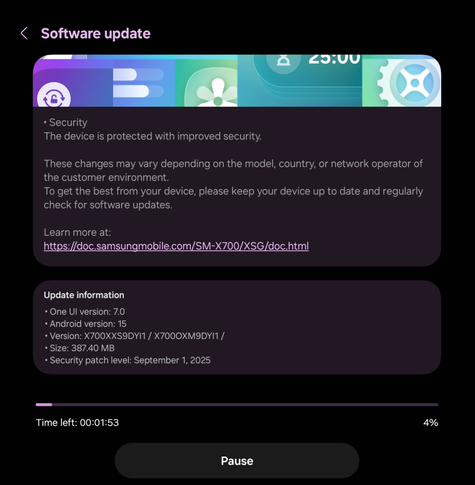
    • SM-X700: X700XXS9DYI1 [EUX]
    • SM-X800: X800XXS9DYI1 [EUX]
    • SM-X900: X900XXS9DYI1 [EUX]

    To obtain the update, follow these steps:

  • Open the Settings app
  • Navigate to Software update
  • Tap on Download and Install
  • You should be able to see the update information. Verify the version with your device model posted above.
  • Click on Download, let it download, and click on Install. Make sure that you download the update through Wi-Fi.
  • This security update should take 5 to 10 minutes maximum to install once your phone reboots. Make sure that you have the phone charged fully before initiating the update process to avoid interruptions. Back up your data to your PC, the cloud, or any other device in case the update went wrong. Don’t interrupt the update process, or you’ll experience problems later. To mitigate green line issues caused by heat, do the update on a well-ventilated room.

    #Android #Android15 #AndroidV #GalaxyTabS8 #GalaxyTabS8Ultra #news #OneUI7 #Patch #phone #PhonesTablets #SamsuhgGalaxyTabS8_ #Samsung #SamsungGalaxyTabS8 #SamsungGalaxyTabS8Ultra #security #smartphone #TabS8 #TabS8Ultra #Tech #Technology #update

    Galaxy Tab S8 5G Series receives September 2025 Security Patch

    Samsung has recently began distributing the September 2025 security patch to the Tab S8 5G series. This is built on top of One UI 7.0 that uses Android 15 as the base. The Wi-Fi versions are expected to receive the update soon, and other countries that didn’t receive this specific update yet will receive it soon.

    This will be the last security patch before the Tab S8 receives the One UI 8 update.

    According to the latest data, we have found the following firmware versions released:

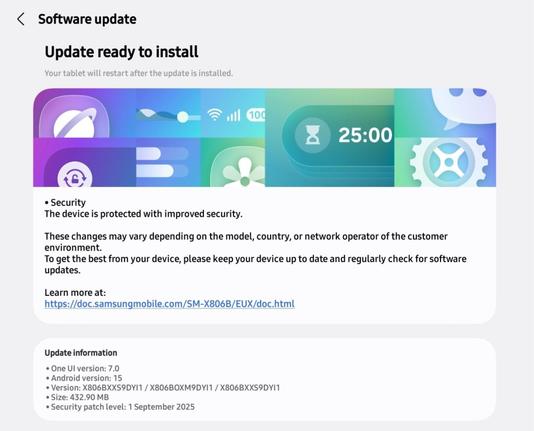
    • SM-X706B: X706BXXS9DYI1 [EUX]
    • SM-X806B: X806BXXS9DYI1 [EUX]
    • SM-X906B: X906BXXS9DYI1 [EUX]

    To obtain the update, follow these steps:

  • Open the Settings app
  • Navigate to Software update
  • Tap on Download and Install
  • You should be able to see the update information. Verify the version with your device model posted above.
  • Click on Download, let it download, and click on Install. Make sure that you download the update through Wi-Fi.
  • This security update should take 5 to 10 minutes maximum to install once your phone reboots. Make sure that you have the phone charged fully before initiating the update process to avoid interruptions. Back up your data to your PC, the cloud, or any other device in case the update went wrong. Don’t interrupt the update process, or you’ll experience problems later. To mitigate green line issues caused by heat, do the update on a well-ventilated room.

    #Android #Android15 #AndroidV #GalaxyTabS8 #GalaxyTabS8Ultra #news #OneUI7 #Patch #phone #PhonesTablets #SamsuhgGalaxyTabS8_ #Samsung #SamsungGalaxyTabS8 #SamsungGalaxyTabS8Ultra #security #smartphone #TabS8 #TabS8Ultra #Tech #Technology #update

    Google Play System Update (September 2025) rolls out for Samsung devices

    Google Play System Update was a feature that was introduced for devices that ship with Android 10 or newer. It’s mandatory for device manufacturers that plan to release their devices with Android 10 to support Google Play System Updates. As a result, non-Google devices, such as Samsung Galaxy phones and tablets released with Android 10 (One UI 2.1), can receive such updates, too.

    These updates don’t require security updates from the manufacturer to work, as Project Mainline modules work independently to give you better experience with Android phones and tablets.

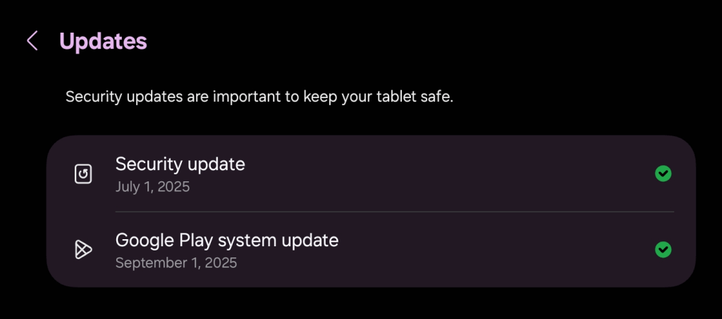
    On September 29th, a new Google Play System Update has been pushed to Samsung devices. This update upgrades your Project Mainline modules to the September 1st, 2025 version. This update weighs around 90 MB.

    To be able to get this version, follow these steps:

  • Go to your device’s settings
  • Open the security settings
  • Find “Google Play System Update” and tap on it
  • If everything goes OK, you should see the below update dialog:
  • Click on Download and Install, wait for it to download, then reboot your device by clicking on the blue Restart button. The next time your device boots up, the revised update gets installed, so it’s going to take about 3 minutes maximum to install all the updates.

    There is no progress bar, so don’t panic if it looks stuck. Your device will eventually boot up. Now, open your settings app and check your Google Play System Update. If everything is well, you should see September 1st, 2025 below the appropriate button.

    In case your device didn’t receive the update, wait for a few days, and it will be available shortly.

    Stay tuned for the October patch of 2025!

    Google play icons created by Pixel perfect – Flaticon

    #Android #Android12 #Android12L #Android13 #Android14 #Android15 #Android16 #Android17 #AndroidB #AndroidC #AndroidT #AndroidU #AndroidUpdate #AndroidV #December #google #googlePlay #GooglePlaySystemUpdate #mainline #news #operatingSystem #ProjectMainline #smartphone #system #systemUpdate #Technology #update

    Gallery Assistant Showcase

    This is an article meant to showcase the Gallery Assistant beta that was released for the Korean Galaxy devices before the APK was revealed to the public. Since then, we’ve managed to get our hands on the Gallery Assistant application that we will showcase.

    You’ll have to turn off the Auto Blocker feature on your device before you’ll be able to install the APK to your device. Once done, you can turn the feature back on when needed. Please note that Gallery Assistant doesn’t support landscape display rotation yet on tablets, but you can open it in a pop up then add it to the multi window.

    Gallery Assistant runs on One UI 6 and higher, and this means that you are required to have a phone or a tablet that’s running at least One UI 6 in order to be able to use this application.

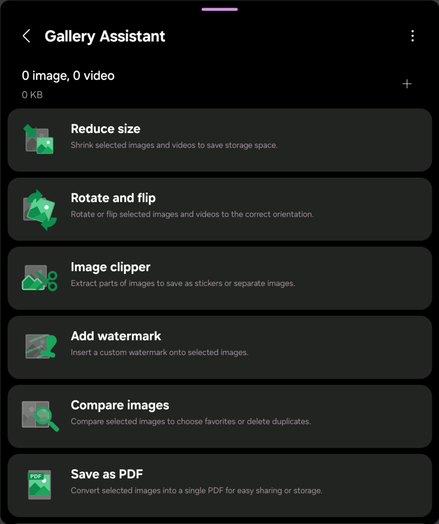
    When you open the landing page for the Gallery Assistant, this is what you first see:

    You’ll have the following options:

    • Reduce size
    • Rotate and flip
    • Image clipper
    • Add watermark
    • Compare images
    • Save as PDF
    • Print

    Some of those features already exist in the built-in Gallery app, but the Gallery Assistant offers further options.

    Of course, you’ll have to select images and/or videos before every operation, such as reducing the image/video size. You can do this by pressing the plus sign at the top of the screen.

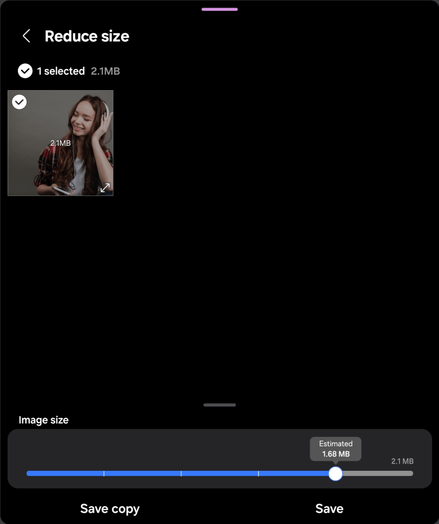
    Fitst, let’s introduce you to Reduce Size. It allows you to shrink selected images and videos in bulk. You can also select specific pictures to reduce their size, and you can adjust the slider up to ten levels:

    Of course, the size that the slider tells you is estimated, and the actual size differs. When you save the picture, the size has been reduced as in below:

    Let’s try again with the significant reduction in size, with the slider adjusted to 20%, which means 0.42 MB estimated.

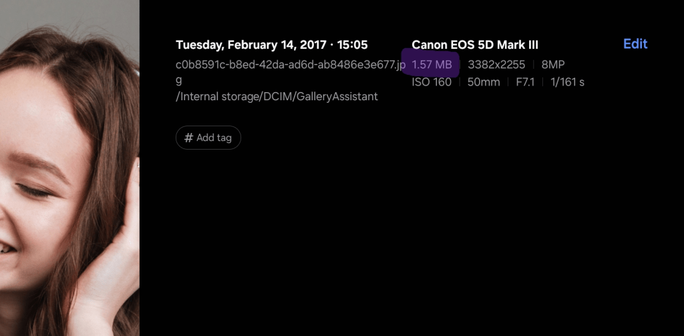
    You can notice that the resolution has dropped as part of the resize process. Not only that, but the sharpness of the image has been reduced. You can notice this by the texture of the hair. The original resolution of the picture was in 3456×2304 (2.1 MB), but it has been reduced to 3382×2255 (1.57 MB) and 1590×1060 (402 KB), respectively.

    Here are the two comparisons where we showcase the detail loss:

    Reduced to 1.57 MB Reduced to 402 KB

    Second, the Rotate and Flip feature allows you to rotate and flip images in bulk. You can, for example, straighten, rotate and flip more than one image at once.

    The Straighten button automatically detects the subject and tries to straighten the shot, if necessary.

    The rotate and flip buttons are trigger switches, and the images that you select are affected when you save them.

    Let’s compare the images, one by one:

    NormalRotatedFlippedFlipped and Rotated

    As for the image clipper, the result is best when you choose a picture that has a clear subject, such as a picture of an object or a person.

    In this case, the subject (an old vintage laptop running Windows 95) has been chosen here, and you can either copy the clipped image or save it. The result is:

    Fourth, you can add a watermark to an image using either text or a smaller image, such as your name or your logo. You can also repeat the watermark across the whole image.

    You can edit the watermark settings in the Info to show screen. You can select either an image or a text. You can customize the font, the color, the size, and the transparency if you want to show text. Else, you can resize the image and change its transparency to give it a more branded look.

    In the Repeat screen, you can manipulate with the watermark by either letting it repeat across the whole image, or by adjusting its direction if it’s not repeated.

    Once done, you can save the image as a copy or over the original. After that, you can see the new image with the watermark applied.

    The fifth tool that Gallery Assistant provides is the Compare Images feature, where you can compare between two, three, or four images. To achieve the best results, you can choose pictures that look identical, but differ in small or large details, as long as both of them are the same subject.

    Sixth, you can save images to a single PDF file.

    In the hamburger menu, you can change the page size (A3, A4, or Letter), the layout (Portrait or Landscape), and the image quality (Original, Medium, or Low). You can either save the PDF or share it to someone. The only issue is that the banding in the original images that we’ve used is visible.

    Finally, you can print the images. Not only that, but you can also print video thumbnails!

    After that, the resultant PDF is saved at the folder that you choose.

    Again, the banding issues are here.

    While we are very excited to have this app handy, this version of the application has room for improvements. Once the global rollout of the final version starts, we’ll inform you.

    Image by drobotdean on Freepik

    #Android #Android14 #Android15 #Android16 #AndroidB #AndroidBaklava #AndroidU #AndroidV #news #oneUi #OneUI6 #OneUI60 #OneUI61 #OneUI611 #OneUI70 #OneUI80 #Samsung #smartphone #Tech #Technology #update
    Google Play System Update (August 2025) rolls out for Samsung devices

    Google Play System Update was a feature that was introduced for devices that ship with Android 10 or newer. It’s mandatory for device manufacturers that plan to release their devices with Android 10 to support Google Play System Updates. As a result, non-Google devices, such as Samsung Galaxy phones and tablets released with Android 10 (One UI 2.1), can receive such updates, too.

    These updates don’t require security updates from the manufacturer to work, as Project Mainline modules work independently to give you better experience with Android phones and tablets.

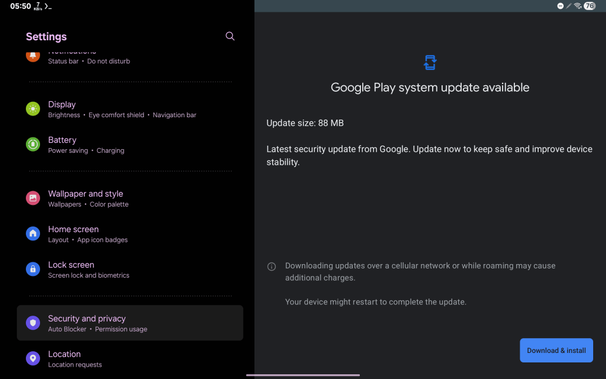
    On September 10th, a new Google Play System Update has been pushed to Samsung devices. This update upgrades your Project Mainline modules to the August 1st, 2025 version. This update weighs around 88 MB.

    To be able to get this version, follow these steps:

  • Go to your device’s settings
  • Open the security settings
  • Find “Google Play System Update” and tap on it
  • If everything goes OK, you should see the below update dialog:
  • Click on Download and Install, wait for it to download, then reboot your device by clicking on the blue Restart button. The next time your device boots up, the revised update gets installed, so it’s going to take about 3 minutes maximum to install all the updates.

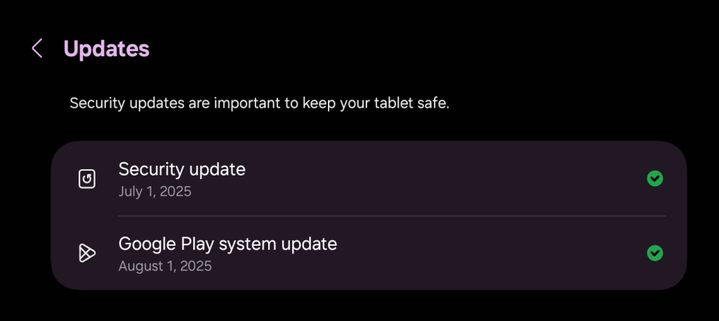
    There is no progress bar, so don’t panic if it looks stuck. Your device will eventually boot up. Now, open your settings app and check your Google Play System Update. If everything is well, you should see August 1st, 2025 below the appropriate button.

    In case your device didn’t receive the update, wait for a few days, and it will be available shortly.

    Stay tuned for the September patch of 2025!

    Google play icons created by Pixel perfect – Flaticon

    #Android #Android12 #Android12L #Android13 #Android14 #Android15 #Android16 #Android17 #AndroidB #AndroidC #AndroidT #AndroidU #AndroidUpdate #AndroidV #December #google #googlePlay #GooglePlaySystemUpdate #mainline #news #operatingSystem #ProjectMainline #smartphone #system #systemUpdate #Technology #update

    Galaxy Tab S8 Series receives July 2025 Security Patch in more countries

    Samsung has recently began distributing the July 2025 security patch to the Tab S8 series. This is built on top of One UI 7.0 that uses Android 15 as the base. According to the latest data, we have found the following firmware versions released:

    • SM-X700: X700XXS9DYF4
    • SM-X706N: X706BXXS9DYF4
    • SM-X800: X800XXS9DYF4
    • SM-X806N: X806BXXS9DYF4
    • SM-X900: X900XXS9DYF4
    • SM-X906N: X906BXXS9DYF4

    For instance, our Galaxy Tab S8 received the update like below:

    To obtain the update, follow these steps:

  • Open the Settings app
  • Navigate to Software update
  • Tap on Download and Install
  • You should be able to see the update information. Verify the version with your device model posted above.
  • Click on Download, let it download, and click on Install. Make sure that you download the update through Wi-Fi.
  • This security update should take 5 to 10 minutes maximum to install once your phone reboots. Make sure that you have the phone charged fully before initiating the update process to avoid interruptions. Back up your data to your PC, the cloud, or any other device in case the update went wrong. Don’t interrupt the update process, or you’ll experience problems later. To mitigate green line issues caused by heat, do the update on a well-ventilated room.

    #Android #Android15 #AndroidV #GalaxyTabS8 #GalaxyTabS8Ultra #news #OneUI7 #Patch #phone #PhonesTablets #SamsuhgGalaxyTabS8_ #Samsung #SamsungGalaxyTabS8 #SamsungGalaxyTabS8Ultra #security #smartphone #TabS8 #TabS8Ultra #Tech #Technology #update
    Google Play System Update (July 2025) rolls out for Samsung devices

    Google Play System Update was a feature that was introduced for devices that ship with Android 10 or newer. It’s mandatory for device manufacturers that plan to release their devices with Android 10 to support Google Play System Updates. As a result, non-Google devices, such as Samsung Galaxy phones and tablets released with Android 10 (One UI 2.1), can receive such updates, too.

    These updates don’t require security updates from the manufacturer to work, as Project Mainline modules work independently to give you better experience with Android phones and tablets.

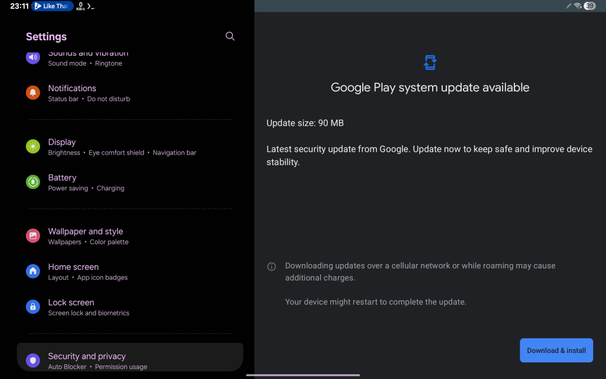
    On July 23rd, a new Google Play System Update has been pushed to Samsung devices. This update upgrades your Project Mainline modules to the July 1st, 2025 version. This update weighs around 87 MB.

    To be able to get this version, follow these steps:

  • Go to your device’s settings
  • Open the security settings
  • Find “Google Play System Update” and tap on it
  • If everything goes OK, you should see the below update dialog:
  • Click on Download and Install, wait for it to download, then reboot your device by clicking on the blue Restart button. The next time your device boots up, the revised update gets installed, so it’s going to take about 3 minutes maximum to install all the updates.

    There is no progress bar, so don’t panic if it looks stuck. Your device will eventually boot up. Now, open your settings app and check your Google Play System Update. If everything is well, you should see July 1st, 2025 below the appropriate button.

    In case your device didn’t receive the update, wait for a few days, and it will be available shortly.

    Stay tuned for the August patch of 2025!

    Google play icons created by Pixel perfect – Flaticon

    #Android #Android12 #Android12L #Android13 #Android14 #Android15 #Android16 #Android17 #AndroidB #AndroidC #AndroidT #AndroidU #AndroidUpdate #AndroidV #December #google #googlePlay #GooglePlaySystemUpdate #mainline #news #operatingSystem #ProjectMainline #smartphone #system #systemUpdate #Technology #update