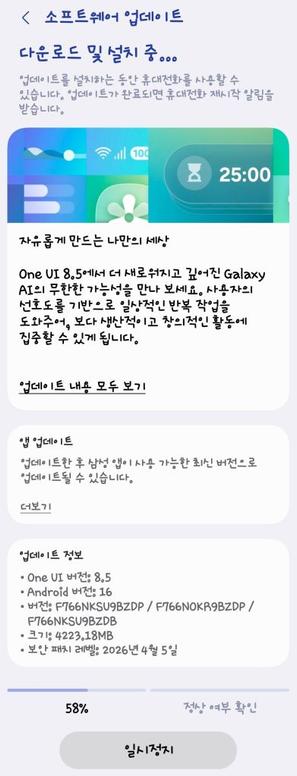
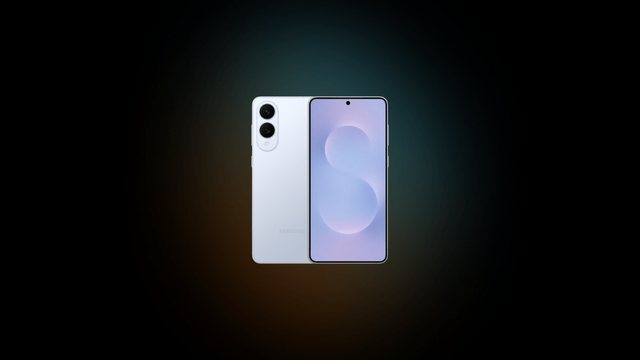
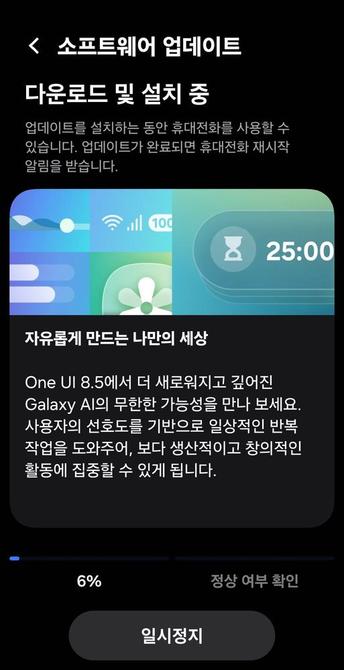
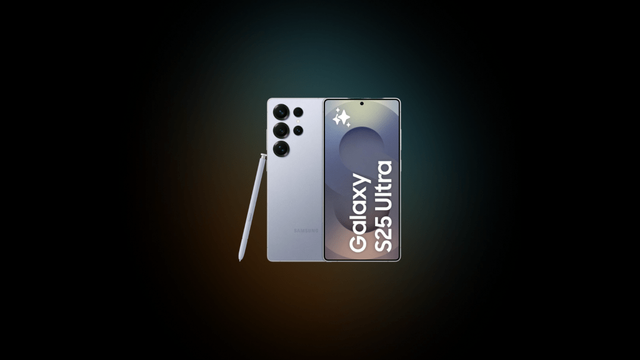
Samsung releases the changelogs of One UI 8.5 for the Galaxy S25!
One UI 8.5 brings a new ambient design language that is designed to provide you with more modern appearance, as well as new AI features and enhancements to existing features. This version of One UI was found in the Galaxy S26, the Galaxy A57, and the Galaxy A37 before the rollout started.
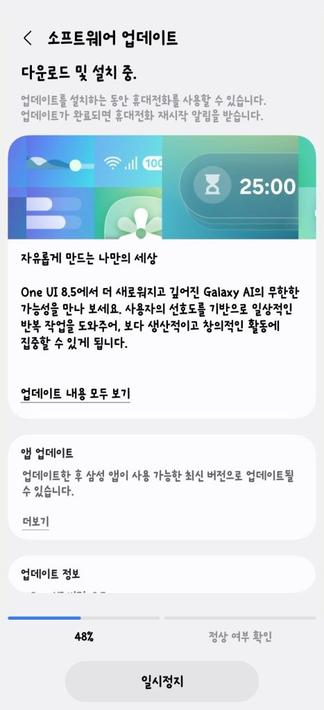
As One UI 8.5 for the latest flagship devices becomes available in Korea, here is a list of changes that are made (source):
(Please note that the changelogs below is shown as English with machine translation, and there might be inaccuracies. Once the global rollout starts and the changelogs are published, we will replace the content)
One UI 8.5
Visual Design
New visuals that bring change to everyday life
One UI provides more meaningful personalized experiences in everyday life, enabling you to experience a higher level of design sophistication. The depth added by transparent blur effects helps you easily understand content, while necessary elements are provided in a floating format based on the usage context, pursuing greater usability. Through user-friendly and intuitive data visualizations, we designed One UI that allows you to focus on what matters.
Galaxy AI
Call screening before answering the call directly
When a call comes in, you can have the call assistant answer the phone on your behalf and ask for the caller’s name and purpose.
Edit images with a text prompt
Image editing has been improved to allow you to easily edit images by typing the changes you want to make. You can change the color of someone’s clothes or add something new to an empty table. Bring your imagination to life in images.
Combining natural images
You can easily combine elements from different images into a single image using Photo Assist. Simply select the parts you want to composite from other photos, and Galaxy AI will create a seamless blend. You can also add text along with the photos to create the image you desire.
Decorate photos in various styles
With Photo Assist, change the mood of your photos by applying various styles not only to pictures of people or pets’ faces but to all your photos. You can long-press a style in thumbnail view to change its order and pin your favorite style items to the front.
Continue generating images
You can now continue working on your desired tasks without interruption. When creating images with AI in Photo Assist, you do not need to save your various edits individually; you can continue editing directly from the result screen after creation. Additionally, you can view the generated images at any time through the history.
Create Your Own Image with Creative Studio
Create your own wallpapers, special stickers, and profile images, and use them freely on your phone. You can now launch Creative Studio directly from the Apps screen.
View Now Brief on lock screen
Receive a wider variety of personalized recommendations on your lock screen. Now Brief provides useful information tailored to your specific situation.
Even more powerful AI Select
Press and hold the Edge handle to instantly activate AI Select. Even if you missed the scene you wanted, you can rewind a few seconds to accurately capture the part you need.
Automatic language detection during interpretation
Once you turn on the microphone, you can continue a natural conversation without having to press it every time. After selecting the language to interpret and turning on the microphone, the interpretation app automatically detects the language being spoken and translates it into each other’s languages.
Bixby
Smart device control
Try making requests to Bixby using your own unique expressions. Even if you don’t use exact commands or function names, Bixby helps you find and quickly change the settings and features you need. With a personalized guide for your device, you can use Bixby more smartly and conveniently.
Ask anything and everything
You can ask Bixby questions naturally, as if having a conversation, and check the answers you want immediately. You can get the information you need with a single conversation, without the need to switch between apps or search multiple times.
Easily check conversation history
It has been improved to make it easier to find your past conversation history with Bixby. You can quickly check your previous conversation history on the side panel of the Bixby app.
camera
Clean document scanning and editing
Experience faster and smarter document scanning. Simply point the camera at the document, and the scan button will appear automatically. Not only can you save multiple pages as a single PDF file, but the new eraser tool automatically removes unwanted elements such as fingers, folded corners, and wavy lines.
Motion Photo Auto Settings
If you set Motion Photo to the Automatic option, the camera saves a Motion Photo video only when it detects movement of the subject. When there is no movement, it is saved as a regular photo, allowing for more efficient use of space.
Simultaneous recording with front and rear cameras
Try capturing the scene in front of you while filming yourself. Press the Dual Recording icon in Quick Control in Video Mode to start recording simultaneously with the front and rear cameras.
Log video color preview
When shooting Log footage, check the color tone of the final edit in real time. By applying Cinematic LUT Preview, you can accurately grasp the final look even before you start editing. Cinematic LUT Preview is available in the Gallery and Studio apps.
Added new filters
Three new filters have been added to add vivid film effects to your photos.
Home and Lock Screen
Automatic Lock Screen Configuration
You can configure the screen with an optimal layout when using photos of people or pets as wallpapers. The wallpaper is automatically positioned to harmonize well with the location of the lock screen clock and widgets.
New downloadable wallpapers
You can download new wallpapers that include interactive elements. Since you can download only the wallpapers you need, unused wallpapers do not affect your storage space.
Apply weather effects to the background
Effects are applied to the wallpaper based on the current weather. If you select an image to use as the wallpaper, you can preview how the weather effects will be applied.
Watch with enhanced custom options
The lock screen clock has been improved to allow for more diverse customization. Adjust the font weight yourself to match the background image.
weather
Improved weather widget
You can quickly check precipitation information on the weather widget on the home screen. When precipitation is forecast within a few hours, it is displayed as a graph on the widget.
Pollen index
Pollen index information has been newly added. You can effectively manage allergies by checking the indices for trees, grass, and ragweed.
Communication
Direct voice message
When you are unable to answer a call, if the other person leaves you a voicemail, it is saved on your phone so you can quickly listen to it at any time. The message is displayed on the screen in real-time while the other person is leaving it, allowing you to reply whenever you want.
Reject calls with personalized messages
When a call comes in, an appropriate rejection message is recommended based on your activity. You can easily tell the caller that you cannot take the call because you are driving or exercising. You don’t have to type the text manually.
clock
Weather alarm background
Start your day by checking the current weather. To allow you to check the weather intuitively, the current weather is displayed in the background when the alarm rings.
Time zone conversion
It has been improved to allow you to compare various time zones at once. You can intuitively check the time differences of multiple cities using a slider in the clock app.
Connectivity
Storage sharing
In the My Files app on my phone, you can access files from other Samsung phones, tablets, and PCs. Additionally, you can open files from your phone on other Samsung devices, such as TVs.
Automatic hotspot
It has been upgraded to make it easier to share your phone’s internet connection with more people. You can share with family members of your Samsung account, and you can also create hotspot sharing groups to conveniently share with whoever you want.
Family Device Sharing
Enjoy a diverse connection experience by sharing files, screens, cameras, storage, and more with your family. You can use features such as Quick Share, Camera Sharing, Storage Sharing, Auto Hotspot, and Multi-Control on your family’s Galaxy devices.
Quickly connect to Smart View devices
Connect to your frequently used displays faster. Add a shortcut to your home screen to instantly mirror your phone screen to a TV or other display.
Oracast Menu Integration
By integrating audio broadcasting settings into a single location, it has become more convenient to listen to others’ Oracast broadcasts and start your own. Check and use all your broadcasting-related settings in one place.
Broadcasting with my voice
Not only can you share media audio from your phone with people around you, but you can also broadcast directly using your own voice. Use your phone’s built-in microphone to broadcast with a clear voice.
Quick Share
Share with Apple devices
Enjoy a sharing experience with a wider variety of devices. With Quick Share, you can now share various content, such as photos, videos, and files, with AirDrop-enabled devices like iPhone, iPad, and Mac.
Share only on my device
You can set it so that files are sent only from devices logged in with your Samsung account or Google account.
Recommended devices to share
You can quickly find people to share with. When sharing photos with family, friends, and others, it recognizes the people in the photos and recommends who to share the file with.
Samsung Health
Weekly Report for Comprehensive Health
Check your weekly changes with various data. You can now also view medication intake and mindfulness data in the weekly report.
Upgraded shared experience
You can add your own unique style when sharing your workout records. Use photos of yourself working out and your workout logs to create the perfect image for social media.
Meditating with the Watch
You can start meditating on your Galaxy Watch. Try your favorite meditation sessions or recommended meditations right from your phone or watch.
Measure antioxidants on the watch at any time
The Galaxy Watch has been improved to allow you to measure antioxidant levels directly on the watch at any time, even when it is not connected to a phone. This feature is available on the Galaxy Watch 8 and Galaxy Watch Ultra.
Battery and power
Battery information screen improvement
Improvements have been made to allow for more efficient checking of battery usage information. You can conveniently view battery level, charge status, battery protection options, and daily usage from last week and this week all on a single screen.
Enhanced power saving mode
You can extend battery life by enabling Power Saving mode. In Basic Power Saving mode, you can increase battery life by manually setting which items to restrict, while selecting Ultra Power Saving mode maximizes battery life by turning off all functions except essential ones.
Security and Privacy
Privacy Notice
If you enable privacy alerts, you will receive notifications that periodically check app permission settings and allow you to review permissions if there is a possibility that your personal information may be exposed to risk. You can also receive useful suggestions and information for safely protecting your personal information.
Protecting stolen devices
To protect your information more safely, turn on the Authentication Failure Lock feature in case your phone is lost or stolen. The screen automatically locks if you fail too many times when attempting to unlock using a fingerprint, PIN, pattern, or password. Additionally, security is enhanced by protecting more settings than before through this authentication feature.
Temporarily turn off automatic security risk blocking feature
If you need to temporarily turn off the automatic security risk blocking feature, you can set it to automatically turn back on after 30 minutes. To keep your device safe from security threats, try setting it to turn on automatically without having to manually restore it.
Check the security status of my device
Check the status of all your devices and use them safely. Knox Matrix checks the security status of your devices and notifies you to update if the latest software is available. This feature is only available on supported devices logged into a Samsung account.
Accessibility
Easily control Bluetooth hearing aids
You can now directly access Bluetooth hearing aid settings via the Accessibility Shortcut. From the pop-up, you can quickly change various settings, such as switching hearing aid programs or turning Amplify Ambient Sound on and off.
Enhanced zoom experience when using mouse/keyboard
Improvements have been made to ensure a stable view of the magnified area when using a mouse or keyboard. When changing focus with the keyboard, the magnified area can be configured to follow cursor input or movement. When using a mouse, the magnified area can also be configured to follow the pointer as it moves toward the corners of the screen.
Automatic movement after stopping / Corner movement
The automatic action after the pointer stops feature has been improved by separating it into two parts, allowing for appropriate use depending on the situation. Automatic action after stopping allows you to perform a custom action when the mouse remains stationary for a specific period of time. Corner action allows you to set a separate action for each corner of the screen.
Reduce flash effects in videos
A new setting has been added to reduce flash effects, making video viewing more comfortable.
Other enhanced features
Quick Settings Edit
Editing the Quick Settings panel has become even more flexible. You can arrange each item wherever you want, such as adding necessary items, deleting rarely used ones, and moving frequently used items to the front.
My Own Calendar D-Day Widget
You can customize the D-Day widget to your desired style. You can create and apply a background image using Creative Studio, select an image directly from the gallery, or apply a color of your choice to the background.
Get a reminder earlier than the time you need it
Set reminders to ensure you don’t miss important tasks. You can select the time to receive reminders for each reminder.
Inserting a table in Samsung Notes
Organize your notes neatly using tables. You can freely adjust column width, color, and border design, and increase productivity by reducing work time with automatic calculation features.
Reorganize new tab page
The tab page in Samsung Browser has been improved to allow you to check and open websites and necessary functions more quickly when opening a new tab. On the new tab page, you can check not only tabs open on other devices but also your current security status.
Partial screen recording
Instead of the full screen, you can adjust the recording area size to include only the desired region. Record only the parts you need.
Enter formulas quickly with recommendations
Features have been enhanced to make calculations faster and easier. When you open the calculator, it recommends numbers and formulas stored in the clipboard for immediate input.
Saving window size and position in DeX
The window size and position for each app are saved. When you open the same app again in DeX later, it will open in the same location with the size it was last used.
To update your Galaxy to One UI 8.5, follow these steps:
Open Settings, and navigate to System UpdateTap on Check for UpdatesPress Download and InstallWait until the download and the installation is complete, then press Reboot NowWait until the phone reboots successfullyMake sure that you’re connected to a stable and fast Wi-Fi network to avoid high mobile data fees. Never interrupt the update in any way, or problems could occur later. Make sure that you apply all available updates once you update your phone for maximum stability. An update might take 10 to 20 minutes to apply, depending on the device and the type of the update being applied.
If you’re seeing “Your software is up to date,” this means that the update hasn’t reached your device yet. Keep checking for updates, as Samsung rolls it out gradually to all devices from country to country, usually starting from Korea.
#Android #Android16 #news #oneUi #OneUI85 #Samsung #smartphone #Tech #Technology #update infosertecla.com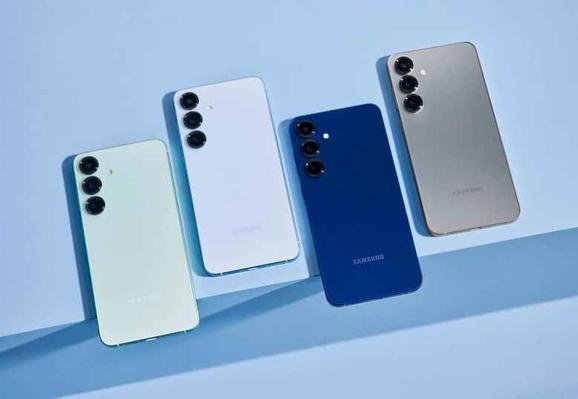
 Agnieszka Serafinowicz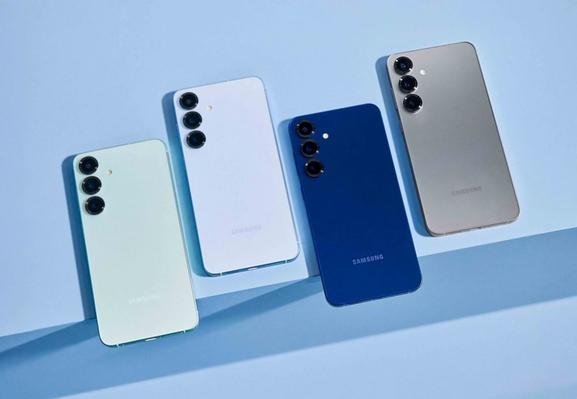
 Aptivi
 mobiFlip – News & Testberichte aus der Technikwelt [Unofficial]
 WinFuture.de