
The Architecture of Utility: Mastering the ACE Lifecycle

1,685 words, 9 minutes read time.

You want to build for the mobile workforce? Then stop treating Adaptive Card Extensions (ACEs) like a web-page hobby project. When you’re developing for Microsoft Viva Connections, you are operating in a constrained, high-stakes environment where every millisecond of latency and every redundant re-render is a failure of your technical integrity. This isn’t just “React-like” development; it’s an exercise in strict state management and hardware-aware architecture. If you don’t master the lifecycle, you’re just building digital debris that will eventually get purged by a frustrated user who needs information now, not after your bloated component finishes its third unnecessary re-render.

We are going to dismantle the ACE architecture from the metal up. We’ll look at the IState contract, the data() mapping layer, and the lifecycle hooks that separate the senior architects from the script kiddies. If you’re tired of your extensions jittering on mobile or failing during high-load scenarios, pay attention. The following breakdown is how you move from a “component-pusher” to a systems engineer. We aren’t just coding; we’re defining the protocol for how a mobile user interacts with their entire enterprise.

1. The IState Contract: Engineering Your Memory Footprint

The biggest failure in amateur ACE development is treating the IState interface as a junk drawer. You’re fetching massive JSON blobs from the Graph API and dumping them directly into your state. This is reckless. The ACE lifecycle is sensitive to object identity; when you update the state, the framework does a comparison to determine if it needs to re-render. If you are passing object references that change constantly, you trigger unnecessary reconciliation cycles that kill performance on mobile devices.

You must design your IState to hold only the absolute primitives required to drive the UI. Everything else is metadata that belongs in a service layer or a private property, not the state. Consider this structure:

// DON'T do this: storing the full API response in state export interface IMyACEState { fullData: any[]; // The hallmark of a lazy developer } // DO this: strict, lean state management export interface IMyACEState { status: 'loading' | 'ready' | 'error'; itemCount: number; highlightTitle: string; }

By keeping your state lean, you ensure that the data() getter—the bridge between your logic and your Adaptive Card template—remains predictable. Your data() method is where you transform your internal state into the exact JSON schema that the Adaptive Card renderer expects. Never pass the raw state. The data() method should be a pure transformation function. If your logic in data() is heavy, you are doing it wrong; pre-calculate those values in your onInit or in your onStateUpdate cycle. If you don’t control the footprint of your data, you don’t control the quality of the user experience.

2. The Lifecycle Protocol: Controlling the onInit and onPropertyPaneFieldChanged

Most developers treat onInit() as a “fetch and forget” function. It’s not. It is the initialization of a persistent state machine. When your ACE loads, it needs to handle the transition from “placeholder” to “functional component” gracefully. If you are firing off network requests without a loading state, your card will look broken until the promise resolves. You need to leverage the loadPropertyPaneResources and initial state settings to ensure the card is never in an undefined state.

Furthermore, how you handle the Property Pane is a direct reflection of your discipline. Every time a user changes a setting in the property pane, the framework calls onPropertyPaneFieldChanged. If you are re-triggering your entire data-fetch logic every single time a toggle is flipped, you are burning your user’s bandwidth and CPU. You must implement a strategy to only refetch the data that actually changed.

protected async onPropertyPaneFieldChanged(propertyPath: string, oldValue: any, newValue: any): Promise<void> { // Only trigger a re-fetch if the specific dependency property changes if (propertyPath === 'listId' && oldValue !== newValue) { await this.loadData(); } }

This is the difference between a tool that feels like a native part of the OS and a tool that feels like a glitchy web-wrapper. You are responsible for the lifecycle. If the data is stale, you update it. If the property hasn’t changed, you do nothing. Don’t rely on the framework to guess your intentions. Define your dependencies, bind them to your property change events, and keep the logic locked down.

3. Navigation and Action: Designing the Quick View Gateway

The Quick View is not a standard React modal; it is a scoped navigation context within the ACE. If you are handling actions in the onAction method by performing heavy operations, you are blocking the main thread. Remember, you are working within a mobile-first paradigm. If an action is going to take more than a few milliseconds, you need to provide immediate visual feedback.

When you dispatch an action, you must follow the IQuickViewNavigator pattern strictly. The interaction flow should be: Input -> Validation -> State Mutation -> View Transition. If your transition happens before the state is synchronized, you are creating a “race condition” where the user sees old data in the new view.

public onAction(action: IActionArguments): void { if (action.type === 'Submit') { // 1. Optimistic UI update this.setState({ status: 'loading' }); // 2. Perform the async operation this.service.postData(action.data).then(() => { // 3. Finalize state only after successful network round-trip this.setState({ status: 'ready' }); }); } }

This is defensive programming. You assume the network will fail, you assume the user will double-click, and you structure your code to survive those realities. If you don’t build your Quick View navigation to be resilient to asynchronous latency, you aren’t building a product; you’re building a bug report. Master the onAction pipeline, and you’ll eliminate the vast majority of the “ghost” issues that plague less disciplined developers.

The Terminal State: Why Your Career Depends on Your Codebase

We’ve stripped the veneer off the Adaptive Card Extension framework. You’ve seen the mechanics: the IState contract that dictates your memory footprint, the lifecycle discipline required to handle property changes without burning the user’s battery, and the defensive onAction patterns that separate a professional from an amateur. If you’ve been treating ACEs as a playground for sloppy React habits, you now have the blueprint for what true architectural integrity looks like in the Viva Connections ecosystem. The hard truth is this: the platform doesn’t care about your clever hooks or your “React-like” shortcuts if your component hangs the mobile bridge. The platform demands efficiency, consistency, and a total disregard for technical debt.

You are the gatekeeper of your user’s efficiency. Every time you push a build, you’re either adding a robust, load-bearing component to their dashboard, or you’re adding another layer of digital noise that they’ll inevitably silence. The code you write is a direct reflection of your character. A developer who accepts redundant re-renders is a developer who accepts low standards in his personal life. A developer who writes asynchronous logic that can’t handle a network drop is a developer who avoids solving the hard problems in his professional life. It’s all the same discipline. If you can’t master the state of a small card, you have no business touching the core architecture of a larger system.

The No-Excuses Refactor

The path forward is clear: you stop taking the easy route. Next time you open a project, refactor your IState into a lean, strictly-typed contract. Prune your data() mapping until it only returns exactly what the UI needs to breathe. Audit your onAction handlers to ensure they are shielded against the reality of intermittent network connectivity. Stop blaming the framework, the mobile bridge, or the limitations of SharePoint for your bugs. Your bugs are your own. They are the artifacts of your lack of attention, your refusal to optimize, and your desire to cut corners where the hard work is required.

It’s time to move from “getting it to work” to “ensuring it remains stable.” This is the only mindset that survives the crunch. When the system fails—and it will—you want to be the engineer who knows exactly where the memory leaked, not the one who hides behind a “works on my machine” excuse while the production environment burns. You have the technical documentation, you have the patterns, and you have the objective reality of the code in front of you. There are no more excuses left to hide behind. Refactor your logic, harden your contracts, and stop building debris.

Call to Action

You’ve got the blueprint, the constraints, and the cold reality of what it takes to build a component that doesn’t collapse under the weight of an enterprise load. You have two choices: go back to slapping together bloated, “it-mostly-works” code that keeps you stuck in the cycle of fixing your own technical debt, or commit to the discipline of a senior architect.

Stop lurking and start refactoring.

If you are serious about hardening your codebase, I want to see the friction you’re currently wrestling with. Drop a comment below with the biggest performance bottleneck in your current ACE deployment—be specific about your state handling or your action pipeline—and I will tell you exactly where you’re leaking memory.

Don’t send me “it’s broken” complaints; send me the architectural breakdown of where you think your logic is failing. Subscribe, keep your eyes on the terminal, and let’s stop building debris. Your next deployment is the test of your standards—make sure it passes.

SUPPORTSUBSCRIBECONTACT ME

D. Bryan King

Sources

Disclaimer:

The views and opinions expressed in this post are solely those of the author. The information provided is based on personal research, experience, and understanding of the subject matter at the time of writing. Readers should consult relevant experts or authorities for specific guidance related to their unique situations.

#ACEDevelopment #AdaptiveCardExtensions #adaptiveCards #APIContract #applicationLifecycleManagement #backendIntegration #cloudNativeDevelopment #codeQuality #codeRefactoring #customACE #dataMapping #developerBestPractices #developerDiscipline #DigitalDashboard #enterpriseApplication #enterpriseIntegration #enterpriseMobility #enterpriseSoftwareDevelopment #frontendDevelopment #frontendPerformance #highPerformanceWeb #memoryManagement #MicrosoftGraphAPI #MicrosoftViva #mobileWorkforceSolutions #mobileFirst #mobileFirstDesign #networkResiliency #performanceTuning #ProfessionalDevelopment #professionalProgramming #QuickViewDevelopment #ReactStateManagement #robustArchitecture #SharePointArchitecture #SharePointDevelopment #SharePointFramework #softwareArchitecture #softwareEngineering #softwareReliability #softwareScalability #SPFx #systemStability #technicalDebt #technicalLeadership #TypeScriptDevelopment #UIThreadOptimization #VivaConnections #webPerformanceOptimization


Mastering Flexbox and Grid: Advanced Layout Techniques in CSS

1,122 words, 6 minutes read time.

Introduction

There comes a time in every seasoned web programmer’s journey where floats and clearfix hacks just don’t cut it anymore. Responsive design, dynamic content placement, and flexible UIs demand more modern, robust solutions. That’s where CSS Flexbox and Grid come into play. For the male programmer looking to elevate his front-end game, mastering these two layout systems isn’t just useful — it’s essential. This deep-dive aims to help you master Flexbox and Grid with practical examples, expert insights, and advanced strategies that go beyond the basics. We’re not just talking theory. We’re building solid mental models and workflows that empower you to lay out interfaces with surgical precision.

Understanding the Layout Landscape

Before diving headfirst into Flexbox and Grid, it’s important to understand the layout problems they were designed to solve. Flexbox is a one-dimensional layout system (either horizontal or vertical), ideal for aligning items in a row or column. Grid is two-dimensional, making it perfect for more complex page structures.

With the demise of IE11 and the dominance of evergreen browsers, you no longer have to worry about compatibility nightmares. Modern CSS is fully supported, so it’s time to go all in.

Flexbox: A Precision Tool for One-Dimensional Layouts

At its core, Flexbox makes aligning items along a single axis easier than ever before. But beyond the basics of display: flex, Flexbox offers a suite of properties that allow you to control wrapping, alignment, distribution, and sizing.

Let’s start with a typical use case: a navigation bar. With justify-content: space-between and align-items: center, you can spread items out across the horizontal plane while aligning them vertically — without writing a single float or margin hack.

But let’s not stop at nav bars. Consider a product list that needs to dynamically wrap based on available screen width. With flex-wrap: wrap, and flex-basis to control item width, Flexbox allows for responsive behaviors that would be extremely convoluted with floats or inline-blocks.

Moreover, the order property is a game-changer. Imagine building a layout where the visual order doesn’t match the source order — useful for accessibility or SEO reasons. Flexbox lets you rearrange items visually while preserving semantic HTML structure.

Grid: Mastering Two-Dimensional Layouts

CSS Grid is where things really get interesting. Whether you’re creating a magazine-style layout, a dashboard, or even a game board, Grid lets you manage both rows and columns with ease.

The key concepts to internalize are:

  • The grid-template-columns and grid-template-rows properties define the layout structure.
  • grid-template-areas can make your layout self-documenting.
  • Implicit vs. explicit grids give you control over how items are auto-placed or explicitly positioned.

Take a landing page with a hero image, call-to-action, and three columns of content. With Grid, you can define a layout where each element occupies a specific area using named regions — no more nested divs or clearfixes.

Advanced use of minmax(), auto-fit, and auto-fill unlocks the magic of responsive grids that adapt to screen size while preserving structure. And with fr units, you can proportionally allocate space with flexibility and elegance.

When to Use Flexbox vs. Grid

One of the most common questions is: when should I use Flexbox, and when should I use Grid? The answer lies in understanding your layout goals.

Use Flexbox when you’re aligning items along a single axis. Think navigation menus, form fields, media objects. It excels in linear content flows.

Use Grid when your layout has both rows and columns. Think entire page layouts, dashboards, image galleries, and multi-column content. Grid provides you with unparalleled control over structure and alignment.

Sometimes, the most effective strategy is a hybrid approach. For example, a page might use Grid for the overarching layout and Flexbox for the alignment of items within individual components.

Advanced Techniques

Once you grasp the fundamentals, you can start bending CSS to your will.

Nested Grids and Flex Containers

Modern layouts often require nested structures. Grid within Grid, or Flex items inside a Grid cell. The key is to avoid unnecessary complexity. Define each container’s behavior based on its function. A card component might use Grid for internal structure while being placed within a Flex container for alignment.

Aligning Across Containers

Using properties like place-items, align-self, and justify-self, you can control alignment at both the container and item level. This fine-grain control is crucial for pixel-perfect UIs.

Responsive Design with Media Queries and Modern Units

Pairing Flexbox and Grid with CSS custom properties and clamp() for fluid typography and spacing makes for responsive designs that don’t require endless breakpoints. Combine repeat(auto-fit, minmax(...)) with grid-gap and you can create layouts that adapt intuitively.

Grid Debugging Tools

Modern browsers like Chrome and Firefox offer built-in dev tools for visualizing grid lines and areas. Learn how to use these tools to inspect your layouts and resolve alignment issues quickly.

Practical Use Cases

Imagine building a portfolio site with a hero section, about, projects, and contact blocks. Grid helps you structure the overall layout, while Flexbox keeps buttons aligned and testimonials neatly stacked. Similarly, in a CMS like WordPress or SharePoint, use Grid to define the section layouts and Flexbox within web parts or blocks.

Or consider a SaaS dashboard. Grid is perfect for laying out graphs, metrics, and tables. Flexbox makes it easy to control user profile panels, toolbars, and interactive buttons.

In team environments, especially on platforms like SharePoint, leveraging Grid and Flexbox strategically can drastically reduce reliance on custom JavaScript or heavy frameworks.

SEO Considerations

Semantic HTML structure combined with visual flexibility is where Flexbox and Grid shine. By decoupling layout from source order, you can prioritize content for crawlers while designing for users. Always prefer HTML5 semantic tags and use ARIA roles wisely when altering the visual order.

Avoid hiding content with display: none unless necessary, and ensure your layouts are keyboard-navigable. Accessibility isn’t just good UX — it affects SEO rankings too.

Conclusion: Craft Layouts Like a Pro

Mastering CSS Flexbox and Grid isn’t just about knowing the syntax. It’s about developing an intuitive sense of layout that adapts to user needs, device constraints, and content dynamics. Whether you’re building slick UIs, responsive apps, or robust admin dashboards, the combination of Flexbox and Grid will keep your layouts scalable and maintainable.

If you’ve found this guide helpful, don’t stop here. Subscribe to our newsletter for deeper dives, coding challenges, and cutting-edge tutorials. Or join the conversation below by leaving a comment. We’d love to hear how you use Flexbox and Grid in your projects.

D. Bryan King

Sources

Disclaimer:

The views and opinions expressed in this post are solely those of the author. The information provided is based on personal research, experience, and understanding of the subject matter at the time of writing. Readers should consult relevant experts or authorities for specific guidance related to their unique situations.

Related Posts

#accessibilityInCSS #advancedCSS #ChromeDevTools #clampCSS #CSSBestPractices #CSSCardLayout #CSSContainers #CSSCustomProperties #CSSDeveloperBlog #CSSForLandingPages #cssForProgrammers #CSSForSaaS #CSSFrUnit #CSSGapProperty #cssGrid #CSSLayout #CSSLayoutSystem #CSSMentalModels #CSSNamingAreas #CSSOrderProperty #CSSTechniques #CSSTips #CSSTraining #CSSTricks #CSSTutorials #CSSVisualFlow #cssWorkflow #dashboardDesign #developerGuide #dynamicCSS #FirefoxCSSTools #flexbox #FlexboxExamples #FlexboxGridHybrid #flexboxLayout #frontEndDevelopment #frontendWorkflow #GridExamples #gridLayout #HTMLLayout #layoutDebugging #layoutRendering #layoutTechniques #mediaQueries #mobileFirstDesign #modernCss #nestedLayouts #responsiveDesign #responsiveLayouts #semanticHTML #SEOLayoutStrategy #sharepointLayout #UIAlignment #UIPrecision #visualOrderCSS #WebDevelopment #webProgrammer #wordpressCSS

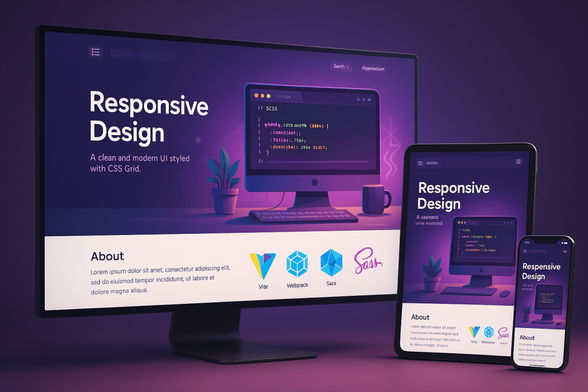
Style Smarter: Responsive Design with SCSS

1,328 words, 7 minutes read time.

Software Developer Coder Programmer Programming T-Shirt
Affiliate Link

Responsive web design isn’t just a trendy term—it’s the bedrock of effective digital experiences in a world where screens come in all sizes. Whether it’s a smartwatch, a smartphone, or a wide-screen desktop monitor, users expect seamless, intuitive interfaces that just work. If you’re a developer, especially someone who spends your days elbow-deep in code, you know that this expectation isn’t going anywhere. In fact, it’s only getting more demanding. That’s where mobile-first design paired with SCSS (Sassy CSS) becomes your secret weapon.

This deep dive is tailored for professional developers who want to up their game, master responsive design workflows, and take full advantage of SCSS’s capabilities. You’re not just building pretty sites—you’re crafting experiences that feel right on every device. Let’s explore how.

The Evolution of Responsive Web Design

Back in the day, websites were built for desktop screens only. Fixed-width layouts ruled the web, and if your site didn’t fit on a smaller screen, tough luck. Then came fluid grids, flexible images, and eventually, media queries. Responsive design emerged as the answer to the explosion of mobile device usage, and it quickly became a standard.

But then Google shifted the entire game with mobile-first indexing. Sites are now ranked based on their mobile versions before desktop, and that means mobile-first isn’t a nice-to-have—it’s a must.

Fundamentals of Mobile-First Design

Mobile-first design flips the traditional development approach on its head. Instead of designing for desktop and scaling down, you start with the smallest screens and progressively enhance the experience for larger ones. This mindset encourages content prioritization: what absolutely needs to be seen first? It also leads to better performance since mobile-first codebases tend to be leaner, loading fewer assets upfront.

Progressive enhancement is another core idea here. It ensures your app works well on older or less capable devices and browsers, while still shining on the latest tech. It’s about laying a strong foundation, then layering on advanced features as screen real estate and capabilities grow.

Introduction to SCSS (Sassy CSS)

Let’s talk about SCSS, the powerful CSS preprocessor that gives your stylesheets superpowers. If you’re used to the limitations of vanilla CSS, SCSS feels like upgrading from a screwdriver to a power drill. It brings in features like variables, mixins, functions, partials, and inheritance, all of which let you write cleaner, more modular, and maintainable code.

But most importantly for responsive design, SCSS empowers you to create dynamic, DRY (Don’t Repeat Yourself) code that scales. Rather than duplicating media queries all over the place, you can define them once in a mixin and reuse them anywhere. That’s a game-changer.

SASS Professional Notes
Affiliate Links

Setting Up a Mobile-First Project with SCSS

To start strong, your project structure should reflect scalability. A typical SCSS architecture might include folders like base, components, layout, themes, and utilities, with an index.scss file that imports everything cleanly. This keeps your codebase clean and organized.

When writing styles, define your base (mobile) styles first. Think of them as the default. Then, use min-width media queries to layer on styles for tablets, desktops, and beyond. This cascading effect fits perfectly with how CSS itself works, allowing for logical overrides and enhancements.

Naming conventions matter too. Whether you use BEM (Block Element Modifier) or SMACSS, consistent naming improves readability and collaboration—especially when you’re working in a team or on a large codebase.

Using SCSS to Manage Responsive Breakpoints Like a Pro

One of the most powerful things about SCSS is how it lets you streamline breakpoint management. Instead of writing clunky media queries like:

@media (min-width: 768px) { .container { width: 90%; }}

You can write a simple mixin:

@mixin respond($breakpoint) { @if $breakpoint == tablet { @media (min-width: 768px) { @content; } } @else if $breakpoint == desktop { @media (min-width: 1024px) { @content; } }}

And use it like this:

.container { width: 100%; @include respond(tablet) { width: 90%; }}

This approach keeps your code DRY and centralized. It also gives you full control to tweak breakpoints project-wide with just a few changes in one place.

Responsive Layout Techniques with SCSS

Now that you have breakpoint control, let’s talk layout. Combining SCSS with modern layout systems like Flexbox and CSS Grid lets you build robust responsive structures fast. A responsive card layout, for instance, can start as a single-column stack on mobile and evolve into a multi-column grid on desktop—all with a few strategic SCSS media queries and mixins.

For example:

.card-grid { display: flex; flex-direction: column; gap: 1rem; @include respond(tablet) { flex-direction: row; flex-wrap: wrap; }}

This kind of control makes your layouts flexible and easy to adjust later on, without having to refactor your entire stylesheet.

Building Responsive Components

Responsive design isn’t just about layout. Every component—from buttons to navbars to modals—should adapt to the screen it lives on. With SCSS, you can write modular component styles using partials. This encourages reusability and isolates changes.

Let’s say you’re building a responsive navigation bar. You might create _navbar.scss with base styles, and conditionally apply layout changes via your breakpoint mixin. Your nav items can stack vertically on mobile and switch to horizontal alignment on desktop, all without duplicating code.

Performance Optimization Tips for SCSS-based Responsive Apps

SCSS can grow heavy if mismanaged. One key strategy is to use partials and import only what you need. If you’re using a bundler like Webpack or Vite, you can combine this with PurgeCSS to strip out unused styles before deployment. Also, avoid deeply nested selectors—they may be tempting but can cause specificity headaches.

Use SCSS functions for repeated logic, like calculating margins or spacing based on a scale. Automating spacing with functions keeps your design consistent and avoids hard-coded values sprinkled everywhere.

Real-World Workflow: SCSS + Responsive Design

In a real project, you’ll likely be using SCSS with a JavaScript framework like React or Vue. Tools like Vite, Webpack, or Gulp help automate the build process, watch for changes, and compile your SCSS into compressed CSS.

A great workflow involves a main.scss file that imports partials from folders like /components, /layouts, and /utilities. From there, use logical nesting, maintain a consistent naming convention, and rely on your mixins to manage breakpoints. Your team will thank you later.

Common Pitfalls and How to Avoid Them

One mistake devs make is overusing media queries. You don’t need to write a media query for every 100px width difference. Choose breakpoints based on your content, not arbitrary screen sizes.

Another trap is ignoring the mobile experience until the end. With mobile-first, your baseline is mobile. This not only improves performance but also prevents layout surprises later on.

Lastly, if you’re not organizing your SCSS with scalability in mind, technical debt will sneak up on you. Use folders, partials, and naming conventions religiously.

Conclusion

Responsive design isn’t going anywhere. And with SCSS in your toolkit, you’re not just adapting to the demands of multiple screen sizes—you’re thriving. The mobile-first approach forces you to think smart, optimize early, and prioritize what really matters. SCSS gives you the flexibility and control to implement that vision without friction.

If you’re building anything on the web in 2025, SCSS and mobile-first design are the duo you need to master.

Want more expert tips and pro-level guides like this? Subscribe to our newsletter and stay ahead of the curve in modern web development.

D. Bryan King

Sources

Disclaimer:

The views and opinions expressed in this post are solely those of the author. The information provided is based on personal research, experience, and understanding of the subject matter at the time of writing. Readers should consult relevant experts or authorities for specific guidance related to their unique situations.

Related Posts

#advancedScss #breakpointsInScss #buildingMobileFirst #cssArchitecture #cssComponents #CSSForDevelopers #cssForProgrammers #cssGrid #cssPerformance #cssPreprocessors #cssResponsiveness #cssSystems #cssWorkflow #devToolsCss #developerGuide #efficientScss #flexbox #frontEndDevelopment #frontendPerformance #frontendTips #googleResponsiveDesign #layoutOptimization #mediaQueries #mobileOptimization #mobileFirstApproach #mobileFirstDesign #mobileFirstIndex #mobileFirstWorkflow #modernCss #modernWebDesign #organizeScss #performanceScss #professionalWebDevelopment #progressiveEnhancement #responsiveBreakpoints #responsiveCoding #responsiveDesign #responsiveFrameworks #responsiveLayout #responsiveScss #responsiveUiDesign #responsiveWebApps #responsiveWebDesign #sassCss #scalableCss #SCSS #scssBestPractices #scssGuide #scssLayout #scssMixins #scssMixinsExamples #scssMobile #scssMobileFirst #scssResponsive #scssTips #scssTutorial #scssVsCss #WebDevelopment #webProgramming

#Design #Findings
The negative impact of mobile-first web design on desktop · Usability issues of content dispersion on large-screen devices https://ilo.im/15ckra

_____
#UxDesign #IxDesign #UiDesign #WebDesign #ReponsiveDesign #MobileFirstDesign #MinimalistDesign #ContentDispersion #Usability #Research

The Negative Impact of Mobile-First Web Design on Desktop

Mobile-first web designs cause significant usability issues when viewed on desktop. Content becomes overly dispersed across long scrolling pages with expansive white space and enlarged images and fonts, making it difficult for users to consume and understand the information.

Nielsen Norman Group