Lecturer Position in Mechanical Engineering

Post a job in 3min, or find thousands of job offers like this one at jobRxiv!

jobRxiv
FreeCAD: Your own 3D parametric modeler

FreeCAD, the open source 3D parametric modeler

FreeCAD: Your own 3D parametric modeler

FreeCAD, the open source 3D parametric modeler

A wonderfully curved 1860s blonde sandstone tenement on the corner of Wilton Street and Belmont Street in the West End of Glasgow.

For me, nice, sweeping curves are one of the major features missing from many modern buildings. I've often wondered if this is because straight-edged boxes are much easier to draw with the Computer-Aided Design software now used by many architects.

#glasgow #architecture #glasgowbuildings #tenement #glasgowtenement #cad #computeraideddesign #curves

#FabAcademy teaches a broad range of #digitalfabrication methods including #computeraideddesign. What's so special about this education trajectory, is that all participants all over the world document their work #opensource. Check out how Michelle Vossen made this one from scratch for her weekly assignment! https://fabacademy.org/2023/labs/waag/students/michelle-vossen/computer-aided-design/

Applications for Fab Academy 2024 are now open: https://fabacademy.org/apply/registration.html

Michelle Vossen / Computer-Aided Design

This week is all about designing in 2D and 3D! My goal this week is to learn some Rhino, and add some Grasshopper and improve on it next week when we have to design something parametrically and lasercut it. What I know about Rhino is that Rhino itself is not necessarily great for parametric modeling, but Grasshopper definitely is, so it should be possible to make something parametric then (and if it really doesn’t work out, I can still use Fusion360 which I’m more familiar with). I’m also still finetuning my final project idea, because my idea (a sound suit) is probably too ambitious in its current shape. If I’m going to model a wearable final project, I’m also going to use CLO3D to make it, but I still want to work with Rhino this week, so I might try to sculpt a mannequin to work on in CLO3D (although Blender might be more useful for it).OpenSCADBas (student from last year) showed us the basics of OpenSCAD on Thursday. OpenSCAD is open source modeling software in which you model with a script in the editor on the left, and look at what you’ve made by previewing and rendering on the right. It’s useful for CAD designing and collaborating, but less useful for artistic purposes. You can either model using a CSG workflow (constructive solid geometry, starting with 3D shapes) or you can extrude 2D outlines. “OpenSCAD is not an interactive modeller. Instead it is something like a 3D-compiler that reads in a script file that describes the object and renders the 3D model from this script file. This gives you (the designer) full control over the modelling process and enables you to easily change any step in the modelling process or make designs that are defined by configurable parameters.” (via https://openscad.org/about.html)A coworker of Pieter came by the lab today and showed us this big open source project on an open source microscope completely modeled in OpenSCAD. The great thing about collaborating in a project made in OpenSCAD is that it’s really easy to share files because the file is basically just text which is very lightweight, and you can configure a git workflow that renders the 3D files for each commit right in the repository. What they did in this case was embed the commit number right into the generated STL files so you can keep track of what part belongs to what iteration.Trying it outWhen you start out by drawing a circle (in this case radius 1, there is no specific unit number in OpenSCAD) and you preview or render it, you’ll notice it doesn’t look anything like a circle. This is because the base resolution is pretty low by default. With a declaration of $fn = 50, you can increase the facet number used for previewing and rendering so it looks more like a circle. When you click preview, you get a fast view of your script. It doesn’t do 2D shapes so that’s why it’s in 3D here. If you actually render it, you get the correct view.There’s no ellipse function in OpenScad so if you want an ellipse, you have to scale the x and y axes of the circle with a scale function.It’s pretty annoying to have to constantly repeat the scale operation if you wanna create multiple ellipses. What you can do to solve this is to create a module, which is a reusable code block.The variables used in the module then have to be given a value when calling the module.To be extra confusing, when you want to draw a rectangle, you can use the square function; you don’t have to do something as cumbersome as when you want an ellipse.The default position of a circle is centered in (0,0,0), while the default position of a rectangle is with it’s left bottom corner on (0,0,0). To center a rectangle, use center = true.You can also use boolean operations such as BooleanDifference, which substracts the second shape from the first shape. BooleanIntersection leaves only where the two shapes are overlapping, BooleanUnion combines the shapes and BooleanSplit cuts the shapes where they intersect without deleting anything.It’s not possible to combine 2D shapes with 3D shapes. If you place a # in front of a function that would normally be invisible, you can see it as a translucent red shape. This was very useful because I was very confused as to why my shape seemed to be cut out by two shapes instead of the one that I provided.CodeHere is the code that I wrote during this tutorial (including notes):$fn = 50; // forces approximation with 50 facets// circle(1); // note that although it seems 3D, it is 2D// this is the view when you click render, the button with the hourglass instead of the two arrows. render is what is going to be exported// preview enginge doesn't have a 2D function so that's why it's 3D// if you want to make an ellipse you have to scale it in x and y direction, there is no ellipse function// making a reusable code block:module ellipse(dx, dy, px, py, angle){ // diameters, position and angle as variables rotate(angle) { translate([px, py]){ scale([dx, dy]) { circle(1); } } }}ellipse(10, 5, 10, 10, 45);ellipse(5, 10, -10, -10, 45); // when you don't add a value it defaults to 0// note that these two ellipses are automatically combined into one shape (a union)// circles are drawn from the center, while rectangles are drawn from their bottom left positionsquare([10, 20], center = true); // a square is a misnomer, it works as a rectangle. this is how you center a rectangle$fn = 50; // making a reusable code block:module sphere1(dx, dy, px, py, angle){ // diameters, position and angle as variables rotate(angle) { translate([px, py]){ scale([dx, dy]) { sphere(1); } } }}difference(){ sphere1(70, 20, 10, 10, 45); #sphere1(50, 10, 5, 0, 0); // if you place a hashtag in front of the command, you can see the negative of it}Notes A module is a reusable code block You can use scripts (python or shell script) to make many random models (with a random seed) (useful for example when you need a lot of snowflakes) that are similar but not the same. Cheat sheet OpenSCAD tutorial by Bas PijlsOpinionI like the idea of modeling with code, but I don’t like how a model in OpenSCAD looks. As they said themselves this program is not really for you if you want to make things that look nice, and I do miss the ability to click on things and work in a way that is more intuitive to me. For simple shapes I would use it again theoretically, but in practice I would probably use any other program that can do simple shapes too.RhinoMy goal for this week is to learn how to use Rhino. I’ve worked through a couple of Grasshopper tutorials in the past, but I’ve never really used Rhino after that, and since it’s used extensively within the Fabricademy I get quite a few questions about it from the students working with it. Our current intern Aslı is an expert in Rhino and Grasshopper and she’s making amazing things with it with what seems to be a lot of ease (and probably a lot of experience) so it seems like a very versatile software to me. I want to train myself to make as much use of the command bar as possible, because I think it will make me much faster at using Rhino.Aslı gave us a quick demo of Rhino, but since it was the weekly open day of the fablab and we had a visitor, I missed out on a large chunk of it. I decided to start out by watching some tutorials and then asking her for advice on good practice after I have a basic understanding of where I can find what. I started out with the tutorials on the Rhino website. Since I’m on a Windows computer, I started with the Windows - Interface Basics video.InterfaceThere are 4 viewports that you start out with when you open a new project.Navigation in the perspective viewport (top right): Rotation: right mouse button click and drag Pan: shift + right mouse button click and drag One of the first things I did was figuring out how to pan by clicking the middle mouse button (scroll wheel) and dragging; so now that’s also possible (this is my prefered method of panning in other software too). To change it go to File > Properties... > Mouse Zoom: scrolling up and down with the scroll wheelNavigation in the three orthogonal viewports: No rotation possible here (for obvious reasons) Pan: right mouse button click and drag (and also scroll wheel click and drag now) Zoom: scrolling up and down with the scroll wheelDouble click the name of the viewport to expand to that viewport, and double click again to move back to the four window view. Ctrl + tab while in a maximized view to switch between views. View the settings menu per viewport by right clicking the name of the viewport.There are three ways to access functions in Rhino: Clicking on icons in a toolbar group. The sidebar is context dependent and changes per toolbar group Using the dropdown menus in the top bar Typing the command name in the command bar. It has an autocomplete and a ‘fuzzy’ autocomplete for suggestionsTo add toolbars, rightclick the toolbar > show toolbar to see the list. On the right side of the viewports there are panels with properties, display settings, layers, rendering etc. You can rearrange them if you want and you can add even more or hide some of them (see the full list below). The series of checkboxes at the bottom of the screen are Osnaps (object snaps), which enable and disable the ability to snap to certain objects. Below that there’s Grid Snap, which snaps to the lines in the viewports. You can see the units in the Document Properties under Grid and Units. If you wanna move an object around in only X or Y direction, hold shift while dragging; if you wanna move only in the Z direction hold ctrl while dragging. To enable or disable the Gumball (to move, rotate or scale in X, Y or Z direction) type Gumball, then O for on or F for off.Object typesDifferent geometry types: Points: have no volume, don’t represent volume, just X, Y, Z values Curves: created by connecting points in space. There are three types: Lines (between two points) Conics (arcs, ellips, circles) Freeform curves Surfaces: infinitely thin piece of geometry that can be closed (representing a volume) or open (like a sheet of paper). They’re controlled with control points just like curves. Control point editing is a common workflow for finding forms in Rhino. Polysurface: compounds of single surfaces joined together. You can’t edit them with control points, instead you can edit them with Solid Tools SubD objects: subdivision objects, works like clay, sculptural modeling. They consist of faces, edges and vertices. You can sculpt them by pulling and pushing on these faces, edges and surfaces. Meshes: generated, not created; generated from surfaces or SubD’s. They consist of flat polygons, and the higher the number of polygons the better the approximation is to the object (unless you’re modelling a really simple cube), but also the heavier the file will be (and if you have an older computer like me, it probably won’t like it too much). Making meshes is usually the the last step before you export it to something like an STL.Trying it outTo draw this random curve, I typed ‘Curve’ and clicked in a couple of random places, and pressed enter.If you want to change the curve, you can select the curve by clicking it with the left mouse button and moving the white circles around that control the shape of the curve (these are called the control points).I tried making a torus and warping it like in the reference video, but every time I tried to drag something I would just move the entire torus. With the ‘show object control points’ selected (see below) it worked, so I thought when I typed in Torus in the command bar, I didn’t make a SubD object but something else. However when I scrolled back in the command bar (nice to have a history of what you’ve done) it said SubD torus there, so I was a little confused; I’ll look into it later. “Traditionally SubD objects are mesh-based and lend themselves well to more approximate types of modeling such as character modeling and creating smooth organic forms. Rhino SubD objects are, however, high precision spline-based surfaces and thus introduce a level of accuracy to the process of creating complex freeform shapes.” (via https://wiki.mcneel.com/rhino/7/tutorial/videos/subd)Making a sphere and then a box:Command: SphereCenter of sphere ( 2Point 3Point Tangent AroundCurve 4Point FitPoints ): 2PointStart of diameter: 0End of diameter: 20Command: _BoxFirst corner of base ( Diagonal 3Point Vertical Center ): CenterCenter of base: 0Other corner of base or length ( 3Point )Height. Press Enter to use widthNotesSome things I learned from this video: Rhino started out as a plugin for AutoCAD The Command line separates it from parametric programs such as Fusion, Solidworks, Onshape It’s a NURBS (Non-uniform rational B-spline) modeler as opposed to a polygon/mesh based modeler (like Blender). NURBS are mathematical representations of 3D geometry that can accurately describe any shape from a simple 2D line, circle, arc, or curve to the most complex 3D organic free-form surface or solid. Because of their flexibility and accuracy, NURBS models can be used in any process, from illustration and animation to manufacturing. (via https://www.rhino3d.com/features/nurbs/) Rhino is a surface editor. If you model a box, what Rhino is actually doing is creating 6 planes and connecting them like a box. With the explode command you can separate the box into 6 surfaces (and you can then use control points to warp the individual control points on the separate surfaces) To check whether a shape is closed, you can use the Volume command, and if it gives you a number, you know it’s a closed surface. If the surface is not closed you’ll get an error message stating so. To analyse the surfaces and to find open edges, use ShowEdges: magenta lines are ‘naked edges’. You can close open edges with JoinEdge (but it won’t be perfect as it will need a tolerance) Use the Cap command to quickly close edges Again, you’re not working with solids, you’re working with surfaces Join and Explode are basically opposite commands Spacebar to repeat the previous command Learn the commands!!! Osnap is super useful because you can draw relative to what you’ve already drawn Use shortcuts (aliases) to become really fast Escape to deselect object Zs: zoom to selectedModeling a final projectI want to make bases for masks in Rhino, because for my final project I want to make a wearable object. I want to try SubD surfaces, which is new in Rhino 7.Steps to explore masks in 3D Model a head with SubD in Rhino > export to Blender for height mapping Make it with Grasshopper to modify shape Model a RGB LED or a Neopixel > export to CLO3D as a button to make a mask Render in CLO3DSubDWhen you open a new file by pressing ctrl + N, you can choose a template to start with. I went for Small objects - Centimeters.I took some rough measurements around my head and use those numbers to get to a basic shape of the head. I calculated the radius of the head with an online circumference to radius calculator which was 9.55cm for a circumference of 60cm. Then I typed in scale, and selected the Scale2D command because I wanted to scale it in the vertical direction to make it higher. From the chin to the top of the head I measured about 32cm, but that was including a curve so I measured again but this time just a straight line from the bottom of my jaw to the top of my head which was approximately 23cm. I clicked the middle of the model which was easy because I used grid & mid Osnaps, and then typed 23 to scale it to 23cm. Then I realized by looking at the perspective view that it was warped:So I deleted the SubD object and started over but this time using Scale1D. But that also didn’t work. I checked what Scale1D and Scale2D do in the cheat sheet: Select objects. Pick an origin. Type the scale factor, or pick two reference pointsSo the second time I accidentally used 23 as a scale factor instead of using it as a reference point. To scale to an exact number you have to click two reference points (beginning and end) and then type in how big you want it to be; if you only click once and then type a number you scale it by that factor.At this point I looked for another tutorial because I didn’t really know what I was doing at this point and I was confused by the dimensions of my model. SubD objects are spline based (just like NURBS objects) which means that they provide a continuous description of curved geometry. This means that it is an exact workflow, in contrast to mesh based objects which are approximate workflows. SubD objects can be translated losslessly into NURBS objects.I was wondering why my SubD didn’t look nice and rounded so I started looking around and found this toggle when I clicked on the dropdown for the viewport; that did the trick. I then clicked around until I found the EditPtOn option after which I could manipulate the SubD by pulling the points, but not by the lines or surfaces, so it’s not what I’ve seen in demos. So I continued the tutorial and shift + ctrl + left click came up which was the one I was looking for.Some more notes on SubD: Double click to select an edge boundary. You can also add creases (sharp edges) with the Crease command (remove with RemoveCrease). Use Subdivide to add more detail (dividing surfaces into more surfaces) to specific areas or the entire model. Fusion360 also has functionality similar to SubD, but way more frustrating. When you start a SubD the maximum number you can give it is 8 and my computer doesn’t like it but here’s what that looks like: Enabling the Gumball makes it easier to have control over where you’re going. With InsertEdge you can place edges in more specific areas (Osnaps are again very useful, and also look at the modes next to the command). Move edges with the SlideEdge command. To only pull at the plane you selected, pull at the little circle instead of the arrow on the Gumball (otherwise all surrounding planes are in the zone of influence) Length: check length of edges Distance: to measure between points In the properties on the left you can find the type of objectWith this minimal knowledge I had my first go at modeling a mask as seen below; I used mostly the ctrl + shift + click dragging in combination with typing numbers to set it to specific sizes (although it also snaps to the grid which is in centimeters), and used Subdivide a few times; at some point I couldn’t pan anymore for a few seconds which you’ll notice too but it worked again after clicking shift + ctrl again in combination with the panning button (I think that was the solution, I was kind of mashing buttons). After that I exported the head with Export and selected obj (mesh). This video is sped up with ffmpeg from 12,5 minutes to 22 seconds and went from a whopping 195mb to 1,37mb (!!!) with ffmpeg -i rhino.mp4 -filter:v

https://www.geeksmint.com/best-cad-software-for-linux/

another List from Geeksmint (formerly FOSSmint).
11 CAD software for Linux both free and paid.

- FreeCAD
- LibreCAD
- OpenSCAD
- BRL-CAD
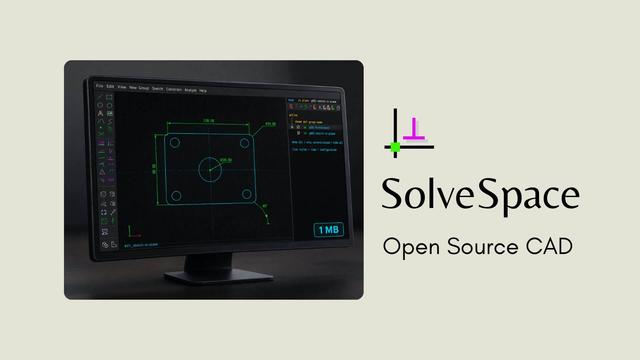
- SOLVESPACE
- BricsCAD (Paid)
- LeoCAD
- Siemens NX (Paid)
- DraftSight (Closed Source)
- QCAD
- VariCAD (Paid)

#CAD #ComputerAidedDesign #Software #Linux

The 11 Best Free CAD Software for Linux in 2023

There are several free and paid CAD software to choose from and these days both the free and paid ones have the same features.

GeeksMint: Computers, How-to's, Internet, Tips and Tricks

🏢🎨 Wondering how architectural companies create jaw-dropping 3D floor plans? 🏗️

✨ Immerse yourself in the world of architectural creativity and experience the power of spatial visualization.

🌐 Discover more in our captivating blog post! https://shalindesigns.com/blog/how-do-architectural-companies-create-3d-floor-plans/

#3DFloorPlans #ArchitecturalCompany #CADDrawing #CADDrafting #CADDdesign #AutoCADFloorPlan #ComputerAidedDesign #CADDdesigning

How do Architectural Companies Create 3D Floor Plans? -

Learn how architectural companies create precise and visually captivating 3D floor plans using advanced technologies. Check Now!

Shalin Designs
Ivan Sutherland Sketchpad Demo 1963

YouTube
Tektronix 4052 Fast Graphics demo

YouTube