 Mark Biek
Quickly viewing Markdown files with AlfredApp
For years, I’ve been a huge fan of AlfredApp as a replacement for the macOS Spotlight. I could write an entire post about all of the things I use Alfred for (and I probably should) but, for this one, I’ll focus on a new workflow I built to quickly view Markdown files using glow.
I keep my daily work log as a Markdown file and I also generate tons of Markdown files when I’m doing research, brainstorming, and planning with Claude Code. These files all live in a notes folder and I often open them for review with glow so I can read them with some basic syntax highlighting.
If you have the Alfred Powerpack (which is sooooo worth the money!), you can create custom workflows which lets you chain actions and inputs together. I won’t go too deeply into it but you can do some really amazing things with workflows.
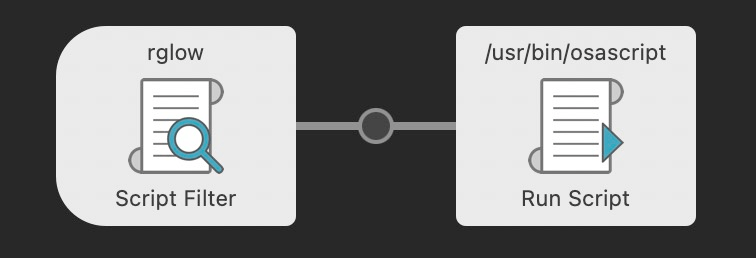
My Markdown viewer workflow is super simple. Just a single input piped to a single action.
It uses the fd tool to search for Markdown files in my notes directory, then pipes the results to fzf to filter based on whatever query I enter.
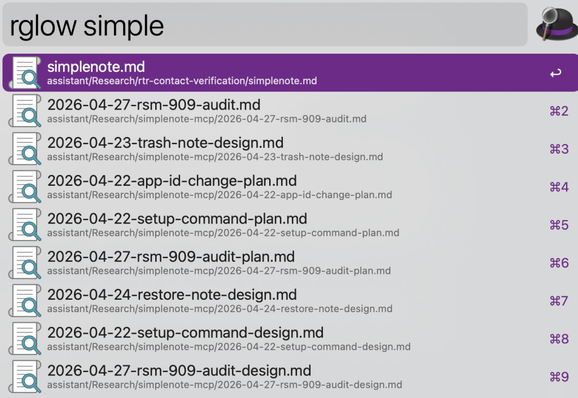
Then it shows a list of matching files which I can use the arrow-keys or mouse to select from. From there it runs a short Apple Script which launches iTerm2 (you could easily change this to your favorite terminal) and runs glow -p to display the file with paging.
In Alfred, it looks like this:
How to set it up
Start a new workflow in Alfred. I won’t go into too much detail about how to do that. The docs are good or you can ask your favorite LLM.
Add a new Script Filter block like this:
query="$1" notes_dir="$HOME/notes" # Empty query: just list everything (fzf needs a query to filter) if [ -z "$query" ]; then results=$(/opt/homebrew/bin/fd --type f --extension md . "$notes_dir" 2>/dev/null) else results=$(/opt/homebrew/bin/fd --type f --extension md . "$notes_dir" 2>/dev/null \ | /opt/homebrew/bin/fzf --filter="$query") fi # Build JSON output for Alfred echo -n '{"items":[' first=1 while IFS= read -r path; do [ -z "$path" ] && continue [ $first -eq 0 ] && echo -n ',' first=0 filename=$(basename "$path") relpath="${path#$notes_dir/}" esc_path=$(printf '%s' "$path" | sed 's/\\/\\\\/g; s/"/\\"/g') esc_filename=$(printf '%s' "$filename" | sed 's/\\/\\\\/g; s/"/\\"/g') esc_relpath=$(printf '%s' "$relpath" | sed 's/\\/\\\\/g; s/"/\\"/g') printf '{"title":"%s","subtitle":"%s","arg":"%s","autocomplete":"%s"}' \ "$esc_filename" "$esc_relpath" "$esc_path" "$esc_filename" done <<< "$results" echo -n ']}' You’ll also want to customize the Run Behavior so that it doesn’t start searching until you’ve entered a few characters.
Change “Queue Delay” to “Custom delay after last character typed” with a delay of 100ms. Uncheck “Always run immediately for first typed arg character”.
Then add a Run Script block and connect the Script Filter block to it.
Select /usr/bin/osascript (AppleScript) from the “Language” pulldown.
And here’s the script to launch iTerm2 and run glow on the selected file.
on run argv set filePath to item 1 of argv set glowCmd to "glow -p " & quoted form of filePath tell application "iTerm" activate create window with default profile tell current session of current window write text glowCmd end tell end tell end run The End
There it is. Pretty simple, makes my life a ton easier. Feel free to run with it for your own purposes or make suggestions.
#alfredapp #automation #tools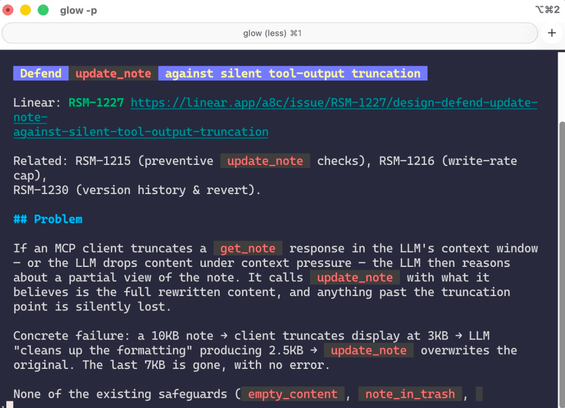
 Thilo
Thilo Как мёртвый пингвин
 Jon Parise
 Stephen Millard
 Ted Curran M. Ed.
 Andrew Woods
 Corentin Cras-Méneur
 Tyler Sticka