Tip #792

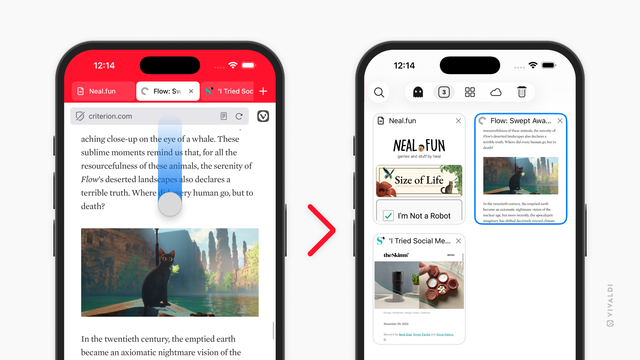
Open the Tab Switcher in Vivaldi on iOS with a swipe on the Address Bar.

Whenever you want to get a good overview of all your standard, private, synced, etc. tabs, the Tab Switcher is the place to go.

To enable Address Bar swipe gesture:

  • Go to Settings > Address Bar > Address Field Options.
  • Toggle on “Enable Address Bar Swipe Gesture”.
  • Once the setting is enabled, all you need to do is swipe from the Address Bar towards the page to open the Tab Switcher. In other words, swipe down when the Address Bar is at the top and swipe up when the Address Bar is at the bottom of the screen.

    #addressBar #iOS #Tabs #Vivaldi #VivaldiBrowser

    https://vivaldi.com/blog/tips/tip-792/

    Tip #767

    Gain screen real estate by merging Address and Tab Bars.

    Whether you’re working on a small laptop screen where every pixel counts or just prefer a more compact look, Vivaldi’s toolbar customisation settings are here to help you achieve a configuration that works for you.

    To combine the Address Bar and the Tab Bars, you need to move components from the Address Bar to the Tab Bar. Here’s how!

  • Open the Toolbar Editor from the main menu > View > Customize Toolbar, or right-click on a component on the toolbars and select Customize Toolbar.
  • While the icons are wiggling in their place, drag components you regularly use from the Address Bar to the Tab Bar (or to other toolbars).
  • When you see a line in your theme’s highlight color appear, drop the component to its new place.
  • When you’re happy with the result, click “Done” in the editor window.
  • Then, in the main menu > View, click on “Show Address bar” to hide the Address Bar.
  • #addressBar #customisation #TabBar #Tabs #toolbar #Vivaldi #VivaldiBrowser

    https://vivaldi.com/blog/tips/tip-767/

    Tip #761

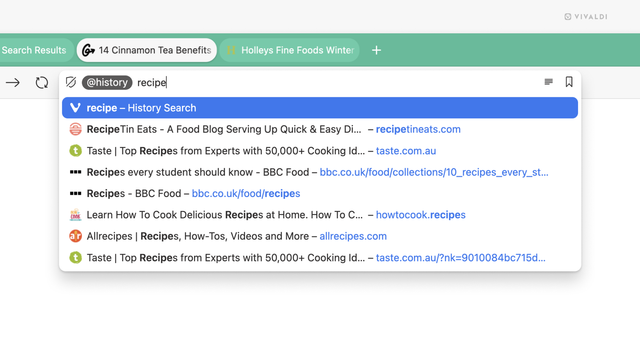
    Search tabs, bookmarks and history using Shortcuts Nicknames in the Address Field.

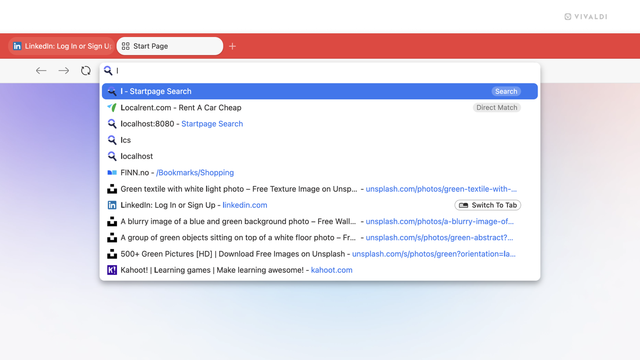
    In addition to searching for web content with a search engine, you can use the Address Field to search for Bookmarks, open Tabs, and History.

    To filter searches in the Address Field:

  • Type the nickname “bookmarks“, “@tabs“, or “@history” followed by a space in the Address Field.
  • Then start typing the web page’s title or URL to see relevant results.
  • Click on the suggestion to go to the web page.
  • Prefer using Quick Commands? See how to filter searches there in Tip #323.

    #323 #addressBar #bookmarks #history #search #Tabs #Vivaldi #VivaldiBrowser

    https://vivaldi.com/blog/tips/tip-761/

    I might be a bit late with this but WTF happened to the #firefox #addressBar ??!
    https://blog.mozilla.org/en/firefox/address-bar/

    Do they even read or test what they write?
    With the old design I was simply typing what I wanted to search for. Hit enter if it’s a “normal” search or use arrow keys to quickly select e.g. a dictionary or Wikipedia.

    Now all my search engines are hidden in this shitty dropdown and I need to hit Shift+Tab and then the arrow keys, it’s so more complicated!

    A smarter, simpler Firefox address bar  | The Mozilla Blog

    Firefox’s address bar just got an upgrade, and it’s all about putting you in control. It’s faster, easier to use and built to support how you search

    I have learnt from end users twice in the last month that they don't use the address bar in their browsers. If they cant get to a search engine from their home tab, apparently their browser is useless to them. WTF

    #browser #addressbar #PEBKAC #enduser #whydidthisgetescalated

    For anyone else who uses Firefox, and heard about https://blog.mozilla.org/en/firefox/address-bar/ and was wondering why e.g. @bookmarks wasn't working in their address bar, I happened upon the reason in my setup last night.

    My profile has:

    Bookmarks: *
    Tabs: %
    History: ^

    as the shortcuts, rather than what's cited in that article. I can only guess this is because my profile is so old, having gone through *many* versions of Firefox.

    You can check yours under "search shortcuts" in the settings (put that in the settings search box).

    #firefox #addressbar #bookmarks

    A smarter, simpler Firefox address bar  | The Mozilla Blog

    Firefox’s address bar just got an upgrade, and it’s all about putting you in control. It’s faster, easier to use and built to support how you search

    #Business #Releases
    A smarter, simpler Firefox address bar · It’s now a productivity and discovery command center https://ilo.im/16450q

    _____
    #Firefox #Browser #Productivity #Discovery #Security #AddressBar #Search #Navigation #Commands #URLs

    A smarter, simpler Firefox address bar  | The Mozilla Blog

    Firefox’s address bar just got an upgrade, and it’s all about putting you in control. It’s faster, easier to use and built to support how you search

    Tip #709

    Choose how many suggestions you see in the Address Field’s drop-down menu.

    In case the default 12 suggestions in the Address Field drop-down menu are not enough for you, you can increase the number of results all the way to 42 or go in the opposite direction and limit the number of suggestions to only the top 5.

    To change the number of suggestions:

  • Go to Settings > Address Bar > Drop-Down Maximum Size.
  • Click the – and + buttons to change the number of results.
  • #addressBar #Vivaldi #VivaldiBrowser

    https://vivaldi.com/blog/tips/tip-709/

    Tip #705

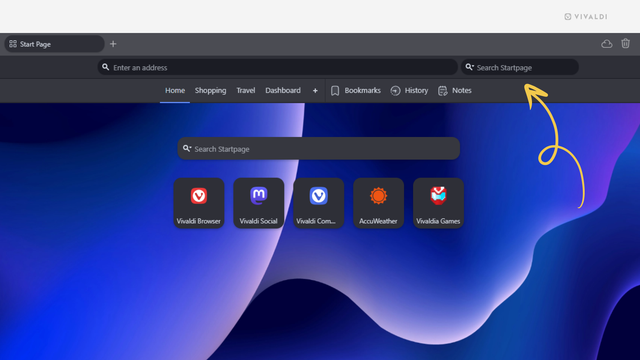
    Keep your website visits and searches separate by disabling searches in the Address Field.

    In Vivaldi, you can compartmentalize what you search for online from the web pages you visit by only allowing going to web links in the Address Field. When searching is disabled in the Address Field, you can search the web by adding a dedicated Search Field to the Address Bar or by using Quick Commands.

    To disable searching in the Address Field:

  • Go to Settings > Search > Search Options.
  • Disable “Search in Address Field”.
  • To add the Search Field to the Address Bar:

  • Go to the main menu > View > Customize Toolbar.
  • Drag the Search Field next to the Address Field on the Address Bar.
  • #addressBar #search #Vivaldi #VivaldiBrowser

    https://vivaldi.com/blog/tips/tip-705/

    Quick Commands | Vivaldi Browser Help

    Search and control everything in your browser from you keyboard by opening the Quick Commands menu, a command line style interface available in Vivaldi.

    Vivaldi Browser Help
    Updates to Android Navigation

    Exciting changes are coming to Android: a new navigation bar designed to make your browsing experience faster and more intuitive. We have streamlined the navigation with back and forward arrows right on the toolbar so that you can move between pages effortlessly. Plus, the new toolbar and address ba...