 egyp7
egyp7Sometimes zip files are rude and don't have a top directory. Here's a one-liner to unzip a bunch of archives into directories named after each file:
```
for f in *.zip; do unzip -d ${f/.zip/} $f; done
```
Sometimes zip files are rude and don't have a top directory. Here's a one-liner to unzip a bunch of archives into directories named after each file:
```
for f in *.zip; do unzip -d ${f/.zip/} $f; done
```
cut(1) and paste(1) were designed to work together.
```
paste <(cut -f1 file1) <(cut -f3 file2)
```

In bash, writing ${var?} instead of just ${var} or $var means if var isn't defined then bash will throw an error and _not_ execute your command, instead of expanding it to "" and carrying on. mv file1 file2 $subdir # oops, I overwrote file2 mv file1 file2 ${subdir?} # error message instead of disaster My favourite use of this is for example commands in documentation, with placeholders for the user to fill in. Then it's OK if a user accidentally copy-pastes it _without_ filling them in!
TIL: while working remotely e.g. over SSH, to overcome accidentially pressing ctrl+d one time too often and leave the current shell, we can
export IGNOREEOF=3
and now we have to press ctrl+d 3 times to actually leave the shell/session and/or close the terminal window.
Bash has a way to specify strings with escaped characters like so: $'\r\n' which gives a string containing carriage return and newline characters.
The `read` built-in can take a delimiter with the -d flag. Combining these lets you use a null character: read -d $'\0'
Useful in some of the same places you might use xargs(1).
find . -name ... -print0 | while read -d $'\0'; do ./foo "$REPLY"; done
A common parsing task is finding lines that match a pattern but only if another pattern is seen first.
The MacOS utility otool(1) prints the load commands in a Mach-O binary with a header line followed by the info about that load command on several subsequent lines.
This one liner will show just the path for every imported dylib:
otool -l foo
| awk '/LC_LOAD_DYLIB/{ in_dylib_lc=1 }; in_dylib_lc == 1 && /name/ { in_dylib_lc = 0; print }'
redteamers take note, if your c2 can't handle moving whole directories very well.
usually works like a champ in places where they don't look at the network stack much or at all, or employs folks who openly say networking doesnt matter
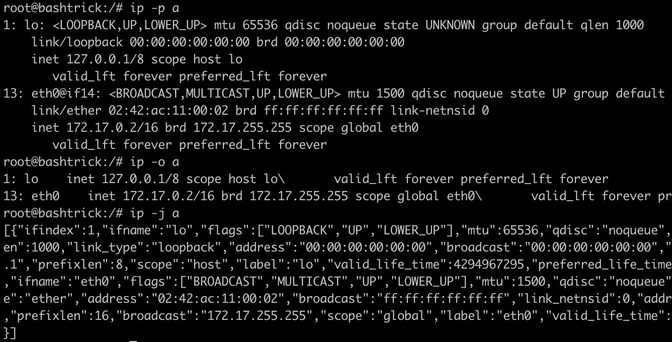
#bashTricks glob expansion has a character set match syntax syntax, kinda similar to regular expressions: square brackets `[]` will match any of the characters inside. E.g. `[a-d]*` matches all files that start with a, b, c, or d.
You can also negate the list by starting it with a carat, e.g. `.[^.]*` would match hidden files that don't start with 2 dots. I use this with `alias l.=ls -d .[^.]*`
Still my favorite lesser known Bash feature is glob expansion during editing. Type
echo *.txt
And then press Ctrl-X followed by star, expression will be expanded and then you can remove items you'd like to exclude (either inside bash or press Ctrl-X followed by Ctrl-E to launch $EDITOR) #bashTricks
 Eli Roberson (he/him)
 d1g
d1g Viss
Viss Chris Shields
 🛩️ 🏴☠️
 BEDNAR~1