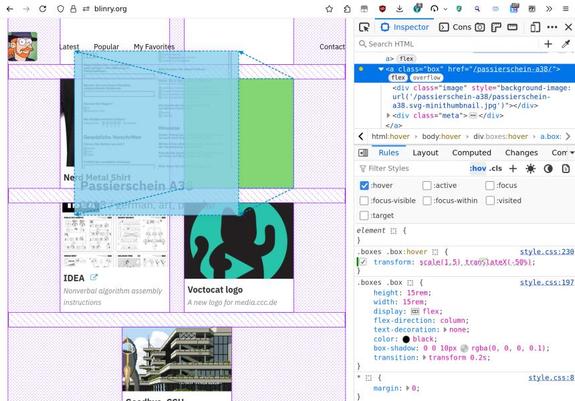
Here's a thread of cool things I found exploring the #Firefox Developer Tools!

First, a really convenient thing: You can "pop out" the Toolbox into a separate window!

To do this, open the Toolbox (using F12), click on the ellipsis menu on the right, and select "Separate Window".

I like this much better than the default "docked" modes, especially when using a scrolling window manager like #niri!

#webdev #devtools

Let's start with the "Inspector", which shows you the tree of HTML elements.

You can directly summon it, and inspect a specific element on your current site by pressing Ctrl+Shift+C (Cmd+Opt+C on macOS), and then clicking your element.

This is similar to right-clicking the element, and pressing Q, but I like Ctrl+Shift+C a bit better because it will give you a live preview of which node you are picking!

All tree views in the DevTools have pretty good support for keyboard shortcuts!

You can use arrow up & down to highlight different elements, and arrow right & left to unfold/fold the elements.

You can find a full list of keyboard shortcuts here: https://firefox-source-docs.mozilla.org/devtools-user/keyboard_shortcuts/index.html

All elements with "display: flex" have a little "flex" pill icon next to them. If you click it, it will highlight the structure of the flexbox, and keep it highlighted as you interact with it!

This is probably common knowledge, but I wasn't aware of it so far:

The sun & moon icons in the "Rules" tab allow you to quickly force the site into light mode/dark mode! ☀️🌙

You can open the web console in a split view by pressing Esc!

This is the same console as in the "Console" tab. And this works in any tab, not just the Inspector! Super useful if you wanna see more things at once!

In the CSS pane, there's this little dashed box icon after CSS rules. Click it to permanently highlight the matching elements on the page!

Here, I highlight a specific <p> element. The colors that are used correspond to the colors in the "Layout" tab, and show you the size of the margin, border, padding, and content area.

If you click on the dashed box after a more general rule, you'll get all matching elements highlighted.

Here, I highlight all <p> elements of that toot.

In the Inspector, Ctrl+F jumps to the search box that allows you to find a tag or some content.

I was always annoyed that F3 doesn't go to the next result. Turns out that the shortcut for that is:

Enter!

As you start modifying the CSS rules, and arrive at something you like, you can switch over to the "Changes" tab to find a summary of what you changed!

You can also copy all of that into your clipboard, and then integrate it into the original CSS that you're working on!

Until now, I always made changes in my source CSS files directly, and used some auto-refresh tool to preview it. But this workflow of modifying it directly, and copying out the required changes might be a bit smoother!

Next, I looked at the Console.

I learned that it has some predefined helper functions! You can use `$(selector)` as an abbreviation for `document.querySelector(selector)`.

Similarly, `$$(selector)` is short for `document.querySelectorAll(selector)`!

Even though this reeks of jQuery, I think these are fantastic in this context and I might use them *a lot*!

There are more "Console Helpers" in #firefox:

$_ is a shortcut to the result of the last expression you executed, allowing you to do some neat step-by-step exploration.

And $0 refers to the currently-inspected element on the page.

There's a couple more, like copy(), which copies its argument to your clipboard, or keys(), an abbreviation for Object.keys().

If you ever forget these console helpers, you can run :help to open the page of the documentation that explains them!

https://firefox-source-docs.mozilla.org/devtools-user/web_console/helpers/

There's a built-in multi-line editing mode! Press Ctrl+B to turn it on. Seems useful to write longer expressions.

This mode shares its history with the regular one-line mode.

But also, I learned that the one-line mode tries to guess whether your command is incomplete when you press Enter, and then allows you to type a second line.

You can force a new line using Shift+Enter.

That's all cool things I found in the Firefox DevTools today! Looking forward to check out the other tabs some other time.

It's kind of eye-opening for me how many convenient things a tool like that has. So far, when I opened the Toolbox, I usually quickly wanted to get something specific done, and didn't take the time to wander & explore…

What are your favorite built-in dev tools in Firefox? What did I miss in "Inspector" and "Console" today?

Ohh, the CSS pane helps you debug values of the "transform" property by showing you the box before and after the transformation!

I recently explored what you can do with the #Firefox #DevTools! Here's some neat tricks I found:

https://blinry.org/firefox-devtools/

#webdev #programming

Exploring Firefox DevTools

In the beginning of 2026, I spent some time exploring the Firefox Developer Tools!

@blinry Ui, toll, danke! Das ist ja super liebevoll aufbereitet (typisch blinry eben 😇). Den Link werd ich definitiv in Seminar-Material aufnehmen.
Threader

Unfurl Mastodon threads into a clean reader view.

@blinry There is also a measure tool and a color picker.

A thing I love (even if not part of the dev tools) is a screenshot tool. You can easily screenshot a whole page, everything that's visible, a free-form section or even select an element to snap to.

@jak2k @blinry yes, the colour picker is nice:)

@blinry Thank you for this thread, I learned a few new tricks today.

Btw, did you know that you can use the inspector on Firefox desktop to remote into Firefox on Android via adb to do all these things on a mobile device, too?

@blinry One that I find quite handy, at times, is the print media simulator: little different in Firefox and others, but as a quick way to see what a clean print version will look like, what I would have given for that years ago, eh?

@blinry

Due to sheer practicality, I'd give up an entire month's salary before I give up on the Network tab.

If I was a better person, I'd know something about the accessibility tab.

If my work let me prioritize the way I wanted I would spend all my time on the performance tab. The Firefox profiler and their flame graph is so good, that there's a ruby gem called Vernier (also very good!) whose profile viewer is forked from Firefox: https://vernier.prof/

Firefox Profiler

@blinry does stuff like `console.table()` count? This has so many useful things beyond .log()!
@blinry three’s also a “Browser Console” that lets you see things like console and network requests across all tabs. I just needed and discovered it this past week. https://firefox-source-docs.mozilla.org/devtools-user/browser_console/index.html
Browser Console — Firefox Source Docs documentation

@blinry That's very Perl-like!
@blinry you can right-click an element and "Use in Console" will create a temporary variable with that element

@blinry ruby's irb and python have the same feature with the _ variable!

IRB:

irb(main):001> 5 + 2
=> 7
irb(main):002> _
=> 7

Python also seems to avoid overriding _ when your statement returns None:

>>> 5 + 2
7
>>> _
7
>>> print("hello world")
hello world
>>> _ # still 7!
7
>>> None
>>> _ # still 7!
7

@ellnix Ohh, very cool! I didn't know that!

@ellnix @blinry And in ruby itself `$_` is the last value read with `gets` (get string).
Together with the `-n` (or `-p` switch makes it easy to write some command-line one-liners:

$ echo blinry | ruby -pe '$_.upcase!'
BLINRY

(and I'm pretty sure that's inherited from Perl)

@jer @blinry That's a really good one! One liners are well and good, but the real tip is using `$_` when golfing to avoid the chars of saving the output of gets to a variable 😆

There are also a bunch of similar global variables for anyone wanting to go down a rabbit hole, especially relating to regex in ruby: https://ruby-doc.org/docs/ruby-doc-bundle/UsersGuide/rg/globalvars.html

Global variables

@blinry what is the difference between $$(…) and $$$(…)? I didn't know about $$(…)
@adamhotep @blinry $$$ will retrieve éléments in the shadow dom, which is not the case for $$ (see https://firefox-source-docs.mozilla.org/devtools-user/web_console/helpers/ for the full doc)
Web Console Helpers — Firefox Source Docs documentation

@nicolaschevobbe @adamhotep I also had to look that up, but here's an example where a shadow DOM is used: In MDN's web dev playground, they want to isolate the CSS you write to only act on "your" HTML, not on the entire site. So they put it in a shadow root.

So $$ doesn't access the <h1> here, but $$$ does!

@blinry @nicolaschevobbe while I've got your attention, do you know how to inject helper JS code (just some functions) into a document for the Console? I only know how to do it in a UserScript, which means it's not available from the Console.

@adamhotep @blinry we have this (old) bug on file for this: https://bugzilla.mozilla.org/show_bug.cgi?id=925593 (and https://bugzilla.mozilla.org/show_bug.cgi?id=1315549 looks a bit similar too)

Could you tell me for which kind of things you'd use that for?

In the meantime, we have some sort of workaround: using Ctrl + O (Cmd + O on Mac) will open a file picker, and if you "open" a file, that will set the input value to the content of the file, that you can then evaluate.

925593 - Allow developers to define custom jsterm helpers

NEW (nobody) in DevTools - Console. Last updated 2022-10-11.

@nicolaschevobbe @blinry it's mostly convenience functions (like those mentioned above). I've got them here if you're interested: https://github.com/adamhotep/nofus.js
GitHub - adamhotep/nofus.js: NOminal Functions for UserScripts, a very small JS library for tweaking websites

NOminal Functions for UserScripts, a very small JS library for tweaking websites - adamhotep/nofus.js

GitHub
@blinry Small difference: document.querySelectorAll returns a NodeList, not an Array, which means some methods such as map() are missing. $$() returns an Array instead.
@blinry and $0 is the currently selected element - I end up using this more than $(...) selectors by a long shot, unless I need to find multiple elements
@blinry I thought modern JS borrowed some of the better parts from jQuery and this sounds like one of them.
@blinry Huh I think I've used that once or twice but I thought it was due to jQuery having been loaded by the web page. TIL 🙂
@blinry There is also $x which takes an XPath selector as its argument