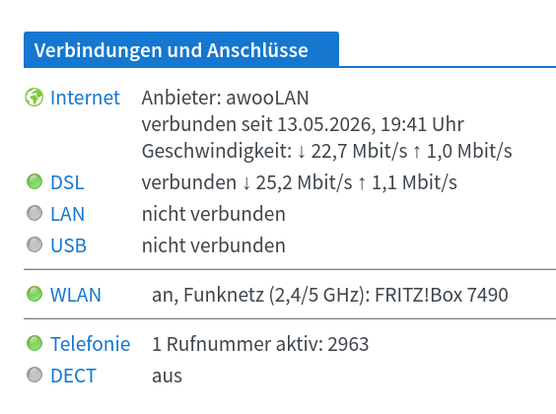
Was nimmt man den heute wenn man nur ein #dsl #modem braucht? möchte irgendwie weg von #avm und #fritz und mein #heimnetz ein klein wenig #selfhost iger machen.

1&1 passt DSL-, Glasfaser- und Mobilfunktarife an – Übersicht der neuen Konditionen

https://fed.brid.gy/r/https://www.mobiflip.de/11-passt-dsl-glasfaser-und-mobilfunktarife-an-uebersicht-der-neuen-konditionen/

heise+ | Vorsicht, Kunde: 1&1-Tarifwechsel mit Nebenwirkung

Ein Tarifwechsel klingt nach Vorteil – kann aber die Laufzeit verlängern. Unser Fall zeigt diesmal, mit welchen Tricks gesetzliche Grenzen umgangen werden.

https://www.heise.de/ratgeber/Vorsicht-Kunde-1-1-Tarifwechsel-mit-Nebenwirkung-11203720.html?wt_mc=sm.red.ho.mastodon.mastodon.md_beitraege.md_beitraege&utm_source=mastodon

# #DSL #Wirtschaft #news

Vorsicht, Kunde: 1&1-Tarifwechsel mit Nebenwirkung

Ein Tarifwechsel klingt nach Vorteil – kann aber die Laufzeit verlängern. Unser Fall zeigt diesmal, mit welchen Tricks gesetzliche Grenzen umgangen werden.

c't Magazin

@francismizio Aller au zouk, n'est pas zouker !

Coupé, décalé !
#dsl

Je pense que les égrégores s'agrègent, et que ce n'est qu'une question de temps.

Verbunden mit unsicherem Netzwerk › Netzwerk und Internetzugang einrichten › Systemverwaltung, Installation, Aktualisierung › Forum › ubuntuusers.de

Парсер‑комбинаторы «с нуля»

Привет, Хабр! Парсер‑комбинаторы и синтаксический анализ в целом — очень интересные темы. Однако материалов со сравнительно низким порогом входа маловато, а в существующих статьях на читателя сразу обрушивается поток терминов и формальностей. Эту статью я позиционирую как введение в парсер‑комбинаторы «для чайников» (или «для самых маленьких» — как вам больше нравится). Цель: попытаться рассказать простым языком и с примерами так, чтобы Вы могли после прочтения написать свой парсер без какого‑либо предварительного опыта и знаний в области синтаксического анализа. Приятного чтения!

https://habr.com/ru/articles/1016632/

#парсеркомбинаторы #парсер #синтаксический_анализ #функциональное_программирование #dsl #разбор_текста #формальные_языки

Парсер‑комбинаторы «с нуля»

Привет, Хабр! Парсер‑комбинаторы и синтаксический анализ в целом — очень интересные темы. Однако материалов со сравнительно низким порогом входа маловато, а в существующих статьях...

Хабр

Overview of Damn Small Linux 2024 RC7

If you remember what Damn Small Linux is, this Linux distribution used to be a distro that provided 50 MB discs that contained the Linux live system with the minimal window manager. Now, a modern version of Damn Small Linux no longer focused on being a business card size Linux distribution, but it focused on being minimal at the same time.

Damn Small Linux 2024 RC7 is available here, and it is a “hack” from antiX, which is based on Debian.

We have tested the modern era of Damn Small Linux on VMware, and the results are impressive! Here’s how we actually got it to run.

First of all, on VMware Workstation 25H2, we’ve created a new virtual machine that has the below configuration:

As you can see, most of the configuration, except the hard drive size and the RAM, has been kept as default. We’ve increased the virtual hard drive size to 80 GB and 1 GB of RAM. After that, we’ve inserted the Damn Small Linux 2024 RC7 ISO file, dsl-2024.rc7.iso, to the disk.

We started the virtual machine, and the simplistic bootloader screen appeared.

Then, we let the Linux system load, and a nice splash screen appeared:

When Damn Small Linux finally booted up, this is what we saw:

This is a minimal Fluxbox window manager with desktop icons and Conky, a live system monitor widget that appears on top of your wallpaper. We’ve started the installation process, and the installer ran a verification process on the disk.

After the check was done, the installer made us review the keyboard settings, including the keyboard model, layout, and variant.

After that, the partitioning stage came up immediately. This time, the installer automatically determined that the disk was unformatted, so we’ve chosen the regular install option as it uses the entire disk.

The installer then showed us a last-chance confirmation window asking us to review the changes.

The installer then started automatically, starting with formatting the partition that the installer created to make space for the Damn Small Linux system files. At the same time, the installer prompted us to provide the computer name and the domain.

After that, the installer gave us options to configure the system locale, including the timezone and the default language.

Then, the installer asked us to provide the default user name and its password, optionally allowing us to set the root password for the new installation.

Then, the installer finally went on until it finished its operations.

We let the installer automatically reboot the virtual machine as soon as the installer is finished. After that, we let Damn Small Linux start itself up from the hard disk we installed the system on.

The system started up until the login page appeared. We, of course, don’t like how the login page appears, as it looks rushed.

After that, the usual desktop appeared, but without the “Installer” desktop entry.

The installation is now complete! As an extra bonus, we’ve tested both Firefox and a “lite web browser”, and Firefox wins in usability, while NetSurf doesn’t support modern web standards, so sites there look off. Here’s the comparison between Firefox and NetSurf, open on the Damn Small Linux website:

#DamnSmallLinux #DamnSmallLinux2024 #DamnSmallLinux2024RC7 #DSL #DSL2024 #DSL2024RC7 #Linux #news #Tech #Technology #update

Damn Small Linux 4.4.9 on 86Box with Socket 370 [1998]

Did you know that Damn Small Linux 2024 RC7 is different from the classic DSL Linux distribution, which focused on being a small distribution that has the size of 50 MB? Unlike the classic Damn Small Linux, which can fit on a business card sized CD-ROM, the modern version doesn’t fit on a mini CD because it has a size of 718 MB.

Our focus in this article is testing Damn Small Linux 4.4.9 on an 86Box emulated machine with a Socket 370 [1998] motherboard. You can download it from here.

We’ve configured the virtual machine as follows:

We’ve configured a virtual machine to run with:

  • Machine type: [1998] Socket 370
  • Machine: [i440BX] ASUS CUBX
  • CPU: Intel Celeron (Mendocino) @ 533 MHz
  • Memory: 256 MB
  • Video: [AGP] 3dfx Voodoo3 3000
  • Keyboard: AT Keyboard
  • Mouse: PS/2 Mouse
  • Sound card: [ISA16] Gravis UltraSound
  • Floppy disk controller: Internal device
  • Hard disk controller 1: Internal device
  • New hard disk: dsl449.vhd
    • C/H/S: 2080/16/63
    • Size: 1024 MB
    • Bus: IDE
    • Channel: 0:0
  • CD-ROM drive 1: ATAPI (0:1) TOSHIBA CD-ROM XM-6702B 1007 (48x)

Once everything is configured as above, we can now start the virtual machine. Insert the Damn Small Linux 4.4.9 disc called dsl-4.4.9.iso to the CD-ROM reader, then configure BIOS as necessary.

Once done, let Damn Small Linux start.

The desktop looks familiar and old-fashioned, which brings classical eras and nostalgia. However, how did people install Damn Small Linux to the hard drive (if they wanted to do so)?

We started with opening the DSL menu and navigating to Apps > Tools > Install to Hard Drive.

Sounds simple, right?

Wrong! It immediately asks you for the partition block name for your hard drive, such as hda1 or sda1.

So, let’s overturn the steps for a bit and open the root terminal shell to partition the disk manually using fdisk /dev/hda. Why /dev/hda? Because the hard drive was installed and configured as an IDE drive (primary master drive) instead of SCSI.

Next, we need to create an 800 MB first primary partition (type 83) which will hold the Damn Small Linux system files, which will be identified as sda1. Afterwards, we need to create a second partition which will be the swap partition (type 82) identified as sda2.

After the partitioning step, we need to write the partition table to the disk before continuing with the installer, but only after we’ve verified that we made the partition table correctly.

Now that we have enough information to select the correct disks, we need to write hda1 to the “Enter the target partition” prompt, which points to the 800 MB partition we’ll install DSL to.

After that, we’ll need to support a single user, while running DSL with ext3 as the filesystem. The format process then begins, and the installation process starts.

After the installation finishes, we need to install the bootloader to the hard drive’s MBR, with GRUB as the bootloader.

After that, we need to reboot the system.

After that, Damn Small Linux installed on the hard disk runs like below:

As this is a first time run, DSL then prompted us to provide both the root password and the default user password.

After that, DSL GUI is now running, and we can verify the Linux version, which is 2.4.31.

However, we need to manually set up the swap partition, since the hard drive installer didn’t prompt for the swap creation and enablement. So, we need to manually run both mkswap /dev/hda2 and swapon /dev/hda2 as root.

Now, when DSL starts up, the swap space gets automatically enabled.

#86Box #DamnSmallLinux #DamnSmallLinux449 #DSL #DSL449 #Linux #news #Retrocomputing #Tech #Technology #update
Thus there are four language "levels" in the chess program: #JOHNNIAC machine code, general #IPL, basic #chess vocabulary, and finally the chess program itself. (a n) #DSL
@leonid Ich finde wahrlich nicht alles gut, was die #Telekom macht, z.B. was das #Peering betrifft. Aber ich kann in keinster Weise nachvollziehen, warum ich für mehr Geld einen #Glasfaser Anschluss benötige, obwohl ich meinen #DSL 50000 so schon nicht ausreize, obwohl ich alles, incl. #TV darüber nutze.