Валяется без дела Raspberry Pi
Не поставить ли #Amibian?
https://gunkrist79.wixsite.com/amibian
#amiga
Amibian - Your New Amiga

Amibian is a Raspberry Pi distro, running solely uae4arm by Chips. Midnight Commander, internet & USB support included.

amibian

Amibian

Let's have a look at the Amibian Amiga emulator on Raspberry Pi 3.

First I used Etcher to write the .img to the Micro SD card.

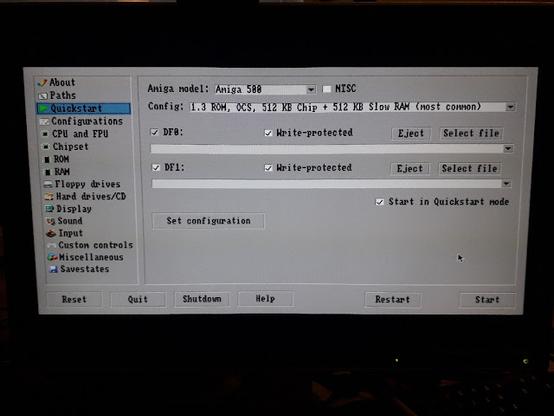
First time boot, exit the emulator config screen ("Quit"), use raspiconfig and find the option for extending the SD card filesystem. (It might not be on the first page of menu items). Then Finish and prepare to reboot.

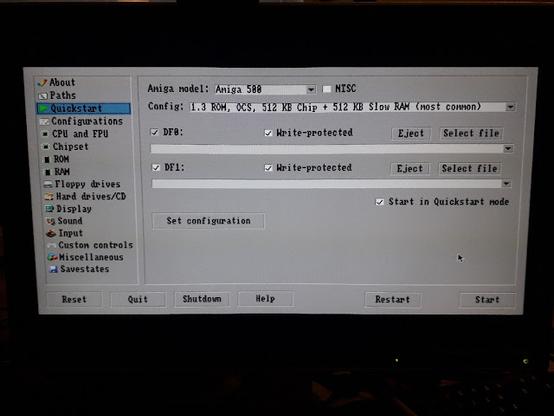
It takes a few seconds to get to the config screen. F12 switches between the config and the emulation.

It's also possible to again Quit to the linux command line and examine the folders and change the various settings. There you can update the system, too. The command line parts have simple assistive menus so I'd think less advanced users might find what they want.

In the graphical config menu again, if the Amiga files are on a separate USB stick, navigate to /media/usb0 to get there.

You can select ROMs (e.g. kick13.rom) from anywhere, but at amibian/amiga_files/kickstarts they will be convenient.

To get your system to boot as directly as possible to the Amiga Kickstart, quit the config, use "Emulators setup", "emulator config" and "uaeconf1" to select for example config 1 as the one that starts automatically. You can also use the uaeconf1 directly without resorting to the menus. From the graphic config untick "show GUI on startup" at Miscellaneous tab.

To change or creatively remove the Amibian logo from boot, change the contents at amibian/boot_pictures/

As the linux shell background has been set as blue, it will flash in sight during the boot sequence. This was mildly annoying.

This can be changed by editing the file called .profile (e.g. nano .profile) at the home directory (the one you land at after Quitting the config). Change the "background blue" into "background black", so the boot process looks less aggressive. In theory you could set the font to black too but this isn't very practical as the shell is needed!

Composite video

I was curious about how well the Amibian would show composite video.

This is not an entirely minor point as many modern computer monitors won't do 50hz, but the 1084S does and it's also a period-authentic display.

Using the Raspberry Pi video splitter cable, the tiny audio/video connector can be divided into RCA Composite video and stereo audio.

Changing the config.txt on the Raspberry partition enables composite video output.

sdtv=2 gives interlace and sdtv=18 enables progressive scan.

There's an option that enforces HDMI even if no HDMI cable is connected, so this has to be commented out too.

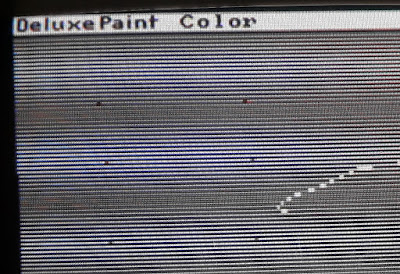
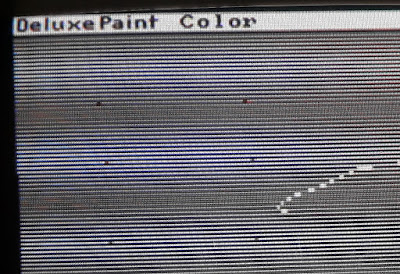
I have to say Amibian appears not to be as sophisticated with video options as the recent BMC64. I will easily get pattern artefacts at least with 1084S. Adjusting the overscan settings in config.txt did not help.

This may not be a big deal in many games, but it is obvious when making horizontal lines in Deluxe Paint.

How about screen refresh? Trying some games ( Battle Squadron , Rodland, Giana Sisters ) the screen sync was fine, but the demo Enigma by Phenomena started revealing hiccups in the screen update and there were some graphics glitches too.

This has nothing to do with the composite, as HDMI showed the same effects. But the glitches might also result from incorrect Amiga settings rather than the Amibian as such.

It's also possible the Raspberry just can't emulate it all fast enough when it comes to more Amiga-specific bitmap and screen handling.

But, arguably the refresh rate was generally more stable than the 50 adapted to 60 on UAE on my Linux+computer monitor. The demo didn't have the glitches on Linux emulation so the adf is unlikely to be corrupt.

HDMI

Less of a purist can go with HDMI and it might be easier on the eyes.

You can't get audio from the composite/audio connector while the HDMI is connected, so you need to depend on your HDMI to deliver that, too. I had a HDMI->VGA/Audio splitter which separated the audio output to a mixer as my display doesn't have speakers (or HDMI for that matter).

A television does better than a computer display, as it is more likely to do 50hz and playback the audio through the HDMI.

My poor ears could not notice any particular audio problems. Of course with headphones the Amiga stereo separation can be unbearable, but as I had the sound go through a mixer anyway I could adjust the situation.

Other considerations

Trying Frontier: Elite II with an anomalous setting of an A500 with "Fastest" speed (I guess the maximum) the game plays quite smoothly. It can still choke on very high detail. The speed can be changed on the fly, and making an eyeball judgment here the "fastest" speed looks like at least twice as fast as the 25mhz setting and the launch from Ross 154 with high detail is quite smooth.

So from this I'd judge there is enough raw power in the Raspberry 3 to run an Amiga, it's just that there are some features it can't pull off that easily, and these can be more apparent in scenedemos. I didn't test a lot of software though.

I experienced keyboard problems when typing, but this meant I had to remove the keyboard from the joystick emulation. After that the keyboard worked ok for AMOS Professional :)

The Logitech Gamepad F310 was recognized easily and worked fine. The config menus can be operated with the gamepad. Putting "Enter GUI" to the start button enabled me to reach the config from the joypad, however the function actually went to the left shoulder button. So a lot can be done without a keyboard if you have set things up cleverly enough.

I would have liked to connect a real Amiga keyboard to the GPIO or at least a joystick. The keyboard would probably require far more work than the Commodore 64 solution.

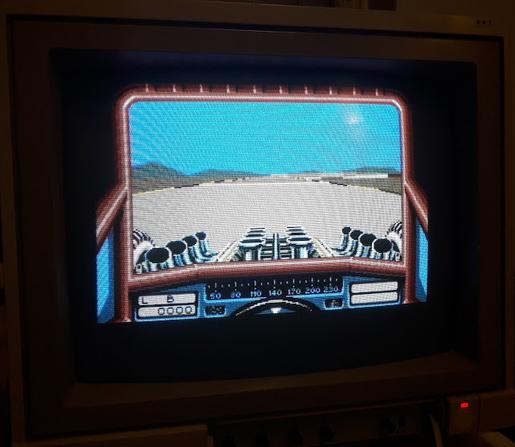
Edit: I could use the USB wanna-be Competition Pro joystick that came with THE C64 to give some more "authenticity". With Stunt Car Racer it felt better than a modern gamepad.

When connected to HDMI, it's hard to see an advantage or difference compared to having UAE on your main computer, for example running on a second screen. It's of course nice to see the Raspberry is so capable.

With composite video, the nostalgia factor is higher but the video options couldn't get rid of the horizontal line artefacts and it's possible a proper Amiga screen just can't be achieved in all situations.

The best use situation is with a HDMI 50hz television.

Amibian from here:

<https://gunkrist79.wixsite.com/amibian>

#amibian #amiga #emulator #pi #raspberry

Amibian

Let's have a look at the Amibian Amiga emulator on Raspberry Pi 3. First I used Etcher to write the .img to the Micro SD card. First time ...

Finlux TV

Again, supporting the local fleamarket, a television for the glorious price of 8,50€

The model is a Finlux 24" 24FLK274SVDN, it doesn't appear to have any simpler marketing name.

It's possible the same tech appears under various different brand names. ("Finlux" has little to do with Finland nowadays.)

The feel is plasticky and it doesn't weigh much. I could easily carry it in a bag.

Last time, I whined about the lack of 50hz displays for my Raspberry Pi Amibian Amiga setup, so I figured this would do at least something to amend it, and if it didn't then the price wouldn't be high.

As a bonus it might even do composite for a real C64 and work as a computer display too?

It has two HDMI connectors, a SCART, a tiny AV and a VGA. Two USBs and an internal DVD player. The internal info-sheet shows a plethora of different modes, video file formats and inputs the TV can supposedly handle.

And that's not nearly all

I punched it in to the Amibian Raspberry using HDMI->VGA adapter, and got some kind of ugly picture to begin with.

Then I took a step back and started experimenting with the options.

Bad news

The TV fares rather poorly as a computer display. I'm not sure if I expected it to do 1080p, the specs (provided in the internal documentation) says it can but in reality the native vertical resolution is 768 pixels. (Or 720, actually)

So the TV can camouflage itself into a 1080p and 1920x1200 resolution, but the scaled picture quality is not impressive on a HDMI. I'm not fully convinced with the framerate either.

Using a Displayport->HDMI adapter a laptop refused to recognize it as a second display, which wasn't nice either.

The VGA produced quite a bad image but this is something I'm now forced to use if want it as a display for the 2nd computer, as they don't have HDMI. (It might not be too horrible as I have only very specific purposes for the 2nd comp).

Removing all kinds of automation (not that there's much) and sharpening, the image can be improved a little.

Good news

After teaching the Raspberry Pi Amibian to do 50hz, scrolling was smooth. For this, I uncommented the 50hz HDMI portion of the Amibian boot/config.txt

This wasn't initially very satisfying as the display scaling would produce artefacts for scrolling games. For this purpose I adjusted the hdmi_cvt line (for custom HDMI resolution).

hdmi_cvt=768 768 50 1

The 1 gives aspect of 4:3, 4 would give 5:4 (Amibian recommended) but does it matter as the TV sets does what it wants anyway?

In the Amibian GUI config display panel, I selected 768 x 256, unticked "correct aspect ratio" and also gave -16 v.offset (maximum), but this depends a bit on the Amiga software. Sadly there's not more offset as some modes won't fit the screen even though the height is unlikely to be more than 256.

Of course, it's worth checking if the TV is in the 4:3 state, and not for example zoom 14:9!

This way, there's at least 1:1 correspondence between display pixels and scrolling doesn't "scale" and games like Battle Squadron , scrolling in multiple directions, now scroll smoothly with no jittering and "living" lines.

Edit: I think the vertical height of the display is 720, which gives a 240*3 as a 256-height screen will be cropped a bit. I don't get how the Raspberry setting of 768 works, maybe it reverts to 720.

**
Ugly news**

Checking the composite and RGB options, I noticed the TV can't handle these signals really, but sort of combines two frames instead of having a proper progressive display. For example if the computer flashes a black and a white frame repeatedly, the result will be a solid gray. Apparently anything that is a non-HDMI mode behaves this way.

With a "life gives you lemons" attitude I could start seeing this as some sort of extra colour mode for ZX Spectrum, but to be honest the idea of building something on a poor display doesn't appeal to me.

Edit: I tried a real Amiga RGB output too, just in case it would produce something different. The picture was actually surprisingly bearable and the frame conflation is not immediately apparent when watching games and demos. Sadly, there was a tiny hiccup all the time in the frame rate. Also, flashing black/white screens finally reveals the same result as with all the RGB and composite modes.

BMC64 and THEC64

It gets a bit weird, trying to get a "fake" C64 to work with a "fake" display. But why would it be more fake than the Amibian+HDMI? Perhaps I find the idea of connecting an Amiga to a modern display more acceptable as it has a history of pretending to be a serious computer.

Also, the THEC64 is by definition mean to interact with a HDMI so it makes sense to see if the BMC64 really functions as a complete alternative to that product.

For the BMC64 c64 emulator I had to at first activate hdmi_safe=1 to verify a HDMI image at all. This produced a 640x480 image.

I then removed the safe mode and advanced towards a custom resolution. I found it's easy to come up with a mode that looks ok at first but again "blurs" two frames together as in the aforementioned RGB and composite modes.

So I copied the parameters from the Amibian config.txt and found the BMC can live with the same 768 x 768 setup. (The config.txt scheme is common to all Raspberry installs)

With this the 50hz flickering test is passed. Then the display border sizes and stretch factors are adjusted from within BMC. There's still something a bit un-perfect about the horizontal size but at least it matches the pixel resolution somehow.

So I ripped these lines from the Amibian config.txt:

hdmi_cvt=768 768 50 1
hdmi_group=2
hdmi_mode=87
hdmi_drive=2
scaling_kernel=8

I have this Commodore 64 videotest software exactly for this kind of purposes. (1=horizontal scroll, 2=flickering screen (the 50hz test), 3=horizontal alternating lines, 4=vertical alternating lines, 5=checkerboard)

The text is part of the BMC overlay, C64 produces the test image.

I don't see how I'm no longer allowed to "Apply scaling parameters at boot", though.

Admittedly the "screen ratio" test would be nice to have.

With THEC64, the TV is obviously recognized by the computer and the picture is nice and clean. The 50hz test is passed, horizontal lines are ok but vertical lines have some scaling trouble. This is probably because the device insists on a correct aspect ratio.

It is more revealing in horizontal scrolling, such as the Giana Sisters intro scroll. Playing Giana Sisters, it doesn't really bother that much.

It's pointless to try to photograph how good the display is

A more thorough head-to-head between BMC64 and THEC64 will have to wait, but I'm now thinking both have benefits. But at least with this particular TV, the BMC64 again comes up with the goods.

The verdict

Had the TV been even slightly more costly, it might have been a disappointment.

But it suits well for the originally intended purpose, connecting the Raspberry/Amibian to a 50hz TV. It even exceeds my initial expectations in that area. For these lower resolutions, HDMI mode colors are good, crisp enough and the black is extremely, deeply, black.

There's soul-searching to do, as it is now the TV would cater both as a semi-retro display and a poor man's computer display, winning more space on the desk. But it's a clear step down for some uses, as it is not CRT and not a real computer display either.

#amibian #bmc64 #commodore #emulation #finlux #pi #raspberry #television #the64 #thec64

Finlux TV

Again, supporting the local fleamarket, a television for the glorious price of 8,50€ The model is a Finlux 24" 24FLK274SVDN, it doesn't appe...

Raspberry Pi Case for Amibian

This looks like a year for the Raspberry. Or the Amiga. Or both.

I already told of my experiences in using Pi/Amibian with a new-found cheap TV (see last post). Although the picture is not the most satisfying, I'm going forward with it.

First, a look at the Raspberry Pi case. Another time I will make a few notes about the Amiga Workbench/Amibian install itself, which is already up and running.

Obviously I can use the case as a Raspbian computer too by just switching the SD card, but the Amiga emulation was strongly behind this idea.

The Case

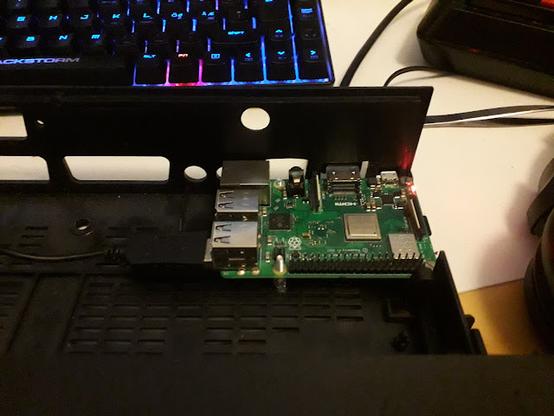
Already a couple of years ago I salvaged a very cheap digi-TV tuner, because the case looked like it could be used in a project. I now thought it would pair nicely with the TV, so I finally drilled and cut holes to make the Raspberry Pi fit.

The Raspberry is annoying in how the connectors all point to different directions. This was slightly improved with Pi 2 but there are still three important directions: Power/Display, SD card and the USB/Ethernet.

With an ancient Targus USB-hub, which I also used with this old wooden casing project, at least the USB ports can be redirected elsewhere.

So I only need address two sides and the Raspberry can be placed in the corner.

I had considered putting the memory stick inside the case as an "internal hard drive". However I use the same stick in the real Amiga 500 Gotek drive, so I need to be able to move it quickly.

Although the USB hub has four outputs, one of them points in the opposite direction. After a mouse, keyboard and a memory stick, there's no room for a joystick. I found a very short extension cable which helped me get the fourth port out. It's perhaps good one of the ports is not part of the hub.

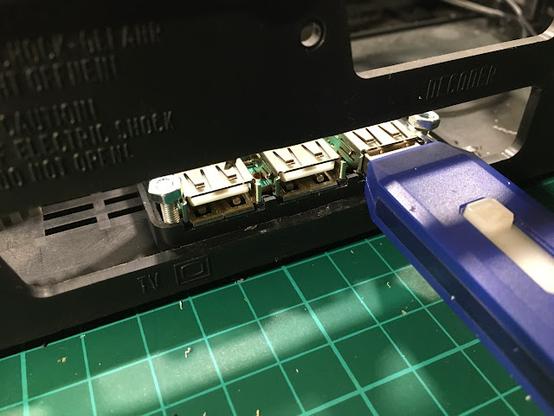
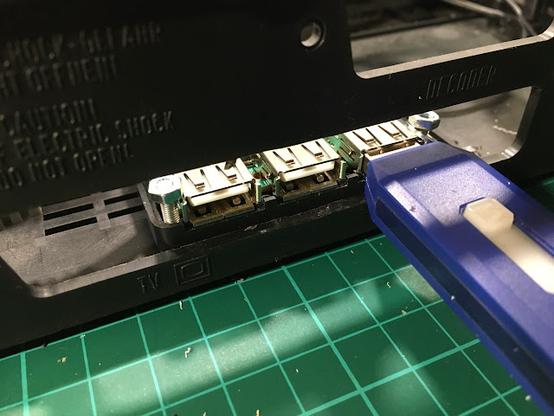
The single USB cable was more difficult to attach than the hub. The USB connector has those flaps which means it can't be simply pushed through the hole it is meant to occupy. The flaps also help keep it in place so they should not be removed either.

I made a rough test with two chipboard pieces in a wide "U" shape. The "U" shapes interlock and keep the connector from being pushed in. I was afterwards happy enough with the solution so I didn't try to improve it for now.

Three layers would be better as two can't keep the connector from wobbling.

The small existing rounded opening marked "12V" could be a better place for this connector, but I wanted to try this in the most spacious location.

Looking from the outside, it also gives an idea how the other ports might be cleaned up.

The material of the backside was pleasant and clean to drill and cut, which shouldn't be a surprise as it is clearly meant to be cut into different configurations. It looks as if the "decoder" hole wasn't very accurately cut to begin with.

A nice change after all those wood and chipboard projects.

One more woe is the minimal micro-SD card, and even now it's not protruding more than 1mm. I don't have a clear picture to show here, but the Raspberry is positioned so that the card comes out just below the metal cover edge.

I don't really need to remove the card that often as the emulator files are on the removable USB stick. I can use tweezers to pull the card out if I want to.

To have a better access to the network connector I used a short extension. Again something I did with that old wooden case.

The RJ45 "gender changer" is plastic so I made a groove around it and inserted it without any additional fasteners or screws.

I recently learned the Raspberry Pi 3 does have an internal wireless network adapter, but this felt more secure than trying to build an antenna.

Time to put it all together. What's nice about this box is the metal cover can be fit into place without screws really, but I can also use two hand-rotatable computer case screws.

So, that's it. The front side of the case is not very impressive, as it is a TV tuner box after all, but at least this time I didn't start the project with designing a front panel. Perhaps badges and stickers here...

The buttons at the front do nothing and could be hidden.

As I said, different types of Raspberry installs could be used here, and not just the Amibian, so I may need to consider this angle too.

#amibian #amiga #casemod #raspberry #raspberrypi

Raspberry Pi Case for Amibian

This looks like a year for the Raspberry. Or the Amiga. Or both. I already told of my experiences in using Pi/Amibian with a new-found cheap...

Amibian Amiga system

After installing Amibian on the Raspberry Pi, I wanted to go forward and try a hard disk install.

I'm using the folders on the memory stick as hard drives. This has the downside that certain characters in filenames are not accepted. ("español")

But I can throw in files directly and even through ethernet, so I can ditch the idea of translating files from/to adf images. And although the memory stick isn't especially fast, it is still fairly rapid as an Amiga hard disk.

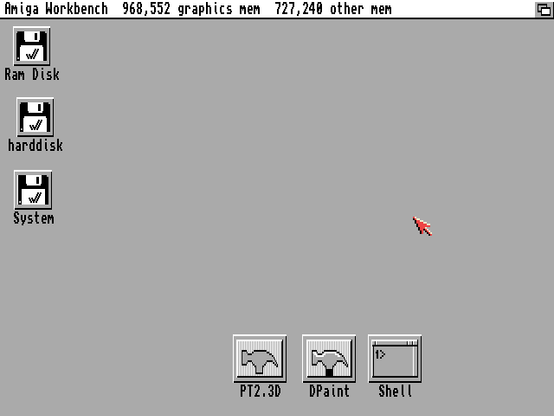
Some Workbench re-learning was in order. Firstly I remove the visually throttling main window, by checking "Backdrop" from the Workbench menu.

Instead of dragging an icon to the desk (which looks ok but is non-permanent) the icons have to be treated with "Leave Out" from the Icons menu, which doesn't sound that intuitive.

For the cheap TV, I adjusted Workbench to fit a 640x240 resolution instead of 640x256. Strangely, although the panel should be 768-high, implying a 256-high Amiga screen with no interference pattern, I can only have 240 with no interference. Well, enough of that TV. Many programs play nice with this Workbench setting.

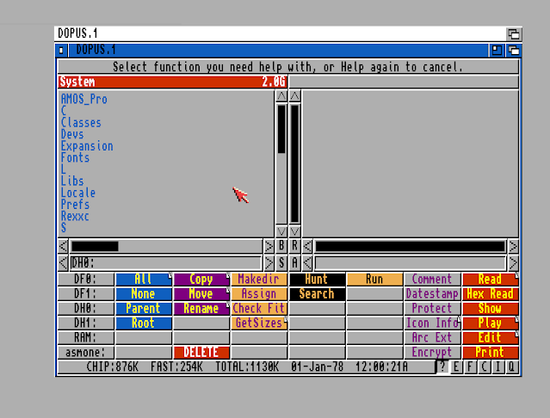
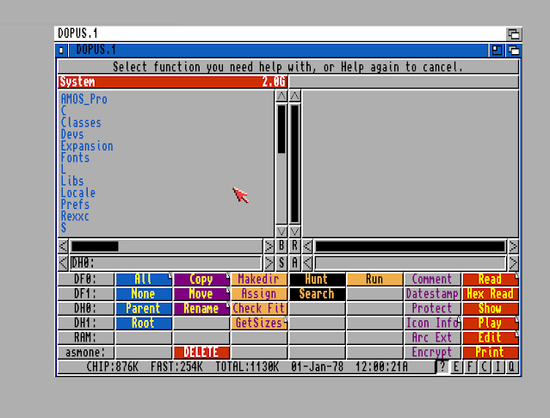
Directory Opus is a great help in arranging folders, moving files and creating icons for software.

I've probably looked at this and CLI more than the actual Workbench

Yes, every file needs that .info file in order to be visible in the WB environment. Folders (drawers, directories) can also display the "real" files as a list.

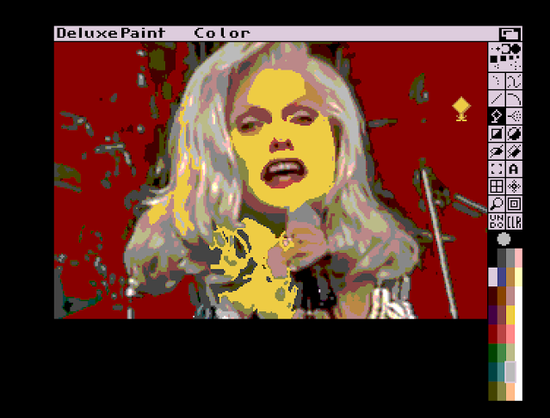
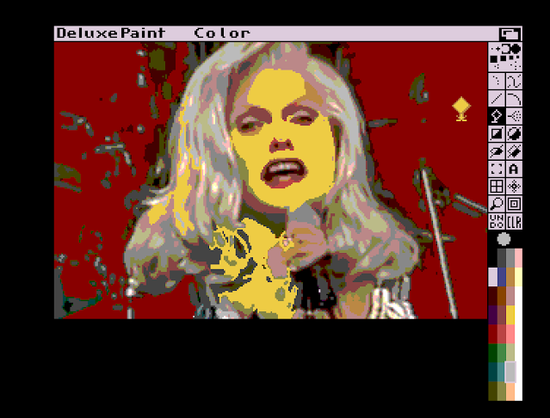
I was pleased to see that media files can launch apps, for example IFF images saved in Dpaint will again open in DPaint by clicking their icons.

But it's not possible to globally link file extensions to particular applications. Also, Dpaint doesn't seem to remember the folder from which the file was loaded from.

We reached peak Deluxe Paint in 1988

File transfers

The un-wisdom of constantly rewriting on an USB stick is not lost on me, and I intend to make enough backups in case it eventually breaks. It also helps to have multiple images if the Workbench setup becomes broken. Fortunately, by today's standards an entire Amiga hard drive install with software is not very huge.

As the ethernet is connected and running, I can use the scp command to transfer files over to the Raspberry filesystem, to /media/usb0/System/ or how ever it might be represented there. It's useful to share the ssh keys between the computers before this, so the transfers don't get bogged down by permission requirements.

Default login and password for Amibian is root/1234. Scp is also a good way to make the drive backups.

Copying over ssh can be done even when the emulation is on, but I have tried to avoid doing this, especially on the System drive. The Workbench/AmigaDOS probably doesn't do a lot actively but it's better to be safe than sorry. Maybe a completely separate "hard disk" should be set up for the file transfers.

Troubleshooting

At one point I started to get this alert during boot:

"Intuition is attempting to reset the Workbench screen. Please close all windows, except drawers."

This was annoying and slowed the boot just a tiny amount.

After some Googling I found out the error message emerges from a step in startup-sequence that launches iPrefs. The thing is, if there is text output before the iPrefs it will produce this alert. This may be one reason why all the startup-sequence commands have their output to >NIL:

Looking at the boot more closely it was easy to see the error messages in the vein of "Monitors/PAL.info.uaem: file is not executable"

The .uaem files are not part of the Amiga system, but are generated by the UAE (The U#? Amiga Emulator) These files begin to crowd the file system and this experience shows they can actually cause some harm!

The Amibian likely doesn't produce them, but as I built the install using UAE on Linux they probably came out from that.

So in UAE a file might not only have an .info, but both the file and the .info will have an .uaem too. To represent one item there might be four files which is ridiculous.

Removing the .uaem files from devs:Monitors/ removed the error message.

**
**

Modern or not

Time has passed and a lot of desktop conventions have become widely accepted. I was seeking a balance between the "original Amiga experience" and looking for some modest ways to update it.

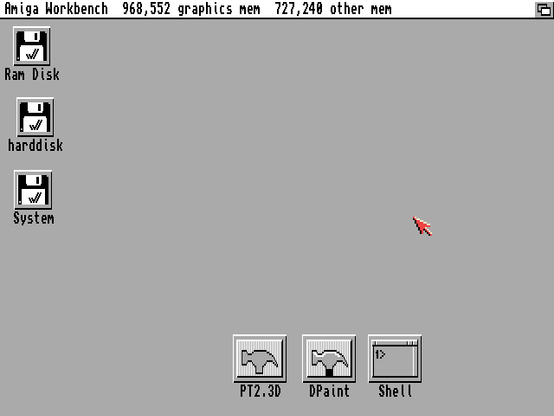
Back in the day only few of the most used apps were placed as icons on the desktop. I now felt compelled to put as many apps as desktop icons as possible. Furthermore, I put them in a neat line at the bottom of the screen, like the icon strip in Mac OS and others.

...which is strange as I don't use an app launcher in Linux either, but it does have that handy menu.

While I wouldn't want any additional launcher to clutter the WB experience (a few must exist), at least this could be done.

Workbench Storage disk should have storage/keymaps with different country keymap files. These are then copied to devs:keymaps. After this the desired keymap can be selected in prefs/input.

The Swedish keymap was only a partial solution and I especially kept missing the [ ] characters which are in a silly place to begin with in that keymap. So I have persisted with the "wrong" US keymap.

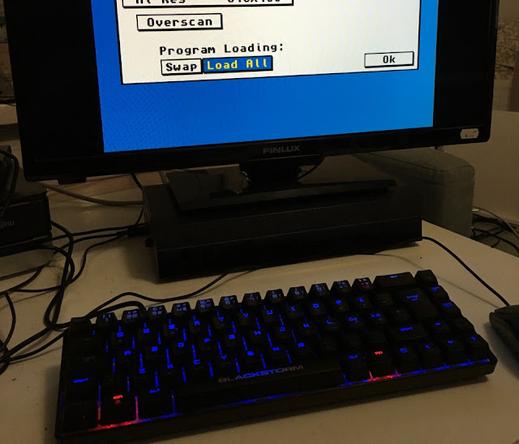
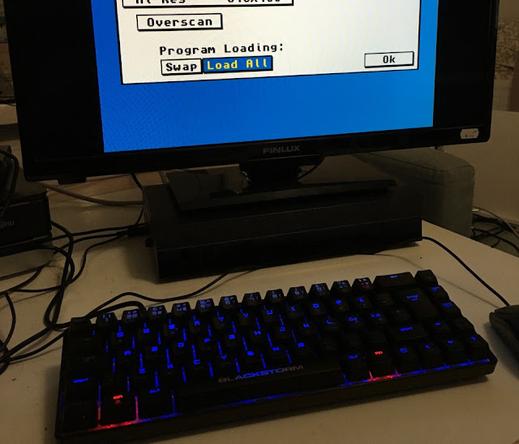
Although the Blackstorm keyboard I've used is a nice counterpart to the black box and TV, it doesn't have function keys or a numeric keypad.

Even if I had all the keys in correct places, it's not all going to be like 2021.

One widespread agreement is now that Control-C is Copy, Control-X is Cut, Control-V is Paste and Control-Z is undo. Old Amiga software is inconsistent about what keyboard shortcuts to use. And whether to use Control-key or the Amiga-key as the base? How universal is the clipboard?

The shortcuts are likely partly inspired by Unix and partly an own convention. There are mixtures, like the menu item saying "Save" but the shortcut is Amiga+W(for Write).

Even if some programs allow adjusting shortcut keys, it might not work 100%. In AMOSPro editor I could change them but Control-C was out of bounds as it is the "break" key.

While I feel for "u key as undo" (as in Deluxe Paint) I have to agree having undo together with C/X/V cluster makes sense.

A minor grievance is that text generally cannot be marked with a single drag, but has to be double-clicked at first. The Amiga Shell (CLI) actually has a more modern single drag "paint selection" but the other programs haven't all caught on.

You use Right Amiga+C and V to copy/paste in Workbench. It does work across software, but apparently not in smaller text entry boxes.

Mouse wheels were not really a thing in Amiga's heyday, but now I feel it is indispensable. There's a software called FreeWheel that enables the wheel in Workbench applications, but sadly I only got it working in UAE on Linux, not on Amibian. Possibly the Amibian mouse routines are very minimal.

I actually now like the ubiquitous Amiga top-down, pull-down menus. Nowadays operating systems try to abolish menus, or offer different ways to present the same idea. The rigid pull-down menus don't work that well on touch screens.

The idea of moving the entire screen from the menubar now feels quirky and idiosyncratic, but there are situations where it feels right. It is a suitably disciplined and fast way to have a peek at another program. on a system where many programs wouldn't fit on the same screen anyway. Whether it is better than simply switching between screens or workspaces, I am not so sure.

"Open recent file" function is not a given even now, but appears to be non-existent on Amiga.

Some thoughts

In my memory a real Amiga Workbench on hard disk was a shaky proposition at best, but now it felt surprisingly robust. I can use and multitask nostalgic favorites like Deluxe Paint, Directory Opus, Protracker, AMOS, Asmone and it doesn't come crashing down every 30 minutes.

I know I could have explored different display mode emulations and perhaps get more colours and resolution out of Workbench, but at least for now I'm satisfied with the 4-colours 640x240 mode.

I actually enjoyed, at least up to a point, the need of manual tweaking here and there, having to move and confirm window and icon positions by hand.

Sometimes I half forget it's not a real Amiga. Even if I accept it's not very genuine it can work as a dry run in the case I eventually have an SD-card equipped, turbo-charged Amiga. I think I could use the hard drive images in a real Amiga too, at least if it has the correct Kickstart. Not that I'm very eager to have such a huge lump of old electronics any more.

I was surprised how smooth Amibian has been with games. But already using Hippoplayer caused some hippo-hiccups. So, although the Amibian setup is well geared for playing floppy games, trying to keep exact time while in Workbench and other environments might be less successful.

Now that I mentioned it, AMOS used to be a huge part of my Amiga experience and I'll likely come back to that on another blog post. I went through the process of installing AMOSpro and the compiler.

#amibian #amiga #workbench

Amibian Amiga system

After installing Amibian on the Raspberry Pi, I wanted to go forward and try a hard disk install. I'm using the folders on the memory stick ...

Amibian

Let's have a look at the Amibian Amiga emulator on Raspberry Pi 3.

First I used Etcher to write the .img to the Micro SD card.

First time boot, exit the emulator config screen ("Quit"), use raspiconfig and find the option for extending the SD card filesystem. (It might not be on the first page of menu items). Then Finish and prepare to reboot.

It takes a few seconds to get to the config screen. F12 switches between the config and the emulation.

It's also possible to again Quit to the linux command line and examine the folders and change the various settings. There you can update the system, too. The command line parts have simple assistive menus so I'd think less advanced users might find what they want.

In the graphical config menu again, if the Amiga files are on a separate USB stick, navigate to /media/usb0 to get there.

You can select ROMs (e.g. kick13.rom) from anywhere, but at amibian/amiga_files/kickstarts they will be convenient.

To get your system to boot as directly as possible to the Amiga Kickstart, quit the config, use "Emulators setup", "emulator config" and "uaeconf1" to select for example config 1 as the one that starts automatically. You can also use the uaeconf1 directly without resorting to the menus. From the graphic config untick "show GUI on startup" at Miscellaneous tab.

To change or creatively remove the Amibian logo from boot, change the contents at amibian/boot_pictures/

As the linux shell background has been set as blue, it will flash in sight during the boot sequence. This was mildly annoying.

This can be changed by editing the file called .profile (e.g. nano .profile) at the home directory (the one you land at after Quitting the config). Change the "background blue" into "background black", so the boot process looks less aggressive. In theory you could set the font to black too but this isn't very practical as the shell is needed!

Composite video

I was curious about how well the Amibian would show composite video.

This is not an entirely minor point as many modern computer monitors won't do 50hz, but the 1084S does and it's also a period-authentic display.

Using the Raspberry Pi video splitter cable, the tiny audio/video connector can be divided into RCA Composite video and stereo audio.

Changing the config.txt on the Raspberry partition enables composite video output.

sdtv=2 gives interlace and sdtv=18 enables progressive scan.

There's an option that enforces HDMI even if no HDMI cable is connected, so this has to be commented out too.

I have to say Amibian appears not to be as sophisticated with video options as the recent BMC64. I will easily get pattern artefacts at least with 1084S. Adjusting the overscan settings in config.txt did not help.

This may not be a big deal in many games, but it is obvious when making horizontal lines in Deluxe Paint.

How about screen refresh? Trying some games ( Battle Squadron , Rodland, Giana Sisters ) the screen sync was fine, but the demo Enigma by Phenomena started revealing hiccups in the screen update and there were some graphics glitches too.

This has nothing to do with the composite, as HDMI showed the same effects. But the glitches might also result from incorrect Amiga settings rather than the Amibian as such.

It's also possible the Raspberry just can't emulate it all fast enough when it comes to more Amiga-specific bitmap and screen handling.

But, arguably the refresh rate was generally more stable than the 50 adapted to 60 on UAE on my Linux+computer monitor. The demo didn't have the glitches on Linux emulation so the adf is unlikely to be corrupt.

HDMI

Less of a purist can go with HDMI and it might be easier on the eyes.

You can't get audio from the composite/audio connector while the HDMI is connected, so you need to depend on your HDMI to deliver that, too. I had a HDMI->VGA/Audio splitter which separated the audio output to a mixer as my display doesn't have speakers (or HDMI for that matter).

A television does better than a computer display, as it is more likely to do 50hz and playback the audio through the HDMI.

My poor ears could not notice any particular audio problems. Of course with headphones the Amiga stereo separation can be unbearable, but as I had the sound go through a mixer anyway I could adjust the situation.

Other considerations

Trying Frontier: Elite II with an anomalous setting of an A500 with "Fastest" speed (I guess the maximum) the game plays quite smoothly. It can still choke on very high detail. The speed can be changed on the fly, and making an eyeball judgment here the "fastest" speed looks like at least twice as fast as the 25mhz setting and the launch from Ross 154 with high detail is quite smooth.

So from this I'd judge there is enough raw power in the Raspberry 3 to run an Amiga, it's just that there are some features it can't pull off that easily, and these can be more apparent in scenedemos. I didn't test a lot of software though.

I experienced keyboard problems when typing, but this meant I had to remove the keyboard from the joystick emulation. After that the keyboard worked ok for AMOS Professional :)

The Logitech Gamepad F310 was recognized easily and worked fine. The config menus can be operated with the gamepad. Putting "Enter GUI" to the start button enabled me to reach the config from the joypad, however the function actually went to the left shoulder button. So a lot can be done without a keyboard if you have set things up cleverly enough.

I would have liked to connect a real Amiga keyboard to the GPIO or at least a joystick. The keyboard would probably require far more work than the Commodore 64 solution.

Edit: I could use the USB wanna-be Competition Pro joystick that came with THE C64 to give some more "authenticity". With Stunt Car Racer it felt better than a modern gamepad.

When connected to HDMI, it's hard to see an advantage or difference compared to having UAE on your main computer, for example running on a second screen. It's of course nice to see the Raspberry is so capable.

With composite video, the nostalgia factor is higher but the video options couldn't get rid of the horizontal line artefacts and it's possible a proper Amiga screen just can't be achieved in all situations.

The best use situation is with a HDMI 50hz television.

Amibian from here:
<https://gunkrist79.wixsite.com/amibian>

#amibian #amiga #emulator #pi #raspberry

Amibian

Let's have a look at the Amibian Amiga emulator on Raspberry Pi 3. First I used Etcher to write the .img to the Micro SD card. First time ...

Finlux TV

Again, supporting the local fleamarket, a television for the glorious price of 8,50€

The model is a Finlux 24" 24FLK274SVDN, it doesn't appear to have any simpler marketing name.

It's possible the same tech appears under various different brand names. ("Finlux" has little to do with Finland nowadays.)

The feel is plasticky and it doesn't weigh much. I could easily carry it in a bag.

Last time, I whined about the lack of 50hz displays for my Raspberry Pi Amibian Amiga setup, so I figured this would do at least something to amend it, and if it didn't then the price wouldn't be high.

As a bonus it might even do composite for a real C64 and work as a computer display too?

It has two HDMI connectors, a SCART, a tiny AV and a VGA. Two USBs and an internal DVD player. The internal info-sheet shows a plethora of different modes, video file formats and inputs the TV can supposedly handle.

And that's not nearly all

I punched it in to the Amibian Raspberry using HDMI->VGA adapter, and got some kind of ugly picture to begin with.

Then I took a step back and started experimenting with the options.

Bad news

The TV fares rather poorly as a computer display. I'm not sure if I expected it to do 1080p, the specs (provided in the internal documentation) says it can but in reality the native vertical resolution is 768 pixels. (Or 720, actually)

So the TV can camouflage itself into a 1080p and 1920x1200 resolution, but the scaled picture quality is not impressive on a HDMI. I'm not fully convinced with the framerate either.

Using a Displayport->HDMI adapter a laptop refused to recognize it as a second display, which wasn't nice either.

The VGA produced quite a bad image but this is something I'm now forced to use if want it as a display for the 2nd computer, as they don't have HDMI. (It might not be too horrible as I have only very specific purposes for the 2nd comp).

Removing all kinds of automation (not that there's much) and sharpening, the image can be improved a little.

Good news

After teaching the Raspberry Pi Amibian to do 50hz, scrolling was smooth. For this, I uncommented the 50hz HDMI portion of the Amibian boot/config.txt

This wasn't initially very satisfying as the display scaling would produce artefacts for scrolling games. For this purpose I adjusted the hdmi_cvt line (for custom HDMI resolution).

hdmi_cvt=768 768 50 1

The 1 gives aspect of 4:3, 4 would give 5:4 (Amibian recommended) but does it matter as the TV sets does what it wants anyway?

In the Amibian GUI config display panel, I selected 768 x 256, unticked "correct aspect ratio" and also gave -16 v.offset (maximum), but this depends a bit on the Amiga software. Sadly there's not more offset as some modes won't fit the screen even though the height is unlikely to be more than 256.

Of course, it's worth checking if the TV is in the 4:3 state, and not for example zoom 14:9!

This way, there's at least 1:1 correspondence between display pixels and scrolling doesn't "scale" and games like Battle Squadron , scrolling in multiple directions, now scroll smoothly with no jittering and "living" lines.

Edit: I think the vertical height of the display is 720, which gives a 240*3 as a 256-height screen will be cropped a bit. I don't get how the Raspberry setting of 768 works, maybe it reverts to 720.

**
Ugly news**

Checking the composite and RGB options, I noticed the TV can't handle these signals really, but sort of combines two frames instead of having a proper progressive display. For example if the computer flashes a black and a white frame repeatedly, the result will be a solid gray. Apparently anything that is a non-HDMI mode behaves this way.

With a "life gives you lemons" attitude I could start seeing this as some sort of extra colour mode for ZX Spectrum, but to be honest the idea of building something on a poor display doesn't appeal to me.

Edit: I tried a real Amiga RGB output too, just in case it would produce something different. The picture was actually surprisingly bearable and the frame conflation is not immediately apparent when watching games and demos. Sadly, there was a tiny hiccup all the time in the frame rate. Also, flashing black/white screens finally reveals the same result as with all the RGB and composite modes.

BMC64 and THEC64

It gets a bit weird, trying to get a "fake" C64 to work with a "fake" display. But why would it be more fake than the Amibian+HDMI? Perhaps I find the idea of connecting an Amiga to a modern display more acceptable as it has a history of pretending to be a serious computer.

Also, the THEC64 is by definition mean to interact with a HDMI so it makes sense to see if the BMC64 really functions as a complete alternative to that product.

For the BMC64 c64 emulator I had to at first activate hdmi_safe=1 to verify a HDMI image at all. This produced a 640x480 image.

I then removed the safe mode and advanced towards a custom resolution. I found it's easy to come up with a mode that looks ok at first but again "blurs" two frames together as in the aforementioned RGB and composite modes.

So I copied the parameters from the Amibian config.txt and found the BMC can live with the same 768 x 768 setup. (The config.txt scheme is common to all Raspberry installs)

With this the 50hz flickering test is passed. Then the display border sizes and stretch factors are adjusted from within BMC. There's still something a bit un-perfect about the horizontal size but at least it matches the pixel resolution somehow.

So I ripped these lines from the Amibian config.txt:

hdmi_cvt=768 768 50 1
hdmi_group=2
hdmi_mode=87
hdmi_drive=2
scaling_kernel=8

I have this Commodore 64 videotest software exactly for this kind of purposes. (1=horizontal scroll, 2=flickering screen (the 50hz test), 3=horizontal alternating lines, 4=vertical alternating lines, 5=checkerboard)

The text is part of the BMC overlay, C64 produces the test image.

I don't see how I'm no longer allowed to "Apply scaling parameters at boot", though.

Admittedly the "screen ratio" test would be nice to have.

With THEC64, the TV is obviously recognized by the computer and the picture is nice and clean. The 50hz test is passed, horizontal lines are ok but vertical lines have some scaling trouble. This is probably because the device insists on a correct aspect ratio.

It is more revealing in horizontal scrolling, such as the Giana Sisters intro scroll. Playing Giana Sisters, it doesn't really bother that much.

It's pointless to try to photograph how good the display is

A more thorough head-to-head between BMC64 and THEC64 will have to wait, but I'm now thinking both have benefits. But at least with this particular TV, the BMC64 again comes up with the goods.

The verdict

Had the TV been even slightly more costly, it might have been a disappointment.

But it suits well for the originally intended purpose, connecting the Raspberry/Amibian to a 50hz TV. It even exceeds my initial expectations in that area. For these lower resolutions, HDMI mode colors are good, crisp enough and the black is extremely, deeply, black.

There's soul-searching to do, as it is now the TV would cater both as a semi-retro display and a poor man's computer display, winning more space on the desk. But it's a clear step down for some uses, as it is not CRT and not a real computer display either.

#amibian #bmc64 #commodore #emulation #finlux #pi #raspberry #television #the64 #thec64

Finlux TV

Again, supporting the local fleamarket, a television for the glorious price of 8,50€ The model is a Finlux 24" 24FLK274SVDN, it doesn't appe...

Raspberry Pi Case for Amibian

This looks like a year for the Raspberry. Or the Amiga. Or both.

I already told of my experiences in using Pi/Amibian with a new-found cheap TV (see last post). Although the picture is not the most satisfying, I'm going forward with it.

First, a look at the Raspberry Pi case. Another time I will make a few notes about the Amiga Workbench/Amibian install itself, which is already up and running.

Obviously I can use the case as a Raspbian computer too by just switching the SD card, but the Amiga emulation was strongly behind this idea.

The Case

Already a couple of years ago I salvaged a very cheap digi-TV tuner, because the case looked like it could be used in a project. I now thought it would pair nicely with the TV, so I finally drilled and cut holes to make the Raspberry Pi fit.

The Raspberry is annoying in how the connectors all point to different directions. This was slightly improved with Pi 2 but there are still three important directions: Power/Display, SD card and the USB/Ethernet.

With an ancient Targus USB-hub, which I also used with this old wooden casing project, at least the USB ports can be redirected elsewhere.

So I only need address two sides and the Raspberry can be placed in the corner.

I had considered putting the memory stick inside the case as an "internal hard drive". However I use the same stick in the real Amiga 500 Gotek drive, so I need to be able to move it quickly.

Although the USB hub has four outputs, one of them points in the opposite direction. After a mouse, keyboard and a memory stick, there's no room for a joystick. I found a very short extension cable which helped me get the fourth port out. It's perhaps good one of the ports is not part of the hub.

The single USB cable was more difficult to attach than the hub. The USB connector has those flaps which means it can't be simply pushed through the hole it is meant to occupy. The flaps also help keep it in place so they should not be removed either.

I made a rough test with two chipboard pieces in a wide "U" shape. The "U" shapes interlock and keep the connector from being pushed in. I was afterwards happy enough with the solution so I didn't try to improve it for now.

Three layers would be better as two can't keep the connector from wobbling.

The small existing rounded opening marked "12V" could be a better place for this connector, but I wanted to try this in the most spacious location.

Looking from the outside, it also gives an idea how the other ports might be cleaned up.

The material of the backside was pleasant and clean to drill and cut, which shouldn't be a surprise as it is clearly meant to be cut into different configurations. It looks as if the "decoder" hole wasn't very accurately cut to begin with.

A nice change after all those wood and chipboard projects.

One more woe is the minimal micro-SD card, and even now it's not protruding more than 1mm. I don't have a clear picture to show here, but the Raspberry is positioned so that the card comes out just below the metal cover edge.

I don't really need to remove the card that often as the emulator files are on the removable USB stick. I can use tweezers to pull the card out if I want to.

To have a better access to the network connector I used a short extension. Again something I did with that old wooden case.

The RJ45 "gender changer" is plastic so I made a groove around it and inserted it without any additional fasteners or screws.

I recently learned the Raspberry Pi 3 does have an internal wireless network adapter, but this felt more secure than trying to build an antenna.

Time to put it all together. What's nice about this box is the metal cover can be fit into place without screws really, but I can also use two hand-rotatable computer case screws.

So, that's it. The front side of the case is not very impressive, as it is a TV tuner box after all, but at least this time I didn't start the project with designing a front panel. Perhaps badges and stickers here...

The buttons at the front do nothing and could be hidden.

As I said, different types of Raspberry installs could be used here, and not just the Amibian, so I may need to consider this angle too.

#amibian #amiga #casemod #raspberry #raspberrypi

Raspberry Pi Case for Amibian

This looks like a year for the Raspberry. Or the Amiga. Or both. I already told of my experiences in using Pi/Amibian with a new-found cheap...

Amibian Amiga system

After installing Amibian on the Raspberry Pi, I wanted to go forward and try a hard disk install.

I'm using the folders on the memory stick as hard drives. This has the downside that certain characters in filenames are not accepted. ("español")

But I can throw in files directly and even through ethernet, so I can ditch the idea of translating files from/to adf images. And although the memory stick isn't especially fast, it is still fairly rapid as an Amiga hard disk.

Some Workbench re-learning was in order. Firstly I remove the visually throttling main window, by checking "Backdrop" from the Workbench menu.

Instead of dragging an icon to the desk (which looks ok but is non-permanent) the icons have to be treated with "Leave Out" from the Icons menu, which doesn't sound that intuitive.

For the cheap TV, I adjusted Workbench to fit a 640x240 resolution instead of 640x256. Strangely, although the panel should be 768-high, implying a 256-high Amiga screen with no interference pattern, I can only have 240 with no interference. Well, enough of that TV. Many programs play nice with this Workbench setting.

Directory Opus is a great help in arranging folders, moving files and creating icons for software.

I've probably looked at this and CLI more than the actual Workbench

Yes, every file needs that .info file in order to be visible in the WB environment. Folders (drawers, directories) can also display the "real" files as a list.

I was pleased to see that media files can launch apps, for example IFF images saved in Dpaint will again open in DPaint by clicking their icons.

But it's not possible to globally link file extensions to particular applications. Also, Dpaint doesn't seem to remember the folder from which the file was loaded from.

We reached peak Deluxe Paint in 1988

File transfers

The un-wisdom of constantly rewriting on an USB stick is not lost on me, and I intend to make enough backups in case it eventually breaks. It also helps to have multiple images if the Workbench setup becomes broken. Fortunately, by today's standards an entire Amiga hard drive install with software is not very huge.

As the ethernet is connected and running, I can use the scp command to transfer files over to the Raspberry filesystem, to /media/usb0/System/ or how ever it might be represented there. It's useful to share the ssh keys between the computers before this, so the transfers don't get bogged down by permission requirements.

Default login and password for Amibian is root/1234. Scp is also a good way to make the drive backups.

Copying over ssh can be done even when the emulation is on, but I have tried to avoid doing this, especially on the System drive. The Workbench/AmigaDOS probably doesn't do a lot actively but it's better to be safe than sorry. Maybe a completely separate "hard disk" should be set up for the file transfers.

Troubleshooting

At one point I started to get this alert during boot:

"Intuition is attempting to reset the Workbench screen. Please close all windows, except drawers."

This was annoying and slowed the boot just a tiny amount.

After some Googling I found out the error message emerges from a step in startup-sequence that launches iPrefs. The thing is, if there is text output before the iPrefs it will produce this alert. This may be one reason why all the startup-sequence commands have their output to >NIL:

Looking at the boot more closely it was easy to see the error messages in the vein of "Monitors/PAL.info.uaem: file is not executable"

The .uaem files are not part of the Amiga system, but are generated by the UAE (The U#? Amiga Emulator) These files begin to crowd the file system and this experience shows they can actually cause some harm!

The Amibian likely doesn't produce them, but as I built the install using UAE on Linux they probably came out from that.

So in UAE a file might not only have an .info, but both the file and the .info will have an .uaem too. To represent one item there might be four files which is ridiculous.

Removing the .uaem files from devs:Monitors/ removed the error message.

**
**

Modern or not

Time has passed and a lot of desktop conventions have become widely accepted. I was seeking a balance between the "original Amiga experience" and looking for some modest ways to update it.

Back in the day only few of the most used apps were placed as icons on the desktop. I now felt compelled to put as many apps as desktop icons as possible. Furthermore, I put them in a neat line at the bottom of the screen, like the icon strip in Mac OS and others.

...which is strange as I don't use an app launcher in Linux either, but it does have that handy menu.

While I wouldn't want any additional launcher to clutter the WB experience (a few must exist), at least this could be done.

Workbench Storage disk should have storage/keymaps with different country keymap files. These are then copied to devs:keymaps. After this the desired keymap can be selected in prefs/input.

The Swedish keymap was only a partial solution and I especially kept missing the [ ] characters which are in a silly place to begin with in that keymap. So I have persisted with the "wrong" US keymap.

Although the Blackstorm keyboard I've used is a nice counterpart to the black box and TV, it doesn't have function keys or a numeric keypad.

Even if I had all the keys in correct places, it's not all going to be like 2021.

One widespread agreement is now that Control-C is Copy, Control-X is Cut, Control-V is Paste and Control-Z is undo. Old Amiga software is inconsistent about what keyboard shortcuts to use. And whether to use Control-key or the Amiga-key as the base? How universal is the clipboard?

The shortcuts are likely partly inspired by Unix and partly an own convention. There are mixtures, like the menu item saying "Save" but the shortcut is Amiga+W(for Write).

Even if some programs allow adjusting shortcut keys, it might not work 100%. In AMOSPro editor I could change them but Control-C was out of bounds as it is the "break" key.

While I feel for "u key as undo" (as in Deluxe Paint) I have to agree having undo together with C/X/V cluster makes sense.

A minor grievance is that text generally cannot be marked with a single drag, but has to be double-clicked at first. The Amiga Shell (CLI) actually has a more modern single drag "paint selection" but the other programs haven't all caught on.

You use Right Amiga+C and V to copy/paste in Workbench. It does work across software, but apparently not in smaller text entry boxes.

Mouse wheels were not really a thing in Amiga's heyday, but now I feel it is indispensable. There's a software called FreeWheel that enables the wheel in Workbench applications, but sadly I only got it working in UAE on Linux, not on Amibian. Possibly the Amibian mouse routines are very minimal.

I actually now like the ubiquitous Amiga top-down, pull-down menus. Nowadays operating systems try to abolish menus, or offer different ways to present the same idea. The rigid pull-down menus don't work that well on touch screens.

The idea of moving the entire screen from the menubar now feels quirky and idiosyncratic, but there are situations where it feels right. It is a suitably disciplined and fast way to have a peek at another program. on a system where many programs wouldn't fit on the same screen anyway. Whether it is better than simply switching between screens or workspaces, I am not so sure.

"Open recent file" function is not a given even now, but appears to be non-existent on Amiga.

Some thoughts

In my memory a real Amiga Workbench on hard disk was a shaky proposition at best, but now it felt surprisingly robust. I can use and multitask nostalgic favorites like Deluxe Paint, Directory Opus, Protracker, AMOS, Asmone and it doesn't come crashing down every 30 minutes.

I know I could have explored different display mode emulations and perhaps get more colours and resolution out of Workbench, but at least for now I'm satisfied with the 4-colours 640x240 mode.

I actually enjoyed, at least up to a point, the need of manual tweaking here and there, having to move and confirm window and icon positions by hand.

Sometimes I half forget it's not a real Amiga. Even if I accept it's not very genuine it can work as a dry run in the case I eventually have an SD-card equipped, turbo-charged Amiga. I think I could use the hard drive images in a real Amiga too, at least if it has the correct Kickstart. Not that I'm very eager to have such a huge lump of old electronics any more.

I was surprised how smooth Amibian has been with games. But already using Hippoplayer caused some hippo-hiccups. So, although the Amibian setup is well geared for playing floppy games, trying to keep exact time while in Workbench and other environments might be less successful.

Now that I mentioned it, AMOS used to be a huge part of my Amiga experience and I'll likely come back to that on another blog post. I went through the process of installing AMOSpro and the compiler.

#amibian #amiga #workbench

Amibian Amiga system

After installing Amibian on the Raspberry Pi, I wanted to go forward and try a hard disk install. I'm using the folders on the memory stick ...