 AnneTheWriter
 L.A.
L.A.Gimp does what Adobon't.
...That sounds terrible. Twain 32 bit only drivers are not supported on 64 Photoshop anymore, but Good Guy Gimp does not judge you for using legacy hardware and will support your 32 bits drivers.

🧵 4/4
Set the Epson #FastFoto scanner to at least 600dpi, preferably 1200dpi. Its default is only 300dpi. But NOTE that the larger the scan resolution, the more disk storage space they will need. The FastFoto will also scan a bit more slowly with the larger resolutions. Ditto for the flatbed scanner.
Do not use USB thumb drives, as these are not reliable. Get at least one good 2-4 Tb SSDI external drive-- two, if you do not use #CloudStorage for your primary or backup copy.
"Always backup the backup of your backup." Do not rely on any one storage alone-- not even #TheCloud .
Someday, you will lose that password or be unable to afford subscriptions anymore. When you die, how will your family access your online accounts? What will you do when the power is off and the WiFi goes down?
Having an offline data storage system is vital.
That being said, it's wonderful to be able to share photos by just sending a link to family members. The Cloud does have its advantages.
Free Cloud accounts and free photo storage apps won't hold all of your photos by the time you get far along in the process. You will probably need to pay for extra Cloud space, if you use Cloud storage.
BE AWARE that ALL Cloud storage accounts are scraped by #AI companies to train their chatbots. If, for any reason, this is something you're not comfortable with, don't put your photos online anywhere and don't use Cloud storage.
In the beginning, overestimate your future data storage needs dramatically and you'll be better off.
Every few years or so, plug in your offline storage to your lateat device and make sure the files are still accessible and the physical connections still work. Technology changes quickly, and unused storage devices can fail. It's important to check up on it regularly and convert media to the newer tech standard, while you still can.
#Genealogy #Archiving #FamilyPhotos #DataStorage #FileManagement #CloudStorage #Backups #ScanningPhotos
@atfarnum
🧵 3/4
You can get some photo boxes from any craft stores for storing the small photos, but plan to put those small boxes in the same large plastic bin(s) with any albums, oversized photos, photos in frames, etc.
Whatever grouping and file name system you used when #scanning , store the loose photos in the same organizational system, and put those sets in comic book or other acid-free bags, before putting them in any photo boxes. For example, put all your square 3.5" photos in one bag, rectangular 3.5" x 5" in another, 5" x 7" in yet another, etc.
As much as possible, keep the stacks of #photos in the same order as you scanned them, to make it easier to find any specific paper copy.
When #scanning flatbed copies, make sure to scan the front and backs of any that have writing/studio information on the back. Indicate the images go together with the file names. (The #FastFoto scanner will do this automatically for its photos.)
Eventually, you'll want to change file names to indicate who's in the photos. But first, get them all scanned.
If you don't know who's in some of the photos, don't worry! You can still identify them, even if your living relatives have no clue who they are.
After you've been scanning for awhile, you'll get to recognize and match up some faces. You'll also find group images of families, and who they're with in those groups can help you figure out who everyone is.
Having the scans done before identifying people also allows you to zoom in on faces & details, which might help you see them better.
Build a small basic #FamilyTree , with birth/death dates & names, going back as far as you can, to at least the Civil War. This will be vital for identifying many of the images. You do not need to pay #Ancestry to do this, but it helps.
Date the photos based on fashion and other items in the images. (More about this in link.)
#Genealogy #Archiving #FamilyPhotos #PhotoArchives #ScanningPhotos #VictorianPhotos
@atfarnum
🧵 2/4
As soon as word gets out that you're #scanning photos, more photos will be discovered by various family members. You will probably end up with a LOT more than you now have. Plan paper and data storage for this.
For putting photos, #NewspaperClippings , #FamilyBibles , and other items in albums and plastic covers, use only ACID-FREE plastic and Mylar. Any yellow faded documents or previously discolored photos you might have found in albums have been damaged by poor quality plastic.
Hobby Lobby and similar stores should have safe #PhotoAlbums and acid-free album sleeve pages. You can get pages that hold multiple photos at once, or large 8x10 photos.
You can also get acid-free plastic storage at any #ComicBook store (seriously, they tend to be less expensive than specialty archiving companies). Bring in your items and ask if they have anything for that size. They probably will-- everything from baseball card size up to old Life Magazine size.
They also have "backer boards" which you can use in photo albums to hold multiple unusually sized photos in place and to scrapbook any photos. They also provide flat support for flimsy or damaged papers. NEVER GLUE OR TAPE PHOTOS! Instead, use acid-free photo corners (from Hobby Lobby etc) to attach photos to the backer boards.
Get rid of ALL cardboard boxes (even ones that seem sturdy or promise to be "archive quality") and get a GOOD thick plastic bin. (This does not have to say "acid-free.")
The lid should NOT flip or snap-on. It should be sturdy enough to store other heavy things on top without the lid bending or caving in. Over time, people will forget to treat it with care, or something will get thrown on top of the bin. Multiple heavy photo bins will tend to get stored on top of one another. You want the lid to support a LOT of weight and be as watertight as possible.
#Genealogy #Archiving #FamilyPhotos #VictorianPhotos #ScanningPhotos #PhotoCollections #PhotoStorage #photo_storage
@atfarnum
🧵1/4
I've scanned three large family photo #archives so far. The first step is to buy a #FastFoto #scanner made for #photos (not the document-only model). This will scan tiny passport sizes, up to 8x10, as many as 50 at a time. It will also automatically create a color-restored version for any photos whose color has been changed by poor album storage or light damage.
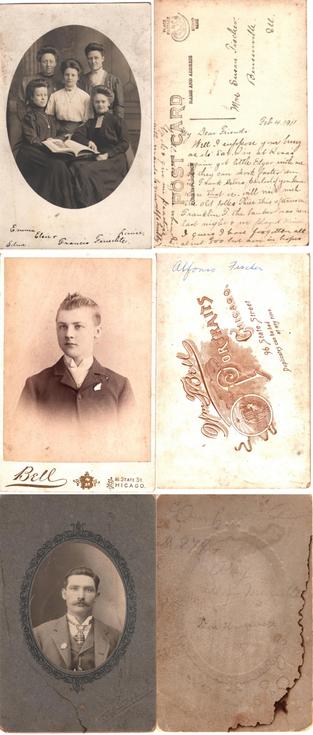
The worst part is organizing the paper copies. Sort by size, which should generally sort them into eras, and which you'll need to do for scanning in bulk. Put aside badly damaged paper, #VictorianPhotos , and Instamatics. These need to be flatbed scanned on a standard printer-scanner.
Keep pharmacy photos in their envelopes with their negatives. Number the envelopes on the top corner of the envelopes. Put any loose negatives in their own envelope.
Negatives will probably not match photos in the envelopes all the time (some paper copies will be missing, some negatives will be missing). So later on, put the negatives into mailing envelopes with the matching numbers on them, before sending them off to have them scanned by someone with the right equipment-- OR you can ask at any public library or #LDS Library to see if anyone near you has the right equipment. No matter what, number the negative envelopes to match the pharmacy envelopes. Eventually, you should return them to their original pharmacy envelopes.
When scanning, change the default "Save As" file names to match the pharmacy envelope numbers. (FastFoto lets you do this in the "Settings.") When #scanning the loose photos (the ones not in pharmacy envelopes), change the default file name to the file size. (Remember, you sorted them by size.)
Oversized photos will need to be taken to a studio to have them scanned on special equipment.
Do NOT remove glued photos from albums. This risks destroying the photos. For these, scan the entire album page at once... 🧵
#Genealogy #Archiving #FamilyPhotos #ScanningPhotos #PhotoAlbums
@atfarnum

Gimp does what Adobon't.
...That sounds terrible. Twain 32 bit only drivers are not supported on 64 Photoshop anymore, but Good Guy Gimp does not judge you for using legacy hardware and will support your 32 bits drivers.
🧵 2) On Mastodon, you can follow hashtags like #Genealogy, #Genealogist, #Geneadons, #FamilyTrees and other similar hashtags. Be sure to follow and post to the group account @geneadons with any genealogy-related posts.
3) One of the biggest things you need to do when #ScanningPhotos is to RENAME YOUR FILES, so people who look at your files later will know who is in the images. Always list females by maiden names, even if they were married at the time. Include as much info in the filename as you can (date, place, etc).
Do not use commas in the filenames, as this can cause some files to blow up on some computer systems.
For names and file management, here is Part Two of my "Avoiding Common Mistakes" blog for #Genealogists.