Делаем настольные часы с Wi-Fi из тетриса

Если вы посмотрели видео, то уже хорошо понимаете, что представляет из себя этот гаджет, но на всякий случай ещё раз перечислю, что он умеет: онлайн‑синхронизация времени, фоторамка, демонстрация логотипа, имитация волшебного шара из фильма «Трасса 60». В часах используется модуль WeAct ESP32‑C6 Mini с процессором ESP32‑C6 QFN32 и дисплей WeAct ST7735 (9 $ за всё вместе с доставкой с AliExpress).

https://habr.com/ru/articles/938830/

#ESP32C6 #ST7735 #WeAct_ST7735 #arduino_ide #тетрис

Делаем настольные часы с Wi-Fi из тетриса

Если вы посмотрели видео, то уже хорошо понимаете, что представляет из себя этот гаджет, но на всякий случай ещё раз перечислю, что он умеет: онлайн‑синхронизация времени, фоторамка, демонстрация...

Хабр

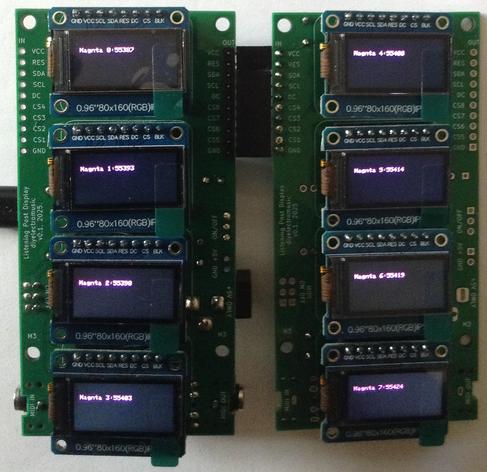
Messing around driving up to eight small SPI displays from a Waveshare Zero format board.

It works. But it is getting a little warm :) Figuring out why is on the todo list!

https://diyelectromusic.com/2025/08/14/waveshare-zero-multi-display-pcb-design/

#WaveshareZero #SPI #ST7735

Waveshare Zero Multiple SPI Displays

https://makertube.net/w/jwddZfiSGyRKKhAuU4Rhas

Waveshare Zero Multiple SPI Displays

PeerTube

Waveshare Zero Multi Display PCB – Expander Board

Here are the additional build notes to use my Waveshare Zero Multi Display PCB in “expander” mode to support up to eight displays.

https://makertube.net/w/jwddZfiSGyRKKhAuU4Rhas

Warning! I strongly recommend using old or second hand equipment for your experiments.  I am not responsible for any damage to expensive instruments!

If you are new to electronics and microcontrollers, see the Getting Started pages.

Bill of Materials

  • Waveshare Zero Multi Display PCB (GitHub link here: Waveshare Zero Multi Display PCB Build Guide)
  • 4x SPI 0.96″ 80×160 (RGB) IPS TFT displays
  • Capactitors: 2x 100nF ceramic
  • Optional: 4x 8-way pin header sockets – strongly recommended. PH5.0 “short” headers are best.
  • 1x 10-way right angle pin headers
  • 1x 10-way right angle pin header socket

Build Steps

It largely doesn’t matter what order things are soldered on. I did them in the following order

  • Right angle pin header.
  • 8-way PH 5.0 pin header sockets for the displays
  • 2 ceramic capacitors

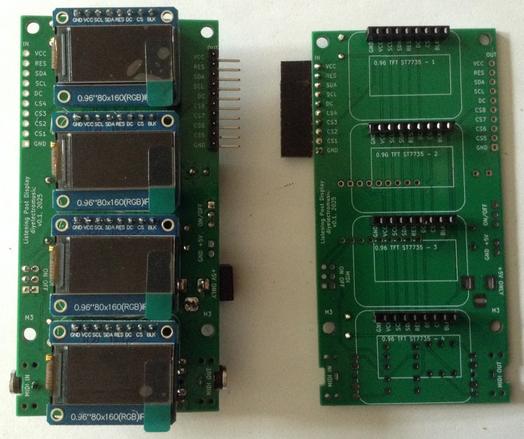
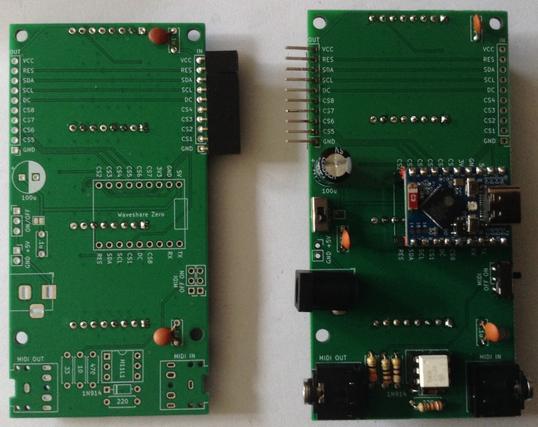
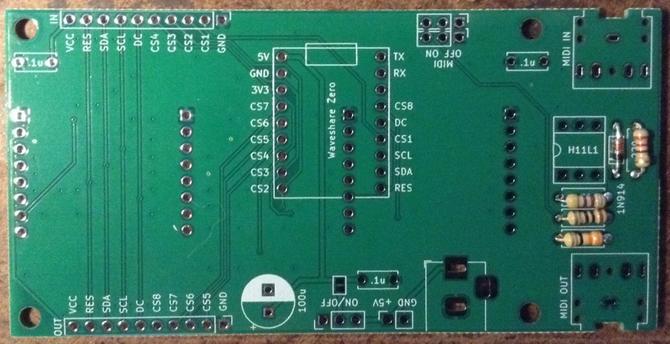
The expander board photos are shown below.

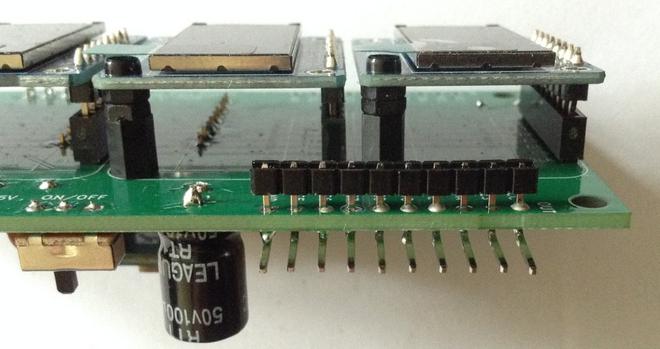
Note that when adding the right-angle pin headers to the main board, as described in Waveshare Zero Multi Display PCB Build Guide, they will need to be soldered flush to the PCB and not left separated by the plaster spacers.

To do this, I pushed the spacers to the edge of the bent pin headers and then pushed the whole thing through the PCB prior to soldering. Once soldered, the plastic spacers can be removed and the pins clipped, but in the photo below the spacer has been left.

Testing

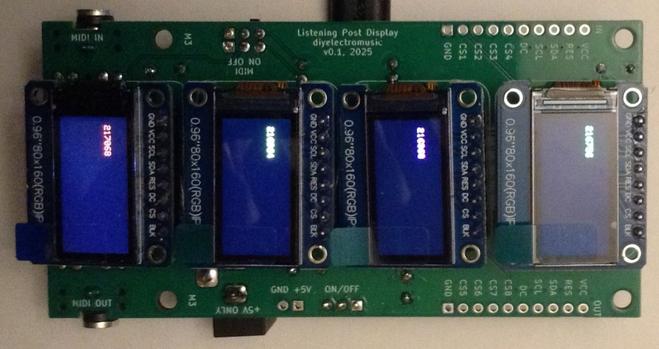
The updated sketch described in Arduino with Multiple Displays – Part 3 can be used to test the expander board with eight displays in total.

A Note About Power…

When running 8 displays, I can feel my Waveshare board getting quite hot…

The displays are all powered from the 3V3 line. The Waveshare schematic shows that the 3V3 line comes from a ME6217C33M5G which is powered from the VBUS/5V line as shown below. Recall that the VBUS/5V line comes ether from the USB socket or an external connection to the VCC pin.

That regulator can supply up to 800mA according to the datasheet.

In terms of current usage of a ST7735 display, the datasheet states the following:

I have to say, I’m not really sure what that is telling me. Is that up to 0.7mA per line displayed? What if all lines are on – are these displays scanned or “all on”? There are potentially 80 lines on a display…

Ah, this post: https://wiki.dfrobot.com/0.96_Inch_160_80_Color_SPI_TFT_Display_SKU_DFR0847 suggests that the display only consumes 15mA full screen.

Powering eight displays and a Waveshare Zero ESP32-S3 via the USB connection through one of those current measuring USB pass-through devices, seems to show a continuous current consumption of 200mA.

Removing four of the displays, that appears to drop down to 110mA, so I think in my case it is a little more than 15mA – perhaps nearer 20mA per display.

I can’t quite work out if it is the regulator or the ESP32-S3 itself getting hot. My sophisticated sensor (finger) hasn’t the resolution to work it out. But it is definitely not as hot powering four displays as eight.

I am now wondering if I should have included an independent regulator on the board to generate a 3V3 supply rather than use the one onboard the Waveshare Zero.

Closing Thoughts

I really ought to think about some of these design issues up front. One day 🙂

In general terms this seems to work really well. I’d like to know a little more about what is getting hot, as, as far as I can see, “on paper” the components ought to be able to cope.

I have an application in mind for all these displays. There is a small clue in the filenames of the PCB, but it remains to be seen if I get right to the end of the idea or not.

For now, these are quite neat ways to drive several small, full colour displays.

Kevin

#ESP32s3 #midi #pcb #st7735 #WaveshareZero

Arduino with Multiple Displays – Part 3

Whilst messing around a little more with my Arduino with Multiple Displays – Part 2, I’ve optimised the code a little and found out a bit more about these displays!

In this part, I’m actually using a PCB that can hold four displays, powered by a Waveshare Zero device. More on that here: Waveshare Zero Multi Display PCB Design.

Warning! I strongly recommend using old or second hand equipment for your experiments.  I am not responsible for any damage to expensive instruments!

These are the key Arduino tutorials for the main concepts used in this project:

If you are new to microcontrollers, see the Getting Started pages.

Parts list

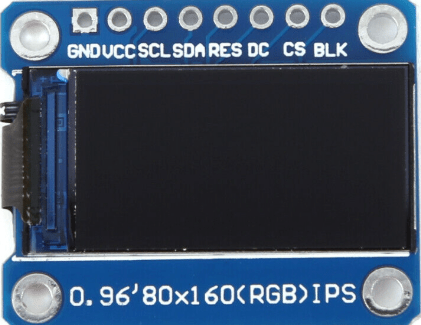
Recall that I’m using displays that look like this – note the order of the pins.

Although even with displays that look exactly the same, it appears there can be differences in how they are used software wise. More on that later.

The Circuit

For two displays, I can reuse the circuit from Arduino with Multiple Displays – Part 2. For more displays, it is possible to cascade more displays using jumper wires, but I’ve used my PCB.

The pins to be used for various Waveshare Zero boards is covered in part 2.

The Code

Whilst using these displays, I found that the colours can be inverted in some of them compared to others. Typically, I’ve found that I might have to use either of the following two options to drive them correctly:

tft.initR(INITR_MINI160x80);
tft.initR(INITR_MINI160x80_PLUGIN);

These represent different Adafruit displays as before, but they generally work for me.

However there is another thing to watch out for. These displays are 16-bit colour displays, which means each colour value is a 16-bit word with red, green and blue elements represented by 5, 6 and 5 bits. This means two of the colours have a resolution of 0 to 31, and one has 0 to 63.

But the ordering seems different for different displays. The default Adafruit library appears to assume RGB ordering, but my displays seem to be BGR. This means that if I use the provided short-cuts for colours, the red and blue elements are swapped.

Consequently, I defined my own colours along with a macro to allow me to provide RGB values and turn it into the device-specific 16-bit value as required.

In the following, I define the bit-shift number for each of red, green and blue and the use that in a macro “ST_COL” shifting the value to the correct place in the 5-6-5 format. Red and blue are the 5-bit colours and green is the 6-bit colour, so in each case I take the most significant bits which means each colour can still be defined in terms of 0..255 RGB values.

// Format is 16-bit 5-6-5 B-G-R
// Allow 0..255 in component values, by only taking
// most significant bits (5 or 6) from each value.
// bbbbbggggggrrrrr
#define ST_COL(r,g,b) (((r&0xF8)>>3)|((g&0xFC)<<3)|((b&0xF8)<<8))
#define ST_BLACK ST_COL(0,0,0)
#define ST_GREY ST_COL(64,64,64)
#define ST_WHITE ST_COL(255,255,255)
#define ST_BLUE ST_COL(0,0,255)
#define ST_GREEN ST_COL(0,255,0)
#define ST_RED ST_COL(255,0,0)
#define ST_YELLOW ST_COL(255,255,0)
#define ST_MAGENTA ST_COL(255,0,255)
#define ST_CYAN ST_COL(0,255,255)

I’m also building up to seeing if I can drive more than four displays, so I’ve also changed the code to allow me to iterate across a number of displays.

#define NUM_TFTS 4
int tftTypes[NUM_TFTS] = {
INITR_MINI160x80, INITR_MINI160x80,
};

int tftCS[NUM_TFTS] = {SPI_SS, 6, 5, 4};
#define TFT_RST 7
#define TFT_DC 11

Adafruit_ST7735 *tft[NUM_TFTS];

void setup() {
int rstPin = TFT_RST;0
for (int i=0; i<NUM_TFTS; i++) {
tft[i] = new Adafruit_ST7735(&MySPI, tftCS[i], TFT_DC, rstPin);
rstPin = -1;
tft[i]->initR(tftTypes[i]);
tft[i]->setRotation(3);
tft[i]->fillScreen(ST_BLACK);
}
}

void loop() {
for (int i=0; i<NUM_TFTS; i++) {
unsigned long time = millis();
tft[i]->fillRect(10, 20, tft[i]->width(), 20, ST_BLACK);
tft[i]->setTextColor(ST_GREEN);
tft[i]->setCursor(10, 20);
tft[i]->print(i);
tft[i]->print(":");
tft[i]->print(time, DEC);
}
}

Each instance of the display code is now created dynamically and stored in an array which can then be iterated over when it comes to putting things on each display.

Notice how the reset pin definition is set to -1 after the first initialisation. This ensures that subsequent instantiations won’t reset displays that have already been set up.

The final code actually allows up to eight displays to be included by setting NUM_TFTS at the top to two or four.

The GPIO usage being assumed is described here: Waveshare Zero Multi Display PCB Build Guide.

Find it on GitHub here.

Closing Thoughts

Approaching the code in this way allows me to experiment more easily with more than four displays.

If my PCB works as I’m hoping I should be able to cascade them to get eight displays – assuming the Waveshare Zero is up to driving eight of course.

Kevin

#arduinoUno #define #esp32c3 #ESP32s3 #rp2040 #st7735 #tftDisplay #WaveshareZero

Waveshare Zero Multi Display PCB Build Guide

Here are the build notes for my Waveshare Zero Multi Display PCB.

Also see the Waveshare Zero Multi Display PCB – Expander Board.

Warning! I strongly recommend using old or second hand equipment for your experiments.  I am not responsible for any damage to expensive instruments!

If you are new to electronics and microcontrollers, see the Getting Started pages.

Bill of Materials

  • Waveshare Zero Multi Display PCB (GitHub link below)
  • Waveshare Zero format board – e.g. ESP32S3 or RP2040
  • 1x H11L1 optoisolator
  • 1x 1N4148 or 1N914 signal diode
  • 4x SPI 0.96″ 80×160 (RGB) IPS TFT displays
  • Resistors: 1×10Ω; 1x 33Ω; 1x 220Ω; 1x 470Ω
  • Capactitors: 3x 100nF ceramic; 1x 100uF electrolytic
  • 2x 3.5mm stereo TRS sockets (see photos and PCB for footprint)
  • 1x 2.1mm barrel jack socket (see photos and PCB for footprint)
  • 2x 9-way pin header sockets
  • Optional: 4x 8-way pin header sockets – strongly recommended. PH5.0 “short” headers are best.
  • Optional: 1x 6-way DIP socket – recommended
  • Pin headers/jumpers
  • Optional: 1x DPDT slider switch with 2.54mm pin footprint
  • Optional: 1x SPDT slider switch with 2.54mm pin footprint

Build Steps

Taking a typical “low to high” soldering approach, this is the suggested order of assembly:

  • Diode then resistors.
  • DIP socket (if used) and TRS sockets.
  • Disc capacitors.
  • Slider switches (if used).
  • 9-way pin header sockets for Waveshare Zero.
  • Electrolytic capacitor.
  • Barrel jack sockets.
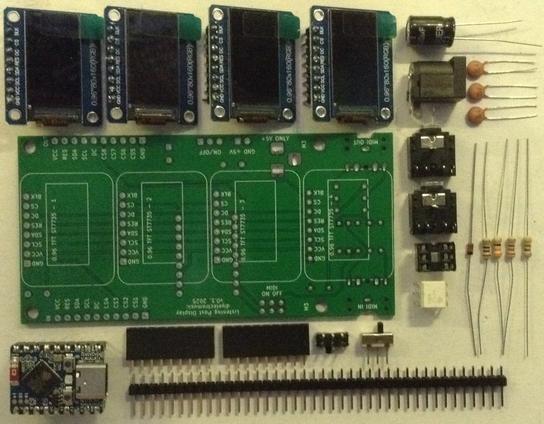
  • On rear: 8-way pin header sockets (if used) or displays.

Note: all the components apart from the displays (and their sockets if used) are on one side and the displays are on the other. The silkscreen reflects the side of the components.

Here are some build photos.

If slider switches are used for MIDI, then as shown above they can be added a this stage too. If pin headers and jumpers are used, then it might be worth waiting until the other header sockets are added. If the ability to disable MIDI isn’t required, then wire jumpers can be soldered on instead to make a permanent connection.

There are a few options around power:

  • Use a barrel jack or pin jumper headers. These are both 5V only however as there is no power regulation in this version (it is an option in the schematic, but not the actual PCB).
  • An optional on/off switch can be used as long as it has 2.54mm pitch pin connections.
  • Note: the solder bridge jumper can be ignored. It is not relevant on a PCB with no regulator.

It is strongly recommended that 8-way pin header sockets are used for the displays too. I used PH5.0 height headers, which are shorter than the usual ones.

If the displays are to be soldered directly, then it is strongly recommended that they are tested in isolation first, as there are a number of different types and in my experience cheap ones might not always work on arrival.

The orientation of the Waveshare Zero and displays is shown below.

It is possible to use M2 spacers to support the displays. For my PH5.0 sized headers, I found that a 6mm spacer, 6mm screw and two nuts gave me the right height to level out each display when plugged in.

Testing

Even before the build is started, it is worth testing the displays to be used. When I first assembled and tested my first board, I had the following:

One of the displays was inverted compared to the others, and one had arrived with the screen cracked. At this point I was pleased I’d chosen to use pin header sockets for the displays…

Once built I recommend performing the general tests described here: PCBs.

The using the sample applications mentioned below it should be possible to test the following in turn:

  • MIDI IN and OUT.
  • Four display.

PCB Errata

There are the following issues with this PCB:

  •  None at present.

Enhancements:

  • I avoided added holes to mount the displays at the time, but now I’m thinking adding the holes on the non-pin header side of the displays would have been really useful.
  • Having now seen the completed PCBs, I could probably have left space for a regulator, especially one of those DC-DC converter regulator replacements that doesn’t require a heatsink.
  • I should consider adding a 3V3 regulator too rather than driving all the displays through the Waveshare Zero’s onboard 3V3 regulator.

Find it on GitHub here.

Sample Applications

The GPIO layout for the PCB with various Waveshare Zero boards is given below.

FunctionWSZ PinRP2040ESP32-C3ESP32-S3VCCPowerH1 P33V33V33V3GNDGroundH1 P2GNDGNDGNDRXMIDI INH2 P2GP1 (U0/RX)GP20 (U0/RX)GP44 (U0/RX)TXMIDI OUTH2 P1GP0 (U0/TX)GP21 (U0/TX)GP43 (U0/TX)DCData/CommandH2 P5GP4GP10GP11RESResetH2 P9GP8GP6GP7SDAData (MOSI)H2 P8GP7GP7GP8SCLClock (SCLK)H2 P7GP6GP8GP9CS1CS Display 1H2 P6GP5GP9GP10CS2CS Display 2H1 P9GP14GP5GP6CS3CS Display 3H1 P8GP15GP4GP5CS4CS Display 4H1 P7GP26GP3GP4CS5CS Ext Display 5H1 P6GP27GP2GP3CS6CS Ext Display 6H1 P5GP28GP1GP2CS7CS Ext Display 7H1 P4GP29GP0GP1CS8CS Ext Display 8H2 P4GP3GP18GP12

The application described here can be used to test the displays: Arduino with Multiple Displays – Part 2.

A more complete application for up to four (expandable to eight) displays can be found here: Arduino with Multiple Displays – Part 3.

Using a Waveshare Zero ESP32-S3, the following will test the MIDI IN and OUT:

#include <MIDI.h>

MIDI_CREATE_DEFAULT_INSTANCE();

void setup() {
MIDI.begin(MIDI_CHANNEL_OMNI);
pinMode (LED_BUILTIN, OUTPUT);
}

void loop() {
if (MIDI.read()) {
midi::MidiType type = MIDI.getType();

if (MIDI.isChannelMessage(type)) {
midi::Channel ch = MIDI.getChannel();
midi::DataByte d1 = MIDI.getData1();
midi::DataByte d2 = MIDI.getData2();
switch(type) {
case midi::NoteOff:
digitalWrite (LED_BUILTIN, LOW);
break;

case midi::NoteOn:
digitalWrite (LED_BUILTIN, HIGH);
break;

default:
break;
}
}
}
}

Closing Thoughts

This seems to work pretty well. I’ve not really put it through its paces yet, but driving the displays is working and so is MIDI.

I have a specific application in mind, but first I need to see if it is possible to link these boards together to get more displays running. That is explored here Waveshare Zero Multi Display PCB – Expander Board.

Kevin

#include #midi #pcb #st7735 #WaveshareZero

Waveshare Zero Multi Display PCB Design

Following on from my Arduino with Multiple Displays – Part 2, using a Waveshare Zero type module, I wanted to try even more displays in parallel. I don’t know what the performance implications will be, or even if it is possible, but I do know I don’t really want to be using jumper wires to try it out. This PCB will hopefully allow me to hook up at least four displays to a Waveshare Zero format board.

Warning! I strongly recommend using old or second hand equipment for your experiments.  I am not responsible for any damage to expensive instruments!

If you are new to electronics and microcontrollers, see the Getting Started pages.

The Circuit

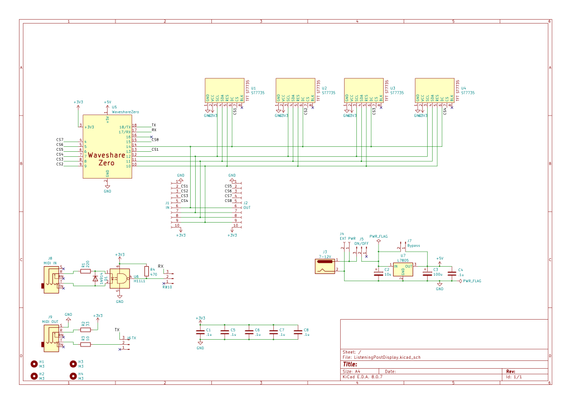
This is following pretty much directly on from Arduino with Multiple Displays – Part 2. One thing I wanted however was the possibility of connecting two panels together with a single microcontroller, so I’ve passed all control signals onto pin headers with the option for four more displays on a second PCB.

All displays share SCL, SDA, RES and DC. It is only the CSn pins that have to be independent, so I need to support up to 8 CSn lines. I’ve chosen the GPIO pins I have for the widest compatibility between the RP2040, ESP32-C3 and ESP32-S3.

CS8 on an ESP32-C3 might cause issues as it might clash with one of the USB signals, I’ll have to see. Worst case is that an ESP32-C3 can only support up to 7 displays. That is assuming the software performance is good enough for more than four in the first place of course.

I’ve included a MIDI IN/OUT circuit and 5V power regulator circuit as an option, but really I’m expecting it to be powered from the Waveshare Zero USB port.

PCB Design

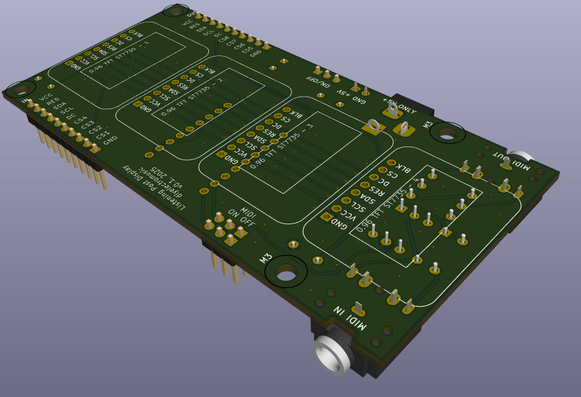
The displays are arranged on one side of the PCB and the Waveshare Zero and other components are on the underside.

I’ve opted not to include the regulator power circuitry in the final PCB, but I have included the barrel jack and jumpers to allow a +5V (only) supply as an option. To save changing the schematic, I replaced the regulator bypass jumper with a (closed) solder bridge.

I had to use a custom footprint for the displays, but it is loosely based on an Adafruit display component. I have two versions – one with mounting holes and one without. Even through the mounting holes are present in the “user drawings” layer, they are not actual holes on the PCB.

I’ve duplicated a number of the silkscreen labels on both sides of the board for easy reference.

Closing Thoughts

Four displays fit really neatly into a 100x50mm footprint making these boards pretty cheap to get manufactured.

Kevin

#midi #pcb #st7735 #WaveshareZero

Arduino with Multiple Displays – Part 2

As I mentioned in my last post on Arduino with Multiple Displays I’m going to look at other microcontrollers too. This post takes a wander through my Waveshare Zero and similar format boards that each support one of the RP2040, ESP32-C3 or ESP32-S3.

Warning! I strongly recommend using old or second hand equipment for your experiments.  I am not responsible for any damage to expensive instruments!

These are the key Arduino tutorials for the main concepts used in this project:

If you are new to microcontrollers, see the Getting Started pages.

Parts list

  • A Waveshare Zero format board or similar
  • 2x 0.96″ ST7735 60×180 SPI TFT displays.
  • Breadboard and jumper wires.

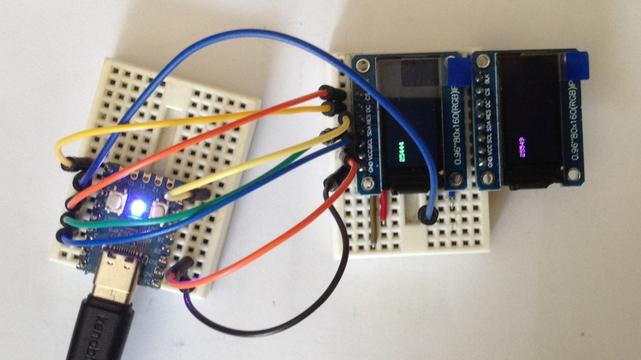
Once again I’m using displays that look like this – note the order of the pins.

The Circuit

All circuits are a variation on the above, requiring the following ideal connections:

DisplayFunctionRP2040ESP32-C3ESP32-S3BLKBacklight control
(not required)N/CN/CN/CCSChip select
One per display.5 or any SPI0 CS1010DCData/Command888RESReset1499SDAData (MOSI)3 or any SPI0 MOSI6 or 711SCLClock (SCLK)2 or any SPI0 SCLK4 or 612VCCPower3V33V33V3GNDGroundGNDGNDGND

For the explanations of the pin choices, and what it means for the code, see the following sections.

ESP32-S3 Zero

In the Arduino IDE, using board ESP32-> Waveshare ESP32-S3-Zero.

There are several SPI buses on the ESP32-S3, but they have fixed uses as follows (see the ESP32-S3 Technical Reference Manual Chapter 30 “SPI Controller”):

  • SPI 0: Reserved for internal use.
  • SPI 1: Reserved for internal use.
  • SPI 2: General purpose use – often called FSPI in the documentation.
  • SPI 3: General purpose use – often called SPI or SPI3.

Sometimes the two SPI buses are called VSPI and HSPI but I think that is really terminology from the original ESP32 rather than the ESP32-S3.

The ESP32 Arduino core for the Waveshare ESP32-S3 Zero variant defines the following:

// Mapping based on the ESP32S3 data sheet - alternate for SPI2
static const uint8_t SS = 34; // FSPICS0
static const uint8_t MOSI = 35; // FSPID
static const uint8_t MISO = 37; // FSPIQ
static const uint8_t SCK = 36; // FSPICLK

By default the Adafruit libraries will use the boards default SPI interface, as defined in the variants.h file – i.e. the above.

When it comes to assigning SPI devices to GPIO there are a few considerations (see the “ESP32-S3 Technical Reference Manual, Chapter 6 “IO MUX and GPIO Matrix”):

  • In general, any GPIO can be mapped onto any SPI function. However…
  • Some GPIO have special “strapping” functions so are best avoided.
  • Some GPIOs have a default SPI function that bypasses the GPIO MUX routing, so allows for better performance (see section 6.6 “Direct Input and Output via IO MUX”).

From my reading of the reference manual I believe the following are default “non-MUX” SPI connections:

In the previous table, where SPI3 is mentioned, then the entry for “Direct IO via IO MUX” is set to “no”, so I’m guessing that isn’t available.

But now we can see why the Arduino core is using GPIO 34-37, but we can also see that GPIO 10-13 would be an alternative (fast) option too.

The problem is that not all of GPIO 34-37 are broken out on a Waveshare ESP32-S3 Zero, so I need to use the alternative pinouts. Aside: this makes no sense to me that these are the defaults in the Waveshare ESP32-S3 Zero’s “variant.h” file, but anyway…

To use a different SPI interface requires using a constructor that passes in an initialised SPI instance. There is an example in the ESP32 core for setting up multiple SPI buses here: https://github.com/espressif/arduino-esp32/blob/master/libraries/SPI/examples/SPI_Multiple_Buses/SPI_Multiple_Buses.ino

This leads to the pins as defined in the previous table, and the code below to setup one of the displays.

#include <Adafruit_GFX.h> // Core graphics library
#include <Adafruit_ST7735.h> // Hardware-specific library for ST7735
#include <SPI.h>

#define SPI_SS 10
#define SPI_MOSI 11
#define SPI_SCLK 12
#define SPI_MISO 13
SPIClass MySPI(FSPI);

#define TFT_CS SPI_SS
#define TFT_RST 9
#define TFT_DC 8
Adafruit_ST7735 tft = Adafruit_ST7735(&MySPI, TFT_CS, TFT_DC, TFT_RST);

void setup() {
MySPI.begin(SPI_SCLK, SPI_MISO, SPI_MOSI, SPI_SS);
pinMode(SPI_SS, OUTPUT);
tft.initR(INITR_MINI160x80_PLUGIN);
}

ESP32-C3 Zero

In the Arduino IDE, using board ESP32-> ESP32C3 Dev Module.

Again there are several SPI buses on the ESP32-C3, with the same fixed uses as follows (see the ESP32-C3 Technical Reference Manual Chapter 30 “SPI Controller”):

  • SPI 0: Reserved for internal use.
  • SPI 1: Reserved for internal use.
  • SPI 2: General purpose use – sometimes called GP-SPI in the documentation.

The ESP32-C3 also has a very similar SPI arrangement to the ESP32-S3, in that whilst any pin can be configured for SPI usage, there are certain hard-wired optional arrangements that bypass the GPIO routing matrix.

The faster (direct to IO MUX) pins are as follows (more here):

  • CS0 – 10
  • SCLK – 6
  • MISO – 2
  • MOSI – 7

Curiously, the general ESP32-C3 Arduino variant defines them as follows:

static const uint8_t SS = 7;
static const uint8_t MOSI = 6;
static const uint8_t MISO = 5;
static const uint8_t SCK = 4;

From the Technical Reference manual, we can see that the default Arduino definitions above, do not support the non-routed, direct-to-IO MUX pin mappings, which from the table below do indeed map onto GPIO 2, 6, 7, 10.

In terms of using a Waveshare ESP32-C3 Zero, both combinations would be supported on the broken out GPIO, so from a software point of view, the Adafruit libraries could be used “as is” with the default mapping, or with a custom SPI definition (as shown above) with the more bespoke, but faster, mapping.

RP2040 Zero

This is using the (unofficial) RP2040 core from here: https://github.com/earlephilhower/arduino-pico, where this is an entry: RP2040 -> Waveshare RP2040 Zero.

The RP2040 has two SPI peripherals and the SPI functions are mapped onto specific sets of GPIO pins. This gives a range of flexibility, but not arbitrary flexibility. The board definition file for the Waveshare RP2040 Zero provides this as a default:

// SPI
#define PIN_SPI0_MISO (4u)
#define PIN_SPI0_MOSI (3u)
#define PIN_SPI0_SCK (2u)
#define PIN_SPI0_SS (5u)

#define PIN_SPI1_MISO (12u)
#define PIN_SPI1_MOSI (15u)
#define PIN_SPI1_SCK (14u)
#define PIN_SPI1_SS (13u)

Note that the SPI1 pins for the Waveshare RP2040 Zero are not all on the standard header connections, some are on the additional pin headers across the bottom.

Using a bespoke configuration is possible using a series of calls to set the SPI pins as shown below.

SPI.setRX(SPI_MISO);
SPI.setCS(SPI_SS);
SPI.setSCK(SPI_SCLK);
SPI.setTX(SPI_MOSI);
SPI.begin(true);

To use pins for SPI1, replace SPI above with SPI1. As long as this happens prior to the call to the Adafruit libraries, everything works fine.

A Common Option

It would be nice to find a set of physical pin connections that I know would always work regardless of the board in use: RP2040, ESP32-S3 or ESP32-C3.

With careful noting of the RP2040 limitations, I think that is largely possible with the following. Even though the GPIO numbers are different, the physical pins are common on all three boards.

DisplayFunctionWS PinRP2040ESP32-C3ESP32-S3BLKBacklight control
(not required)N/CN/CN/CCS1Chip select
Display 1H2 P6GP5GP9GP10DCData/CommandH2 P5GP4GP10GP11RESResetH2 P9GP8GP6GP7SDAData (MOSI)H2 P8GP7GP7GP8SCLClock (SCLK)H2 P7GP6GP8GP9VCCPowerH1 P33V33V33V3GNDGroundH1 P2GNDGNDGNDCS2CS Display 2H1 P9GP14GP5GP6CS3CS Display 3H1 P8GP15GP4GP5CS4CS Display 4H1 P7GP26GP3GP4

A couple of notes:

  • I’ve avoided pins 1-4 on header 2, as the ESP32-C3 can’t use them for SPI and they support either the UART or USB.
  • I’ve had to include a MISO (SPI RX) pin in each configuration too, so I’ve just picked something that can be ignored. For RP2040 that has to be one of GP0, GP4 or GP16 however, which could clash with either the UART, the above configuration for DC pin, or the onboard WS2812 LED, but there isn’t much that can be done.
  • I’ve allowed three consecutive pins on the first header for optional additional CS pins for displays 2 to 4.

Here is the full set of configurable code for the above:

#include <Adafruit_GFX.h> // Core graphics library
#include <Adafruit_ST7735.h> // Hardware-specific library for ST7735
#include <SPI.h>

//#define WS_RP2040_ZERO
//#define WS_ESP32C3_ZERO
#define WS_ESP32S3_ZERO

#ifdef WS_RP2040_ZERO
#define SPI_SS 5
#define SPI_MOSI 7
#define SPI_SCLK 6
#define SPI_MISO 4 // Not used
#define SPI_BUS SPI
#define TFT_CS1 SPI_SS
#define TFT_CS2 14
#define TFT_CS3 15
#define TFT_CS4 26
#define TFT_RST 8
#define TFT_DC 4
#endif

#ifdef WS_ESP32C3_ZERO
#define SPI_SS 9
#define SPI_MOSI 7
#define SPI_SCLK 8
#define SPI_MISO 0 // Not used
SPIClass MySPI(FSPI);
#define TFT_CS1 SPI_SS
#define TFT_CS2 5
#define TFT_CS3 4
#define TFT_CS4 3
#define TFT_RST 6
#define TFT_DC 10
#endif

#ifdef WS_ESP32S3_ZERO
#define SPI_SS 10
#define SPI_MOSI 8
#define SPI_SCLK 9
#define SPI_MISO 1 // Not used
SPIClass MySPI(FSPI);
#define TFT_CS1 SPI_SS
#define TFT_CS2 6
#define TFT_CS3 5
#define TFT_CS4 4
#define TFT_RST 7
#define TFT_DC 11
#endif

#ifdef WS_RP2040_ZERO
Adafruit_ST7735 tft1 = Adafruit_ST7735(TFT_CS1, TFT_DC, TFT_RST);
Adafruit_ST7735 tft2 = Adafruit_ST7735(TFT_CS2, TFT_DC, -1);
#else
Adafruit_ST7735 tft1 = Adafruit_ST7735(&MySPI, TFT_CS1, TFT_DC, TFT_RST);
Adafruit_ST7735 tft2 = Adafruit_ST7735(&MySPI, TFT_CS2, TFT_DC, -1);
#endif

void setup() {
#ifdef WS_RP2040_ZERO
SPI_BUS.setRX(SPI_MISO);
SPI_BUS.setCS(SPI_SS);
SPI_BUS.setSCK(SPI_SCLK);
SPI_BUS.setTX(SPI_MOSI);
SPI_BUS.begin(true);
#else
MySPI.begin(SPI_SCLK, SPI_MISO, SPI_MOSI, SPI_SS);
pinMode(SPI_SS, OUTPUT);
#endif

tft1.initR(INITR_MINI160x80_PLUGIN);
tft2.initR(INITR_MINI160x80_PLUGIN);
tft1.setRotation(3);
tft1.fillScreen(ST77XX_BLACK);
tft2.setRotation(3);
tft2.fillScreen(ST77XX_BLACK);
}

void loop() {
unsigned long time = millis();
tft1.fillRect(10, 20, tft1.width(), 20, ST77XX_BLACK);
tft1.setTextColor(ST77XX_GREEN);
tft1.setCursor(10, 20);
tft1.print(time, DEC);
delay(100);

time = millis();
tft2.fillRect(10, 20, tft2.width(), 20, ST77XX_BLACK);
tft2.setTextColor(ST77XX_MAGENTA);
tft2.setCursor(10, 20);
tft2.print(time, DEC);
delay(400);
}

Closing Thoughts

It is a little annoying that these great boards don’t share a re-usable, common pinout in terms of naming and positions, but I guess that isn’t the main focus for these systems.

Still, it seems that a common hardware pinout can be made that supports many displays, which is great, as I’d really like to get a number of them onto a PCB!

Kevin

#arduinoUno #esp32c3 #ESP32s3 #rp2040 #st7735 #tftDisplay #WaveshareZero

Starting some experiments with multiple mini SPI ST7735 displays.

https://diyelectromusic.com/2025/07/19/arduino-with-multiple-displays/

#Arduino #ST7735

Arduino with Multiple Displays

A while back I tried to use several SSD1306 displays with an Arduino (see OLED MIDI Display – Part 2) and got into trouble with memory. I have another need for multiple displays coming up, so thought I’d revisit the idea to see what could be done.

This shows use to use several cheap SPI-based displays together with an Arduino.

Warning! I strongly recommend using old or second hand equipment for your experiments.  I am not responsible for any damage to expensive instruments!

These are the key Arduino tutorials for the main concepts used in this project:

If you are new to Arduino, see the Getting Started pages.

Parts list

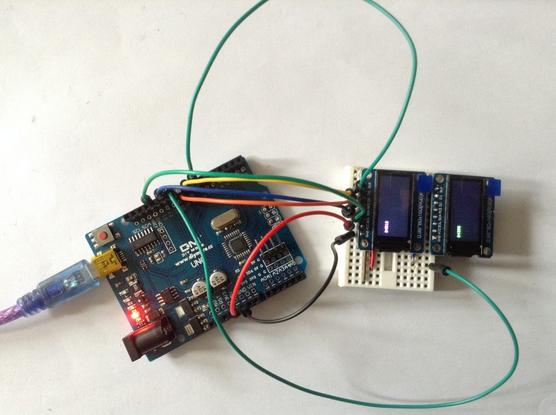
  • Arduino Uno.
  • 2x 0.96″ ST7735 60×180 SPI TFT displays.
  • Breadboard and jumper wires.

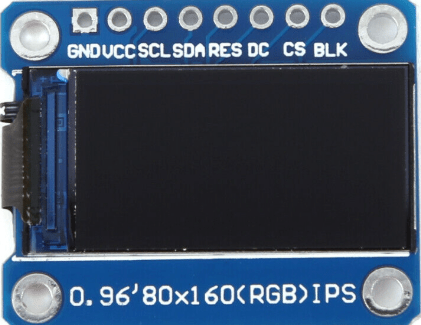
I’m using displays that look like this – note the order of the pins.

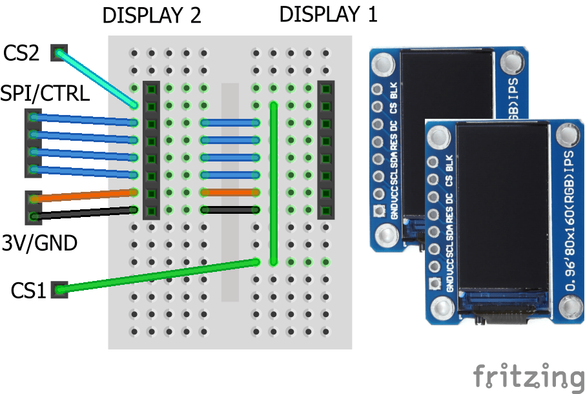
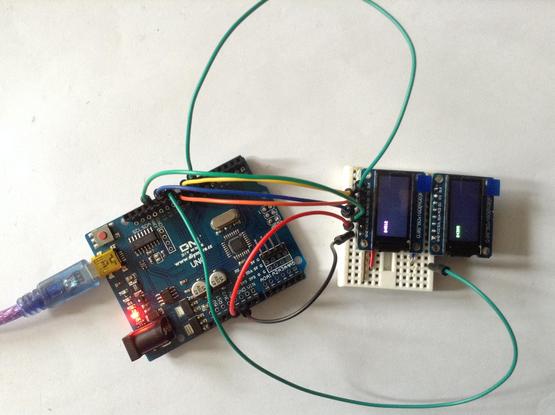
The Circuit

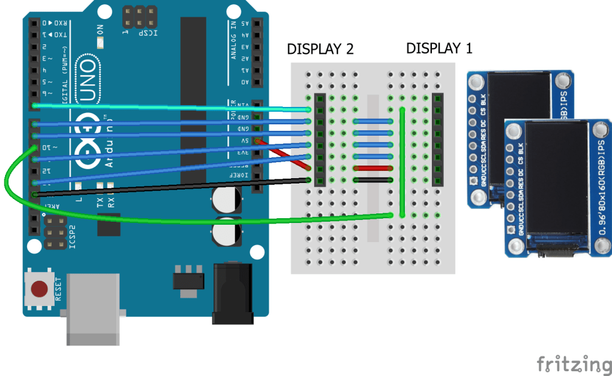
The display pins are connected to the Uno as follows:

BLKN/CBacklight control – not requiredCSD10/D7Chip select – one for each display.DCD8Data/CommandRESD9ResetSDAD11Data (MOSI)SCLD13Clock (SCLK)VCC5VPowerGNDGNDGround

Notes:

  • I’m using the Arduino Uno’s hardware SPI peripheral so the use of D11/D13 is fixed and can’t be changed.
  • All signals apart from CS are shared between both boards.
  • However – need to ensure that the boards are only reset once!

The Code

There are several software libraries that could be used for these kinds of displays. I’m using the Adafruit libraries:

  • Adafruit_GFX
  • Adafruit_ST7735_Library

These aren’t always ideal for generic no-name displays as they are geared up to support Adafruit products directly.

A case in point: there is no generic initialisation for a ST7735 display, but rather a number of bespoke initialisations that relate to Adafruit’s range of displays only. I was looking for some means of setting the display size (160×80) but that isn’t possible.

But as it happens, there are two initalisation options that map onto the above boards:

#include <Adafruit_GFX.h> // Core graphics library
#include <Adafruit_ST7735.h> // Hardware-specific library for ST7735
#include <SPI.h>

#define TFT_CS1 10
#define TFT_CS2 7
#define TFT_RST 9
#define TFT_DC 8

//#define TFT_TYPE INITR_MINI160x80
#define TFT_TYPE INITR_MINI160x80_PLUGIN // Inverted display

Adafruit_ST7735 tft1 = Adafruit_ST7735(TFT_CS1, TFT_DC, TFT_RST);
Adafruit_ST7735 tft2 = Adafruit_ST7735(TFT_CS2, TFT_DC, -1);

void setup() {
tft1.initR(TFT_TYPE);
tft2.initR(TFT_TYPE);
}

Notes for this initialisation code:

  • The use of pins D11 and D13 for SPI is assumed, and RST and DC are common.
  • I’m using the “INITR_MINI160x80_PLUGIN” initialisation option which is the same as “INITR_MINI160x80” but with the colours inverted. Without this, the built-in colour options aren’t correct for my boards.
  • Notice how in the second initialisation I’m using “-1” as the RESET pin so that the first display isn’t reset again after being initialised.
  • Both instances have their own CS pin defined.
  • The resolution and display size is fixed at 160×80.

In my case I also used setRotation(3) to rotate the displays by 180 degrees.

Here is my complete test code that prints the current millis() count to each display in a different colour.

#include <Adafruit_GFX.h> // Core graphics library
#include <Adafruit_ST7735.h> // Hardware-specific library for ST7735
#include <SPI.h>

#define TFT_CS1 10
#define TFT_CS2 7
#define TFT_RST 9
#define TFT_DC 8

//#define TFT_TYPE INITR_MINI160x80
#define TFT_TYPE INITR_MINI160x80_PLUGIN // Inverted display

Adafruit_ST7735 tft1 = Adafruit_ST7735(TFT_CS1, TFT_DC, TFT_RST);
Adafruit_ST7735 tft2 = Adafruit_ST7735(TFT_CS2, TFT_DC, -1);

void setup() {
tft1.initR(TFT_TYPE);
tft2.initR(TFT_TYPE);
tft1.setRotation(3);
tft1.fillScreen(ST77XX_BLACK);
tft2.setRotation(3);
tft2.fillScreen(ST77XX_BLACK);
}

void loop() {
unsigned long time = millis();
tft1.fillRect(10, 20, tft1.width(), 20, ST77XX_BLACK);
tft1.setTextColor(ST77XX_GREEN);
tft1.setCursor(10, 20);
tft1.print(time, DEC);
delay(100);

time = millis();
tft2.fillRect(10, 20, tft2.width(), 20, ST77XX_BLACK);
tft2.setTextColor(ST77XX_MAGENTA);
tft2.setCursor(10, 20);
tft2.print(time, DEC);
delay(400);
}

Closing Thoughts

This is a really good start. What I’d like to do is see how far I can push it, see how many displays it is possible to hook up, and what the overheads of updating them might be.

Then depending on where that leaves me, I can have a think about if I need an alternative microcontroller, like a RP2040 or ESP32 – something with several cores might be particularly useful for this – and see how things go.

Then I can start to think about the musical uses I have in mind.

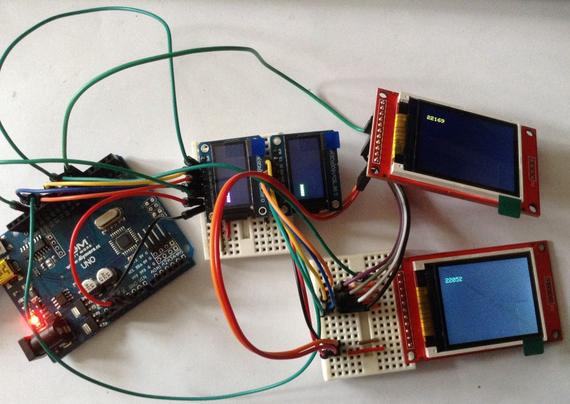
Update: It seems to work with four displays too. I’ve attached two 1.8″ ST7735 displays just to try it (these are “INITR_18BLACKTAB” displays). See photo below!

Kevin

#arduinoUno #include #st7735 #tftDisplay