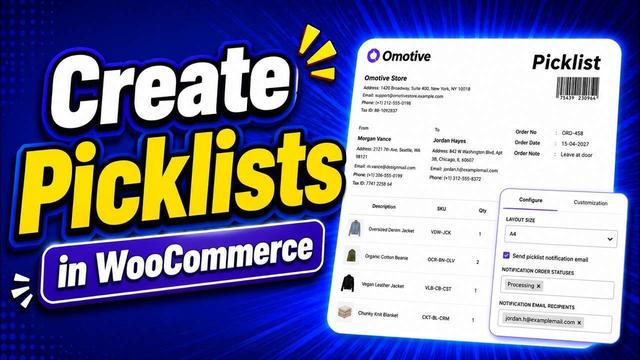
Create and Customize WooCommerce Picklists (Step-by-Step)
----------
I've been there. And honestly, the fix is simpler than most people think. It starts[…]
 
#WordPress #Guides #WooCommerce #picklist #WowInvoice

https://www.wpnews.io/create-and-customize-woocommerce-picklists-step-by-step/

Create and Customize WooCommerce Picklists (Step-by-Step)

I've been there. And honestly, the fix is simpler than most people think. It starts with something called a picklist.

WPNEWS.io

@KlausBulle Toll. Ich wollte die Links weg haben, um damit besser weiterarbeitenn zu können, daher die Stringoperationen in meinem Code.
Die Typisierung setzt allerdings Prioritäten voraus - und manche Gruppen haben halt den Typ accepted consortium nicht ausgewählt.

Was noch fehlte, ist die NFDI selbst - brauche ich auch für die #Picklist. Ich würde den Link hier schicken aber Kurz-URL scheitert.

Hast Du die die bei #Wikidata query generieren können? - ich erlaube mir das kollegiale Du.

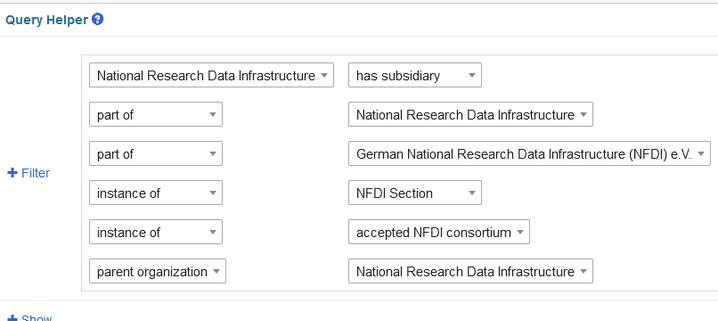
Was #Wikidata so hergibt über die #NFDI-Konsortien und Sektionen. Allerdings sind die Einträge nicht sonderlich systematisch. Mal "is part of", mal "has subsidiary" ...

Some instances have two entries - also NFDI itself.

Please tell me which entries were not found.

My work for #picklist collection in the @dalia project.

Short URL failed, if you like to help: comments are very welcome. #SPARQL newbie.

Result:
https://query.wikidata.org/embed.html#SELECT%20DISTINCT%20%3FitemLabel%20%3Fdescription%20%3FitemText%20%3Flink%20%0AWHERE%20%7B%0A%20%23%20Get%20items%20that%20are%20part%20of%20the%20NFDI%20consortium%0A%20%7B%0A%20wd%3AQ61658497%20wdt%3AP355%20%3Fitem.%20%23%20Get%20items%20that%20are%20part%20of%20the%20NFDI%20consortium%20%28P355%29%0A%20%7D%0A%20UNION%20%7B%0A%20%23%20Get%20items%20that%20are%20part%20of%20the%20NFDI%20%28P361%29%0A%20%3Fitem%20wdt%3AP361%20wd%3AQ61658497.%0A%20%7D%0A%20UNION%20%7B%0A%20%23%20Get%20items%20that%20are%20part%20of%20the%20NFDI%20%28P361%29%0A%20%3Fitem%20wdt%3AP361%20wd%3AQ105757481.%20%23%20Get%20items%20that%20are%20part%20of%20the%20NFDI%20consortium%20%28P361%29%0A%20%7D%0A%20UNION%20%7B%0A%20%23%20Get%20items%20that%20are%20part%20of%20the%20NFDI%20section%0A%20%3Fitem%20wdt%3AP31%20wd%3AQ111582288.%20%23%20Get%20items%20that%20are%20instances%20of%20the%20NFDI%20section%20%28P31%29%0A%20%7D%0A%20UNION%20%7B%20%23%20Get%20items%20that%20are%20accepted%20NFDI%20consortium%0A%20%3Fitem%20wdt%3AP31%20wd%3AQ98270496.%20%23%20Get%20items%20that%20are%20instances%20of%20the%20accepted%20NFDI%20consortium%20%28P31%29%0A%20%7D%0A%20UNION%20%7B%20%23%20Get%20items%20that%20have%20the%20NFDI%20consortium%20as%20parent%20organization%0A%20%3Fitem%20wdt%3AP749%20wd%3AQ61658497.%20%23%20Get%20items%20that%20have%20the%20NFDI%20consortium%20as%20parent%20organization%20%28P749%29%0A%20%7D%0A%20SERVICE%20wikibase%3Alabel%20%7B%20bd%3AserviceParam%20wikibase%3Alanguage%20%22en%22.%20%7D%20%23%20Enable%20labels%20in%20English%0A%20%20OPTIONAL%20%7B%0A%20%3Fitem%20schema%3Adescription%20%3Fdescription.%0A%20FILTER%28LANGMATCHES%28LANG%28%3Fdescription%29%2C%20%22en%22%29%29%0A%20%7D%0A%20OPTIONAL%20%7B%0A%20%3Fitem%20schema%3Adescription%20%3Fdescription.%0A%20FILTER%28%21LANGMATCHES%28LANG%28%3Fdescription%29%2C%20%22en%22%29%29%20%23English%20description%20preferred%0A%20FILTER%28NOT%20EXISTS%20%7B%20%3Fitem%20schema%3Adescription%20%3Fd.%20FILTER%28LANGMATCHES%28LANG%28%3Fd%29%2C%20%22en%22%29%29%20%7D%29%20%23%20but%20if%20description%20is%20not%20in%20English%20take%20another%20one.%0A%20%7D%0A%20BIND%28STR%28%3Fitem%29%20AS%20%3Flink%29%20%23%20Bind%20item%20as%20string%20to%20link%0A%20BIND%28REPLACE%28STR%28%3Fitem%29%2C%20%22http%3A%2F%2Fwww.wikidata.org%2Fentity%2F%22%2C%20%22wd%3A%22%29%20AS%20%3FitemText%29%20%23%20Replace%20http-address%20with%20wd%3A%0A%7D%0AORDER%20BY%20%3FitemLabel%20%23%20Sort%20results%20by%20item%20label

Query:
https://query.wikidata.org/#SELECT%20DISTINCT%20%3FitemLabel%20%3Fdescription%20%3FitemText%20%3Flink%20%0AWHERE%20%7B%0A%20%23%20Get%20items%20that%20are%20part%20of%20the%20NFDI%20%0A%20%7B%0A%20wd%3AQ61658497%20wdt%3AP355%20%3Fitem.%20%23%20Get%20items%20that%20are%20part%20of%20the%20NFDI%20%28P355%29%0A%20%7D%0A%20UNION%20%7B%0A%20%23%20Get%20items%20that%20are%20part%20of%20the%20NFDI%20%28P361%29%0A%20%3Fitem%20wdt%3AP361%20wd%3AQ61658497.%0A%20%7D%0A%20UNION%20%7B%0A%20%23%20Get%20items%20that%20are%20part%20of%20the%20NFDI%20%28P361%29%0A%20%3Fitem%20wdt%3AP361%20wd%3AQ105757481.%20%23%20Get%20items%20that%20are%20part%20of%20the%20NFDI%20%28P361%29%0A%20%7D%0A%20UNION%20%7B%0A%20%23%20Get%20items%20that%20are%20part%20of%20the%20NFDI%20section%0A%20%3Fitem%20wdt%3AP31%20wd%3AQ111582288.%20%23%20Get%20items%20that%20are%20instances%20of%20the%20NFDI%20section%20%28P31%29%0A%20%7D%0A%20UNION%20%7B%20%23%20Get%20items%20that%20are%20accepted%20NFDI%20consortium%0A%20%3Fitem%20wdt%3AP31%20wd%3AQ98270496.%20%23%20Get%20items%20that%20are%20instances%20of%20the%20accepted%20NFDI%20consortium%20%28P31%29%0A%20%7D%0A%20UNION%20%7B%20%23%20Get%20items%20that%20have%20the%20NFDI%20consortium%20as%20parent%20organization%0A%20%3Fitem%20wdt%3AP749%20wd%3AQ61658497.%20%23%20Get%20items%20that%20have%20the%20NFDI%20consortium%20as%20parent%20organization%20%28P749%29%0A%20%7D%0A%20SERVICE%20wikibase%3Alabel%20%7B%20bd%3AserviceParam%20wikibase%3Alanguage%20%22en%22.%20%7D%20%23%20Enable%20labels%20in%20English%0A%20%20OPTIONAL%20%7B%0A%20%3Fitem%20schema%3Adescription%20%3Fdescription.%0A%20FILTER%28LANGMATCHES%28LANG%28%3Fdescription%29%2C%20%22en%22%29%29%0A%20%7D%0A%20OPTIONAL%20%7B%0A%20%3Fitem%20schema%3Adescription%20%3Fdescription.%0A%20FILTER%28%21LANGMATCHES%28LANG%28%3Fdescription%29%2C%20%22en%22%29%29%20%23English%20description%20preferred%0A%20FILTER%28NOT%20EXISTS%20%7B%20%3Fitem%20schema%3Adescription%20%3Fd.%20FILTER%28LANGMATCHES%28LANG%28%3Fd%29%2C%20%22en%22%29%29%20%7D%29%20%23%20but%20if%20description%20is%20not%20in%20English%20take%20another%20one.%0A%20%7D%0A%20BIND%28STR%28%3Fitem%29%20AS%20%3Flink%29%20%23%20Bind%20item%20as%20string%20to%20link%0A%20BIND%28REPLACE%28STR%28%3Fitem%29%2C%20%22http%3A%2F%2Fwww.wikidata.org%2Fentity%2F%22%2C%20%22wd%3A%22%29%20AS%20%3FitemText%29%20%23%20Replace%20http-address%20with%20wd%3A%0A%7D%0AORDER%20BY%20%3FitemLabel%20%23%20Sort%20results%20by%20item%20label

Flow Naming Convention Tips

Establishing a clear and effective naming convention for your flow resources in Salesforce is a crucial step in optimizing your low-code logic. Thoughtful naming practices not only enhance readability but also simplify resource management within the toolbox and improve the functionality of autogenerated API names. Whether you prefer CamelCase, abbreviations, or full-length descriptors, consistency is key. This article explores practical tips for naming resources, offering insights to help you maintain an organized and user-friendly approach.

Flow Resource Naming Convention Tips

1️⃣ Include Resource Types in Names (for Search)

If you rely on the toolbox’s search functionality, it may be helpful to include the resource type in the name. For example, I avoid abbreviations and use descriptive names like YesChoice or ReasonPicklistChoice, which clearly indicate the type and purpose.

2️⃣ Leverage Resource Manager Grouping

When scrolling through the resource manager, resources are grouped by type in their respective sections. But if you want to leverage search, you may want to include the relevant strings in the name such as Choice or Variable.

3️⃣ Sort by Purpose Instead of Type

Personally, I find it more useful to organize resources by their purpose rather than type. For instance, I avoid using prefixes like “Var” at the beginning of a name. Instead, I append the resource type to the name, resulting in labels like LabelPicklistChoice and LabelOtherTextVariable.

4️⃣ Maximize Autogenerated API Names

Autogenerated API names benefit from clear, consistent labels. Don’t change the autogenerated API names unless you really have to. When dealing with deployments and debugging functionality, API names should lead you directly to the resource names used on Salesforce’s UI.

5️⃣ Abbreviations: Use Sparingly and Consistently

While abbreviations can save space (e.g., using Var for “Variable”), long names are often clearer, especially if you struggle with consistent abbreviation usage. Keep in mind that overly long names might get cut off on certain UI displays. If you cannot be consistent with abbreviations, the long version is better than the short version.

6️⃣ CamelCase or Underscore?

I prefer CamelCase for naming resources (e.g., ReasonPicklistChoice), but this is a matter of personal preference. If the autogenerated API name includes underscores (_), I typically leave them as-is for consistency.

SFXD Wiki, an online resource developed by the Salesforce eXchange Discord (SFXD) community, offers a wealth of information and tools for Salesforce professionals. SFDX recommends that each Flow name begins with its originating domain, typically the associated object, followed by an underscore. A code indicating the Flow type—such as SCR for Screen Flows, SFL for SubFlows, SCH for Scheduled Flows, EVT for Event-Triggered Flows, or EML for Email-Sending Flows—should come next.

This article by Rakesh Gupta on Automation champion recommends prefixes like varB_ for Boolean variables, varC_ for Currency, and varT_ for Text are recommended to denote data types.

Conclusion

Establishing clear and consistent naming conventions for Salesforce Flow resources is an essential practice that enhances both usability and collaboration. Whether you prefer organizing by resource type, purpose, or a mix of both, the key is to ensure names are intuitive, descriptive, and functional across different contexts. Thoughtful strategies like including resource types in names, leveraging sorting features, and using clear API names streamline development and maintenance. By balancing clarity with brevity and adopting best practices—such as those shared by experts— you can create a naming system that not only works for you but also supports your team’s success in navigating and managing complex Flows.

Explore related content:

Keep Salesforce Data Clean With Before Save Flows

Popular Validation Rules for Salesforce Flows including Phone, Email and Address Fields

Create by Checking a Matching Record in Flow

A Comparative Look at Flow Decision Elements in Salesforce

#Apex #ApexHours #API #Automation #CamelCase #Data #LowCode #Picklist #Salesforce #Variable

Creating Dependent or Filtered Lookups in Flow with Data Fetcher

Often times I find myself either wanting to have a filtered lookup or dependent lookups in my screen flows. I can do this by either using a custom lookup component, dynamic forms in flow, or sometimes I have to split it up across multiple screens and use choice lookup.

Reactivity of Choice Collections in Summer ’24 Release

In the Summer ’24 release for Salesforce, Choice Collections are now reactive. This means that the choices can be updated/changed based on user input in a single screen without the need for the solutions listed above. With Data Fetcher I can stack multiple choice lookup components on one screen giving either filters to the collection based on another choice lookup component selections or other inputs from my users.

Practical Example in Developer Org

Let me show you a simple example I did in my developer org. In my use case I am going to first let the user search for and select an Account. After they have selected an Account I am going to use Data Fetcher to get all of the Contact Records where the AccountId is equal to the Account Id from my first Choice Lookup Component. Then I am going to get Opportunities using another Data Fetcher Component where the AccountId is equal to the Account Id from my first Choice Lookup Component and the Primary_Contact__c is equal to the Contact from my second Choice Lookup Component. I am doing all of this in one screen with three Choice Lookup Components, three Data Fetcher Components and three Choice Collection Variables.

Building the Flow, Step-by-Step

Configuring Data Fetcher for Accounts

In the above screenshot you can see my first Data Fetcher has a fairly simple configuration. I am getting Accounts and my SOQL is going to get the Id and Name for All Accounts. (This is a developer org; in a real org I will want more selective criteria.)

Creating Collection Choice Set for Account Lookup

After I added the Data Fetcher component I need to create a Collection Choice Set to create the choices in my Choice Lookup Component. You can see in the above image I am using the outputs from my getAccounts Data Fetcher as the collection, using the Account Name as the label and the Id as the value for my choices.

Next I’ve added a Choice Lookup Component where I am using the Collection Choice Set I just created as my choices.

Adding Components for Contacts

Next up is our second Data Fetcher component. I am calling this one getContacts because I am using this to get the contacts I need for my next Choice Lookup Component. This time I am using a text template for my SOQL Query String.

Once again my SOQL for the contactQuery is fairly simple. Here I am using a text template; I want to use the Id from the Account Lookup selected value to only get the Contacts where the AccountId is equal to that value.

Creating Choice Sets for Contacts

Now that I have the Contacts I need for my next Choice Lookup Component. I create a new Collection Choice Set for my contactChoices. As you can see I am using the retrieved records from my second Data Fetcher component, and once again to keep it simple I am using the Name as the label and Id as the value since I will need the Id for my final query.

Next, I added another Choice Lookup Component for my users to search the Contact that is related to the Account from the first Choice Lookup Component.

Configuring Opportunities Data Fetcher

Now it’s time for the final Data Fetcher Component to get the Opportunity records for the Opportunity lookup. Once again I am going to use a text template to store my SOQL query.

The final SOQL query for my use case is getting more in depth. Here I am going to get all Opportunity records where the AccountId is equal to the value from my first Account Lookup or the Primary_Contact__c is equal to value from my Contact Lookup.

Finalizing Opportunity Choice Lookup

Not that I have all of the Opportunities it’s time to put them into a Collection Choice Set. Keeping it simple here again the collection will be the retrieved Opportunities from my final Data Fetcher component. The label will be Name and Value Id from each record.

Unleashing New Flow Powers

Finally I’ve added my final Choice Lookup Component. My choices will be the opportunityChoices Collection Choice set that is generated from the last Data Fetcher Component.

One final step is to put on your Super Hero cape and fly away for a well deserved break as you have unlocked more Flow Powers to save the day for your users.

Sources

Data Fetcher

Choice Lookup Component

Collection Choice Set

Data Fetcher Trailblazer Community Group

Check out related content:

Streamlining Operational KPI and Trendlines for Optimization

Using Custom Metadata Types in Flows Without Get

How to Use the Data Table Component in Screen Flow

#Collections #Contacts #DataFetcher #Lookup #NewRelease #Opportunity #Picklist #Salesforce

Data Fetcher for Reactive Screen Flows | Salesforce AppExchange

Dynamically query Salesforce records using SOQL and SOSL to return records in a collection variable based on user interaction on a screen flow. For example, a user can select a specific query from a picklist and return those records to a data table.

Salesforce AppExchange | Leading Enterprise Cloud Marketplace