 Lowyat.NET
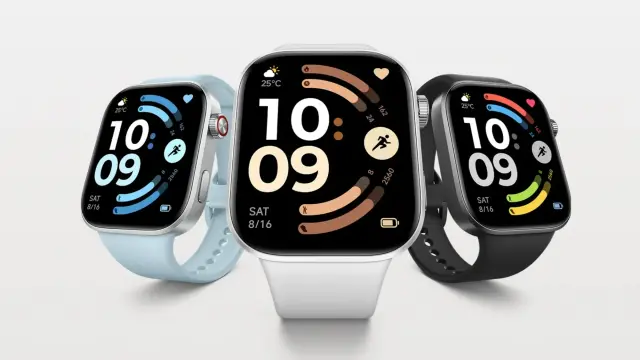
REDMI Headphones Neo, Buds8, Watch8 Land In Malaysia #audio #buds8 #earbuds #headphones #headphonesneo #redmi #smartwatches #watch6 #wearables
https://www.lowyat.net/2026/394163/redmi-headphones-neo-buds8-watch8-land-in-malaysia/
REDMI Headphones Neo, Buds8, Watch8 Land In Malaysia #audio #buds8 #earbuds #headphones #headphonesneo #redmi #smartwatches #watch6 #wearables
https://www.lowyat.net/2026/394163/redmi-headphones-neo-buds8-watch8-land-in-malaysia/
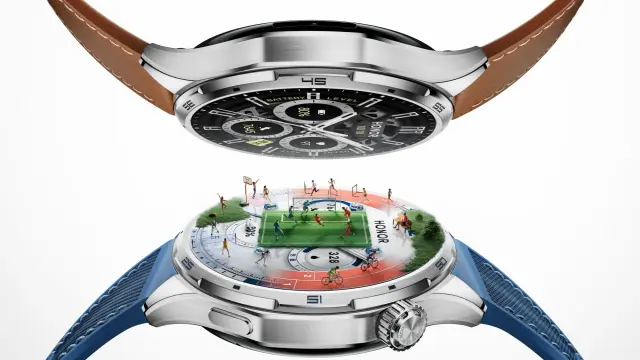
HONOR Watch 6 Plus Debuts In China With 1,000mAh Battery #honor #smartwatches #watch6 #watch6plus #wearables
https://www.lowyat.net/2026/393887/honor-watch-6-plus-china/
REDMI Watch 6 To Launch Globally With 12-Day Battery Life #redmi #smartwatches #watch6 #wearables #xiaomi
https://www.lowyat.net/2026/391500/redmi-watch-6-to-launch-globally-with-12-day-battery-life/
Galaxy Watch6 receives the February 2026 update globally!
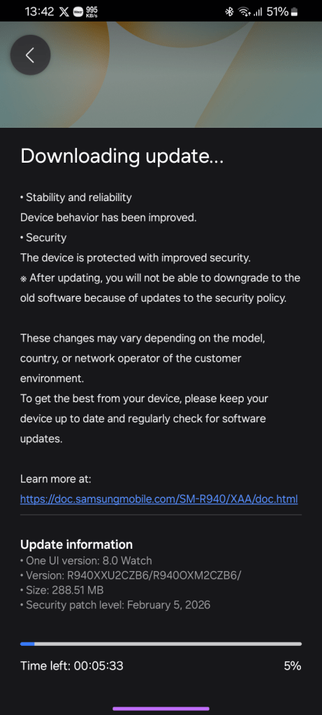
Samsung has begun distributing the Galaxy Watch6 update that is released today, which will upgrade both your watch’s security and stability. The February 2026 update is now available worldwide.
This update is based on One UI 8.0 Watch, which was released last November.
The firmware build information for this update is found below:
To obtain the update, follow these steps:
This update should take a short time to install. Make sure that you have the watch charged fully before initiating the update process to avoid interruptions. Back up your data in case the update went wrong. Don’t interrupt the update process, or you’ll experience problems later.
#GalaxyWatch6 #GalaxyWatch6Classic #news #oneUi #Samsung #SamsungGalaxyWatch6 #SamsungGalaxyWatch6Classic #Tech #Technology #update #Watch6 #Watch6Classic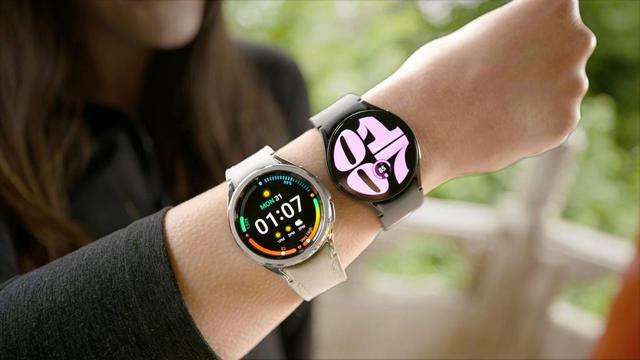
Galaxy Watch6 receives the February 2026 update
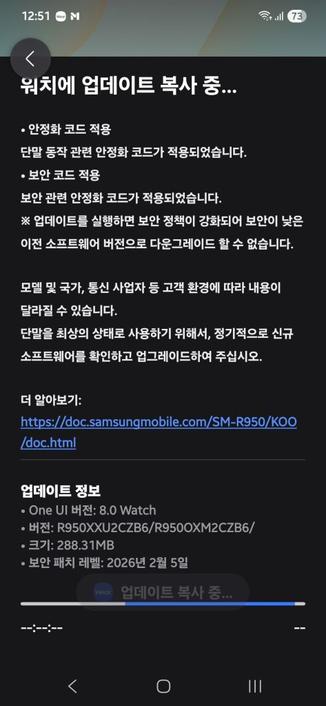
Samsung has begun distributing the Galaxy Watch6 update that is released today, which will upgrade both your watch’s security and stability. The February 2026 update begins its rollout from Korea, with the remaining set of devices expected to receive the update as early as next week.
This update is based on One UI 8.0 Watch, which was released last November.
The firmware build information for this update is found below:
To obtain the update, follow these steps:
This update should take a short time to install. Make sure that you have the watch charged fully before initiating the update process to avoid interruptions. Back up your data in case the update went wrong. Don’t interrupt the update process, or you’ll experience problems later.
#GalaxyWatch6 #GalaxyWatch6Classic #news #oneUi #Samsung #SamsungGalaxyWatch6 #SamsungGalaxyWatch6Classic #Tech #Technology #update #Watch6 #Watch6Classic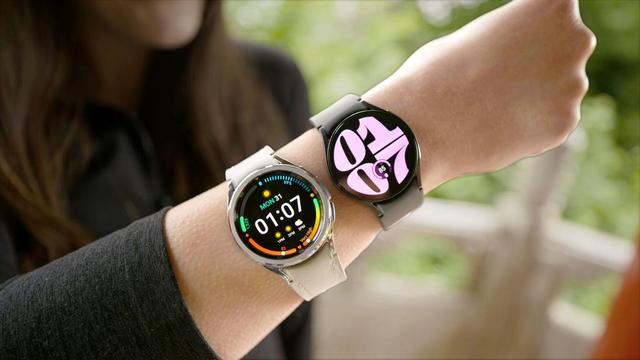
Galaxy Watch6 receives a new January 2026 update!
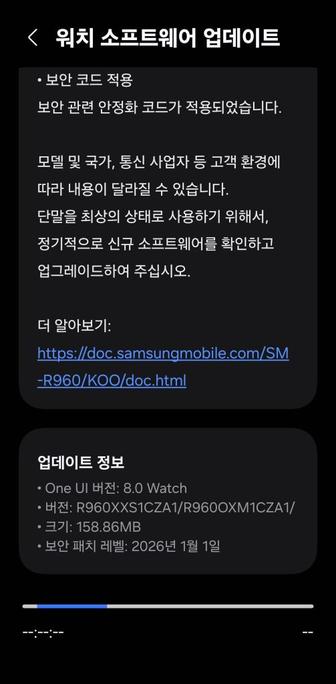
Samsung has started rolling out a new software update that upgrades the security patch level to January 1st, 2026, to the Galaxy Watch6 series, starting from Korea. The flagship watches will be updated to the following versions:
You can now update your smartwatch, but if you still didn’t receive any update, you’ll have to wait for a few days as this rollout is a gradual rollout that starts from Korea. You can periodically check for updates to see if this update has reached your device. We recommend that you update your watch manager in your phone to ensure compatibility with the latest software.
To update your watch, follow these steps:
In an event that something went wrong with copying the update, disconnect your phone from your watch by turning Bluetooth off or by disconnecting it through Galaxy Wearable, then try again from your watch. Make sure to turn Wi-Fi on in your watch to download the update faster.
Make sure that both your phone and your watch are charged before performing the update, and that your internet connection is stable. Never interrupt the update process, or there could be problems later. The update process may take a few minutes to finish, and if it appears to be stuck, just wait for more minutes.
#Android #GalaxyWatch6 #GalaxyWatch6Classic #news #oneUi #OneUI6Watch #Samsung #SamsungGalaxyWatch6 #SamsungGalaxyWatch6Classic #smartwatch #Smartwatches #Tech #Technology #update #Watch #Watch6 #Watch6Classic #Wearable
One UI 8 Watch for the Galaxy Watch6 LTE released in the USA!
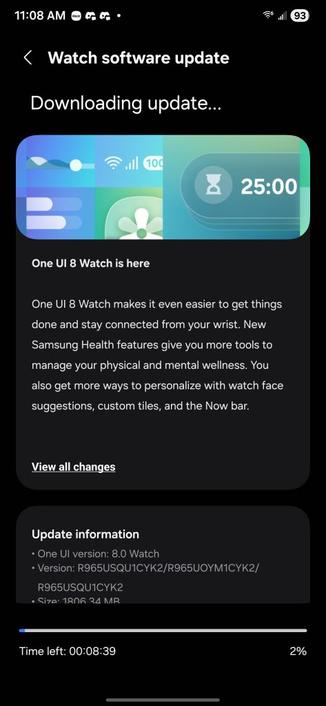
After Samsung shut down the Beta program for the One UI 8 Watch update for the Galaxy Watch6 LTE series, Samsung has released One UI 8 Watch for the Galaxy Watch6 LTE series officially, starting from the USA with Verizon plan applied. Regular users can now download the stable version of One UI 8 Watch.
If your watch is from some cellular providers, such as Verizon, US Cellular, or AT&T, you can download the update. If your watch is from T-Mobile, and you’re not a participant of the Beta Program, you’ll need to wait.
You can identify the stable release with the CYK2 version as the build version for your Galaxy Watch6.
You can now update your smartwatch, but if you still didn’t receive any update, you’ll have to wait for a few days as this rollout is a gradual rollout that starts from Korea. You can periodically check for updates to see if this update has reached your device. We recommend that you update your watch manager in your phone to ensure compatibility with the latest software.
To update your watch, follow these steps:
In an event that something went wrong with copying the update, disconnect your phone from your watch by turning Bluetooth off or by disconnecting it through Galaxy Wearable, then try again from your watch. Make sure to turn Wi-Fi on in your watch to download the update faster.
Make sure that both your phone and your watch are charged before performing the update, and that your internet connection is stable. Never interrupt the update process, or there could be problems later. The update process may take a few minutes to finish, and if it appears to be stuck, just wait for more minutes.
#android #galaxyWatch6 #galaxyWatch6Classic #news #oneUi #samsung #samsungGalaxyWatch6 #samsungGalaxyWatch6Classic #smartwatch #smartwatches #tech #technology #update #watch6 #watch6Classic

One UI 8 Watch Beta Program closes for the Galaxy Watch5!
After the release of the 2nd One UI 8 Watch Beta for the Watch5, Samsung was putting their final touches on the stable release for this smartwatch series. Today, Samsung has shut down the One UI 8 Watch Beta program for the Galaxy Watch5 series, starting from Korea, which means that the beta testers can now download the stable version of One UI 8 Watch. This was a very long wait after the release of the stable version of One UI 8 Watch back in July for the Galaxy Watch8 and Watch Ultra.
The USA will have to wait a bit longer, as we haven’t seen any update regarding the closure of the beta program there yet. If you’re not a beta tester, or if you’re on a cellular network, you may have to wait a bit longer.
You can identify the stable release with the DYK4 version as the build version for your Galaxy Watch5.
You can now update your smartwatch, but if you still didn’t receive any update, you’ll have to wait for a few days as this rollout is a gradual rollout that starts from Korea. You can periodically check for updates to see if this update has reached your device. We recommend that you update your watch manager in your phone to ensure compatibility with the latest software.
To update your watch, follow these steps:
In an event that something went wrong with copying the update, disconnect your phone from your watch by turning Bluetooth off or by disconnecting it through Galaxy Wearable, then try again from your watch. Make sure to turn Wi-Fi on in your watch to download the update faster.
Make sure that both your phone and your watch are charged before performing the update, and that your internet connection is stable. Never interrupt the update process, or there could be problems later. The update process may take a few minutes to finish, and if it appears to be stuck, just wait for more minutes.
#android #galaxyWatch6 #galaxyWatch6Classic #news #oneUi #samsung #samsungGalaxyWatch6 #samsungGalaxyWatch6Classic #smartwatch #smartwatches #tech #technology #update #watch6 #watch6Classic


One UI 8 Watch – Now Bar Configuration – Galaxy Watch6
A global rollout for the One UI 8 Watch update has started on November 26th for the Galaxy Watch6, a week after the Korean version got it on the 19th. As you can see in the official changelogs, we have seen visual changes, as well as functional changes and other improvements over the One UI 6 Watch that was released last November.
As we got our hands on the update now, we are showcasing how you can customize the Now Bar on your Galaxy Watch6.
In the Advanced Features section of your watch settings on either your phone or on your watch, you can configure the Now Bar on your watch. When “Show on Now Bar when media is playing on phone” is enabled, the Now Bar indicator will show up with the music icon, depending on how you configured the Now Bar for media.
The below settings allow you to configure the Now Bar for your watch.
When you go to one of the apps that support Now Bar, such as Google Play, Google Maps, and a few supported Samsung apps, you can configure whether the app will be shown as just the icon or the icon and the text.
The result is that, in the left picture, you’ll see the icon and the text, and in the right picture, you’ll just see the icon.
To obtain One UI 8 on your watch, you’ll have to be connected to a stable and fast Wi-Fi connection. If your watch is an LTE version, you’ll have to wait a bit longer (in the order of days or weeks).
We recommend that you update your watch manager in your phone to ensure compatibility with the latest software.
To update your watch, follow these steps:
In an event that something went wrong with copying the update, disconnect your phone from your watch by turning Bluetooth off or by disconnecting it through Galaxy Wearable, then try again from your watch. Make sure to turn Wi-Fi on in your watch to download the update faster.
Make sure that both your phone and your watch are charged before performing the update, and that your internet connection is stable. Never interrupt the update process, or there could be problems later. The update process may take a few minutes to finish, and if it appears to be stuck, just wait for more minutes.
#android #galaxyWatch6 #galaxyWatch6Classic #news #oneUi #samsung #samsungGalaxyWatch6 #samsungGalaxyWatch6Classic #tech #technology #update #watch6 #watch6Classic
One UI 8 Watch Showcase – Galaxy Watch6
A global rollout for the One UI 8 Watch update has started on November 26th for the Galaxy Watch6, a week after the Korean version got it on the 19th. As you can see in the official changelogs, we have seen visual changes, as well as functional changes and other improvements over the One UI 6 Watch that was released last November.
As we got our hands on the update now, we are showcasing what changed in One UI 8 Watch for the Galaxy Watch6 series. As we have the non-classic version, the same set of features exist.
First of all, we have the redesigned tiles that allow you to add more than just one tile to the tile page. A tile page can even have its title edited to fit certain types of information, such as “Activity”, “Body”, and “Heart.” Additionally, we have two tile sizes: one that is small and stores fewer information, and one that is large and stores more information, and some of them provide a button, such as blood oxygen measurement.
At the bottom of each tile page, you have a small pill that becomes the “Add” button, and when you press it, you’ll be taken to a list of tiles that can be added.
You can also manage your tiles more efficiently when you’re editing them on your phone:
One UI 8 Watch introduces brand new icons that look similar to what you’d get with One UI 7 on your phone. With the new, refined icons, your watch becomes more beautiful than before, but that’s not all.
Suggested Apps will show up at the top of the application list if you used your watch enough. Otherwise, you’ll get no suggestions, just like shown in the left image. Those applications show up in a separate box, indicating that those apps are suggestions based on your recent actions done on your watch.
You can turn it on or off by toggling the above setting.
With One UI 8 Watch, you can now switch views quickly between Grid and List. Before, you only had Grid in previous One UI Watch versions. List shows you a list of applications and their names, while Grid shows you three icons per row, all lined up together. This is unlike One UI 6 Watch’s implementation that moves the middle icons a little bit lower than the rest.
At the end of the applications page, there is a button called Set view that allows you to change how the page displays your application icons.
Here comes the most exciting part: new watchfaces have finally landed to the Galaxy Watch6! Previously, they were only available for the Watch8 and Watch Ultra smartwatches back in July. Now, the Galaxy Watch7 and Watch6 owners can enjoy those watch faces! The following watch faces are available:
Now, let’s show you each one of those watch faces.
Out of all the watch faces that were provided with the update, only two of them have support for Low Light Mode, which turns your watch face to a dark green version of your watch face in the night, and those watch faces are Heritage Classic and Sporty Classic.
For recommended watch faces, you’ll get them based on the style of your current watch face.
Now Bar is now available on your Watch6, and supported apps and actions, such as exercises, music, stopwatch, and calls, are now shown straight on your watch face with essential information, similar to how One UI 7 shows you essential info without unlocking your device.
Double pinch gesture, which was initially introduced in One UI 6 Watch released last year, has now become more powerful in this version of One UI 8 Watch, with more actions being added. For example, you can manage notifications by just double-pinching your index finger and your thumb together, open the Now Bar, and do much more.
You can now pin your favorite reminders by clicking on the reminder on your watch and pressing the star button at the top. When you tap it, your reminder will be added to the favorites list.
One UI 8 Watch now smartly redirects your phone notifications to your watch, muting them on your phone in the process, if your phone is off. However, if your phone is on and you’re not using your watch, notifications will not be redirected to your watch; they’ll stay on your phone.
You can change this behavior from the notification settings.
Mindfulness, which used to be only available on your phone, is now available on your watch, too! This feature, while still in beta, includes mood check-in and breathing exercises. Mood check-in allows you to manually select how you’re feeling, while breathing exercises allow you to do them so that you can feel more relaxed.
The watch now also features the changed charging animation that is inspired by One UI 7 and One UI 8 on your phone, with the charging pill shown in the middle of the screen, in contrast to the more minimalistic design that appeared in the previous One UI Watch versions.
The battery pill, which is again taken from One UI 7, appears in the Quick Panel on your watch.
To obtain One UI 8 on your watch, you’ll have to be connected to a stable and fast Wi-Fi connection. If your watch is an LTE version, you’ll have to wait a bit longer (in the order of days or weeks).
We recommend that you update your watch manager in your phone to ensure compatibility with the latest software.
To update your watch, follow these steps:
In an event that something went wrong with copying the update, disconnect your phone from your watch by turning Bluetooth off or by disconnecting it through Galaxy Wearable, then try again from your watch. Make sure to turn Wi-Fi on in your watch to download the update faster.
Make sure that both your phone and your watch are charged before performing the update, and that your internet connection is stable. Never interrupt the update process, or there could be problems later. The update process may take a few minutes to finish, and if it appears to be stuck, just wait for more minutes.
#android #galaxyWatch6 #galaxyWatch6Classic #news #oneUi #samsung #samsungGalaxyWatch6 #samsungGalaxyWatch6Classic #tech #technology #update #watch6 #watch6Classic
 Aptivi