
25 strong ways to fix phone not receiving calls vodafone

Fix phone not receiving calls vodafone by Disable Do Not Disturb mode.

Many people want to know the reasons
and solutions for phone not receiving calls vodafone, which is a common issue with phones, such as the failure to display incoming calls.

why is my phone not receiving calls vodafone?

You may be unable to receive calls due to an issue with your phone, SIM card, network, or because Vodafone has blocked incoming calls, perhaps due to unpaid bills.

To troubleshoot, first identify the cause by checking the signal strength bars usually located in the top corner of the screen.

If you see no signal bars or a red x, the issue may be that you are in an area with no network coverage.

If signal bars are present, ask people around you using the same Vodafone network if they are experiencing reception issues.

If others have the same problem, it could be a temporary network outage, and Vodafone will work to fix it. Contact customer service to confirm.

If you’re the only one facing the issue, ensure your phone and SIM card are working by inserting the SIM into another phone without call reception problems.

Then, try calling your number to see if your phone receives the call. If successful, the issue is with your phone; if not, the SIM may be damaged or blocked due to unpaid bills.

How do I get incoming calls on Vodafone?

1. Move to an area with network coverage

If you’re in an area without network
coverage, you may face issues receiving calls. Try moving to a higher location or closer to a window.

2. Pay your phone bills

you’ve used a service like vodafone loan service and haven’t paid the balance, the company might send you a text message urging you to settle the payment before service disconnection. Verify this by contacting Vodafone’s customer service through their social media channels or visiting a nearby branch.

3. Report number porting issues

If you recently switched from another telecom company to Vodafone while keeping the same number, you might not be able to receive calls immediately. In such cases, wait for approximately 24 hours for the transition to complete. If it takes longer, contact Vodafone for assistance in resolving the issue of the line not receiving calls.

4. Restart your phone

Often, a simple solution is to turn off and then on your phone. This can fix many temporary software issues that may be causing problems with receiving calls.

5. Enable and disable airplane mode

When airplane mode is activated, you cannot make or receive calls, use the internet, or connect via Bluetooth. Make sure to turn it off. Swipe down from the top of the screen, and if you see airplane mode active, tap on it to disable it. If it’s off, turn it on for 5 minutes and then turn it off to fix phone not receiving calls vodafone.

6. Remove the phone case

Metal or magnetic cases may hinder the phone from receiving signals effectively. Remove the case and any accessories on the back of the phone to fix phone not receiving calls vodafone.

7. Check call blocking

If you’re not receiving calls from specific or unknown numbers, you might have accidentally activated call blocking. Open the Phone app > tap the three dots at the top left of the screen > choose Settings > Block Numbers. Make sure to turn off the switch next to the Block Unknown/Private Numbers option. If you see a blocked number, unblock it by tapping the – sign next to that number.

Then go back and tap Additional Settings > Call Blocking > Voice Call > ensure that all options for blocking incoming calls are disabled. If prompted for a password , enter 1234 or 0000.

8. Disable call forwarding

Call forwarding can redirect incoming calls to another phone always or in specific situations, such as when the phone is off. Go to the Phone app > three dots > Settings > Additional Settings > Voice Call > tap on each option that appears and make sure to turn it off to solve phone not receiving calls vodafone.

Alternatively, you can request the following codes: “#21##” to cancel call forwarding for all calls or “#004##” to stop call forwarding in specific situations.

9. Activate call waiting

When this feature is enabled, you’ll be alerted to incoming calls while on another call. Ensure it’s activated by going to the Phone app > three dots > Settings > Additional Settings > turn on the toggle next to Call Waiting.

10. Disabling Do Not Disturb Mode

Do Not Disturb mode disables notification sounds and calls when activated, and it can be set to work automatically. It may be the reason for phone not receiving calls vodafone.

You can turn it off by going to “Settings” > “Notifications” > “Do Not Disturb” > “Turn off Do Not Disturb” > at the bottom of the schedule section, turn off any active schedule.

Other features on Android phones, such as bedtime mode, may activate Do Not Disturb. Make sure to turn it off by going to “Settings” > “Digital Wellbeing & Parental Controls” > “Bedtime mode” > “Turn off” > also turn off the “Scheduled” option.

Also, turn off the feature that enables Do Not Disturb while driving to prevent it from activating when in the car or connected to your car’s Bluetooth.

Go to “Settings” > “Google” > “Personal safety” > “Mute notifications while driving” > toggle off.

11. Turning off Silent Mode

If Silent mode is on, your phone may not ring. Go to “Settings” > “Sound” > choose a sound from the Sound mode.

12. Manually Selecting Network Operator

Choose your mobile network manually by going to “Settings” > “Connections” > “Mobile networks” > “Network operators” > “Turn off ‘Select automatically'”. Wait for the phone to finish searching for networks, then choose one of the Vodafone networks.

13. Changing Preferred Network Mode

Android phones allow you to choose your preferred network mode, so you might have selected a mode that is not available in your area or not supported by the network, leading to Vodafone calls not being received.

Go to “Settings” > “Connections” > “Mobile networks” > “Network mode” > choose “2G only” and try calling. If it works, select the mode “2G/3G/LTE (Automatic)” and avoid choosing “4G only”.

14. Ensure SIM Card is Enabled

You might have accidentally disabled the SIM card. To check, go to “Settings” > “Connections” > “SIM card manager” > make sure the SIM card with the issue is enabled.

15. Enable Mobile Data

If mobile data is turned off, try turning it on by going to “Settings” > “Connections” > “Data usage” > turn on “Mobile data”.

16. Resetting access point names (APN)

Incorrect APN settings may result in phone not receiving calls vodafone. Go to “Settings” > “Connections” > “Mobile networks” > “Access Point Names” > select the three dots > Reset to default.

17. Clearing Phone App Cache

Long-press on the Phone app > tap on App info or the letter i > Storage > Clear Cache > Clear Data. Note: This will delete call logos.

18. Checking SIM Card Cleanliness and Integrity

Turn off the phone, remove the SIM card, and ensure the metal part is not corroded. If damaged, replace the SIM card. If it looks good, gently clean it with a cloth.

Reinsert the SIM card following the manufacturer’s instructions to fix phone not receiving calls vodafone

19. Resetting Network Settings

Messing with network settings might hinder call reception. To fix this, go to Settings” > “General Management” > “Reset” > “Reset network settings” > “Reset settings.” The phone may prompt you to enter the password.

Note: This will erase all currently saved settings, including Wi-Fi passwords.

20. Fixing phone not receiving calls vodafone by Disabling Wi-Fi Calling

Wi-Fi calling allows making and receiving calls over Wi-Fi in areas with no cellular signal, but it might interfere with the mobile network signal.

Go to “Settings” > “Connections” > “Additional connection settings” > “Wi-Fi calling” > turn off Wi-Fi calling.

Note: This feature may not be available in all countries and might not be supported on Vodafone in your country.

21. Uninstalling Recently Installed Apps

The issue of phone not receiving calls vodafone could be due to a recently installed malicious app. To check, enter Safe Mode by long-pressing the Power button until the Power options menu appears, then long-press “Power off” until the Safe Mode icon appears. If successful, “Safe mode” will be displayed, and installed apps will be disabled.

If the call is received in Safe Mode, one of the apps is causing the issue. If not, the problem may be a device malfunction requiring repair.

If the issue is app-related, uninstall all recently installed apps, especially those installed shortly before the problem occurred, as well as calling, blocking, and screen-changing apps, or those downloaded from outside the official store.

Go to “Settings” > “Apps” > click on the app you want to uninstall > Uninstall. After each removal, restart your phone and check for problem resolution.

22. Updating Mobile Carrier Settings Manually on iPhone

If you own an iPhone, you may need to update Vodafone’s carrier settings to enhance cellular network connectivity and performance. This can also add support for new features like 5G.

Before updating, ensure your device is connected to Wi-Fi or has mobile data enabled. Then, go to “Settings “General” > “About.” Follow the on-screen instructions to install the update”.

23. System Update

If you’re using an older version of the phone’s operating system, it may have issues causing the problem. To fix this, try updating your phone by going to “Settings” > “Software Update.” Download and install the available update.

24. Factory Reset

To perform a factory reset, go to “Settings” > “General” > “Reset” > “Erase All Content and Settings.”

25. Visit a Phone Service Center

If the previous methods fail to solve the issue of vodafone phone not receiving calls, the problem may be a damaged phone antenna or SIM card slot. Consider visiting a phone service center for further assistance.

26.Buying a new phone

If the problem recurs even after visiting the service center, it may be time to buy a new phone. Discover the latest phones of this year at discounted prices.

Note:“I may earn a commission if you visit or make a purchase through the links provided.”

Sources
  • McLaughlin, Molly. “How To Fix an Android That Can’t Make or Receive Calls .” Lifewire. 10 Feb. 2023. http://www.lifewire.com/android-phone-cant-make-or-receive-calls-4586351. Accessed 4 July 2023.
  • Makvana, Mahesh. “How to Fix an Android Phone Not Receiving Calls .” Online tech tips. 13 Oct. 2022. http://www.online-tech-tips.com/smartphones/how-to-fix-an-android-phone-not-receiving-calls/. Accessed 4 July 2023.
  • SHAREEF, TASHREEF. “Android Phone Not Receiving Calls? Here Are 9 Fixes to Try .” Make use of. 24 Jan. 2023. http://www.makeuseof.com/android-phone-not-receiving-calls/. Accessed 4 July 2023
  • The photo by Zewail Teach.
  • #Android #IncomingCalls #IOS #Phone #PhoneNotReceivingCallsVodafone #SimCard #Vodafone #WhyMyIncomingCallsAreNotComing

    25 ways to fix oppo phone not receiving calls

    oppo phone not receiving calls.

    Many people face the issue of oppo phone not receiving calls, and that’s what we’ll discuss.

    Why is my oppo phone not ringing when someone calls me?

    The solutions for oppo phone not receiving calls vary depending on the source of the issue. Therefore, it’s crucial to identify the cause. Here’s how you can do it: Insert the SIM card into another phone and make a call. If the call is received, the problem is with your phone. If not, the issue may lie with the SIM card or the network.

    To determine the cause, check the signal bars at the top of the screen. If you don’t see any bars, there might be no network coverage. If there is coverage, ask people around you using the same network if their phones are also not receiving calls.

    If they’re facing the same issue, it could be a temporary network problem. Contact customer service to confirm. If there’s no network issue, the SIM card may be damaged or restricted for some reason.

    How do I fix my phone not receiving calls?

    1. Remove Phone Cover

    Metal or magnetic phone covers might interfere with signal reception. Remove such covers and any accessories on the back of your phone.

    2. Restart the Phone

    Turn off the phone for a few minutes and then turn it back on. This can resolve temporary software issues causing call reception problems.

    3. Turn off Airplane Mode

    Disable Airplane Mode to re-establish connections. Go to “Settings” > “Airplane Mode” and turn it off. If it’s already off, turn it on for 5 minutes and then turn it off.

    4. Unblock Calls

    If certain numbers are blocked, unblock them by going to “Settings” > “System Apps” > “Call” > “Block” > “Blacklist.” Remove the number from the blacklist.

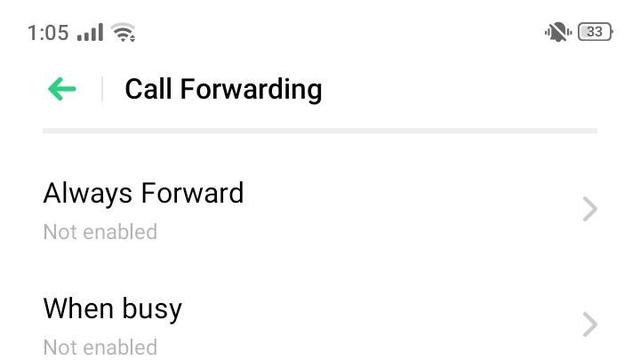
    5. Disable Call Forwarding

    Turn off call forwarding, as it might redirect calls. Open the “Phone” app > Tap the three dots > “Settings” > “Carrier Call Settings” > “Call Forwarding.” Turn off all forwarding options.

    6. Disable Call Barring on SIM

    Open “Phone” > Tap three dots > “Settings” > “Carrier Call Settings” > “Call Barring.” If the switch next to options like “Reject All Incoming Calls” is green, tap it to disable and enter the default password (usually “0000”).

    7. Check Call Waiting

    Verify if call waiting is active. Open “Phone” > Tap three dots > “Settings” > “Carrier Call Settings” > “Additional Settings” > If the switch next to “Call Waiting” is green, it’s enabled.

    8. Select Network Provider manually

    If calls aren’t coming through, manually select your network provider. Go to “Settings” > “Dual SIM & Cellular” > “Network Operator” > Turn off “Select Automatically” and choose your network provider.

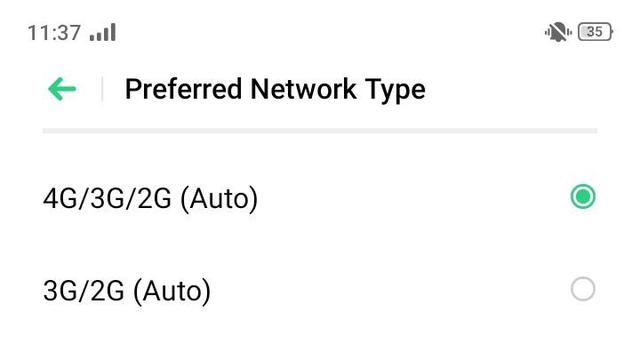
    9. Switching Network Mode

    Android phones, like Oppo, allow you to choose your preferred network type, whether it’s 4G or 3G.

    You may have selected a mode not supported by the SIM card or still unavailable in your area.

    To fix oppo phone not receiving calls, go to “Settings” > “Dual SIM & Cellular Network” > select the problematic SIM card > “Preferred Network Type” > choose “2G only.” After receiving a call, you can switch back to automatic and avoid the 4G-only mode.

    10. Check SIM Card Activation

    Accidentally deactivating the SIM card from settings can occur. To reactivate it, go to “Settings” > “Dual SIM & Cellular Network.” If your phone has two SIM cards, select the one with the issue and ensure it’s enabled.

    11. Turn On Mobile Data

    Try turning on mobile data by navigating to “Settings” > “Dual SIM & Cellular Network” > “Turn on Mobile Data”.

    12. Reset Access Point Names (APN)

    Incorrect APN settings can lead to oppo phone not receiving calls. Correct this by going to “Settings” > “Dual SIM & Cellular Network” > select the SIM card with the problem > Access Point Names >Reset > Reset access points.

    13. Disable Wi-Fi Calling

    Wi-Fi calling may interfere with the phone’s ability to receive calls. Go to “Settings” > “SIM Card & Mobile Data” > choose one SIM card > “Wi-Fi Calls” > disable “Wi-Fi Calls.

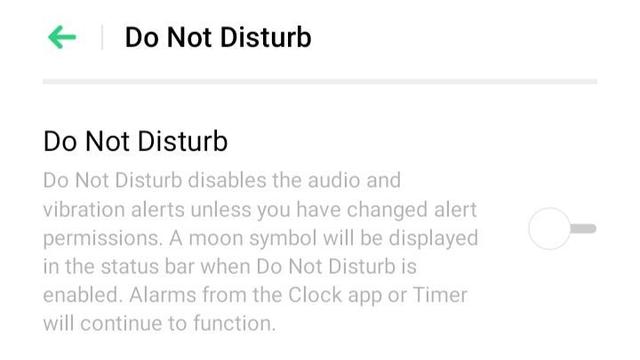
    14. Deactivate Do Not Disturb

    The “Do Not Disturb” function can disable sound and vibration alerts for incoming calls. Turn it off by going to “Settings” > “Do Not Disturb” > make sure it’s turned off. Also, check for any scheduled DND times

    15. Turn Off Silent Mode

    If the silent mode is activated, your phone may not ring. Check and turn off silent mode in “Settings” > “Sound & Vibration”.

    16. Clear Phone App Cache

    In “Settings,” choose “App Management” > “App List” > “Phone App” > “Storage Usage” > “Clear Cache” > “Clear Data.” Note: Clearing data will erase the call log.

    17. Remove Recently Installed Apps

    Fix oppo phone not receiving calls by uninstalling apps one by one, especially “Contact Apps,” “Call Blocker,” and “Launchers.” After each removal, restart your phone and check for call reception.

    18. System Update

    To fix oppo cannot receive calls, update your phone by going to “Settings” > “Software Update” > download and install the available update > restart your phone.

    Note: Avoid installing beta updates as they may contain errors.

    19. Check SIM Card Integrity

    A dirty or damaged mobile SIM card can lead to call reception issues. To confirm, remove and inspect the metal part. If damaged, replace it; if in good condition, gently clean it with a soft, dry cloth to remove dust.

    Reinsert it correctly according to the manufacturer’s instructions.

    20. Reset Network Settings

    Messing with network settings may result in call reception problems. Fix this by going to “Settings” > “Additional Settings” > “Backup & Reset” > “Erase All Data” > “Reset Network Settings” > press “Reset” again.

    Note: This action resets all network settings, including phone data, Bluetooth, and Wi-Fi.

    21. Factory Reset

    A factory reset may help solve oppo not receiving calls, but it will delete your data. Avoid data loss by creating a backup. To perform a reset, go to “Settings” > “Additional Settings” > “Backup & Reset” > “Factory Data Reset” > “Clear Apps and App Data”.

    22. Visit a Phone Service Center

    If the previous methods don’t work, the issue might be a component failure, like a swollen battery or water damage. Visit a phone service center for professional assistance.

    23. Move Closer to a Window

    Reception issues might arise if you’re in an area with poor network coverage. Solve this by moving to a higher place or getting closer to a window.

    24. Check for SIM Blocking

    Mobile carriers may block your SIM if you’re late on bill payments, preventing calls. Contact customer service through phone or social media to check for any blocks. If the solution is a recharge, proceed with that.

    25. Report Number Transfer Issues

    If you recently switched carriers while keeping the same phone number, the transfer process can take around 24 hours to complete. If you notice continued redirection of calls and texts to the old SIM, contact your new carrier to resolve the issue.

    26.Buying a new phone

    If the problem recurs even after visiting the service center, it may be time to buy a new phone. Discover the latest phones of this year at discounted prices.

    Note:“I may earn a commission if you visit or make a purchase through the links provided.”

    Sources
  • McLaughlin, Molly. “How To Fix an Android That Can’t Make or Receive Calls .” Lifewire. 10 Feb. 2023. http://www.lifewire.com/android-phone-cant-make-or-receive-calls-4586351. Accessed 4 July 2023.
  • Makvana, Mahesh. “How to Fix an Android Phone Not Receiving Calls .” Online tech tips. 13 Oct. 2022. http://www.online-tech-tips.com/smartphones/how-to-fix-an-android-phone-not-receiving-calls/. Accessed 4 July 2023.
  • SHAREEF, TASHREEF. “Android Phone Not Receiving Calls? Here Are 9 Fixes to Try .” Make use of. 24 Jan. 2023. http://www.makeuseof.com/android-phone-not-receiving-calls/. Accessed 4 July 2023
  • The photo by Zewail Teach.
  • #Android #IncomingCalls #Oppo #OppoPhoneNotReceivingCalls #Phone #WhyMyIncomingCallsAreNotComing

    23 strong ways to fix phone not receiving calls huawei

    phone not receiving calls huawei.

    Many people want a solution to the phone not receiving calls huawei issue, and that’s what we’re going to talk about.

    why is my huawei phone not receiving calls

    The method to solve the issue depends on understanding the cause. To do this, you should first identify the reason as follows: Insert the SIM card into another phone and call it. If the call is received, the problem is with your phone. If not, the issue may be with the SIM card or the network.

    To determine the cause, look at the signal bars at the top of the screen. If you don’t see any bars, the lack of network coverage is likely the cause.

    If there is coverage, ask people around you using the same network if they are facing the same problem. If they are, it may be a temporary network issue. You can contact customer service to confirm. If the network is not the issue, the SIM card may be faulty or blocked for some reason.

    How can I fix call problem in Huawei?

    1. Remove the phone case

    Metal or magnetic cases can interfere with the phone’s ability to receive network signals. Remove such cases and any accessories on the back of the phone.

    2. Restart the phone

    Turning off the device for a few minutes and then restarting it can solve temporary software issues that may cause call reception problems.

    3. Turn off Airplane mode

    This mode shuts down all mobile connections, such as mobile network, Bluetooth, and Wi-Fi. Turn it off by going to Settings > Wireless & Networks > ensure the Airplane mode toggle is off. If it’s on, turn it off for 5 minutes and then turn it back on.

    4. Disable call forwarding

    Open the Phone app > Tap the three dots in the upper left > Settings > Call forwarding > Disable all forwarding options
    by clicking on each option and selecting Disable. Alternatively, you can dial “#21##*” to cancel all call forwards or “#004##” to stop call forwarding in specific cases

    5. Turn off call barring on the SIM

    Open the Phone app > Tap the three dots > Settings > Additional settings or More > Call barring > Turn off any option causing incoming call blocking. If the phone asks for a password, enter 0000 or 1234.

    Check call waiting feature: Ensure this feature is turned on by going to the Phone app > Tap three dots > Settings > More > Enable the “Call waiting” option.

    6. Choose the mobile network manually

    Go to Settings > Wireless & Networks > Mobile network > Network operators > Turn off “Automatic” and wait for the phone to finish searching for networks > Choose the name of the network your SIM is on.

    7. Change preferred network mode to Automatic

    On Android phones like Huawei, you can choose your preferred network type, whether 4G or 5G. You may have selected a mode not supported by the SIM or not yet available in your region. Fix phone not receiving calls huawei by going to Settings > Wireless & Networks > Mobile network > Preferred network mode > Choose “LTE/WCDMA/GSM Automatic”.

    8. Check SIM card activation

    If you accidentally disabled the SIM card, reactivate it by going to Settings > Wireless & Networks > SIM card settings > Ensure the toggle next to the SIM with the issue is on.

    Enable mobile data: If mobile data is turned off, turn it back on by going to Settings > Wireless & Networks > Mobile network > Enable “Mobile data.

    9. Reset APN settings

    Incorrect APN settings can cause network connection issues. Go to Settings > Wireless & Networks > Mobile network > Access Point Names > Tap the three dots > Reset to default settings to solve the phone not receiving calls huawei problem.

    10. Turn off Wi-Fi calling

    Wi-Fi calling allows making and receiving calls when you have a Wi-Fi connection in an area with weak or no network coverage. While beneficial, it may interfere with the phone’s ability to receive calls. Turn off this feature by going to Settings > Wireless & Networks > Mobile network > Wi-Fi calling > Turn off the toggle switch.

    Note: This feature may not be available on all carriers or in some countries

    11. Turn Off Silent Mode

    If you have activated silent mode, you may not notice your phone ringing. To turn it off, go to “Settings” > “Sounds” > “Check if the silent mode option is off.

    12. Clear Phone App Cache

    You can try solving the issue of phone not receiving calls huawei by going to “Your phone’s settings” > “Apps & notifications” > “Apps” > Find “Phone app and tap on it” > “Force Stop” > “Storage” > “Clear Cache” > “Clear Data”.

    Note: Clearing data will erase your phone log.

    13. Delete Recently Installed Apps

    Recently installed apps from unknown sources might block incoming calls, especially if they are harmful apps. Try uninstalling recently downloaded apps one by one, especially “Call Apps,” “Call Blocker Apps,” and “Screen Changing Apps”.

    Do this by opening “Settings” > “Apps & notifications” > “Apps” > Click on the app you want to delete > Press “Uninstall.” After each deletion, restart your phone and make sure the issue is resolved.

    14. Disable Do Not Disturb Mode

    The “Do Not Disturb” feature can disable sound and vibration alerts for incoming calls unless specified. If enabled, a crescent moon icon will appear in the status bar.

    Try solving the issue of phone not receiving calls huawei by turning off this feature. Go to “Settings” > “Sounds” > “Do Not Disturb” > Turn off the toggle next to “Do Not Disturb.” Then, disable the scheduled option.

    If your phone has a Digital Wellbeing feature, it might control this mode. To check, go to “Settings” > “Digital Wellbeing & Parental Controls” > “Wind Down” > “Disable”.

    15. Unblock Calls

    If your phone isn’t receiving calls from specific people or numbers, you might have accidentally blocked them.

    Open the “Phone app” > “Settings” > “Block Harassment” > “Call Blocking Rules” > Turn off all blocking options like block all incoming calls, block unknown numbers, and block private and unknown numbers.

    After that, go back and click on the gear icon at the top, then click on “Block List” > Unblock the number from which you are not receiving calls.

    16. Update Phone System

    Phone updates can fix system issues causing call reception problems. Try solving the issue of phone not receiving calls huawei by updating your phone.

    Go to “Settings” > “System” > “System Update” > “Check for Updates,” and wait for your phone to search for available updates > Download and install the available update.

    Note: Please avoid installing beta updates as they may contain issues.

    17. Check SIM Card Cleanliness and Integrity

    A dirty or damaged SIM card can lead to your phone not receiving calls. To check, remove it and examine the metal part.

    If it’s corroded, it’s damaged and needs replacement. If it’s in good condition, gently clean it with a soft, dry cloth to remove dust.

    Follow the manufacturer’s instructions to insert the SIM card correctly. Incorrect insertion may prevent the phone from recognizing the SIM card.

    18. Reset Network Settings

    If you’ve messed with network settings, you might not be able to receive calls. To fix this, go to “Settings” > “System” > “Reset” > “Reset Network Settings” > Confirm by pressing it again. You may need to enter your phone password to proceed.

    Note: This action may delete your Wi-Fi password.

    19. Factory Reset

    A factory reset can help solve the issue of phone not receiving calls huawei but it will delete data such as videos, contacts, etc. To avoid this, backup your data.

    You can perform a reset by going to “Settings” > “System” > “Reset” > “Factory Reset” > “Reset Phone” > Press it again to confirm.

    20. Visit a Phone Service Center

    the problem persists, the cause might be a component malfunction, such as the battery or exposure to liquid. Visit a Huawei phone repair center for assistance.

    21. Move Closer to a Window to Resolve

    If you’re in an area without network coverage, you might face this issue. If this is the case, the solution is to move to a higher place or closer to a window.

    22. Check if the SIM card is Blocked

    Telecom companies may block your SIM card from receiving or making calls if you’re delayed in paying for services, like recharging your balance. Ensure all is well by contacting their customer service through their social media platforms.

    23. Report Number Transfer Issues

    If you’ve switched from one telecom company to another while keeping the same number, you might need to wait for about 24 hours for the transfer process to complete. If you believe it’s taking longer than necessary, contact the customer service of the network you switched to for any issues.

    Note: The phone used in the explanation is Huawei Y9, so settings and locations may vary based on your device model.

    24. Buying a new phone

    If the problem recurs even after visiting the service center, it may be time to buy a new phone. Discover the latest phones of this year at discounted perices.

    Note:“I may earn a commission if you visit or make a purchase through the links provided.”

    Sources
  • McLaughlin, Molly. “How To Fix an Android That Can’t Make or Receive Calls .” Lifewire. 10 Feb. 2023. http://www.lifewire.com/android-phone-cant-make-or-receive-calls-4586351. Accessed 4 July 2023.
  • Makvana, Mahesh. “How to Fix an Android Phone Not Receiving Calls .” Online tech tips. 13 Oct. 2022. http://www.online-tech-tips.com/smartphones/how-to-fix-an-android-phone-not-receiving-calls/. Accessed 4 July 2023.
  • SHAREEF, TASHREEF. “Android Phone Not Receiving Calls? Here Are 9 Fixes to Try .” Make use of. 24 Jan. 2023. http://www.makeuseof.com/android-phone-not-receiving-calls/. Accessed 4 July 2023
  • The photo by Zewail Teach.
  • #Android #Huawei #IncomingCalls #Phone #PhoneNotReceivingCallsHuawei #WhyMyIncomingCallsAreNotComing