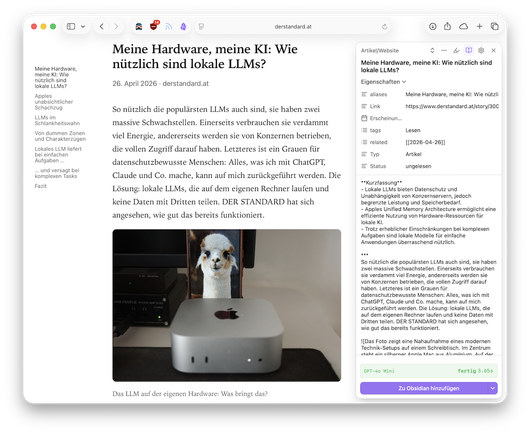
Jeder gängige Browser hat eine eingebaute Möglichkeit, Webseiten in einem speziellen Lesemodus darzustellen. Nun bringt auch der #WebClipper von #Obsidian diese Funktion mit einer übersichtlichen Formatierung.

https://www.mathoi.at/2026/03/19/leseansicht-fuer-den-web-clipper/

Leseansicht für den Web Clipper - netzNOTIZEN

Jeder gängige Browser hat eine eingebaute Möglichkeit, Webseiten in einem speziellen Lesemodus darzustellen. Nun bringt auch der Web Clipper von Obsidian diese Funktion mit einer übersichtlichen Formatierung.

netzNOTIZEN

Der #Obsidian #WebClipper kann in der neuesten Version nun auch den transkribierten Text mit der neuen Variable {{transcript}} zu einem #YouTube Video speichern. Zudem kann der Web Clipper jetzt auch im Reader Modus im Browser eingesetzt werden.

https://github.com/obsidianmd/obsidian-clipper/releases/tag/1.1.0

Release 1.1.0 · obsidianmd/obsidian-clipper

New Add Reader mode Add transcripts to YouTube in the {{content}} and new {{transcript}} variable Improved Switch to Defuddle's built-in Markdown converter (#723)

GitHub

Der #WebClipper von #Obsidian ist eine leistungsfähige Erweiterung für den Webbrowser, die ich häufig auch bloß zum Einfügen eines vorab in einer Vorlage formatierten Markdown-Links zu einer Website samt kurzer Beschreibung nutze.

https://www.mathoi.at/2026/02/16/obsidian-kaizen-markdown-link-mit-dem-web-clipper-speichern/

Obsidian-Kaizen: Markdown-Link mit dem Web Clipper speichern - netzNOTIZEN

Der Web Clipper von Obsidian ist eine leistungsfähige Erweiterung für den Webbrowser, die ich häufig auch bloß zum Einfügen eines vorab in einer Vorlage formatierten Markdown-Links zu einer Website samt kurzer Beschreibung nutze.
netzNOTIZEN

@gnulinux da habe ich doch glatt das Intro vergessen:

Diesmal stellen wir Euch den Web Clipper von Joplin vor. Mit diesem könnt Ihr Webseiten in verschiedenen Formaten als Notiz speichern.

#joplin_notes #notes #strukuriertenotizen #WebClipper

Oh man, Obsidian's web clipper did it again. I needed the "Command line editor" part from https://cheatography.com/myounkin/cheat-sheets/fish-shell/
Highlighted and clipped it and voilá, I had a beautifully looking table in Obsidian wich needed only a minute of tinkering to make it perfect. Amazing. I mean it even looks better than the original.
#ObsidanMD #WebClipper

Ich liebe den Obsidian Web Clipper: Mit dem Rezept Template kann ich meine Lieblings Rezepte abspeichern, sofern die Website strukturierte Daten hinterlegt hat.

#Obsidian #Rezept #WebClipper

Die @joplinapp nutze ich in Verbindung mit #Nextcloud schon einige Jahre. Sie ist zu meinem wichtigsten Arbeitsmittel geworden.

Aber erst vor Kurzem habe ich festgestellt, wie genial der dazugeörige
#WebClipper ist, um Inhalte aus Webseiten in #Markdown zu speichern:

https://addons.mozilla.org/de/firefox/addon/joplin-web-clipper/?utm_source=addons.mozilla.org&utm_medium=referral&utm_content=search

#OpenSource #FOSS #digitalSouverän #Workflow
Joplin Web Clipper – Holen Sie sich diese Erweiterung für 🦊 Firefox (de)

Laden Sie Joplin Web Clipper für Firefox herunter. Capture and save web pages and screenshots from your browser to Joplin. The Joplin application is required to get this extension working - https://joplinapp.org

@cdonat @fholldorff

#Notizenapp: Eindeutig #Joplin. Gibt's für alle Plattformen (#Windows, #iOS, #Android, #Linux) und lässt sich nativ über #Nextcloud synchronisieren, ohne dass man Umwege mit #Syncthing o.ä. braucht.
Die Daten werden verschlüsselt von/in die Nextcloud synchronisiert und dort auch verschlüsselt abgelegt. Erst in der Joplin App werden diese entschlüsselt.

So habe ich alle
#Notizen auf allen Geräten immer verfügbar und egal wo ich eine Notiz ändere, hinzufüge oder lösche, wird das auf allen anderen Geräten beim Start der App wieder synchronisiert.

Außerdem ist Joplin sowohl sehr einfach bedienbar als auch - bei Bedarf - sehr mächtig. Stichwort
#Webclipper u.a.m.
Everyday happier with the Roam highlighter #webclipper used for #Logseq

Using the Web Clipper with the Joplin Note-Taking App

Joplin is my favorite note taking app. It allows me to save ideas and content across all the platforms I use everyday. In my case that’s Linux, MacOS and iOS. Joplin has really revolutionized and organized those notes whether they’re a daily journal or the latest development I come across while I’m out walking or sitting at my desk reading. Until recently I had not used Joplin’s ‘Web Clipper.’ Joplin Web Clipper allows saving web pages and screenshots from your browser to Joplin. The ability to use the Web Clipper has added a new dimension to my notetaking.

It’s easy to use but first you need to enable it in the software. On my Linux computer that involves opening the Joplin app and navigating to the ‘Tools’ menu which is at the far right next to ‘Help.’ Then select ‘Options’ which is at the top and navigate to ‘Web Clipper’ option which is on the left and second from the last at the bottom left. Then ‘Enable’ the clipper service. Install the extension for Google Chrome or Firefox. On MacOS the settings to enable Web Clipper are on the ‘Settings’ menu at the far left under the ‘Joplin’ menu. There is a Safari web extension for using Web Clipper if that is your preferred browser.

Screen picture by Don Watkins CC by SA 4.0

The Web Clipper enhances Joplin’s functionality by enabling users to seamlessly save web content for later reference. Here are a few key benefits:

With a simple click, you can capture articles, blog posts, research papers, and other web content, ensuring that valuable information is stored in one organized place. Saved content is available offline, making it easy to access important information without relying on an internet connection. By having all your research and resources in one location, you can streamline your workflow and increase productivity. Joplin’s end-to-end encryption ensures that your data remains secure and private, unlike some other note-taking applications.

Using the Web Clipper is easy. Once the option is enabled, open the Joplin application and then navigate with your web browser to the information you want to save to your notebook. Click the Joplin Web Clipper icon in your browser’s toolbar.

Screen picture by Don Watkins CC by SA 4.0

You can select which notebook you want to add the content to at the bottom of the dialog box. Then you can choose how you will save the content from the options displayed which include. Clip simplified page, clip complete page (Markdown), clip complete page (HTML), clip selection, clip screenshot or clip URL.

Screen picture by Don Watkins CC by SA 4.0

I chose to clip complete page in Markdown and I am presented with the options to save my notebook in ‘Articles’ or another notebook. Joplin uses the web article title for the title. That can be edited and then click to ‘Confirm’ and the article is saved for later reference.

Screen picture by Don Watkins CC by SA 4.0

The Joplin Web Clipper is an invaluable tool for anyone looking to save and organize web content efficiently. By capturing and storing information directly into Joplin, you can enhance your productivity, ensure offline access to critical resources, and maintain the privacy and security of your data. Whether you’re a student, researcher, or professional, the Joplin Web Clipper can help you streamline your workflow and keep your digital life organized

#joplin #noteTaking #OpenSource #WebClipper

Joplin Web Clipper - Chrome Web Store

Capture and save web pages and screenshots from your browser to Joplin.