This High-Res Photoshop Tote Bag Mockup Makes Your Merch Designs Look Print-Ready Instantly
I think that mockup quality separates serious brand presentations from amateur ones. Clients notice. Art directors notice. And anyone scrolling through a portfolio on their phone in under three seconds definitely notices. This Photoshop tote bag mockup from mego-studio earns its place in a professional toolkit—not because it looks polished, but because it looks real. There’s a specific visual authority that comes from a well-lit lifestyle shot, and this one delivers it cleanly.
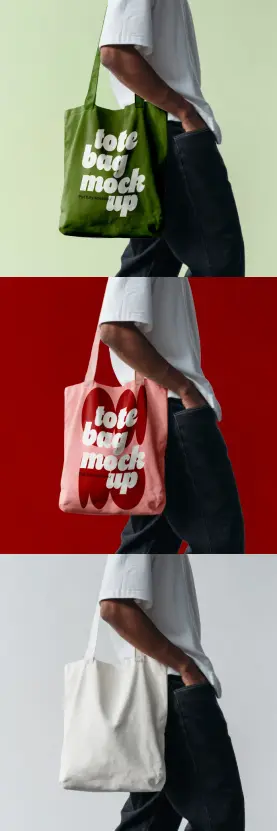
The mockup features a model holding a canvas tote bag against flat-color backgrounds. Three color variations ship with the file: an olive green version, a dusty pink with a bold graphic overlay, and a clean, off-white neutral. Each variation sits against a matching backdrop—sage, crimson, and light gray—giving you three fully styled, camera-ready scenes in a single download. That kind of art-directed coherence rarely comes packaged this efficiently.
So why does a tote bag mockup PSD like this matter right now? Because the merch economy is booming, independent brands are launching faster than ever, and the gap between a brand that converts and one that doesn’t often comes down to presentation. A flat lay on a white table no longer cuts it when your competitor is showing their design on a body in context with real fabric texture and natural shadow.
Download the mockup from Adobe Stock Please note that this mockup requires Adobe Photoshop. The latest version can be downloaded from the Adobe Creative Cloud website; visit this link.
High-res Photoshop Tote Bag Mockup by mego-studio.
Download the mockup from Adobe Stock What Makes This Photoshop Tote Bag Mockup Different From Generic Templates?
Most free mockups online share a recognizable problem: they look like mockups. The lighting is too even, the angle is too predictable, and the bag looks like it was photographed in a vacuum. This mego-studio file avoids that trap entirely.
The photography itself carries creative intent. The model’s torso, cropped just below the shoulder and above mid-thigh, puts the tote at the visual center without distracting with a face. The white oversized tee and dark denim create a styling context that reads as contemporary streetwear without being trend-dependent. It works for a coffee brand, a bookshop, a fashion label, or a graphic artist selling prints.
Furthermore, the resolution is a genuine differentiator. At 3072 × 3072 pixels, this file handles print-quality output without degradation. You can zoom in, export at high DPI, and hand the file directly to a print vendor. That matters enormously when you’re working across both digital and physical deliverables for the same client.
The Resolution Standard: Why 3072 × 3072 Pixels Changes the Workflow
Resolution is one of those specs designers mention in briefs but rarely think about until something goes wrong. When a mockup ships at 72 DPI and 800 pixels wide, it looks fine on a phone screen. But export it for a pitch deck, a printed lookbook, or a trade show display, and it falls apart immediately.
This high-resolution tote bag mockup runs at 3072 × 3072 pixels. That gives you a square-format file large enough to crop for Instagram, resize for presentations, export for digital ads, and still have room for print use. The fabric texture, the shadow beneath the handles, the gentle wrinkle along the bag’s lower panel—all of it holds at close range.
Consider this a baseline expectation for any professional mockup workflow. If your mockup can’t survive a zoom-in, it can’t survive client review.
How to Use This Tote Bag Mockup in Photoshop
Opening the file reveals a layer structure built around Smart Objects. That is the core mechanic that makes this mockup fast to use. You do not need to manually distort, warp, or mask your design. The Smart Object handles all of that automatically once you drop your artwork in.
Here’s the practical sequence. Open the PSD file in Photoshop. Locate the Smart Object layer in the Layers panel—it will typically be labeled something like “Your Design Here” or have a small icon indicating an embedded layer. Double-click it. A new Photoshop window opens. Paste or place your design into that window. Save and close it. Photoshop applies your artwork to the tote bag automatically, wrapping it to the fabric surface with the correct perspective, shadow, and texture overlay already baked in.
Additionally, changing the bag color takes roughly ten seconds. The file includes color layers you can adjust directly using a Hue/Saturation adjustment layer or by modifying the fill layer’s color value. Want the bag in navy? Adjust the hue slider. Want it in terracotta? Same process. You never need to rephotograph anything.
Placing Your Design: A Step-by-Step Smart Object Workflow
Step one: open the PSD in Photoshop CS6 or later, or in any recent version of Adobe Photoshop. Step two: find the designated Smart Object layer in the Layers panel. Step three: double-click the Smart Object thumbnail to open the embedded document. Step four: place your artwork—an EPS, PNG, AI, or JPG file all work—into the Smart Object window. Step five: scale and position your design to fit the canvas. Step six: save the Smart Object window using Command+S or Ctrl+S. Step seven: return to the main PSD. Your design now appears on the tote bag, correctly mapped to the fabric surface.
That entire process takes under two minutes for an experienced designer. For someone newer to Photoshop, it still takes under five. The learning curve is almost nonexistent because the file does the technical work for you.
Three Color Scenes and What Each One Communicates
Color in mockup photography isn’t decorative—it’s editorial. Each of the three scenes in this file sends a different visual signal, and choosing the right one for your presentation context is a small but meaningful decision.
The olive green version against the sage background reads as organic, calm, and contemporary. It suits brands in the wellness space, independent bookshops, sustainable fashion labels, or anyone whose visual identity leans toward earthy, muted tones. The color feels considered rather than loud.
The dusty pink version against the crimson background is the boldest of the three. The high-contrast pairing creates visual energy that stops a scroll. Use it when you want the mockup itself to generate engagement, not just serve as a neutral container for your design. This scene is ideal for social media posts, portfolio thumbnails, and anywhere you need immediate visual impact.
The off-white version against the light gray background is the utility scene. It reads as clean and neutral, making your design the only variable in the frame. Use it for client presentations, lookbooks, and any context where you want the product to speak without the background competing.
The Contextual Staging Framework: Matching Scene to Brand Voice
Here’s a framework I’d call Contextual Staging: Before choosing a mockup scene, identify the dominant emotional register of the brand you’re presenting. Is the brand warm or cool? Bold or restrained? Narrative or functional? Match the mockup’s color scene to that register rather than defaulting to whichever version looks most impressive in isolation.
A bold brand paired with the neutral gray scene feels deflated. A quiet, refined brand placed in the crimson scene feels anxious. The mockup is not just a container—it is part of the brand communication. Treat it that way.
Why Lifestyle Mockups Outperform Flat-Lay Photography for Merch Brands
Flat lays have their place. They work well for product detail shots, e-commerce thumbnails, and technical documentation. But for brand storytelling and merch marketing, they consistently underperform against lifestyle imagery.
The reason is simple: people buy context, not objects. A tote bag held by a person in real clothes on a real body communicates how the product feels in daily life. It answers the implicit question every potential buyer is asking—”Can I see myself carrying this?” Flat lays cannot answer that question. Lifestyle shots can.
This is precisely why a lifestyle tote bag mockup PSD like this one creates stronger conversion potential than a folded-fabric version on a table. The model stance is relaxed, the composition feels casual rather than staged, and the whole image reads as something that could appear in a brand’s actual Instagram feed without looking like a mock-up at all.
The Authenticity Gap in Merch Presentation
Call it the Authenticity Gap: the visual distance between how a product looks in a mockup and how it looks in real life. Wide gaps create distrust. Tight gaps create confidence. The best mockups close that gap so completely that buyers don’t think about the mockup at all—they think about the product.
This file’s Authenticity Gap is narrow. The fabric drape looks physically accurate. The handle shadow falls correctly. The bag’s proportions are consistent with a real canvas tote. Accordingly, your designs placed inside it inherit that credibility. That is not a small thing when you’re trying to sell merch to a skeptical audience who has seen too many obviously fake renderings.
Who Should Use This Photoshop Tote Bag Mockup
The range of professionals this file serves is broader than it first appears. Graphic designers presenting merchandise concepts to clients use it to show work before production begins. Independent merch brands use it to sell designs before committing to a print run. Brand strategists use it in identity presentations to show how a logo translates to physical objects. Illustrators selling their work as products use it to build Shopify listings and social media content without ever ordering a physical sample.
Moreover, it works equally well for freelancers pitching single clients and for studios running multiple projects simultaneously. Because the Smart Object workflow is so fast, you can generate fresh mockup variations for different clients in minutes rather than hours. That speed has real economic value when you’re billing by the project.
Mockup Velocity: A Metric Worth Tracking
I want to introduce a concept worth adding to your workflow vocabulary: Mockup Velocity. This is the number of presentation-ready design variations you can produce per hour using a given mockup file. High Mockup Velocity means your files are well-structured, your Smart Objects are clearly labeled, and your resolution is high enough that you never need to regenerate for different output contexts.
This mego-studio file has high Mockup Velocity by design. Three scenes, one download, Smart Object editing, full-resolution output. If you’re running a design business, that efficiency compounds over time into real hours saved and more competitive project timelines.
Photoshop Tote Bag Mockup for Social Media: Format and Output Considerations
At 3072 × 3072 pixels, this file is natively square—a format that works perfectly for Instagram feed posts, product thumbnails, and digital ads. You do not need to crop or reframe anything for standard social output.
For Instagram Stories or TikTok thumbnails, extend the canvas and place the mockup image within a 9:16 frame. Furthermore, for LinkedIn posts, the square format works without modification. And for Pinterest, consider placing two or three mockup variations vertically to create a comparison pin that performs well with merch audiences.
Additionally, the high resolution means you can crop tightly for detail shots—the fabric texture, a close-up of your artwork on the bag—without losing quality. Those detailed crops often outperform full-product shots in engagement because they reward visual curiosity.
Export Settings for Maximum Versatility
Export the final mockup as a JPEG at 90% quality for web and social use—file size stays manageable and quality loss is imperceptible at normal viewing distances. For print or client delivery, export as a TIFF or high-quality PNG to preserve full resolution. For digital ads, a PNG with a transparent background version is useful if the mockup file supports layer isolation of the bag against a clean edge.
The Bigger Picture: Mockups as Brand Infrastructure
Here’s a perspective that doesn’t get enough attention in design discourse: mockups are brand infrastructure. Every time a client sees your design presented in a believable, well-lit, real-world context, they build confidence in both the product and in you as the designer who thought carefully about presentation.
Cheap mockups erode that confidence. They introduce visual noise—obvious compositing, mismatched lighting, unnatural fabric behavior—that makes the client focus on the container instead of the idea. Good mockups disappear. They let the design speak, and they let the designer look competent without having to explain anything.
This Photoshop tote bag mockup from mego-studio sits firmly on the right side of that line. The photography is editorial, the resolution is professional, and the editing workflow is fast enough to fit into real project timelines. That combination is harder to find than it should be, and it’s worth acknowledging when a file actually delivers on all three.
Prediction: The Mockup Standard Will Keep Rising
Clients are increasingly visually literate. They’ve seen enough polished brand content online that their baseline expectations for how a presented design should look have risen accordingly. Mockup quality that felt impressive in 2018 now reads as average. The files that differentiate designers in 2026 and beyond will be those that look indistinguishable from actual product photography.
That raises the bar for everyone in the ecosystem—mockup creators, designers, and clients alike. Files like this one are part of that upward pressure. They make it easier to meet the new baseline without investing in actual product samples, and that accessibility benefits independent designers disproportionately. Use that advantage.
Download the mockup from Adobe Stock Frequently Asked Questions
What software do I need to use this Photoshop tote bag mockup?
You need Adobe Photoshop. Any version from CS6 onward supports Smart Objects, which is the core feature this mockup relies on. The more recent your Photoshop version, the smoother the Smart Object editing experience will be, but even older versions handle the workflow without issues.
Can I change the bag color in this mockup?
Yes. The file includes editable color layers that let you adjust the bag’s color using Hue/Saturation adjustment layers or by modifying fill layer values directly. You can match the bag to any brand color without needing to rephotograph or recompose anything.
What resolution is this tote bag mockup PSD?
The file is 3072 × 3072 pixels, making it suitable for both high-resolution screen output and print applications. At that size, you can export for social media, digital advertising, lookbooks, and print presentations all from the same file.
How do I place my design onto the tote bag?
Double-click the Smart Object layer in Photoshop’s Layers panel. A new window opens where you place your artwork. Save that window, return to the main PSD, and Photoshop will map your design onto the tote bag automatically. The entire process typically takes under two minutes.
Is this mockup suitable for commercial use?
Licensing terms are set by mego-studio. Check the license documentation included with the file or review the terms on Adobe Stock. Most professional mockup files from established studios permit commercial use for client work and personal projects, but always verify before using a file in a commercial context.
Can I use this mockup for print-on-demand product listings?
Yes. The 3072 × 3072 pixel resolution is more than adequate for print-on-demand platforms, e-commerce product pages, and Shopify or Etsy listings. Export at high quality, and the image will display sharply across all standard display sizes.
What file formats can I place into the Smart Object?
Photoshop Smart Objects accept PNG, JPEG, EPS, AI, PDF, and native PSD files. Vector artwork placed as an EPS or AI file retains its sharpness regardless of how large you scale it within the Smart Object canvas, making vectors the preferred format for logos and typography-based designs.
Check out other professional graphic design templates here at WE AND THE COLOR.
#adobePhotoshop #AdobeStock #design #graphicDesign #mockup #photoshopMockup #toteBag Giorgetto

 WE AND THE COLOR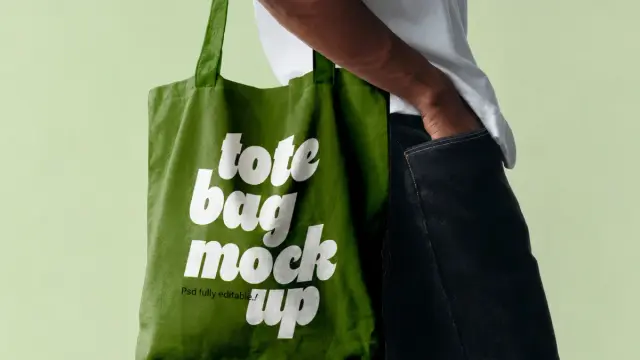
 Vladimir Savić
 Maria Catarina Esmeraldina
 The whale
 Tarots way
 WE AND THE COLOR
 Web Apps Magazine