 WE AND THE COLOR
This Customizable iPhone Mockup PSD File Is the Smartphone Template Designers Actually Need
Presentation is everything. You can design the most thoughtful app interface or the most beautifully crafted mobile website, and still lose a client pitch because the presentation felt flat. That’s not a design problem — it’s a context problem. And a well-crafted iPhone mockup fixes it instantly.
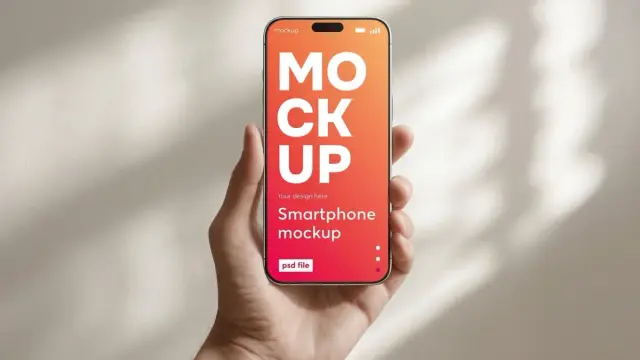
This particular Photoshop mockup does something most smartphone mockups don’t. It puts the device in a hand, under natural daylight, against a warm neutral wall with soft window shadows. The result is a scene that feels lived-in and real. Consequently, your design doesn’t just look finished — it looks believable.
So why does that matter so much right now? Because audiences have trained eyes. They spot an over-polished, sterile device that renders immediately. Meanwhile, contextual, human-centric visuals keep stopping thumbs on social feeds. This smartphone mockup is built for exactly that moment.
Download the mockup from Adobe StockPlease note that this mockup requires Adobe Photoshop. The latest version can be downloaded from the Adobe Creative Cloud website; visit this link.
A smartphone Photoshop mockup of a hand holding an iPhone in a daylight setting. Download the mockup from Adobe StockWhat Makes This Photoshop Mockup Stand Out From the Crowd?
Most iPhone mockup files give you a floating device on a gradient or a plain white background. Clean, yes. Memorable, rarely. This PSD takes a different approach entirely.
The composition centers on a hand holding the iPhone at a natural upright angle. Soft daylight streams in from the upper left, casting gentle window-frame shadows across the beige wall behind. The overall palette — warm cream, soft gold, natural skin tones — creates what I’d call Ambient Authenticity: a visual environment that reads as real without any distracting noise.
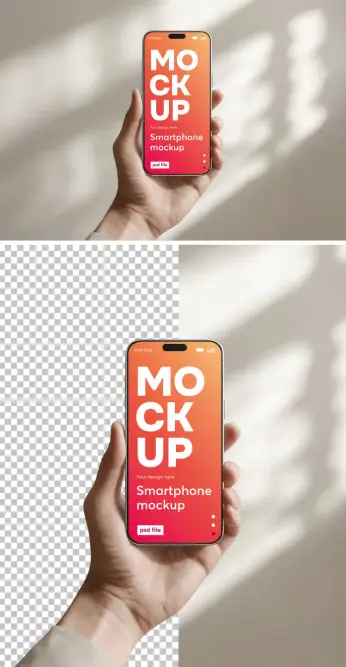
The file ships at 3500 × 2500 px, created by an Adobe Stock contributor. At that resolution, it holds up on retina displays, large-format print, and full-width website banners. Furthermore, the second version of the mockup comes with a transparent background, giving you full compositing flexibility. You can drop it onto any color, texture, or photograph you like.
The Photoshop Mockup File Structure
Open the PSD, and you’ll find a clearly labeled Smart Object layer. That’s your insertion point. Double-click the Smart Object thumbnail, and a new document opens. Place your design there — an app screen, a UI prototype, a wallpaper, a brand visual, anything that fits a smartphone screen. Then save and close. Photoshop updates the screen automatically, with all the natural lighting, shadows, and reflections intact.
The Smart Object system is the core reason this smartphone mockup workflow beats hand-building a comp from scratch. You place your design once, and the file handles everything else. The screen perspective, the subtle glare, the way light hits the bezel — all of it is baked in. You don’t touch it.
Why a PSD Mockup Beats AI-Generated Device Compositions
AI image generation is everywhere right now. Tools like Midjourney, Firefly, and DALL·E can produce device scenes in seconds. So why bother with a Photoshop mockup at all?
Here’s the honest answer: precision. When you generate a smartphone composition with AI, you’re making educated guesses. You describe what you want, and the model interprets it. Sometimes that’s close. Often it isn’t. The screen content is almost always wrong — blurry, garbled, or invented. Typography doesn’t render correctly. UI elements get distorted. Aspect ratios rarely match your actual design file.
With this iPhone mockup PSD, what you place is what you get. Your design appears exactly as intended, at full sharpness, at the correct proportions. There’s no iteration loop of refining prompts and hoping the next generation is better. You open the file, insert your artwork, save, and done.
Introducing the Precision Placement Principle
I use the term Precision Placement Principle to describe the fundamental advantage of Smart Object-based mockups over AI-generated alternatives. The principle holds that creative control and output fidelity are inversely proportional to the interpretive distance between designer and result. In simpler terms, the more layers of interpretation between you and your final image, the less accurate your result. A PSD mockup removes those layers entirely.
This isn’t a knock on AI tools — they’re genuinely useful for mood boarding and rapid ideation. But for a client deliverable, a portfolio piece, or a social media post that represents your actual work, the Precision Placement Principle applies. You need the real thing on screen, not an AI’s best guess at it.
How to Add Your Design to the iPhone Mockup Screen
The process is fast, even if you’ve never worked with Smart Objects before. Follow these steps, and you’ll have a polished result in under five minutes.
Step One: Open the PSD File
Launch Photoshop and open the downloaded file. The Layers panel will show a clearly labeled Smart Object layer — usually named something like “Your Design Here” or “Screen.” That’s the only layer you need to interact with.
Step Two: Open the Smart Object
Double-click the Smart Object thumbnail in the Layers panel. A new document opens — this is the screen canvas. It shows the exact dimensions your design needs to fill.
Step Three: Place Your Design
Drag your artwork, app screenshot, or UI design into this canvas. Resize it to fill the area. Keep your design within the guides if any are provided. Then go to File → Save (not Save As). Close this canvas.
Step Four: Review the Result
Photoshop instantly updates the mockup with your design embedded in the screen. The lighting, reflections, and shadows all apply automatically. If anything looks off, go back to the Smart Object and adjust. Export the final file as a PNG or JPEG at full resolution.
The whole workflow is non-destructive. Your original design file remains untouched. You can swap in different screen designs as many times as you need.
Smartphone Mockup Use Cases: Where This File Earns Its Place
This iPhone mockup isn’t a one-trick asset. The combination of high resolution, transparent background option, and natural lighting makes it versatile across a wide range of professional contexts.
App Design Portfolios
UX and UI designers need context shots for their case studies. A raw screen recording or flat screenshot doesn’t communicate the same experience as seeing your interface in a real hand, in a real environment. This mockup solves that immediately.
Client Presentations
Showing a client their new mobile website or app design in a hand-held context builds confidence. It removes the cognitive gap between “here’s what the screen looks like” and “here’s how this actually feels to use.” Additionally, it signals professionalism at every touchpoint of the pitch.
Social Media and Marketing Visuals
The warm, editorial quality of this scene works exceptionally well on Instagram, Pinterest, and Behance. The natural lighting and human element create visual warmth that performs consistently well in feeds. Furthermore, the transparent background version lets you place the device over branded backgrounds without any masking work.
App Store and Product Page Graphics
Apple’s App Store and Google Play both benefit from device lifestyle shots alongside flat screenshots. This smartphone mockup gives you that lifestyle context without requiring a photography setup or hiring a hand model.
What the Lighting Actually Does for Your Design
It’s worth spending a moment on the photography itself. The light in this mockup isn’t generic studio lighting. It’s a specific quality of indirect daylight — the kind you get in a bright room with a window to one side, not direct sunlight. The result is soft, directional, and warm.
This matters for two reasons. First, it gives the scene a time-of-day quality that feels specific and real. Second, it creates gentle window-shadow geometry on the background wall, which adds visual depth without any visual noise. The shadows frame the device without competing with whatever you put on screen.
I call this the Environmental Credibility Effect: the phenomenon where realistic ambient light conditions cause viewers to accept a composed image as a genuine photograph, even when they know intellectually it’s a mockup. The effect increases trust in the design being presented, because it’s perceived as something already in the world rather than something hypothetical.
iPhone Mockup vs. Generic Smartphone Mockup: Does the Device Matter?
Short answer: sometimes. The iPhone’s design language is globally recognized. The pill-shaped Dynamic Island cutout at the top, the brushed aluminum frame, the precise bezel proportions — these signal “premium mobile device” to most audiences, regardless of their own phone brand. For apps targeting iOS users specifically, showing the design in an iPhone mockup is an obvious choice.
For broader audiences or cross-platform products, the specific device matters less than the quality of the presentation. A high-quality smartphone mockup with realistic lighting and a human hand will outperform a technically accurate but sterile device render every time. The human element is what makes the image land.
The Transparent Background Version: Full Compositing Control
One of the most practical features of this PSD is the transparent background variant. Remove the background, and you have a smartphone mockup you can place anywhere.
Want to position the phone over a branded gradient? Done. Over a textured paper background? Drop it in. Over an architectural photograph or a lifestyle shot? Completely achievable. The transparent version turns this from a standalone mockup into a compositing element that fits into any visual system you’re building.
This flexibility is something AI-generated images fundamentally can’t replicate. You can’t go back into a Midjourney output and remove the background without losing image quality and dealing with edge artifacts. With the PSD, the transparency is built in from the start.
How This Photoshop Mockup Supports Modern Design Workflows
Design workflows have accelerated significantly. Clients expect faster turnarounds. Social content cycles are shorter. Portfolio updates happen more frequently. In that context, any tool that reduces the time between “finished design” and “polished presentation” has direct business value.
This iPhone mockup PSD fits neatly into that reality. It’s a reusable asset. Once you own it, you can use it for every mobile project that fits the aesthetic. The Smart Object system means screen swaps take minutes, not hours. And the output quality is consistently high, regardless of how many times you use the file.
I think of high-quality PSD mockups as part of a designer’s Presentation Infrastructure — the set of assets, templates, and tools that make professional output fast and reliable. Just as a copywriter has go-to headline frameworks or a photographer has lighting presets, a designer needs a core set of mockup files that they trust and reach for repeatedly. This smartphone mockup earns that spot.
Downloading and Licensing This Mockup From Adobe Stock
This PSD file is available through Adobe Stock, created by a professional contributor. Adobe Stock licenses are clear and commercial-use friendly. When you download a file through Adobe Stock, you receive a license that covers use in client work, marketing materials, social media, and portfolio presentations.
Download the mockup from Adobe StockFor designers already on Creative Cloud, Adobe Stock integration is built directly into Photoshop. You can license and open the file without leaving the app. Furthermore, watermarked preview downloads are available before purchase, so you can test the composition with your own screen content before committing.
Frequently Asked Questions About This iPhone Mockup PSD
What resolution is this smartphone mockup?
The file is 3500 × 2500 px, making it suitable for large-format print, retina digital displays, and full-width website use.
Do I need advanced Photoshop skills to use this iPhone mockup?
No. Working with Smart Objects is a beginner-to-intermediate Photoshop skill. If you know how to open a file, double-click a layer, and save a document, you can use this mockup.
Can I use this Photoshop mockup for commercial client work?
Yes. Adobe Stock licenses cover commercial use. Always review the specific license terms at the time of download to confirm the scope of permitted use.
What’s the difference between the two versions of the mockup?
The file includes a version with the warm neutral wall background and a version with a transparent background. The transparent version gives you full compositing flexibility for placing the device over any background.
Why use this PSD over an AI-generated iPhone composition?
AI tools can’t accurately reproduce your specific design on a device screen. They interpret, approximate, and often distort UI content. This PSD places your exact design — at full fidelity — into a photorealistic context. The result is precise, repeatable, and professional every time.
What types of designs work best in this mockup?
App interfaces, mobile websites, wallpapers, brand identity screens, and UI prototypes all work well. Any design formatted to standard smartphone screen proportions will fit cleanly into the Smart Object.
Can I change the background color if I don’t want the warm wall?
Yes. Use the transparent background version and place it over any color, gradient, texture, or photograph in your own Photoshop document.
Is this the same as a smartphone mockup generator tool?
No. Online mockup generators are browser-based and typically export at lower resolutions with limited customization. This PSD gives you full native Photoshop control at high resolution, with all the compositing options that entail.
Check out other premium graphic design templates for professionals here at WE AND THE COLOR.
#AdobeStock #design #graphicDesign #iphone #iphoneMockup #mockup #photoshopMockup #smartphone #smartphoneMockup