Download a Professionally Designed Adobe InDesign Magazine Template With 36 Customizable Pages in CMYK
Graphic designers often start a magazine project the same way — a blank InDesign document, a ruler, and a quiet panic about the deadline. Tom Sarraipo decided that was unnecessary. His fully customizable Adobe InDesign magazine template in A4, built across 36 pre-designed pages in CMYK, challenges the default starting point directly. It arrives with structure, hierarchy, and print-readiness already locked in. All you bring is the content.
Editorial design has never been more accessible, yet the gap between “accessible” and “professional-grade” remains enormous. Moreover, this template sits precisely at that intersection. It doesn’t simplify the craft — it removes the setup friction so the craft can actually begin. That distinction matters enormously in a market where publishing timelines compress by the year.
Furthermore, this isn’t a template built for quick mockups. Tom Sarraipo designed it for real production environments, real print runs, and real editorial ambitions. Understanding why it works means understanding what professional magazine design actually demands — and why so many designers get it wrong before the first image is placed.
Download the template from Adobe Stock Please note that this template requires Adobe InDesign installed on your computer. Whether you use Mac or PC, the latest version is available on the Adobe Creative Cloud website—take a look here.
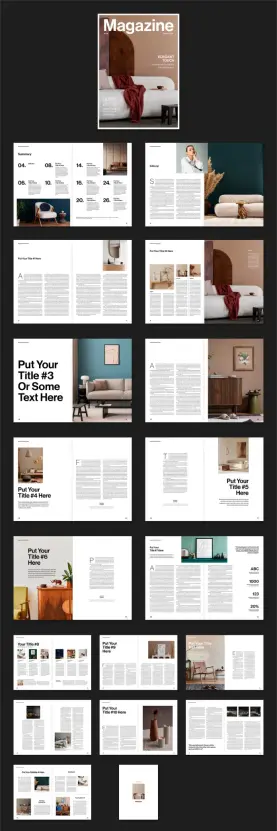
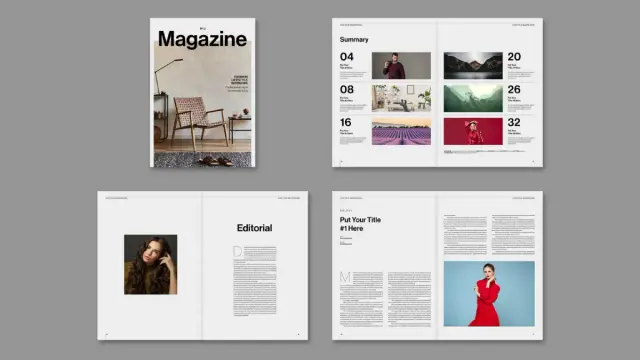
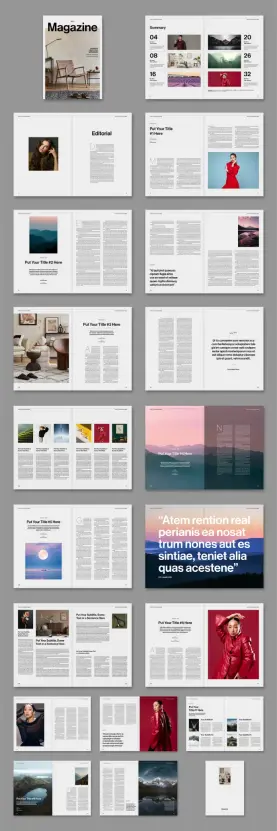
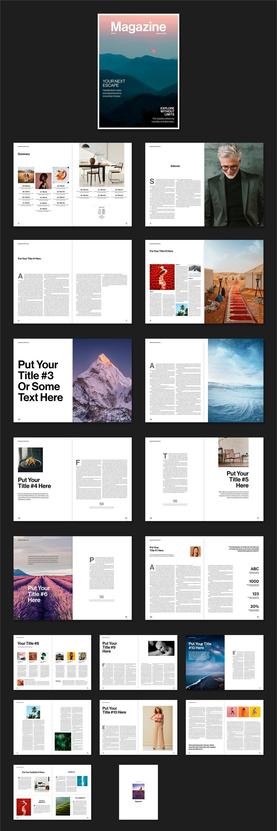
A customizable Adobe InDesign magazine template in A4 by graphic designer Tom Sarraipo with 36 pages in CMYK for professional printing.
Download the template from Adobe Stock What Makes This Adobe InDesign Magazine Template Stand Out From the Crowd?
The template market on Adobe Stock is crowded. Thousands of InDesign files claim professional quality. However, most of them share the same failure point: they look polished in screenshots and collapse under actual content. Sarraipo’s Adobe InDesign magazine template avoids this trap through what I’d call Structural Editorial Integrity — the principle that every design decision in a professional template must serve both aesthetics and production logic simultaneously.
The 36-page count is a deliberate choice. A standard magazine issue typically runs between 32 and 48 pages. This template lands squarely in the most versatile range. Additionally, it provides enough layout variety to carry a complete editorial concept without repeating compositions that wear out their welcome. Each spread brings something different while maintaining the same visual language throughout.
The A4 format reinforces that global production focus. It’s the standard for professional print publishing across Europe, Asia, and most international markets. Designing in A4 from the start eliminates reformatting headaches that plague projects built on US Letter or non-standard dimensions. For freelancers working with international clients, this choice alone saves billable hours.
The CMYK Commitment: Why It Changes Everything
Color mode isn’t a background detail. It’s a foundational production decision. This InDesign magazine template ships in CMYK — the four-channel color system that professional offset printers use. Consequently, every color value in the file translates accurately to ink without conversion surprises on press.
RGB-to-CMYK conversion is where unprepared layouts fall apart. Designers working in RGB all day often don’t realize that vibrant screen colors shift significantly once converted for print. Blues become murkier. Certain greens shift toward yellow. Highly saturated hues lose their punch. Therefore, building a template natively in CMYK isn’t just good practice — it’s the difference between delivering what the client approved and explaining why the printed piece looks different.
Sarraipo eliminated that conversation entirely. The bleed areas are already configured, too. This prevents the white-edge problem that appears when trimming printed pages with imprecise margins. For designers working toward press-ready PDFs, these pre-configured settings represent hours of technical preparation already completed.
36 Pages Designed Around Narrative Pacing
A well-designed magazine doesn’t just present content. It controls the reader’s energy across an entire reading session. Page-turn rhythm, spread composition, and the balance between image-heavy and text-heavy pages all contribute to what I call Editorial Pacing Architecture — the invisible force that keeps readers engaged from the cover to the back page.
This template demonstrates that principle across all 36 pages. You’ll find bold full-bleed spreads positioned to create visual impact after dense editorial sections. Text columns alternate between single and multi-column configurations, preventing monotony while sustaining readability. The hierarchy shifts intentionally from page to page, yet the overall visual language stays coherent.
That coherence is the hard part. Anyone can make a beautiful spread. Maintaining that quality across 36 consecutive pages — while accommodating wildly different content types — requires a systemic approach to grid logic that most template designers simply don’t invest in. Sarraipo did.
Who Should Actually Use This InDesign Magazine Template?
The honest answer is: far more people than the obvious ones. Yes, this Adobe InDesign magazine template suits editorial designers working on lifestyle, fashion, or travel publications. But the structural versatility reaches well beyond those categories.
Corporate communications teams produce annual reports, internal magazines, and brand publications that require the same visual sophistication as consumer press titles. This template handles those use cases efficiently. The grid is strong enough to carry dense information design without becoming chaotic.
Consider these specific applications where this template delivers immediate value:
- Fashion and lifestyle magazines — The template’s modern minimalist sensibility aligns naturally with editorial fashion aesthetics. White space usage and typographic hierarchy mirror the visual language of leading style publications.
- Travel publications — Full-bleed image layouts accommodate destination photography beautifully. The multi-column text sections handle long-form travel writing without visual fatigue.
- Brand and corporate magazines — Companies publishing client-facing or internal editorial content benefit from the professional grid system without requiring a dedicated editorial design team to build it from scratch.
- Portfolio publications — Creative agencies and independent designers producing printed portfolio books find that the layout logic maps directly to project presentation needs.
- Academic and cultural journals — The typographic hierarchy supports long-form editorial content while maintaining visual engagement across extended reading sessions.
- Food and design publications — The versatile image placement system accommodates everything from product photography to architectural imagery without restructuring the underlying grid.
The common thread across all these applications is the need for professional structural design without the time investment of building it from the ground up. This template answers that need precisely.
How to Edit This Adobe InDesign Magazine Template
The editing process is intentionally accessible. Everything visible in the preview — photographs, headlines, body copy, graphic elements — functions as a placeholder. Tom Sarraipo designed the file so that customization requires no restructuring of the underlying architecture. You work within the system, not against it.
Here’s how a practical editing workflow unfolds with this InDesign magazine template:
Step One: Replace the Placeholder Images
Every image frame in the template uses InDesign’s content placeholder system. To swap an image, simply right-click the frame and select “Place” or use the keyboard shortcut Cmd/Ctrl + D. Navigate to your image file and confirm the placement. InDesign automatically fits the image within the pre-defined frame dimensions.
Additionally, use the Content Fitting options to control how your image fills the frame — whether it fills proportionally, fits within boundaries, or centers in the frame. These options appear in the Object menu under “Fitting.” The pre-defined frame proportions in this template were chosen to work with standard photographic aspect ratios, so most professional photography drops in without awkward cropping.
Step Two: Update Typography and Text Styles
Tom Sarraipo built the template with pre-configured Paragraph Styles and Character Styles. These are the backbone of professional InDesign typography. You find them in the Paragraph Styles panel (Window > Styles > Paragraph Styles). Every headline, subheading, pull quote, and body text block links to a named style.
To adjust typography globally, edit the style definition rather than individual text blocks. Double-click the style name in the panel, change the font, size, leading, or tracking, and confirm. InDesign updates every instance of that style across all 36 pages simultaneously. This approach makes brand-level typography changes a two-minute task rather than a multi-hour manual update across every spread.
Step Three: Adjust Colors to Match Your Brand
The Swatches panel holds all defined colors used throughout the template. To shift the entire publication to a different color palette, edit the swatches directly. Double-click a swatch, input your new CMYK values, and InDesign propagates the change across every linked element. Because the template runs natively in CMYK, your new values translate directly to accurate print color without conversion.
Furthermore, the layer structure separates design elements, text, and backgrounds. This makes color targeting more precise. You can isolate specific layers to adjust accent colors without affecting background fields or typographic elements.
Step Four: Add, Remove, or Reorder Pages
The 36 pages aren’t locked in sequence. The Pages panel (Window > Pages) lets you drag page thumbnails to reorder spreads. To add pages, you can duplicate existing ones or create new pages based on the included Master Pages. To remove content you don’t need, simply delete those pages from the panel. The modular design ensures the publication maintains visual coherence regardless of the page order you choose.
Why Adobe InDesign Remains the Industry Standard for Magazine Design
Every few years, a new tool claims to challenge InDesign’s position in professional publishing. So far, none have. The reasons are structural, not sentimental — InDesign does specific things that no competing software matches at the production level required for professional print magazine design.
The most critical advantage is the Master Page architecture. Masters in InDesign function as layout templates that propagate structural elements — running headers, page numbers, margin guides, recurring graphic elements — across an entire publication automatically. When you edit a master, every page based on that master updates instantly. For a 36-page magazine, this capability is transformative.
Paragraph and Character Styles provide the typographic equivalent. Rather than manually formatting each text block, styles define formatting rules that apply globally. This is how professional publications maintain typographic consistency across hundreds of pages without human error creeping into the spacing between an em-dash and the word that follows it.
Pre-flight and Print Production Tools
InDesign’s pre-flight system actively monitors your document for production errors as you work. Missing fonts, overset text, low-resolution images, and color space mismatches all appear in the pre-flight panel in real time. By the time you export to PDF, the file is already validated. This built-in quality control is something no browser-based or simplified layout tool can replicate.
The PDF export options in InDesign are equally significant. The software produces press-ready PDFs with embedded color profiles, accurate bleed marks, crop marks, and registration targets — everything a commercial printer needs to run a job without additional file preparation. Moreover, the same document can be exported as an interactive PDF for digital distribution with hyperlinks, embedded media, and form fields active.
Long Document Management
InDesign handles book-length documents through the Book panel, which links multiple InDesign files into a single continuously paginated publication. For a magazine that grows across issues, this means individual issue files can link together for consistent numbering and shared style libraries across an entire publication run. No other desktop publishing tool manages this at InDesign’s level of precision.
Furthermore, InDesign integrates directly with Adobe Fonts, giving designers access to thousands of professional typefaces without licensing complications. The template already uses fonts from this library, so activating them requires only an active Adobe Creative Cloud subscription — no additional purchases, no manual font installation.
The Sophisticated Layout Logic Behind This Magazine Template
Great editorial design looks effortless. The effort is in the structure you don’t notice. Tom Sarraipo’s Adobe InDesign magazine template operates on what I define as the Invisible Grid Principle — a layout system where the mathematical precision of the underlying grid disappears completely behind the emotional experience of the content.
The column structure varies across different section types in the magazine. Feature spreads use wider single columns or asymmetric two-column grids that create visual tension without instability. Department and news sections shift to tighter three-column structures that increase information density while maintaining order. These transitions feel natural because the underlying baseline grid remains constant throughout.
Whitespace as a Design Element, Not an Absence
Amateur layouts fill space. Professional layouts use space. This template demonstrates that distinction across every spread. Generous margins, deliberate paragraph spacing, and image frames that don’t always fill their maximum possible area all contribute to a reading experience that feels considered rather than crammed.
This approach reflects the visual language of high-end lifestyle and fashion publishing. Brands like Vogue, Monocle, and Kinfolk built their visual identities partly on the confidence to leave space empty. The reader interprets that restraint as editorial authority. By using this template, you inherit that same visual logic and the authority it communicates.
Typographic Hierarchy That Guides Without Commanding
The type system in this InDesign magazine template uses contrast rather than decoration to create hierarchy. Headline sizes shift dramatically between section types. The ratio between headline size, subheading size, and body text size follows proportional relationships that produce natural visual flow.
Pull quotes and callouts use the same typeface family as the body text but shift weight and scale to create emphasis without introducing visual noise. This internal typographic economy — using fewer typeface choices with more variation in weight, size, and tracking — is a hallmark of sophisticated editorial design and a principle Sarraipo applies consistently across all 36 pages.
From Adobe Stock to Your Printer: The Complete Workflow
Acquiring and deploying this template follows a straightforward path. The file is available through Adobe Stock, accessible directly within InDesign via the Libraries panel or through the Adobe Stock website. An Adobe Stock subscription or single-purchase license gives you the INDD file and typically an IDML file for compatibility with earlier InDesign versions.
Once you open the file, the pre-flight panel gives you an immediate overview of the document’s technical status. Replace placeholder images with your own photography, update text using the defined paragraph styles, adjust the color swatches to match your brand palette, and export via File > Export > Adobe PDF (Print) using the PDF/X-4 preset for professional printing.
The entire process — from opening the template to a press-ready PDF — can realistically be completed in a fraction of the time required to build an equivalent layout from scratch. For agencies billing time against editorial production, this template isn’t just a design asset. It’s a financial decision.
Print-Ready Magazine Design: The Terminology You Need to Know
Working with a professional Adobe InDesign magazine template introduces production vocabulary that matters for communicating with printers and understanding the file you’re working in. These aren’t technical obscurities — they’re practical concepts that directly affect the quality of your printed magazine.
Bleed refers to the extra artwork that extends beyond the intended page trim edge. When a commercial printer cuts pages to their final size, the blade can shift slightly. Bleed — typically 3mm on all sides for European print standards — ensures no white edges appear at the trim line, even with minor cutting variation. This template has bleed pre-configured.
Safe Zone is the interior margin where critical text and design elements should remain. Content placed too close to the trim edge risks being cut off. The template’s margin system already defines this zone visually.
PDF/X is the ISO standard for PDF files destined for professional print production. PDF/X-4 is the current preferred format for most commercial printers. InDesign exports to this standard directly from the Export dialog. The CMYK color mode of this template ensures that export produces accurate, predictable color output.
My Honest Take on This Template
I’ve reviewed a lot of InDesign templates. Most of them fall into one of two failure modes: either they look impressive in the preview and break immediately when you replace the placeholder content, or they’re technically solid and aesthetically forgettable. Sarraipo avoids both.
What strikes me most about this Adobe InDesign magazine template is its editorial intelligence. The page sequencing demonstrates an understanding of how a reader experiences a publication from front to back — not just how individual spreads photograph well. That’s a rarer quality than most template buyers realize, and it only becomes apparent when you actually start working with the file.
The CMYK commitment signals production experience. Designers who’ve done professional print work know the value immediately. For those newer to print production, it’s one of the most protective decisions a template can make on your behalf. You won’t discover a color shift at the printer’s proof stage — which is exactly when you can’t do anything about it.
My one caveat: this template demands Adobe InDesign. There’s no Canva version, no Google Slides export. If your workflow doesn’t include InDesign, look elsewhere. But if you’re working in InDesign and you’re approaching a magazine project, this template justifies its price point immediately — likely within the first hour of working in the file.
Download the template from Adobe Stock Frequently Asked Questions About This Adobe InDesign Magazine Template
What software do I need to use this magazine template?
You need Adobe InDesign to open and edit the file. The template works best with a current Adobe Creative Cloud subscription. An IDML file is typically included for compatibility with older InDesign versions, including CS4, CS5, and CS6. You don’t need Photoshop or Illustrator to customize the core layout, though those applications help if you’re editing imported graphics before placing them.
Are the photos in the preview included in the download?
No. All photographs and images visible in the preview are placeholder images for display purposes only. They show how the template looks with professional photography, but are not part of the downloadable file. You replace them with your own images, licensed stock photography, or client-supplied assets after purchase.
Can I change the page count beyond the included 36 pages?
Yes. You can add pages by duplicating existing layouts from the Pages panel or by creating new pages based on the included Master Pages. You can also delete pages you don’t need. The modular design maintains visual coherence regardless of the final page count you choose, provided you keep page counts in multiples of four for standard print binding.
Is this template suitable for digital publishing as well as print?
The template’s primary specification targets professional print output in CMYK. However, you can export the completed document as an interactive PDF for digital distribution. The typographic hierarchy and layout logic translate effectively to screen reading. For dedicated digital-first publishing, some color mode adjustments toward RGB may improve screen color accuracy.
Can I customize the fonts and colors in this InDesign magazine template?
Yes, fully. The template uses Paragraph and Character Styles for all typography and a Swatches panel for all defined colors. To change fonts globally, edit the relevant Paragraph Style definition, and InDesign updates every instance across all 36 pages simultaneously. To shift the color palette, edit the CMYK values in the Swatches panel, and all linked elements update automatically throughout the document.
What types of publications is this template best suited for?
The template suits lifestyle, fashion, travel, food, design, and culture magazines most naturally. However, its structural flexibility also serves corporate brand magazines, annual reports, portfolio publications, academic journals, and internal communications materials. Any publication requiring 36 pages of professionally structured editorial design benefits from this starting point.
Where can I purchase or license this Adobe InDesign magazine template?
The template is available through Adobe Stock, either via a subscription plan or as a single-asset license. You can access it directly within InDesign through the Libraries panel’s Adobe Stock integration, or by searching for Tom Sarraipo’s contributor portfolio on the Adobe Stock website. Creative Cloud subscribers with an Adobe Stock plan may be able to apply subscription credits toward the license.
Do I need advanced InDesign skills to work with this template?
Intermediate InDesign familiarity is the practical minimum. You should understand how to place images, work with text frames, use the Paragraph Styles panel, and navigate the Pages panel. Advanced InDesign skills aren’t required to customize the existing layouts, though they become valuable if you want to significantly restructure individual spreads or add custom Master Page variants beyond what’s included.
Check out more reviews of high-quality graphic design assets in the Templates category here at WE AND THE COLOR.
#AdobeStock #design #graphicDesign #InDesignTemplate #magazineDesign #magazineLayout #magazineTemplate DotPack
 WE AND THE COLOR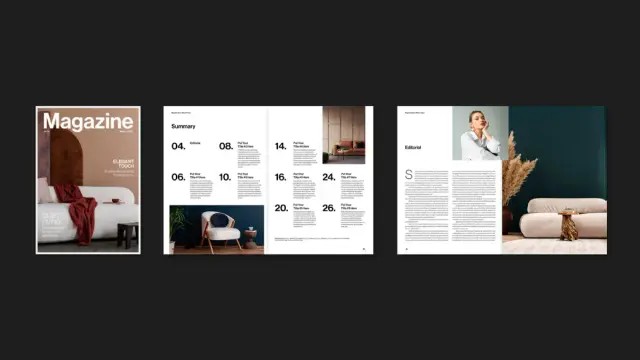
 WE AND THE COLOR

 Stephan Teuscher