Moritz Negwer

1,090 Followers
2.9K Following
15.1K Posts

Neuroscientist by training, tinkerer by nature. Now scanning transparent mouse brains with light-sheet microscopes. Microscopy, clearing, data crunching, tinkering.

Working as postdoc at @radboudumc with Nael Nadif Kasri and Corette Wierenga, looking at neuron-distribution differences in mouse models of ASD.

Married, father of two. Toots in English, German, Dutch. Boosts a lot.

opted into tootfinder for full-text indexing. Check it out: https://www.tootfinder.ch/index.php?join=1

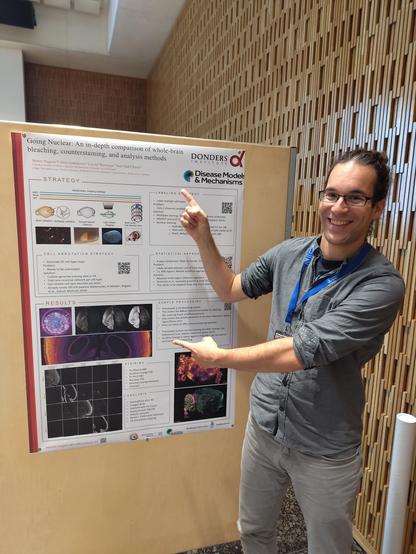
This week I had the pleasure of attending the #MesoSPIM Symposium in Zürich, Switzerland - and what an experience it's been! Top-notch presentations, great posters and great chats with my fellow #lightsheet #microscopy and #tissueclearing nerds. You know it's a good conference when you come back with a full notebook and a head fizzing with ideas on what to do next.
I could make the night train journey there thanks to @Co_Biologists's DMM Conference Travel Grant - much appreciated!
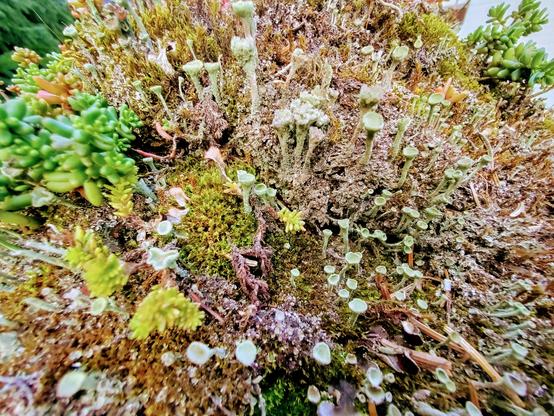
Spotted: assorted #Mosstodon and #LichenSubscribe growing on top of a house-style bird feeder, in a layer thicker than the original roof.

@SafeguardingResearch @hazel

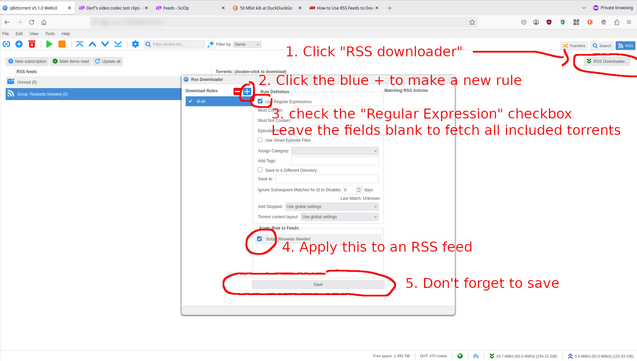
24) To automatically keep downloading any torrent that gets added to the RSS feed, click "RSS Downloader" on the very right side.
Then, create a new rule by clicking the blue + in the pop-up.
Then select the new rule, check the "Use Regular Expression" checkbox, and leave the fields below blank. This will mean that any torrent in the feed gets auto-downloaded, now and in the future.
Select the RSS feed you just added, and click "Save" to apply this rule.

@SafeguardingResearch @hazel

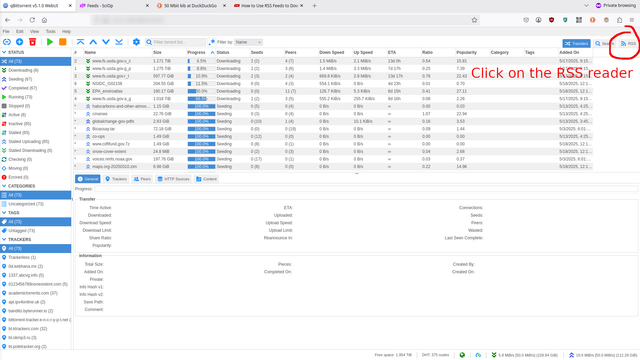
22) Then click on the RSS logo to the very right side at the top of the web interface. This takes you to the RSS reader.

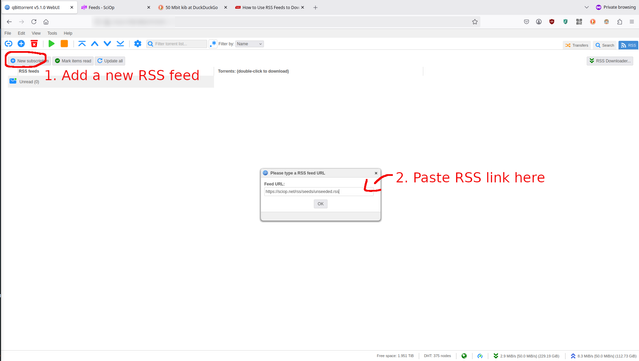
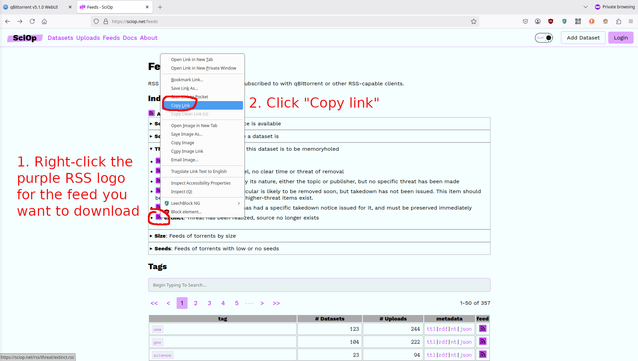
23) Click on the "New Subscription" button on the left. Then, paste the RSS feed link from https://sciop.net/feeds into the popup field and click "OK"

Feeds - SciOp

Preserving Public Information

@SafeguardingResearch @hazel

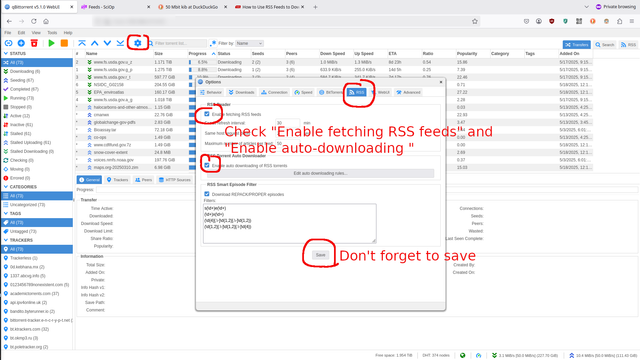
23) In the qbittorrent webUI, go to Settings -> RSS, and check the "Enable fetching of RSS feeds" and "Enable auto-downloading of RSS torrents" checkboxes. Don't forget to hit Save to make the changes stick.

@SafeguardingResearch

21) Much easier way to add torrents via RSS feeds, with thanks to @hazel for pointing this out. This is adapted from the following guide: https://www.makeuseof.com/tag/how-to-use-rss-feeds-to-download-torrents-easily-and-automatically/

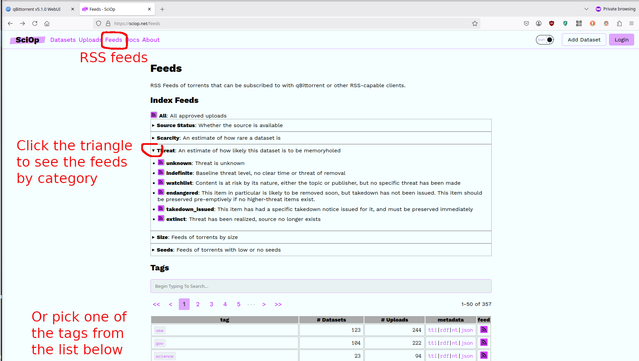
22) Skip steps 15-17. Instead, go to https://sciop.net/feeds and copy one of the RSS feeds that you think is interesting. The curated RSS feeds at the top are sorted e.g. by threat level (extinct, takedown_issued, etc), or whether there are few seeders. Otherwise, pick one of the tags from the list below.

How to Use RSS Feeds to Download Torrents Automatically

If you're looking to download torrents automatically, RSS feeds can be a great tool. Here's how to use RSS feeds to do just that.

MUO

@SafeguardingResearch

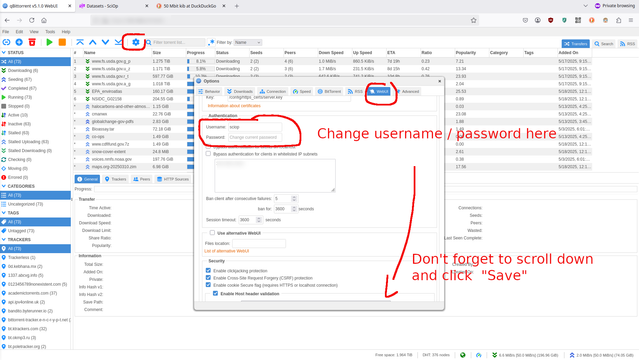
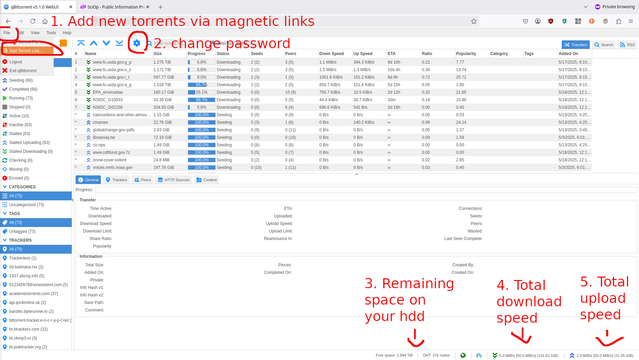
20) Optional optimalizations: If you want to change the web interface password, go to Settings -> WebUI and filling in the new user/password combo. Don't forget to scroll down and click "Save" to make the changes stick.

@SafeguardingResearch

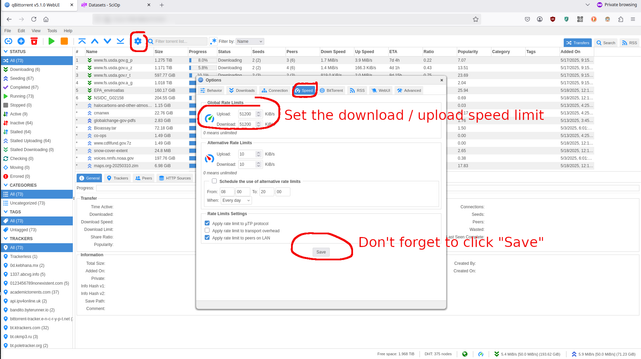
19) Optional optimalizations: If you want to change upload/download max speed, click the Settings symbol -> Speed -> Upload/Download speed. The speed is set to a rather high 50 MByte/s, i.e. slightly less than half a Gigabit connection. The speeds are denoted in Kibibit/s, you can convert the units to something more common by typing e.g. "50 Mbit kib" into e.g. https://duckduckgo.com

DuckDuckGo - Protection. Privacy. Peace of mind.

The Internet privacy company that empowers you to seamlessly take control of your personal information online, without any tradeoffs.

DuckDuckGo

@SafeguardingResearch

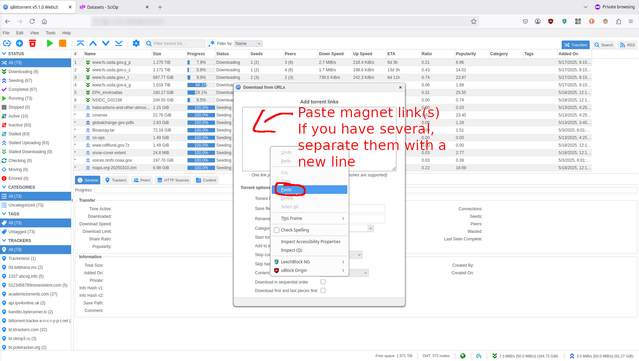
16) Back on the web interface, click File -> Add a torrent link and paste the magnet link into the box. You can add several magnet links at once if you enter each on a new line (=hit Enter between links).

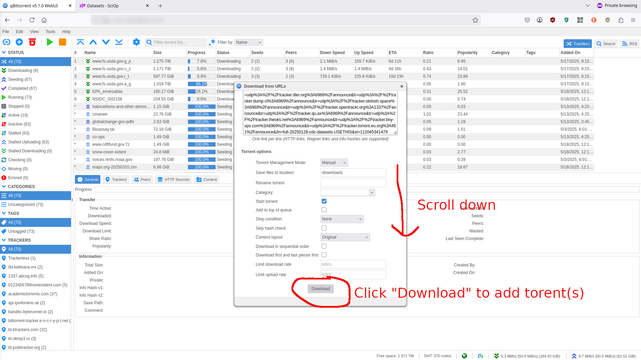
17) Scroll down and press the Download button. Now the qBittorrent program should start downloading and sharing the data.

@SafeguardingResearch

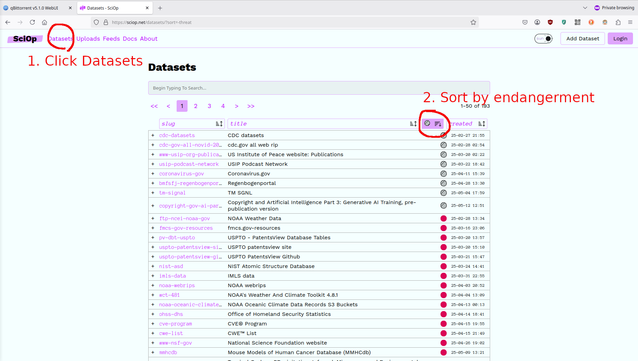
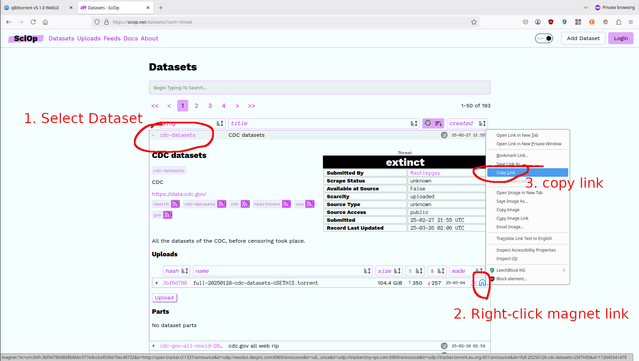
15) Add a torrent by copying the magnet link from sciop.net. You can sort the datasets by endangerment or by the number of other people seeding it.
https://sciop.net/datasets/?sort=-threat
Pick a dataset, right-click on the blue magnet and copy the link.

Datasets - SciOp

Preserving Public Information