 windowsCult
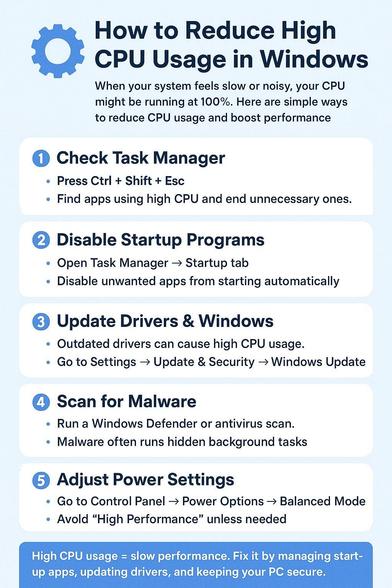
High CPU usage in Windows 11 usually means a process is using more CPU cycles than it should. It could be due to excessive background apps, pending Windows updates, corrupted system files, or high-resource processes like antivirus scans and indexers.
Fixes for High CPU Usage (Windows 11)
Restart Your PC: This is the quickest way to clear stuck processes and memory.
Use Task Manager: Press Ctrl + Shift + Esc, find processes with high CPU usage, right-click them, and select "End task".
Disable Startup Apps: In Task Manager, go to the "Startup apps" tab, right-click unnecessary apps, and select "Disable".
Update Windows & Drivers: Go to Settings > Windows Update to ensure you have the latest performance patches.
Check Power Settings: Search for "Choose a power plan" in the Control Panel, and select "Balanced" or "High Performance".
Scan for Malware: Run a full scan with Windows Defender, as viruses can cause high CPU usage.
Disable SysMain (Superfetch): Search for "Services," find "SysMain," right-click to stop it, which can reduce background resource usage.
Disable High Precision Event Timer: In Device Manager, find "High precision event timer" under System Devices, right-click, and disable it
@followers #HighCPU #Windows11 #windows10 #technology #techtips #tech #howto #TechGuide #computer #pc #100cpu