 Alice Averlong🏳️⚧️
anyone tried opening the magic file "con" from MS DOS Edit?
I was hoping for an editor but it turns out instead it happily opens it but then hangs forever
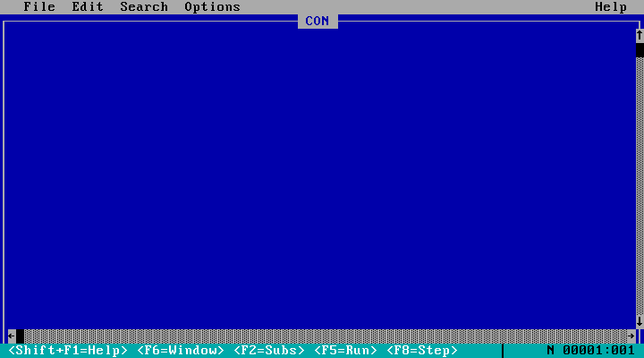
anyone tried opening the magic file "con" from MS DOS Edit?
I was hoping for an editor but it turns out instead it happily opens it but then hangs forever
weird punnet square of results:
EDIT hangs if you open "CON", but errors if you try "C:\CON\CON"
Win95 errors if you try to open "CON", but crashes if you try "C:\CON\CON"
@sabik it can't exist, you can't create a folder named "CON".
like, to this day. I just tried on windows 11, it told me no
@sabik @foone you don't even have to go that far; creating files having mounted the drive under linux is enough
most of the windows file name limitations are enforced at the Win32 API layer, not NTFS (or even FAT). which means some casual quoting in a linux shell can turn into trying to remember the \\?\ UNC path magic to deal with them under Windows.
...god, I wonder if WSL1 can also do it, since it's a kernel personality
@sabik @foone Yeah there we go. SystemRescueCD + WinXP VM, just needed to slip an era later.
Nothing crashes when I try to open it in Notepad, it just throws an "Access denied" MsgBox.
And trying to delete it shows the layer confusion (remember when people used standard MsgBox, so Ctrl-C worked?):
"Cannot delete CON: Cannot find the specified file.
Make sure you specify the correct path and file name."
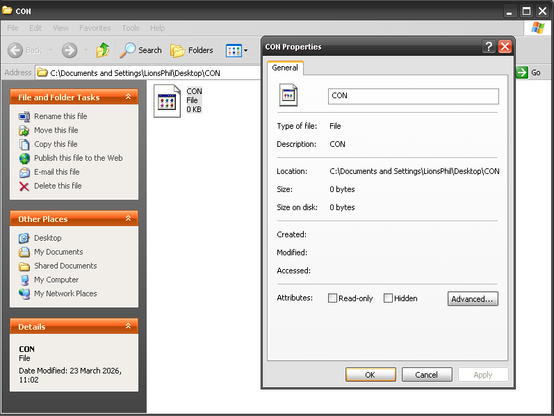
@foone @sabik alright I tried it myself
Notepad++ can’t open the resulting file, but interestingly, Microsoft’s own Notepad CAN?!?
PowerShell and cmd think none of this exists, of course (they can see it if you do a dir, but if you actually try to cd into it, it can’t find it)
Windows Explorer at least nowadays was able to delete it. I know I’ve done some horrendous WSL-enabled abuse of illegal filenames in the past, and could only destroy the evidence using WSL itself. (I had a file named “C:\” on my filesystem. I just tried it now, and it looks like Microsoft avoids this specific problem by re-encoding those characters to different Unicode codepoints - C is what it’s represented as in Win32 programs, so it’s just shoving the : and \ characters up into the U+F0xx private use space.)
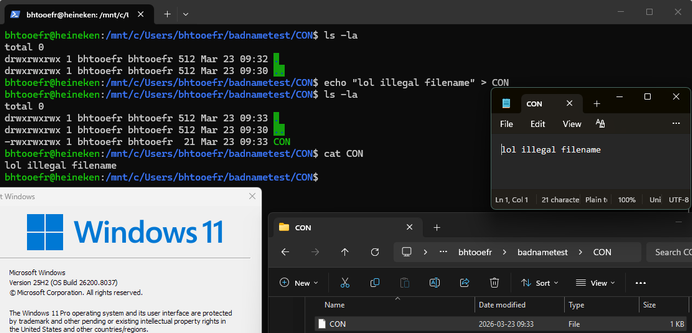
@foone @sabik the names are reserved by the Win32 API, but NTFS doesn't care, so it's possible to create the files by using \\?\ to specify the file I/O namespace, sending the filename directly to the filesystem.
This then causes grief for users because they can't delete the file or do anything with it. (Cygwin used to be the recommended way to fix this, but WSL works too. I think you can also use \\?\ in Terminal but who wants to learn Win32 namespaces just to delete a file)
@foone @sabik as others have pointed out, you can use the DOS device path syntax (\\?\C:\...\con) to create forbidden filenames. you can also just directly create them in powershell (not “Windows PowerShell”, but rather the open-source one that I think is officially called “PowerShell Core” but just calls itself “PowerShell”). it gets even wackier in Windows PowerShell though: as someone else pointed out, you can’t directly cd into it or anything, but you can cd \\?\C:\con, after which your working directory is Microsoft.PowerShell.Core\FileSystem::\\?\c:\con and anything that implicitly operates on the current directory doesn’t work anymore:
PS Microsoft.PowerShell.Core\FileSystem::\\?\c:\con> dir
dir : Cannot find path '\\?\c:\con' because it does not exist.
At line:1 char:1
+ dir
+ ~~~
    + CategoryInfo          : ObjectNotFound: (\\?\c:\con:String) [Get-ChildItem], ItemNotFoundException
    + FullyQualifiedErrorId : PathNotFound,Microsoft.PowerShell.Commands.GetChildItemCommand
 sabik
sabik LP🔸Light up the night
 bhtooefr
 curtmack
 Maia
Maia