 dotCody
Windows refuses to boot. Cannot boot from USB. Rare fresh install screen but no USB input. PNP Driver Watchdog error BSOD
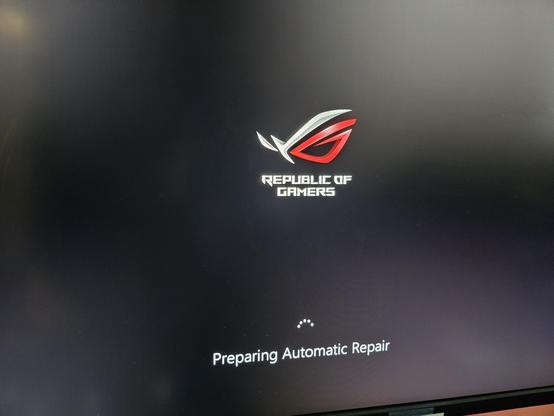
Windows refuses to boot. Cannot boot from USB. Rare fresh install screen but no USB input. PNP Driver Watchdog error BSOD
Well that’s your answer, you usually won’t get a normal Windows boot up with bad RAM. And if by some miracle Windows manages to make it to the desktop with bad RAM it’s just going to crash out sooner or later.
You’re not going to be able to do any Windows re-installs with bad RAM either.
The good news is that’s very unlikely all your RAM is bad. You have 4 sticks - this will take a bit of time but what you can do is take out all RAM sticks. Then install one stick, do a memtest run, if it looks okay take the stick out and repeat with each of the other 3 RAM sticks. That should give you an idea on which RAM stick(s) are bad, the bad ones just keep them aside and don’t re-install them.
After testing each RAM stick individually you can re-install all the good RAM sticks, do a final memtest run & verify it all works together (it should be fine at this point but sometimes you have to do multiple memtest runs to suss out bad RAM).
Once you remove all bad RAM your system should be able to boot into a Windows USB install and make it through the entire install normally. Or alternatively you can test if your current Windows 10 can fix itself once the RAM issue is resolved but there’s a good chance it’s pretty broken now.
See, it wasn’t that hard to run the test (it didn’t even take hours to find the errors). This could have saved you 10 days.
But good news, it’s DDR4, you can actually kinda get that.
(Or maybe even test individual sticks, maybe they aren’t both/all faulty, and just run single-channel what works.)
Edit: sorry, my bad, I didn’t see at first you mentioned that USB peripherals weren’t working at all, even in the installer. That’s very strange, it sounds like maybe electrical shorting? Have you installed the IO shield properly?
Unplanned power off suggests to me that it is likely that you have disk corruption. Boot into a Windows installer and go into the recovery mode, choose command prompt, and use the following tools:
chkdsk /f /r
bootrec /fixboot
X:
sfc /scannow
One of those should probably fix it, if that’s the case.
Consider installing a good operating system in the future :p and good luck!
We have been giving them this simple advice for 10 days now (they have several posts regarding this issue, you can look it up), they just disregard it.
(That and live-booting any OS from USB just for diagnostics.)
I will never understand people ignoring knowledgeable people that they specifically asked questions to but at least OP now has their answer.
Poor guy is now poor though if he has to replace ram.
Yeah.
Tho it’s DDR4 & maybe only one of four sticks went to memory heaven (so they are left with 48GB).
Sorry, I should have said downvote, it’s different :).
(I didn’t mean anything that bad by it, just that we do try to help & don’t really get feedback if it worked, which means we can’t help further/move from that point forward. Opening additional posts instead of finishing with what’s left in previous ones is more work for everyone, you included.)
If you’re at the “Preparing Automatic Repair” screen that means it skipped booting from USB and is trying to boot from internal drive with the messed up Windows install. Maybe try booting without any internal drives connected to see what it does, most computers would boot normally then complain there’s no boot device.
Also your earlier post mentions you are using an Asus ROG Crosshair Hero VIII Wifi motherboard so some other ideas…
Next time you’re in the BIOS I’d suggest making sure Q-Code is enabled (it should be by default but just in case) and probably disable Quick Boot if there’s an option, the boot process might be going too fast for you to catch a USB boot with F8.
Dunno if any of that helps but hopefully it does… good luck!
I know it’s not the ask, but sounds like there’s no better time to try Linux Mint.
That is provided you don’t have specific software that requires Windows.
If it’s not for you, that’s fine, and I don’t care if I can only help and convert 1 in 10 . It’s worth it.
If you have two sticks of RAM in there, take one out and try running with only one, then the other. Make sure you have the single stick in the correct slot for running on a single stick.
This also looks like a failing SSD/HDD. Corrupted boot sector or maybe total disk failure.
Worst case is the mobo is failing.
But none of my mice or keyboards work. They’ll work briefly for a few seconds and then stop. Nothing works to get them going again forcing me to shut down yet again.
This sounds like there’s a hardware problem with either the motherboard or CPU, or possibly the power supply. What motherboard model do you have? Is it one of the Asus models with a backup UEFI/BIOS storage? Does it have one of those 2-digit error code displays?
Is the failure with USB peripherals true for both the fixed USB ports on the back and front USB ports connected via one of the headers? Is it true for both USB 2 and 3 ports?
It’s possible that a bad component is shorting a signal on your board.
To troubleshoot:
The goal is to isolate the source of potential problems. You have to do it systematically. Rushing will make the troubleshooting worthless. Take notes.
When you have a moment, a list of the system hardware would be helpful. Also if you have the paper manual for the motherboard get it out.
I was all excited to help at first cuz I had a VERY SIMILAR ISSUE recently and it was the CMOS battery. I’ve never even had to THINK about a CMOS battery in all my years of computer work, and a machine of mine went from working normally to freezing on POST. No BIOS, no boot select, just froze. Tested the voltage of the battery, 1.4v! I put in a 15+ year old battery I had in another old machine and it booted up perfectly.
I’m sorry that’s not your issue. D: Best luck!
 Otherbarry
 bearboiblake
 Scrubbles
 teft
teft KairuByte
 🇸🇵🇪🇨🇺🇱🇦🇹🇪🇷