Time to set up a new MacBook!

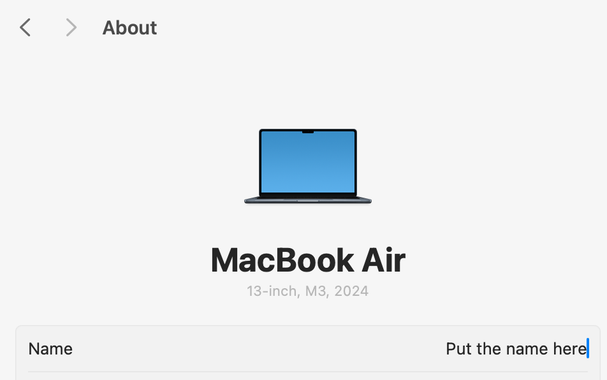
First, I rename the device. In System Settings, General, About, Name, click on the name and rename it.

This name shows up in lots of places like "Find My" devices, Spotify ("listening on <Name>"), Firefox Sync, Backblaze, when other people Airdrop files to me, remote login sharing, and more. Setting the computer name also sets the local hostname too (but dashified with .local appended).

- Kept it short for UI like Spotify tooltips.
- Avoided personal details like my real name for privacy in public places.
- Made it specific and recognisable to me, so I can identify it among busy networks in public and from other devices in my household.
#macos #infosec #DiSetsUpAMacBook 1/n

On a new MacBook it is useful to open TextEdit and make it tolerable. This lets me take down any notes until I have my real notes hooked up:

- Use Plain text not Rich text.
- Turn off "Correct spelling automatically".
- Turn off "Smart quotes" and "Smart dashes".
- Turn off "Text replacement".

Don't mess with my code snippets! It's also important to find Edit, "Spelling and Grammar", and turn off "Correct Spelling Automatically".

#autocorrect #PlainTextIsBest #DiSetsUpAMacBook 2/n

Some of my fave System Settings…

Keyboard Shortcuts: "Modifier Keys" to change Caps Lock to Escape, "Spotlight" to change its shortcut to ⌃Space.

Accessibility, Keyboard: "Sticky Keys", boop the unlabelled "i" icon to turn off beep, set 5-press toggle. Who has the energy to hold down keys?

Accessibility, Spoken Content: Speak selection, set system voice to Matilda (Premium). Premium voices are much nicer.

Accessibility, Display: set "Shake mouse pointer to locate" under "Pointer".

Accessibility, Zoom: set "Use keyboards shortcuts to zoom" and "Use scroll gesture with modifier keys to zoom"

Displays: turn off "True Tone" for design during the day, set "Night Shift" from sunset to sunrise (and increase warmth—I'm in Queensland after all).

Focus: set Do Not Disturb schedule.

Appearance: always show scroll bars (for web dev).

Control Centre: set "automatically hide and show the menu bar", toggle "Show in Menu Bar" on a bunch of items.

#macOS #accessibility #DiSetsUpAMacBook 3/n

Turn off some Systems Settings junk!

Keyboard: set Australian keyboard, punch "Edit" to turn off automagic text mangling: "Correct spelling automatically" (again), capitalisation, inline predictive text, full stop with double-space, smart quotes and dashes.

Sound: turn off "Play user interface sound effects", move "Alert volume" down to zero. Every sound warrants an instant "HOW DARE YOU" response.

Notifications: turn off "Allow notifications when the display is sleeping" & "Allow notifications when mirroring or sharing the display".

Trackpad: Point & Click, Look up & data detectors, off. Let me rage click without getting schooled by random dictionary definitions.

Desktop & Dock: turn off "Show suggested and recent apps in Dock" & "Close windows when quitting an application".

Wallpaper: set to something that doesn't move. Don't need seasickness every time I log in.

#macOS #DiSetsUpAMacBook 4/n

Time to download macOS monitoring tools e.g. LuLu or Little Snitch Mini, KnockKnock, BlockBlock, OverSight.

I set all of them to "no icon mode" because there's almost no reason to see or click them. It's a good way to get to know what's happening on my device. Or block capitalist surveillance.

#macos #infosec #KnowYourDevice #KnowYourEnemy #DiSetsUpAMacBook 5/n

Next I'll set up some apps and Apple stuff.

Sign into App Store Apple account and install all the purchased apps.

Remove useless dock items, organise items, set Keep in Dock, and set Open at Login as needed. Toggle dock to hidden using `⌘⌥D`.

Sign into iCloud. Don't turn on iCloud Keychain (I'll use 1Password instead) and don't turn on "Allow my iCloud account to unlock my disk".

Open all the Apple apps and accepts the terms as desired e.g. "Find My", Calendar, Reminders, Books, Notes, Keynote, App Store, etc.

#macos #WhatsInYourDock #DiSetsUpAMacBook 6/n

Download Firefox from Safari. Set Firefox preferences…

Set as default browser.

Add English (GB).

Install Translations add on.

Turn off "Sponsored shortcuts".

Do not save passwords (use a dedicated password manager).

Set Duck Duck Go as default search engine; remove ebay.

Set Strict privacy, tell websites not to sell or share my data, send websites a "Do Not Track" request.

Add Multi-Account Containers, add some containers.

Delete cookies on restart, add some allowed sites that live in their own containers and stay logged in.

Right-click bookmarks bar on new tab and set to Never show.

#firefox #mozilla #browsers #FirefoxLetMePayForYou #DiSetsUpAMacBook 7/n

Install 1Password. Sign in. Turn off "Sign in automatically after autofill" because I really don't want to sign up to random newsletters on poorly built websites.

Install Firefox 1Password extension, allow icons, pin to toolbar.

#1password #PasswordManager #infosec #DiSetsUpAMacBook 8/n

Install Alfred (or Raycast or any decent launcher), activate power pack for snippet expansion, clipboard history, and other good features.

I can use a computer again!

#macOS #DiSetsUpAMacBook 9/n

It is important to back up my data. Inspired by the 3-2-1 backup strategy: 3 copies of my data, 2 devices, 1 off site…

Start Time Machine backup to external hard drive.

Install Backblaze. Don't allow location services for "Locate my computer", I can use Apple's "Find My" mac instead. Set up exclusions for large, low-value files like movies. Manually configure exclusions for node_modules. Exclude Apple-specified exclusions. Kick off initial backup. Set up 2FA. Set private encryption key.

You know in the movies when the hero loses the only copy of super important data they have? Sure, it sets up the conflict to resolve, but it also makes me yell at them.

#macOS #backups #DiSetsUpAMacBook 10/n

I'll install a decent terminal. Perhaps iTerm. Tweak it:

- Copy to pasteboard on selection
- Confirm "Quit iTerm2 (⌘Q)" command
- Check for updates automatically
- Focus follows mouse
- Silence bell, show bell icon in tabs
- Increase scrollback lines

I used to use a base16 colorscheme from a repo somewhere but now I set my own colours, export it as an itermcolors file, and pop that file in my own config repo to track changes.

Later once I have fonts installed, I'll set iTerm text to use one font like Iosevka Light or SF Mono for the main font and another font like Iosevka or SF Mono Medium for the non-ASCII font. At a shocking size 20 so I can relax my eyes.

#terminal #DiSetsUpAMacBook 11/n

Let's install Homebrew. Add Homebrew to my PATH. Set `brew analytics off`. Install important packages:

`tig` to conveniently operate `git`. Set up git user info. Create `~/.local/share/tig/` so `tig` stores history in `~/.local/share/tig/history`

`fzf` as a fuzzy finder for use with zsh, vim, bat.

`ripgrep` for fast, sensible regex search.

`neovim` as a text editor. `mkdir -p ~/.cache/nvim/` for `.NERDTreeBookmarks` instead of home directory.

`fnm` to manage node versions.

Set `~/.config/git/config` before using git or tig and add `~/.config/git/ignore` for global excludesfile.

#packagemanager #tools #cli #DiSetsUpAMacBook 12/n

For everything I install, I consider:

- How will I keep it up to date over time?
- Should any of its data (including in Application Support or Caches) be excluded from backups or launcher searches?
- How will I learn about breaking changes or new features that are relevant to me?

When I install packages, I subscribe to their release notes in my feed reader. (Add /releases.atom to GitHub repos using releases to get their feed.) I also take a note to self about why I installed it, such as which project uses it.

#DiSetsUpAMacBook 13/n

Time to install some apps!

Obsidian for notes. Sync them.

VS Code. Add extensions. Run command to install 'code' command in PATH.

RSS feed reader e.g. NetNewsWire.

Tiling window manager e.g. Rectangle.

Mini cal to quickly look up dates.

Social apps: Mattermost, Slack (toggle "Show workspace switcher `⌘⇧S`), Discord, Signal, Mona, etc.

Dev Docs as a PWA for offline dev documentation.

Licecap for screen recording GIFs.

Music e.g. Spotify, VLC.

Handbrake, ImageOptim for video/image optimisation GUIs.

Plover steno engine.

Keymou for mouse keys.

Figma for design.

Games e.g. Steam.

Quick capture note-taking app e.g. Drafts.

#macOS #apps #DiSetsUpAMacBook 14/n

Time to fetch my files like projects and config files from various places using git, rsync, Airdrop, or remote file sharing plus Finder.

Set up the `~/.config/` git repo. Install oh-my-zsh. Set up universal ctags. Add symlinks.

Set up `notify` command. I use this in lots of utility scripts like break timers and Alfred workflows.

Brew install tech-specific and project-specific packages e.g. python, ruby, language servers, deployment tools. Install zsh integrations and recommended config settings.

Brew install some more handy tools…

`fd` for file finding.

`jq` or `jaq` for JSON processing.

`zoxide` for better `cd`.

`exiftool` for tweaking/removing image metadata.

`imagemagick` to manipulate images programmatically.

`pandoc` for format conversions like md to html.

SwiftBar for menu bar scripts.

#terminal #packagemanager #tools #cli #DiSetsUpAMacBook 15/n

I set up zsh with Oh My Zsh.

First, I make a directory for zsh config files in the git tracked .config dir:

`mkdir -p ~/.config/zsh`

I create a `~/.config/zsh/.zshenv` file and in it I set `ZDOTDIR` to the new config dir:

`ZDOTDIR="$HOME/.config/zsh"`

I create symlinks for the `.zshenv` file (which will be processed before other zsh files) and zshrc:

`ln -s ~/.config/zsh/zshenv ~/.zshenv`

`cd ~/.config/zsh/ && ln -s zshrc .zshrc`

#zsh #zshell #DiSetsUpAMacBook 16/n

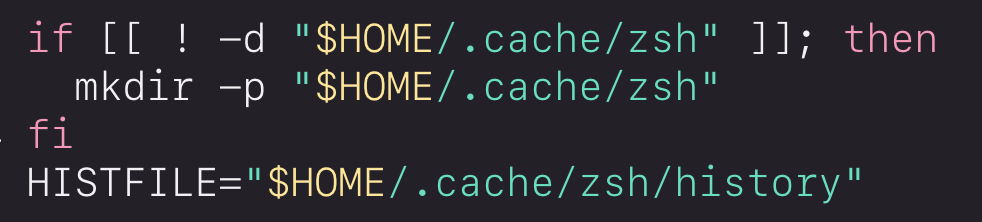
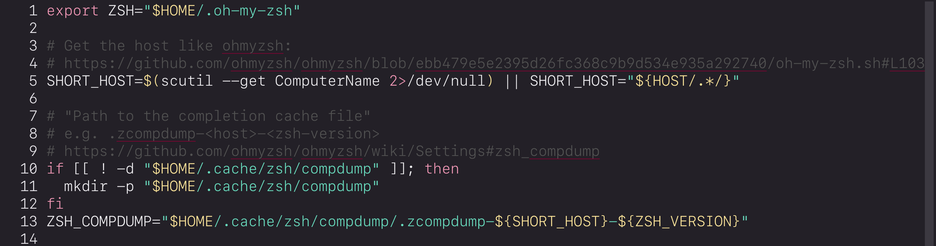
For zsh, I group completion cache files into a subdirectory to minimise the loose collection of stray files in my home directory. I edit `~/.config/zsh/zshrc` and add comp dump file details before `source $ZSH/oh-my-zsh.sh`.

I also move `zsh_history` (which is not really config) out of the config directory. Edit `~/.config/zsh/zshrc` and add details before `source $ZSH/oh-my-zsh.sh`.

If I decide to delete `~/.cache` on a whim to free up space on my hard drive, I'll lose my whole zsh history. That's ok! If I miss it, that's what backups are for.

Close all existing tabs and start a new shell so I don't accidentally make more files in old locations. Delete any stray `.zcompdump-*` or `.zsh_history` files already created.

#zsh #zshell #DiSetsUpAMacBook 17/n

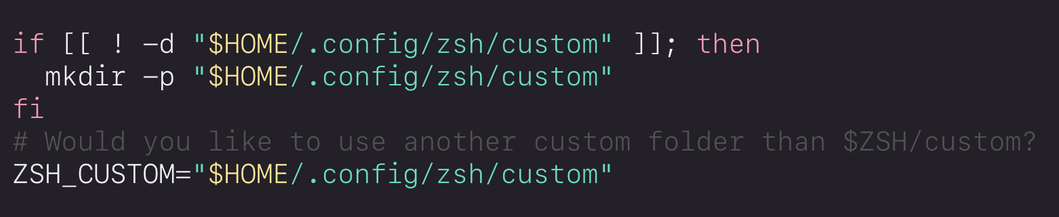
I add a zsh `custom` folder inside my versioned .config repo for aliases, functions, and themes:

`mkdir -p "$HOME/.config/zsh/custom"`

Copy folder structure and examples, `cd "$HOME/.config/zsh" && cp -r ~/.oh-my-zsh/custom/ ./custom`

Edit `zshrc` to set `ZSH_CUSTOM`.

To customise the prompt with a timestamp and git info, I create a theme in: `~/.oh-my-zsh/custom/themes/di.zsh-theme`

#zsh #zshell #DiSetsUpAMacBook 18/n

Time to fix Finder.

In View: Turn on "Show Toolbar", Set "Show Path Bar", and Set "Show Status Bar".

In Finder Settings: Set "New Finder windows show:" to home dir instead of "Recent". In Advanced: Turn on "Show all filename extensions", "When performing a search:" "Search the Current Folder".

Use shortcut to show hidden files: ⌘⇧.

Add bookmarks in the sidebar like "projects", "screenshots".

Update file opening preferences e.g. open all music files in VLC.

Turn off the "accent menu" so that key repeat works using `defaults write -g ApplePressAndHoldEnabled -bool false`, which is still true in 2024: https://superuser.com/questions/1257641/disable-mac-typing-accent-menu

#macOS #DiSetsUpAMacBook 19/n

Disable Mac typing Accent Menu

In Mac OS 10.12 , if I hold down the key, a menu of blue letters with accents and diacritical marks appears. Prior behavior was to enter a string of the letter pressed liiiiiiiike thiiiiiis. How ...

Super User

Set up browsers for web dev.

In Safari, Settings, Advanced, Turn on "Show features for web developers".

Install https://devdocs.io/ as web app via Safari for offline MDN docs.

In Firefox, go to `about:config` and make sure the `devtools.inspector.showAllAnonymousContent` flag is set to `true`.

Brew install Chromium, `cd /Applications && xattr -rc Chromium.app`, sign into Chromium users, set settings like don't offer to save passwords.

Bring up DevTools, go to Settings, Preferences, Elements and make sure the "Show user agent shadow DOM" option is enabled.

#webdev #browsers #firefox #chrome #safari #docs #DiSetsUpAMacBook 20/n

DevDocs

Fast, offline, and free documentation browser for developers. Search 100+ docs in one web app including HTML, CSS, JavaScript, PHP, Ruby, Python, Go, C, C++, and many more.

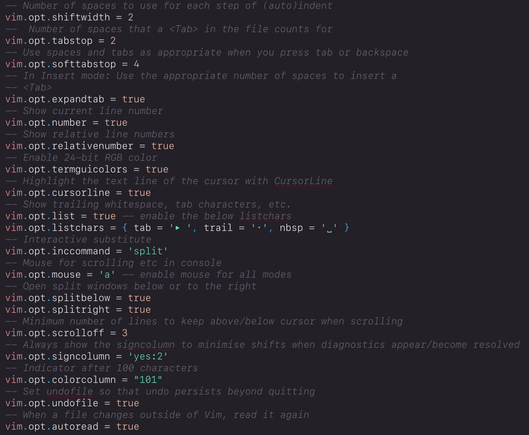
Set up Neovim.

Plugins: Plug, nvim-lspconfig, cmp-nvim-lsp, cmp-buffer, cmp-path, cmp-cmdline, nvim-cmp, LuaSnip, cmp_luasnip, nvim-treesitter, vim-abolish, vim-commentary, vim-easy-align, vim-fugitive, vim-peekaboo, vim-repeat, vim-slash, vim-surround, conflict-marker.vim, csv.vim, fzf.vim, gitsigns.nvim, tabular, didoesdigital/vim-markdown, nerdtree, taboo.vim, and nvim-base16.

Personalise options, key maps, and user commands.

Configure fzf, markdown, nerdtree, gitsigns, nvim-cmp, lsp, treesitter, nvim-base16. For example:

`let NERDTreeBookmarksFile="$HOME/.cache/nvim/.NERDTreeBookmarks"`

Personalise spelling highlights and set autocommands for file types, source init.vim after editing, and highlight_yank.

Props to @jessarcher for all of her Neovim wisdom online. I am digging the open box symbol ␣ for highlighting non-breaking spaces:

`vim.opt.listchars = { tab = '▸ ', trail = '·', nbsp = '␣' }`

#neovim #vim #DiSetsUpAMacBook 21/n

Some final odds and ends to set up!

Open Screenshot.app, Options, untick Show Floating Thumbnail and customise "Save to" location.

In System Settings, Keyboard shortcuts, I turn off shortcuts I never use, such as "Convert Text to Simplified Chinese". I also add App Shortcuts for features like Figma Plugins or "Add Row Below" in Numbers.

Install Keymou for keyboard-driven mouse actions.

Install Plover steno engine. Add as assistive device in Security, Privacy. Enable Output and test some QWERTY keyboard translation to steno words. Connect steno board e.g. multisteno. Confirm steno protocol translation works. Quit Plover. Symlink whole Plover folder `~/Library/Application\ Support/plover` to a versioned dir.

Add styles to Stylus https://github.com/openstyles/stylus e.g. to hide "Sign-In With Google" across all websites via @wezm

Delete all the new Downloads e.g. DMGs, installers, ZIPs, etc.

Remove "Sounds" from all Notifications in System Settings.

Done.

#DiSetsUpAMacBook 22/22

GitHub - openstyles/stylus: Stylus - Userstyles Manager

Stylus - Userstyles Manager. Contribute to openstyles/stylus development by creating an account on GitHub.

GitHub