
Ok, let's try this!

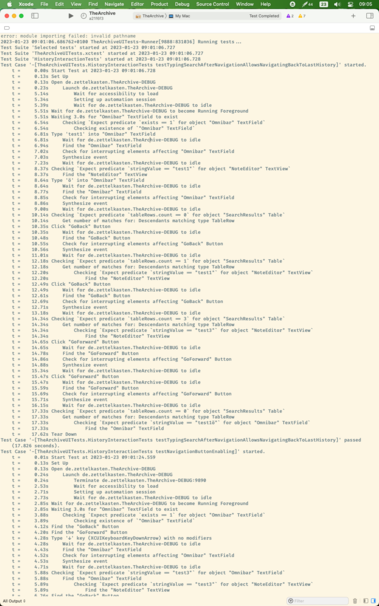
In #Xcode:

1) ⌘⇧T to open new window

2) Move the split view divider of the console up to hide the code

3) Move to separate monitor

I do sincerely hope this will be a good console-on-other-monitor setup. It's the only possibility for Xcode there is
Wait!

I held this wrong:

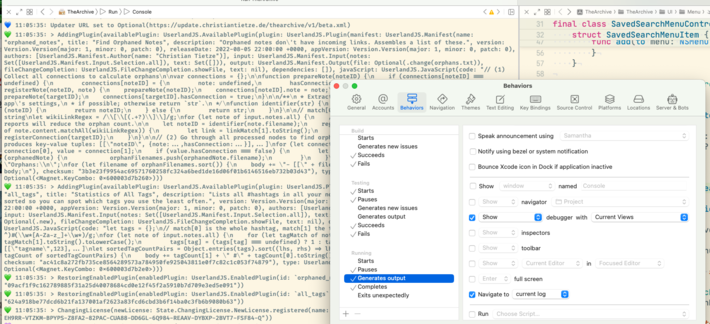
You can display the Console in a proper window, no need to use the debugger split!

@ctietze yeah, I was wondering about that. I used to do that in the High Sierra days.
@ctietze sorry if I’m missing something obvious, but how do you get your console show up in another window? When I tried this behavior, it just replaced one of my editors with another console. Do you still have to ⌘+Shift+T?

@rlpavel Right: When you have just 1 editor open, it'll show the console in another editor split. If you leave that open, Xcode will reuse that pane.

You can also use a new tab and manually rename it from the main menu, then switch to that tab first.

@ctietze Hehe that's so clever!
@donnywals Ha, "clever" is maybe a bit too much. But at least now I have something for proper work where my Terminal usually sits (unused, when working in Xcode)
@ctietze and then you can set the name of that window to Console and use Xcode Behaviors (in Settings) to open the dedicated Console window automatically when debugging 🙂

@aligatr Ah, interesting!

Renamed the (hidden) window tab just now and tried the "Show window" behavior.

It brings the window and thus the console to front alright. But also makes it the key window, so the Mac app itself appears on that screen. Any tips to prevent that?

@ctietze Ah! I'm not sure, as tbh I don't use this feature—just knew it existed and tried it once, but decided I preferred the split window mode after all personally 🤷‍♂️—so I didn't dig deeper into it
@aligatr Just found out I can use "Navigate to current log" to open the console output of the current run in a split! That's also nice (have an ultrawide monitor). 👍