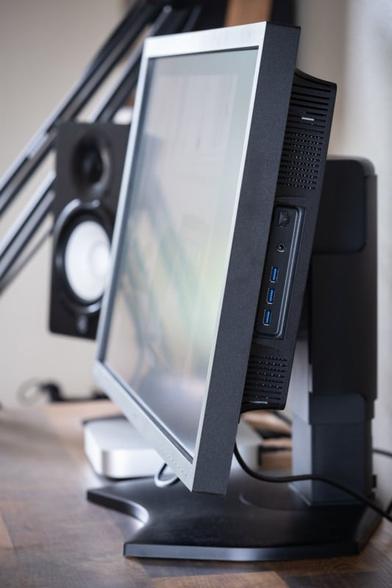
🖥️ Alla ricerca del monitor PC da 24 pollici perfetto? Ecco il nostro aggiornamento di Febbraio 2026: non perdere i modelli top sul mercato! #Tech2026 #MonitorReview
🔗 https://www.tomshw.it/hardware/migliori-monitor-pc-24-pollici
Thinking about a new gaming monitor? CNET just reviewed ViewSonic's XG275D-4K. Sounds like it nails the brights but struggles with the darks. Is a 'reasonable price' enough to overlook muddy shadows in a 4K display? What's your display deal-breaker?
#GamingTech #MonitorReview #ViewSonic #PCGaming #Hardware
https://www.cnet.com/tech/computing/viewsonics-xg275d-4k-gaming-monitor-review-bright-colors-muddy-shadows/#ftag=CAD590a51e
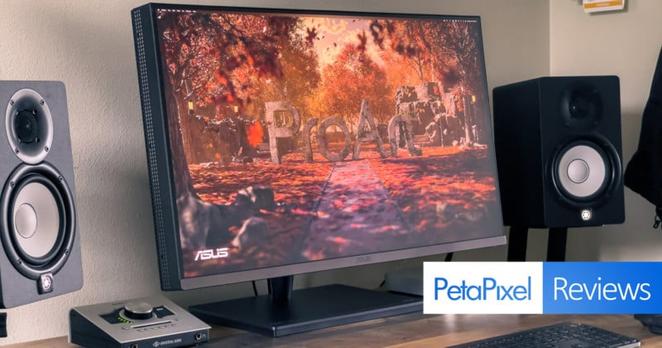
ASUS ProArt PA32UCG Review: Like a Pro Display XDR for PC Users
ASUS announced plans for the ProArt PA32UCG way back in September of 2019. Based on specs alone, this exciting monitor would improve on the already-impressive ProArt PA32UCX and take on the Apple Pro Display XDR by offering the same 1600 nits peak brightness out of a 4K panel, with a faster refresh rate and wider color gamut. Nearly two years later, the monitor is finally available, and we're here to see if it can live up to the sky-high expectations we've built up over the past two years.
In terms of performance, the ASUS ProArt PA32UCG is in a league of its own. While it can't match the 6K resolution of the Apple Pro Display XDR, the ProArt monitor either meets or exceeds it in every other performance category: it's got the same insane peak brightness, twice the local dimming zones, a faster maximum refresh rate, much better AdobeRGB coverage, and it's actually usable if you're working on a PC.
Over the past few weeks, we've gotten to test all of these features, as well as the general usability of the display, and we've come away with two major TL;DR conclusions:
1. The performance is exceptional, with phenomenal gamut coverage, great uniformity, and better HDR support than anything else on the market.
2. The user experience is frustrating, ranging from mildly annoying on the PC to seriously problematic on the Mac.
There's obviously some nuance to these two points, so read on to learn more about the pros and cons of the ProArt PA32UCG -- the so-called "god-king of monitors."
Design and Build Quality
The ProArt PA32UCG is a good-looking monitor. The 32-inch 4K panel is surrounded by 1/4-inch bezels on three of four sides and a 1/2-inch silvery-black chin on the bottom. All of this sits on an understated black stand complete with gold lettering indicating that you've purchased a "ProArt High Dynamic Range" monitor with "Superior Color Accuracy." Compared to most monitors we've reviewed, this matte-black-everything aesthetic is a welcome nod to subtlety. I can't fault the ProArt on looks.
Size is another thing entirely. Compared to its main competition -- the aforementioned Apple Pro Display XDR and the Dell UP3221Q -- the ASUS ProArt PA32UCG is comically thick and very heavy. It measures 2.25-inches thick at its thinnest point, without the stand, and takes up a full 11+ inches on your desk from back to front once you've got it all set up. All of this together weighs in at a whopping 32 pounds, so if you're planning to set up your $5,000 investment on your own then I sincerely hope you didn't skip leg day.
Fortunately, once you've got it up on your desk the large stand handles the weight of the display beautifully, offering very generous tilt, swivel, pivot, and height adjustments, with the ability to rotate the monitor a full 90-degrees if you're going to be working on a bunch of photos in portrait orientation. It's not exactly adjustable with "one hand" like the spring-loaded hinge in the Pro Display XDR stand, but this one gives you a lot more flexibility and it does so without charging you $1,000 for the privilege.
Once you're up and running, the monitor is controlled by a multi-directional joystick and five buttons, all located on the right-hand side behind the display. From the bottom up you get a power button, two programmable shortcut buttons that are set to HDR and Brightness by default, a Quick Fit shortcut that brings up on-screen guides for various paper sizes and rulers, an Input button, a Close button, and the multi-directional joystick for navigating the full OSD menus.
Like most monitors in this price range, you get quite a few preset color modes including sRGB, AdobeRGB, DCI-P3, and Rec.2020, as well as various HDR modes, all of which can be hardware calibrated using ASUS' proprietary ProArt Calibration 2.0 software (Windows only), Calman Studio, or Light Illusion. You also get overall controls for Brightness, Contrast, Saturation, Hue, Color Temp, and Gamma, with additional three-axis (Red, Green, and Blue) control of Gain and Offset and six-axis (Red, Green, Blue, Cyan, Magenta, and Yellow) control of Hue and Saturation.
This only covers a fraction of the total number of options available in the menus—there's uniformity compensation, AMD FreeSync Premium Pro, Dynamic Dimming, an FPS counter, and more—but suffice it to say that ASUS has included enough controls so you can dial in your white point, select and calibrate your preferred color space, and ensure the monitor is running up to spec no matter which port you're using.
Speaking of which…
In terms of inputs, you get one DisplayPort 1.4 port with display stream compression (DSC) support, one HDMI 2.1 port, two HDMI 2.0 ports, three USB-A downstream ports, and two Thunderbolt 3 ports that provide a DisplayPort stream, upstream data transfer, and 60W of power delivery. I'm mostly happy with these options, especially since you can daisy-chain the two Thunderbolt 3 ports, but I do have two complaints.
First, I wish the monitor could push more than 60W of power. My 13-inch MacBook Pro charged just fine when plugged into Thunderbolt, but high-powered laptops with power-hungry CPUs and GPUs benefit from the additional 30W of power you get from some of ASUS' competitors. And second, the lack of accessible USB ports is a bummer. The entire USB hub is located on the back of the display next to the display inputs, which makes them really annoying and difficult to reach. Even one or two ports on the side or underside of the monitor is better than three ports I can't be bothered to actually use.
Overall, design and build quality of the ASUS ProArt PA32UCG is on par with other monitors in its $4,000-$6,000 price range. It's a little thicker and heavier than you probably expect, and the understated look won't appeal to everyone, but it's clear ASUS prioritized performance over design sensibility, and performance should always be the top priority when you're charging five grand for a monitor.
Gamut Coverage and Uniformity
In our testing, the ASUS ProArt PA32UCG covers 99.9% of AdobeRGB (left) and 94.4% of DCI-P3 (right).
The ASUS ProArt PA32UCG takes a slightly different approach to color than other high-end HDR monitors. Most other DisplayHDR 1000+ monitors know that their primary target market is video editors, and so they prioritize the DCI-P3 color gamut. Coverage of AdobeRGB drops off as a result, leaving you with a good monitor for video editing that's may not be suited to photography/printing workflows.
The ProArt PA32UCG flips the script. In our testing, the monitor was able to cover 99.9% of AdobeRGB and 94.4% DCI-P3 with a maximum Delta E 2000 of just 0.61. That's a tiny bit worse than the advertised DCI-P3 coverage of 98%, but it's an exceptional result that puts it far ahead of both the Apple Pro Display XDR (100% DCI-P3 and 89% Adobe RGB) and the Dell UP3221Q (100% DCI-P3 and 94% AdobeRGB) if you're editing photos instead of video.
It's also just plain rare that we see a monitor with a Delta E that's this low.
Unsurprisingly, uniformity was also solid. Although it can't compete with the most intense photo editing monitors out there from companies like NEC and EIZO, every patch in our 9×5 uniformity test passed "nominal" tolerance once Uniformity Compensation was turned ON in the menus. With Uniformity Compensation turned to OFF, a few more of the center patches were able to pass the more stringent "recommended" tolerance, but four of the patches around the edge dropped below "nominal" tolerance, so we would recommend leaving this setting turned on.
You can see the results of this test, both with and without Uniformity Compensation, below (click to enlarge):
Uniformity test results with Uniformity Compensation set to OFF. Uniformity test results with Uniformity Compensation set to ON.
Finally, the HDR performance was also solid, in some cases outperforming the monitor's spec sheet.
Using the i1Display Pro Plus, I measured a staggering peak brightness of over 1700 nits on a small center patch of the screen in HDR mode. And while the 1,152 dimming zones aren't enough to completely eliminate so-called "blooming" when viewing bright objects against a black background, the issue is minimal when consuming the majority of HDR content or playing an HDR game.
Sadly, we no longer have a Pro Display XDR or Dell UP3221Q on hand to test blooming side-by-side against the ProArt, but if memory serves me right, the PA32UCG's HDR blooming performance falls about halfway between the Dell UP3221Q (with 2,000 local dimming zones) and the Apple Pro Display XDR (576 local dimming zones), which we compared previously:
Side-by-side test of blooming on the Dell UP3221Q (left) and the Apple Pro Display XDR (right). The ASUS ProArt PA32UCG falls halfway between these two monitors.
Everything about the monitor's specs and performance makes it a fantastic choice for photographers who also edit HDR content. Where most high-end HDR monitors like the Dell UP3221Q and Apple Pro Display XDR prioritize the DCI-P3 cinema color space, the ProArt PA32UCG prioritizes AdobeRGB without sacrificing too much of DCI-P3 in the process.
It makes it a great all-around monitor for professionals who need good support for both print and digital, whether you're working with video or photos, in HDR or SDR.
I wish this review could end here, because so far the monitor has lived up to most of our expectations. Unfortunately, getting the ASUS ProArt PA32UCG to work properly and deliver the performance mentioned above was a lot more frustrating than we had hoped, leaving us with a few usability caveats that we have to mention if we're going to give this monitor a fair shake.
Usability Issues
We don't usually include a full section on usability in our monitor reviews, but the PA32UCG threw a lot of bugs our way.
Let's start with using this monitor on a Mac. In short: you probably shouldn't. Whether you're using an M1-based or Intel-based machine, there is no way to adjust any of the core settings of this display -- bit depth, refresh rate, and pixel encoding -- from within the MacOS operating system. That wouldn't be much of an issue if the monitor was "locked" to max settings from the start, but that wasn't the case on either of the two Macs we use for testing.
Unfortunately for Apple users, the ProArt PA32UCG does NOT play nice with MacOS.
At first, my M1 Mac mini didn't even send out a signal over Thunderbolt. I had to plug in a different computer, change the DisplayPort Stream setting in the monitor's OSD menus to "DisplayPort 1.4 (DSC)," and then it worked. Well… it sort of worked. Once I got it up and running over Thunderbolt, the monitor presented itself as an 8-bit television, producing a 120Hz YCrCb signal with no way to turn on HDR. If I gave up and connected the display via HDMI 2.0b port on my Mac mini instead of Thunderbolt, I got support for HDR and the correct RGB output, but the HDMI 2.0 port can only handle 60Hz at 4K and the signal was still stuck on 8-bit.
This isn't limited to M1. I had a similar experience when using my Intel-based MacBook Pro. Although I was immediately able to access HDR over Thunderbolt, I was never able to pull a 10-bit signal.
Eventually, I worked around these issues on the Mac mini by manually editing the .plist file that encodes the Mac's display settings, ensuring that monitor was identified as RGB, 10-bit, and 120Hz when being used at full resolution over Thunderbolt, but this is not a step that the average user should need to take in order to get the monitor to perform in spec. A $5,000 monitor -- any $5,000 monitor -- should work with both Windows and PC flawlessly, and if we're going to knock the Pro Display XDR for being a crap monitor for PC users, we need to be honest about the limitations of this ProArt display if you're trying to use it with a Mac.
Another issue is hardware calibration, which is not available for Mac unless you own the (very expensive) Calman Studio or Light Illusion calibration software. The main (free) hardware calibration solution advertised by ASUS on its website -- the latest version of ProArt Calibration 2.0 -- is Windows-only with no mention of a Mac version coming any time soon.
The experience is definitely better on the PC, though still not bug-free. You can change your refresh rate in the settings, and if you're plugged directly into your GPU you can change settings like pixel encoding, bit depth, etc. from your GPU's control panel. However, after updating the monitor's firmware to the latest version, ProArt Calibration 2.0 suddenly stopped working for me. I was able to calibrate it when I first set up the monitor, but no more; as of this writing, the latest version of the software knows a PA32UCG monitor is connected, but when I go to start the calibration it asks me to "connect the right monitor."
Other glitches come up when you turn on HDR. Most of the time it works fine, but once in a while the signal defaults to 8-bit + Dithering instead of 10-bit, and when you go to turn off HDR it doesn't always turn HDR off on the monitor itself, leaving you with two options: keep flipping the Windows settings switch on and off until it works, or unplug and re-plug the monitor into your computer to see if that works.
All of this is workable, even the serious limitations on Mac can be fixed if you're willing to roll up your sleeves and get technical, but the usability issues definitely tempered my enthusiasm for this monitor. Hopefully ASUS can continue updating both the firmware and software over time so that the PA32UCG stops glitching out in Windows and actually plays well with MacOS; until then, our conclusions about this otherwise-exceptional monitor have to be a little muted.
Exceptional Performance, Frustrating Experience
If you're looking for a professional-grade 4K HDR monitor that can do 120Hz and covers 100% of the AdobeRGB color gamut, this is really the only game in town. Nothing else can reach this level of brightness, with this many dimming zones, at this resolution and refresh rate… and the monitors that come close all prioritize the DCI-P3 color space instead of AdobeRGB, prioritizing video at the expense of print.
In fact, in terms of performance there's very little to complain about. Where the ASUS PA32UCG is lacking is in the user experience department.
Pros
Cons
The downsides of this monitor come down entirely to a buggy interface that doesn't always behave the way that it should. If you'll allow me to beat this dead horse one last time: a $5,000 monitor should deliver a pristine user experience that is virtually bug-free no matter what operating system you're working in. That's not what we've gotten with the ASUS ProArt PA32UCG.
Instead, we have a spectacular performer that, often as not, refuses to cooperate, forcing you to wrestle with it until you get the performance you paid for. On the Mac, that requires a level of technical acumen that I don't expect from any standard user. On PC, it mostly manifests as frustrating little bugs that are only truly "fixable" with a software or firmware update from ASUS.
All in all, the ASUS ProArt PA32UCG reminds us of Apple's Pro Display XDR, but built for PC users. It churns out exceptional performance, with support for all the latest bells and whistles, but it really only appeals to half the audience. Most PC users will love it. Most Mac users should probably stay away.
Are There Alternatives?
There are three main alternatives to the ASUS ProArt PA32UCG: the Apple Pro Display XDR, the Dell UP3221Q, and ASUS's own ROG Swift PG32UQX. Each of these monitors qualifies for at least a DisplayHDR 1400 certification, with lots of local dimming zones for proper HDR contrast and minimal haloing, true 10-bit color, and solid gamut coverage.
The best direct competitor is probably the Dell, which offers more miniLED local dimming zones (2,000 vs 1,152), a built-in colorimeter, and out-performs the ASUS in terms of DCI-P3 coverage for $1,000 less at the time of publication (original MSRP was $5,000, but now it's $4,000). Unfortunately, it can't match the ASUS in terms of refresh rate or AdobeRGB coverage, does not support HDMI 2.1, and comes with that tricky little Dell logo that so many PetaPixel readers seem to hate.
For Mac users, the 6K Apple Pro Display XDR offers more resolution, a seamless user experience, and top-shelf build quality that we loved when we tested the monitor, but it has the worst AdobeRGB coverage of the bunch, offers only 576 local dimming zones, and is essentially unusable on the PC despite being the most expensive of the four options mentioned here.
Finally, the ASUS ROG Swift PG32UQX is a very intriguing option. Despite costing $2,000 less than its ProArt sibling, it offers the same number of local dimming zones, same size, and same resolution at a slightly faster peak refresh rate of 144Hz. The trade offs are lower peak brightness (1400 nits vs 1600 nits), no mention of AdobeRGB coverage, and a slightly lower advertised Delta E of < 2. It's probably the better choice if you plan to do a lot of gaming in between photo and video editing sessions.
Should You Buy It?
If you're a PC user: yes. If you're a Mac user: no.
Ultimately, the question you'll want to ask yourself before making a purchase decision is: how do I actually plan to use this monitor?
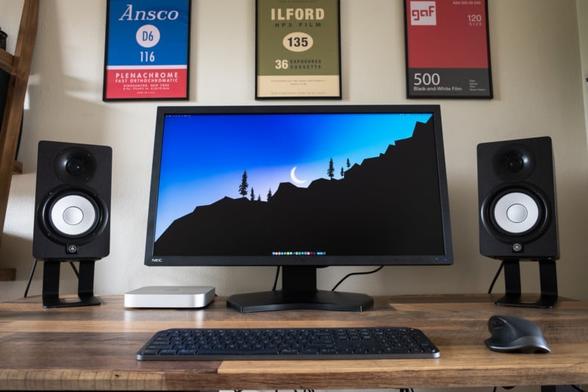
If you don't work with HDR content, skip this subset of monitors entirely and check out the NEC MultiSync PA311D for a killer photo editing experience that cuts zero corners in its quest for professional color and uniformity. If you do plan to edit in HDR, read over our review of the Dell UP3221Q and pick the monitor that offers the right combination of specs for your workflow. Do you need the high refresh rate and AdobeRGB coverage of the ProArt monitor, or would you prefer the additional local dimming zones, built-in colorimeter, and $4,000 price tag of the Dell?
Finally, if you're a Mac user who edits in HDR and you really need to pick up a DisplayHDR 1400 or 1600 certified monitor, you'll either want to opt for the Dell or wait for Apple to update the Pro Display XDR with the same miniLED backlight technology found in the latest iPad Pro. The ASUS is simply too cumbersome to dial in properly. Unless you're content with giving up hardware calibration and manually editing a .PLIST file to ensure you get every ounce of promised performance from this monitor, we recommend you look elsewhere.
#equipment #reviews #apple #appleprodisplayxdr #asusproartpa32ucg #dellup3221q #hdr #hdrmonitor #highendmonitor #miniled #miniledmonitor #monitorreview #monitortesting #pa32ucg #proart #proartpa32ucg #prodisplayxdr #review #up3221q

Dell U4021QW Review: The Premiere Ultra-Wide Monitor for Photo Editing
The Dell U4021QW is, quite literally, one of a kind. It's the world's first 40-inch curved ultra-wide WUHD 5K2K monitor -- a 21:9 aspect ratio monster that boasts a color-accurate 10-bit panel. In our testing, it's performed beautifully. But while it's definitely the premiere ultra-wide monitor for photo editing, it's not the best photo editing monitor overall.
Compared to many other ultra-wide monitors on the market, the Dell delivers a more well-rounded experience. Most ultra-wides focus all of their attention on either productivity or gaming, putting little-to-no emphasis on color accuracy. Despite the fact that many photo and video editors find it downright necessary to work on multiple monitors side-by-side, there are precious few color-accurate panels in the 21:9 aspect ratio, which translates into precious few color-accurate ultra-wide monitors.
More than anything else we'll talk about, that's what makes the Dell U4021QW special. Not only is it large and high resolution -- 40-inches and 5K2K resolution is nothing to scoff at -- it uses a true 10-bit panel with a (claimed) DCI-P3 gamut coverage of 98% and a Delta E of less than 2. What's special about the Dell U4021QW is that it exists at all, and with a price of $1,700, it's quite a bit cheaper than picking up two similarly accurate 4K monitors and placing them side-by-side.
Design and Build Quality
My first impression upon unboxing and setting up the Dell U4021QW was, " I am overwhelmed." I typically work off of one 32-inch or 27-inch 16:9 monitor (depending on what we're currently reviewing at PetaPixel ) and the switch to an ultra-wide was a bit staggering at first.
You can comfortably set up three windows side-by-side-by-side without anything feeling cramped. If you're feeling especially masochistic, you could break the monitor into 6 sections and put a window in each -- there really is enough resolution to accommodate it. But personally, it took me about a day of regular use before I filled up the entirety to do anything at all.
Setup was a breeze. The monitor "clicks in" to the stand while it's still in the box, and then you use the stand to lift it out and set it on your desk. Ideally, you'd have a little help with this, because it is not a small monitor, but this easy-to-unbox setup is appreciated by those of us who live alone… or, in my case, with a dog who really wasn't much help at all.
The stand itself is sturdy, with a reasonably small footprint and lots of positioning control. You can tilt, swivel, and adjust the height of the monitor with a single hand no problem, and the little hole for cable management is a nice touch. Bezels are minimal, about 0.4 inches (1cm), and the 2500R curve is just enough to eliminate any off-axis color shift at the edges when you're sitting right in the middle of the screen.
In terms of controls, there's only a power button and a joystick, the latter of which you press to access both the quick-access menus and the full settings of your display. The full menu is extensive, but the quick-access menus are all you'll need most of the time. That includes Brightness/Contrast, Input, Volume, Preset Color Modes, and the Picture-in-Picture (PIP) and Picture-by-Picture (PBP) modes that are available only when you have two devices connected at the same time.
The U4021QW includes a USB-A and USB-C port on the bottom of the monitor, allowing you to charge small electronics like headphones or a smartphone.
Speaking of connectivity, the monitor comes with plenty of ports to suit whatever laptop or desktop you'd like to hook up. There are two HDMI 2.0 ports, one DisplayPort 1.4, one Thunderbolt 3 USB Type-C with 90W power delivery, an Ethernet port, a headphone jack, and a USB Type-B upstream port that powers four USB Type-A ports and one USB Type-C downstream, all of which can transfer data at 10Gbps. Two of these ports -- the USB Type-C downstream and one of those USB Type-A ports -- are found under the display for easy access, and these two ports also feature power delivery.
It's worth mentioning the built-in dual 9W speakers, which were surprisingly powerful and a nice touch for users who don't have a set of monitors or computer speakers handy. They certainly made the built-in speaker on my Mac mini sound like trash, which it is, although they obviously can't compete with even a cheap set of proper desktop speakers.
Overall, the Dell U4021QW delivered all of the features that I want from a monitor like this. The main things I look for are Thunderbolt connectivity so that I can use a single cable for audio/video/data, sufficient power delivery to charge most laptops (90W is plenty), and a few easy-access convenience ports when I need to plug in a phone or charge my wireless keyboard and mouse. The Dell delivers all of this and more, wrapped up in classic Dell styling that really hasn't changed much over the past several years.
If you like Dell's monitors, you'll like this one. If you hate them, Dell hasn't given you any compelling reason to like the U4021QW's design and build quality any better.
Gamut Coverage and Uniformity
In our testing, the Dell U4021QW managed to cover 95% of DCI-P3 (left) and 88.5% of AdobeRGB (right).
When it came time to test the Dell's color accuracy, I came in with a healthy dose of skepticism. Unless you're going to use a direct backlight and charge an exorbitant amount for special in-monitor sensors that can help with uniformity (see our NEC PA311D review), it's very difficult to evenly illuminate this much screen. The distance from the corner of the screen to the center is approximately 20-inches, and I suspected that uniformity would be an issue.
Spoiler: I was right.
But first, let's talk color accuracy and gamut coverage. While the Dell U4021QW does NOT have a built-in LUT or any support for hardware calibration, it does allow you to adjust the Gain and Offset of your RGB primaries, as well as the Hue and Saturation in six axes: Red, Green, Blue, Cyan, Yellow, and Magenta.
This turned out to be necessary because none of the presets were particularly good out of the box. In order to get my white point to D65, I had to switch the monitor to "Custom Color," turn down the gain on the Green channel to 95% and give up a little bit of overall brightness. Once I did, the monitor performed admirably, clocking in 99.9% coverage of sRGB, 95% coverage of DCI-P3, and 88.5% coverage of AdobeRGB, at a Delta E 2000 of just 1.23.
That's solid coverage at an excellent Delta E, but you'll remember that Dell claims 98% DCI-P3 coverage, so it was a little bit disappointing to see the monitor fall short of the spec sheet. We've asked Dell why this might be, and will update the review if and when we hear back. Until then, we'll just assume it's a matter of variation from panel to panel. The colorimeter I used, an i1Display Pro Plus (that was recently rebranded…), is the same we've used to evaluate every other display reviewed on PetaPixel to date, so we have no reason to believe it's gone wonky now.
Still, a few percentage points here or there are within a reasonable margin of error, and we were very happy with the monitor's Delta E.
What was less impressive was the uniformity, which is indeed an issue as expected with a panel this size. When we ran our 9 x 5 patch test in DisplayCAL, the monitor failed "Nominal" tolerance on 9 of the 44 patches (the center patch is used for reference), with most of the bad patches appearing on the left-hand side of the display. It only passed "Recommended" tolerance on 10 of the patches, leaving us with 25 patches that only passed "Nominal" tolerance.
From the results below, you can see that we're mostly fading in brightness as we move up and out to the edges of the display (click to open the full resolution image), which makes me think this monitor might be edge-lit from the bottom, but that's pure speculation:
This kind of uniformity (or lack thereof) is pretty normal for monitors that don't explicitly correct for it with some sort of built-in sensor, but it's unfortunate when you're dealing with such a nice panel. True 10-bit monitors (as opposed to 8-bit + FRC) are still somewhat rare under $2,000, and we've never seen a 40-inch, 21:9 ultra-wide option.
Ultimately, we'd classify the Dell U4021QW's color performance as "enthusiast-grade," with sufficient color accuracy, color depth, and gamut coverage to satisfy most photo and video editors. But for creative professionals looking for an ultra-wide with true professional-grade performance, Dell hasn't quite cracked it. You'll have to wait a little while longer.
Best in Its Class, But Could Still Be Better
My thoughts on the Dell U4021QW are similar to my thoughts on the M1 iPad we reviewed a couple of months ago. The best iPad is still an iPad, and the best ultra-wide monitor is still an ultra-wide monitor, with all the challenges inherent to that form factor.
There's a reason why most ultra-wide displays focus on productivity and not color performance.
Let's be clear: the Dell U4021QW is a phenomenal ultra-wide. It is one of the best on the market and the premiere ultra-wide monitor for photo editing thanks to its dynamite combination of size, aspect ratio, resolution, color accuracy, and gamut coverage. But it falls short of the performance of smaller, more focused "creator" monitors that don't have quite so much screen with which to contend.
Pros
Cons
The cons list is quite short, but the few things that the Dell U4021QW misses are going to be particularly important to you all: top-shelf gamut coverage, good uniformity, and support for hardware calibration are all important features that photo and video editors look for in their displays. The Dell mostly checks the first box, but misses the second and third entirely.
That puts serious enthusiasts in a tight spot, where they need to decide what they would prefer. Do you want to prioritize the seamless productivity experience of an ultra-wide and content yourself with color performance that is good enough, but not excellent, or would you rather spend a little more to purchase two [ultra-accurate 4K monitors](https://www.adorama.com/as02ccb023b0.html?kbid=67085” rel=“norewrite sponsored”) and set them side-by-side? There is no obvious right answer, just the right answer for you.
Are There Alternatives?
As I said at the top, the Dell U4021QW is quite literally "one of a kind." There are other ultra-wide monitors out there, there are even color-accurate ultra-wide monitors that are aimed at creatives, but none match Dell's combination of size, resolution, color depth, and color accuracy. The closest you'll get is a 34-inch 5K2K ultra-wide with similar color accuracy out of a cheaper 8-bit + FRC panel, like the [MSI Prestige PS341WU](https://www.adorama.com/msipps341wu.html?kbid=67085” rel=“norewrite sponsored”).
The question, then, is not: "is there a better ultra-wide for photo editing?" There isn't. The correct question, therefore, is: "what could I buy instead?"
If you're willing to spend more, you can outperform the Dell in terms of both resolution and color accuracy by picking up two 27-inch or 32-inch 4K monitors. Both the [ASUS ProArt PA329C](https://www.adorama.com/as02ccb023b0.html?kbid=67085” rel=“norewrite sponsored”) and Dell's own UP2720Q feature 10-bit panels, AdobeRGB coverage over 98%, support for hardware calibration and, if you go with the Dell, you even get a built-in colorimeter.
To save a bit of money, prioritize color over resolution and pick up two 27-inch QHD (2K resolution) color-accurate monitors. [BenQ's SW270C](https://www.adorama.com/bqsw270c.html?kbid=67085” rel=“norewrite sponsored”) is a popular choice, or you could try to pick up a couple of used [NEC MultiSync PA271Q](https://www.adorama.com/us1197360.html?kbid=67085” rel=“norewrite sponsored”)'s, which are available for a steal at $750.
Should You Buy It?
As usual, the answer isn't a clear-cut "yes" or "no." There is nuance to consider.
If you are an enthusiast who wants to trade in a dual-monitor setup for an ultra-wide that will offer you enough resolution and color accuracy to make that switch worthwhile, I can wholeheartedly recommend the Dell U4021QW. At 40-inches with a 5K2K 10-bit panel with 95% coverage of DCI-P3, it can tackle all but the most demanding color-critical workflows. For me, it's been a productivity dream, and I'm not looking forward to sending it back.
However, if you're a professional whose livelihood quite literally revolves around color accuracy or you're looking to invest in a monitor for HDR video editing, look elsewhere.
For less money, you can pick up a 32-inch monitor with a 4K 10-bit panel that will offer better overall gamut coverage, better uniformity, and other key features like hardware calibration or even a built-in colorimeter. These are not an absolute necessity for all users, but pros looking to spend over $1,500 on a high-end photo and video editing monitor can expect (and should demand) them.
#equipment #reviews #10bit #adobergb #coloraccuracy #dcip3 #dell #dellu4021qw #dellultrawide #display #monitor #monitorreview #panel #photoediting #postprocessing #postproduction #productivity #srgb #ultrawidemonitor #videoediting
NEC PA311D Monitor Review: Extreme Color Accuracy for Professional Users
The Sharp NEC MultiSync PA311D is NEC's flagship photo editing monitor, with more colors, more accurate colors, and more control over your colors than any other monitor we've tested to date. It's not a perfect display -- HDR editing is out of the question, and hardware calibration is impossible unless you pay extra for an NEC-branded colorimeter -- but everything about this monitor was designed with professionals in mind, and we absolutely love that.
In recent years, there have been several entrants into the "color-accurate monitor" space, with companies like BenQ, ASUS, and Dell releasing displays with full coverage of the AdobeRGB color gamut, HDR capabilities, and built-in LUTs for proper hardware calibration. This has put the consumer department at storied brands like EIZO and Sharp's NEC in a tough spot: the two make better professional products, but each are either unwilling or unable to spend the marketing dollars to explain exactly how and why to the uninitiated masses.
The companies seem to be relying on an established customer base, who already knows the how and why, and hoping that reputation alone will carry the brands to the younger generation of content creators.
In my humble opinion, this is not a winning strategy, but it does allow NEC the luxury of designing a product that makes exactly zero concessions to style over substance.
Design and Build Quality
To quote the youths, the MultiSync PA311D is a "thicc boi." This is a huge monitor that spends no time on frivolities like "thinness" or "not causing hernias when you try to lift it onto your desk."
Joking aside, it's obvious that NEC could not care less about tiny bezels, a stylish design, or a small footprint. The monitor itself is 3.1 inches thick, and it comes pre-mounted on a beefy stand that adds another 8.8 inches for a total depth of (checks notes) 11.9 inches when you've got it sitting on your desk. The whole thing is a thick plastic affair, with no consideration whatsoever for looks and a total weight of almost 33 pounds once you factor in the pre-attached stand.
The best word to describe the design sensibility of the PA311D is probably "utilitarian." It's your first hint that you've purchased a product designed for professionals by professionals.
Your second hint is the aspect ratio of the screen itself. The monitor boasts a true DCI 4K resolution of 4096 x 2160 which translates to a wider-than-normal 17:9 aspect ratio. As some productivity-focused monitors move the other direction—swapping their 16:9 aspect ratio 4K UHD (3840 × 2160) panels for taller 16:10 screens, the PA311D is more concerned with providing the appropriate aspect ratio for cinema video editing. Kudos deserved, and duly doled out.
The third and final bit of design that adds to the professional vibe is the input/output (I/O) selection, which is substantial. The PA311D boasts a total of five ports that can carry a 4K/60p 10-bit video signal: two DisplayPort 1.2 ports, two HDMI 2.0 ports, and one USB Type-C port with DisplayPort protocol that also features 65W charging. You also get a headphone jack and a USB Type-A hub with two upstream ports on the back of the device and three downstream ports on the side of the monitor. The USB Type-C port also acts as an upstream.
Notably missing is any sort of media card slot, but given the target audience, the omission sort of makes sense. If you're at the point where you're spending $3,000 on a monitor that was tailor-made for photo editing, you probably have your media ingestion workflow dialed in already.
Also missing from the PA311D is a built-in colorimeter, something that we've gotten used to in the high-end display space. Dell and EIZO both include them in their top-shelf displays, and Apple may soon turn every new iPhone into a pocketable colorimeter, but if you want to calibrate the 14-bit LUT that's built into the MultiSync PA311D, you'll need to pay extra for the "SpectralView II Display Color Calibration System" which is basically an XRite i1Display Pro with an NEC logo slapped onto the front and some bespoke software to match.
That bugs me, and it should bug you too, since hardware calibration is an absolute necessity for professional workflows, and even monitors without a built-in colorimeter usually allow you to use a third-party device to calibrate the internal LUT. But the difference between the PA311D on its own ($3,000) and the bundle that includes the Spectral View II software and the colorimeter ($3,250) is actually $10 cheaper than purchasing an i1Display Pro ($260), so at least there is that.
One final note on the design. The NEC PA311D does come with built-in speakers: two 1W tweeters arranged in stereo.
They are absolutely useless.
It's the one thing I can point to and say: NEC wasted money including these. When it releases the next generation of this monitor, I sincerely hope that Sharp/NEC will leave these speakers out and include a colorimeter instead.
Gamut Coverage and Uniformity
The MultiSync PA311D's gamut coverage, color uniformity, and (is this horse dead yet?) color control are all top-of-the-line. There's no other way of putting it.
As NEC's flagship, the PA311D does its best to cover both the DCI-P3 and AdobeRGB color gamuts, reaching an impressive 97% coverage of both when you set the profile to "full," meaning the full panel gamut. This is difficult to do because of how the AdobeRGB and DCI-P3 gamuts are arranged in color space. Take a look at the CIE 1931 diagram with both color spaces represented by the white triangle (Adobe RGB) and the black triangle (DCI-P3):
In order to cover both of these, the display's native panel gamut must be a triangle that is large enough to encompass both of the smaller triangles inside of it. This is why most monitors pick one or the other: monitors that cover exactly 99-100% DCI-P3 only cover about 84% of AdobeRGB, and monitors that cover exactly 99-100% of AdobeRGB only cover about 85% of DCI-P3.
The NEC MultiSync PA311D does its best to give you the best of both worlds, but it sacrifices a tiny bit from both color spaces in order to do so.
In our testing using an i1Display Pro Plus and the DisplayCAL software, we found that our review unit covers 97.9% of the AdobeRGB gamut and 97.3% of DCI-P3, all at a maximum Delta E 2000 of 1.26 with an average of just 0.3. Anything below a Delta E of 2 is considered invisible to the human eye.
This is excellent, and something you'll rarely find in a monitor that costs less than $5,000.
This standard of excellence extends to uniformity performance as well. We performed a laborious 9 x 5 patch test using DisplayCAL's uniformity assessment and found that 42 of the 45 patches passed the recommended tolerance, with the remaining 3 patches drifting only slightly and passing "normal" tolerance.
With so much screen to try and light evenly, uniformity like this is phenomenal (click to view the full resolution PNG):
This top-shelf gamut coverage and uniformity is paired with extreme control over every aspect of your panel's colors. Obviously overkill for most users, the MultiSync PA311D allows you to adjust the chromaticity coordinates—the exact (x,y) coordinates in color space (see above) where the Red, Green, and Blue primaries are mapped—of your display profile, as well as the white point and color temperature.
You can also adjust your gamma value, change the luminance of your display in actual cd/m2 units (none of this relative 0 to 100 business), and trim the hue, saturation, and offset (brightness) of your colors in six axes: Red, Green, Blue, Cyan, Magenta, and Yellow. And if that's not enough, you can import your own 3D LUTs and printer profiles, which the monitor can emulate to the best of the panel's abilities. There's even a "compare" mode where colors that lie outside of the 3D LUT's boundaries are shown in gray.
All of this is controlled by NEC's SpectralView engine, which uses built-in sensors to monitor luminance, white point, ambient light, temperature, and the individual calibration of your display to "provide an unparalleled level of color control, uniformity, accuracy, and stability." I usually avoid including a manufacturer's own claims, but in this case, the reality reflects the marketing.
If this all seems like too much control, note that I've only scratched the surface here. There is a labyrinth of menus accessible both on-screen and through NEC's MultiProfiler software that could keep you procrastinating for months while you tweak every little setting to your heart's content.
Seemingly the only thing the PA311D cannot do is properly edit or view HDR content. While there are HLG and PQ presets built into the display, the maximum brightness of 350 nits means that they're not particularly useful. If you want to shoot and edit HDR content, you'll need to buy a proper HDR monitor. That means ponying up an extra one to two grand on a Dell UP3221Q, Apple Pro Display XDR, or ASUS PA32UCG: all of these monitors feature sustained max brightness of 1000 nits with peak brightness even higher, earning them at least a VESA DisplayHDR 1000 certification.
The PA311D doesn't even qualify for the shouldn't-even-exist DisplayHDR 400 certification.
If you edit HDR video, this is definitely a con. I see it as a pro, because it allowed NEC to charge substantially less for an equally (or more) color-accurate monitor that is perfect for photo editing or regular cinema video editing. While photo editing in a proper studio environment, you should rarely (read: never) need to crank the luminance above 250 nits.
A Monitor with a Clear Purpose
I often struggle to see what differentiates a truly "professional-grade" monitor from an enthusiast monitor with great coverage of AdobeRGB and/or DCI-P3, but the NEC MultiSync PA3221D makes this distinction crystal clear. To be sure, the gap has shortened significantly in recent years with companies like BenQ, ASUS, and Dell going after the creative market, but it's not just about the large native panel gamut or a built-in LUT for hardware calibration. It's not even about uniformity per se. It's about control and consistency.
The PA311D lives and breathes color control, allowing you to select the precise chromaticity coordinates of your panel, adjust your monitor's hue, saturation, and luminance in six axes, and ensure that all of your monitors are precisely calibrated to match one another. Once you've got it dialed in, the internal sensors continue to monitor the screen to make sure that it stays that way.
This level of control and consistency is a boon for photographers who don't want or need to pay one to three thousand dollars more for a top-shelf HDR-capable display like Apple's Pro Display XDR, ASUS' ProArt PA32UCG, or Dell's UP3221Q.
Pros
Cons
One item that I considered adding to the cons, but held off, was "you need to read the manual if you buy this monitor." On the one hand, most modern high-end displays are so "plug-and-play" that it seems like a legitimate complaint; on the other hand, if you're buying a MultiSync PA311D, you either know what the hell you are doing or you are very serious about learning. In that case, reading the manual doesn't seem like an onerous task so much as performing your due diligence.
As I finished my review this week, I couldn't help but feel that the Sharp NEC MultiSync PA311D is a dying breed of monitor. It is a professional-grade tool that makes no concessions to the amateurs and enthusiasts in the audience. It is, therefore, the antithesis of Apple's "Pro" products that all too often sacrifice professional-grade control for a more seamless and beginner-friendly experience.
It's a niche product, that much is obvious. But if you happen to be a part of that niche, it's exactly the kind of monitor that you've been looking for.
Are There Alternatives?
I've mentioned three of this monitor's best-known competitors a few times already, but the Dell UP3221Q, Apple Pro Display XDR, and ASUS PA32UCG or UCX monitors are all high-end, color accurate displays that are worth a look if your primary focus is video, and specifically HDR video. They are, however, much more expensive, because they put so much focus on hitting extreme peak brightness and maximizing contrast using full-array local dimming.
The more obvious competition for NEC's MultiSync displays comes from EIZO's ColorEdge monitors, but there is not an apples-to-apples competitor. The EIZO ColorEdge CS2740 is a 27-inch 16:9 4K IPS Monitor with a built-in colorimeter and 99% coverage of AdobeRGB, but it's smaller than the PA311D and only covers 91% of DCI-P3. Meanwhile, the flagship EIZO ColorEdge CG319X is nearly identical—same 17:9 DCI 4K display, same max brightness, nearly identical advertised gamut coverage, plus a built-in colorimeter -- but it costs nearly twice as much.
For this particular combination of specs, with this size and aspect ratio, there's really no direct competitor to the NEC MultiSync PA311D.
Should You Buy It?
If you're a member of the rarified class of professionals who will actually benefit from this level of color accuracy, and more importantly color control, then yes. This is a phenomenal monitor that delivers on all of its professional promises, especially if you pony up the extra $250 for the branded colorimeter.
Even photo and video enthusiasts, assuming they care more about performance than design and ease-of-use, will find that NEC charges much less than most of its main competitors for the same combination of core features.
The one group of users who really should steer clear are beginners. As tempting as it is to purchase professional-grade gear from the get-go, it will be ages before you can even begin to use this monitor to its full potential. It's the same reason you wouldn't point a beginner towards the Canon 1DX or Nikon D6. There are options out there that are smaller, lighter, and offer similar total gamut coverage for a fraction of the price. There are trade-offs, of course, but they're trade-offs most users will never actually notice.
#equipment #reviews #display #monitor #monitorreview #multisync #nec #necmultisync #necmultisyncpa311d #necpa311d #pa311d #photoediting #photoeditingmonitor #photoeditor #postprocessing #professionalgrade #retouching #review #sharpnec #sharpnecpa311d #videoediting #videoeditingmonitor #videoeditor
MSI PS321QR Review: A Gaming Monitor for Photographers
As display technology has improved in leaps and bounds over the past few years, the market has forked into two distinct camps: gamers who prioritize speed, and creators who prioritize color. The 32-inch 2K MSI Creator PS321QR tries to strike the perfect balance between these two needs, offering a compelling combination of refresh rate, response time, and color accuracy for just $600.
The MSI Creator PS321QR is one of a slew of new "hybrid" monitors that are trying to appeal to both gamers and content creators. Basic specs include: 32-inch size, 2K resolution, 165Hz refresh rate, 1ms pixel response time, and 99.9% coverage of AdobeRGB with an advertised Delta E of less than two.
On the strength of those specs alone, this sounds like a great do-everything display -- especially for such a low price -- but there are a few catches that you should be aware of if you're doing serious color-critical work. Naming scheme aside, to my mind, this is not a "creator" monitor that can also game; it's a gaming monitor that can also be used for creative work.
And yes, that makes a big difference to some people.
Design and Build
Thanks in part to MSI's ties to the gaming community -- where the look of your peripherals is almost as important as their performance -- the Creator PS321QR looks great. Like most of MSI's Creator line-up of products, it's got just enough bite to be eye-catching without any of the garish flare that's common among RGB-laden gaming gear.
The top and side bezels are only about 1/4-inch thick, the plastic casing is a matte understated gray, the stand an unassuming cylinder with a pop of silver on top, and the whole thing is finished with a brush stroke-inspired ambient light ring on the back that curves around the stand attachment point and cycles through various colors when the monitor is in use.
Swivel, tilt, and height adjustment are all included, which is nice to see, but installation is actually a bit of a drag. Unlike just about every other monitor on the market, the PS321QR doesn't just click into its stand: you have to get out your screwdriver and attach the stand to the monitor's VESA mount using four Phillips-head screws, after which you "snap" on a plastic plate that covers the hinge and mount area. The result is a cleaner look than most modern monitors, but it does take a little more effort on the front end.
Finishing off the aesthetic touches is a magnetic shading hood that's extremely easy to install, but is really too small to be considered anything but decorative. Your mileage may vary, but I basically only put the hood on once to test it, after which it spent the rest of its short life on top of the monitor's box in a corner of my apartment.
For navigation, the monitor uses a clickable joystick (called a "Navi Key") that allows you to set four pre-assigned quick-access menus to top, right, bottom and left directions, or access the full menu by clicking in.
Once you're in the menu, you get a plethora of panel controls that let you change basically everything about the monitor's output: Brightness, Contrast, Color Temperature, Hue, Saturation, Gamma, and Gray Level are all adjustable. There's even a Sharpness slider and an "Image Enhancement" option that can be set to OFF, Weak, Medium, Strong, or Stronger, though I would suggest leaving both of these on zero/OFF unless you like the contrasty, over-sharpened look.
Under the "Professional" menu, you get access to a Pro Mode that lets you switch the display's primaries to AdobeRGB, Display P3, sRGB, and a few other presets, as well as settings for Response Time, an Anti Motion Blur feature, the ability to turn on FreeSync Premium Pro, and a few other nice-to-haves.
For photographers, the main draw will be the Pro Mode options and all the display controls, but I'd suggest leaving most of that alone and simply calibrating the custom "User" setting so you're taking advantage of the panel's full native color gamut. For gamers, you may want to tweak your pixel response time to taste, or turn on FreeSync if you're using a compatible graphics card.
In terms of I/O, you get one DisplayPort 1.2, two HDMI 2.0 ports, one USB Type-C port for display output; one upstream USB Type-B port that powers a hub containing three USB Type-A ports and one SD card slot; and an audio combo jack that can be used to power the mic and headphone ports that are also built into that hub. The USB-C port does also deliver audio (you have to select "Digital" in the menu under Settings > Audio Source), but you do NOT get charging over USB-C.
In other words: you can't use this monitor as a single-cable setup with your laptop. You need to bring your charger along for the ride.
Overall, I found the build quality excellent, the level of control exceptional, and I think the design of the MSI Creator PS321QR can compete with almost anything else out there. But the minuscule monitor shade and especially the lack of USB-C power delivery puts a damper on my enthusiasm.
Creative Performance
In terms of color performance, the MSI Creator PS321QR delivers what it claims to on the box.
In our testing with an XRite i1Display Pro Plus and the DisplayCAL software, the monitor does indeed hit 99.9% AdobeRGB and 99.9% sRGB, though we only hit 93.7% of DCI-P3 (advertised was 95%). Delta E was also measured at less than two on all color patches, even when we ran a more extensive patch test. In fact, the maximum on a more thorough evaluative test was just 1.23, which is just plain excellent.
Where the monitor under-performed was uniformity, and this is where its focus on gaming begins to hurt its performance as a photo editing display. Most proper "creator" monitors employ some sort of uniformity technology to make sure the panel is delivering the same color and brightness across the whole display. Unfortunately, the PS321QR uses no such tech.
When running a 5 x 5 patch test in DisplayCAL, 10 of the 25 patches failed, 11 passed only nominal tolerance, and only the remaining three (the center patch is the standard against which the rest are measured) actually passed "recommended" tolerance. For professional photo editors, this is the kind of detail that keeps them buying brands like EIZO or NEC.
You can see the results below (click for full resolution):
DisplayCAL Uniformity Check for MSI Creator PS321QR
By comparison, even the semi-affordable BenQ monitor we reviewed last month passed at least the nominal tolerance on every single patch , and hit the recommended tolerance on half of them.
DisplayCAL Uniformity Check for BenQ SW271C
This is what I mean when I say there are a few catches. The headline color specs are great, but more subtle features like uniformity suffer. For enthusiasts, this is just fine, but if you're doing mostly creative work it might be a problem.
Another catch is the lack of built-in LUT or support for hardware calibration. This forces you to rely on software calibration, which will eat into your bit depth in order to get the tones right.
And if you're a pixel density freak, the monitor's 2K resolution (also known as Quad HD) leaves me wanting more from a 32-inch display. According to Is it Retina, at this combination of resolution and screen size, you should stop seeing the pixels from a viewing distance of about 37 inches; but even if that seems workable, it leaves you with less screen real estate for multitasking.
After using a 4K monitor, the icons and windows will look huge unless you scale the display output beyond its built-in resolution.
Lastly, the monitor earns a VESA DisplayHDR 600 certification, which means it must be able to hit a peak brightness of 600 nits in a 10% center patch test, it must feature local dimming for adaptive contrast, and it must be able to handle a 10-bit signal.
However, it's worth noting that the "typical" max brightness of the full display is only 400 nits, the panel is 8-bit + FRC (not true 10-bit), and the local dimming on this monitor isn't really "local" since there aren't any individually controlled zones to speak of. We've asked MSI for clarification on this spec, just in case we're missing something, but as far as we can tell the panel simply adjusts the backlight based on the relative brightness of everything on your screen—this allows for deeper blacks and brighter specular highlights, but not at the same time.
Earning the DisplayHDR 600 certification is definitely a plus, and it's a lot better than some monitors that slap "HDR" on the box with no legitimate basis, but I still wouldn't recommend it for serious HDR editing. It'll work in a pinch, but nothing more.
Gaming Performance
On the gaming side, the monitor's main trick can be summed up in one word: speed. The PS321QR can ramp up its refresh rate from 60Hz all the way up to 165Hz at a gray-to-gray (GTG) pixel response time of just 1ms when response time is set to "Fastest" in the user menu. That is very fast , and it is definitely noticeable, although I'd recommend keeping pixel response time set to "Fast" to avoid overshoot/inverse ghosting artifacts.
Admittedly, I'm not a big gamer, but the benefits of a high refresh rate monitor were obvious, even to me. Something as simple as moving between virtual desktops looks tack sharp compared to 60Hz, and gamers will tell you that this initial jump from a standard 60Hz monitor up to 120Hz or 144Hz is the most noticeable. From that point on, you suffer from the law of diminishing returns, spending more money to make the jump from 144Hz to 240Hz or even 360Hz, without noticeably affecting your gaming performance (assuming your GPU can even push 240 or 360fps in-game).
If you're a competitive gamer you may want to invest in an even faster monitor, but for enthusiasts 165Hz is more than enough. The Creator PS321QR was designed for people who want to find a balance between a monitor that can kick butt at CS: GO one minute, and transition seamlessly into Photoshop CC the next. In that sense, it delivers.
This is also where the QHD resolution is a feature, not a bug. Pushing 4K pixels takes a lot of graphics power, which either means upgrading to the latest GPU (if you can even find one), or sacrificing frames. Most graphics cards can't even push 4K at 120Hz or above, so unless you're rocking an NVIDIA RTX 3000 or AMD RX 6000 series GPU, the PS321QR may already deliver all the pixels you need.
Also of note, the monitor doesn't support the new HDMI 2.1 standard which means that it can't hit the maximum display specifications found in either the new Playstation 5 or Xbox Series X. Since it's also not a 4K monitor though, this was probably not on many next-gen console gamers' radars to begin with.
Finally, the inclusion of FreeSync Premium Pro is a nice feature that's worth mentioning. FreeSync is AMD's implementation of VESA Adaptive Sync technology, a hardware-based variable refresh rate control that prevents screen tearing and compensates for frame rate discrepancies between the GPU and the display. The "Premium Pro" moniker simply means that it also supports HDR content, but otherwise it's the same as FreeSync Premium.
More "Gamer" Than "Creator"
The MSI Creator PS321QR has a lot going for it. It's fast, it's color accurate, it's well-built, it's pretty, and did I mention that it's also fast? But like every "jack of all trades," it simply can't check every box for every person.
Looking at the pros and cons list, you see specific trade-offs that MSI had to make in order to achieve this level of color accuracy at this speed, and I can't help but notice that most of the cons will hurt "creators" and not "gamers." If you're an enthusiast, the lack of hardware calibration or some uniformity issues probably won't matter much, but it's important that you know what you're giving up when you decide to buy a monitor that caters to two, vastly different camps at the same time.
Pros
Cons
There will always be creator-only monitors that put a higher emphasis on ultimate color performance and everything else that goes along with that "creator" label, but the very fact that monitors like the MSI PS321QR exist delights me. It goes to show just how far and fast we've come, and portends great things for the "hybrid" monitor space.
The MSI Creator PS321QR isn't quite the "do-everything" monitor that it sets out to be, but it only misses that mark by a few features. Give it a 4K panel, better uniformity, support for hardware calibration, HDMI 2.1 support, and USB-C charging, and you've got a monitor that every photographer who games (or vice versa) will be clamoring to buy.
Are There Alternatives?
There are a few other "hybrid" monitors like this one that try to deliver both speed and color accuracy.
The $750 Acer ConceptD CP5 is a 27-inch, 2K resolution, 144Hz monitor that hits 99% AdobeRGB with an advertised Delta E of less than one, though it's aimed more squarely at creators. Another option is the 27-inch LG 27GN950, which boasts a higher 4K resolution, 144Hz refresh rate, 1ms response time, 98% DCI-P3 coverage, and DisplayHDR 600 certification for $800.
If you want to go a little cheaper but still want that gamer/creator combo, the slightly older LG 27GL850 is basically a 2K version of the GN950. It gives up a little resolution and brightness, but still boasts a 144Hz refresh rate, 1ms response time, and 98% coverage of DCI-P3 for the low low price of $450. And if speed is the name of the game, the curved Samsung Odyssey G7—available in 32-inch and 27-inch variants—gives up some color accuracy with only 95% coverage of DCI-P3 and 83% coverage of AdobeRGB, but can hit 240Hz.
Should You Buy It?
For most of the people reading this review, the answer is yes.
If you are equal parts gamer and creator, but not a professional in either field, the MSI Creator PS321QR is a great buy. It's got sufficient color accuracy to carry you through creative projects while delivering the speed that enthusiast gamers demand.
However, this monitor is not for professional creators or professional gamers.
If color is your number one priority, then there simply is no monitor that delivers the color accuracy, uniformity, and pixel density professionals demand at anything more than 60Hz. Similarly, professional gamers will need to give up some color accuracy and/or uniformity, opting for a panel that can hit 240 or 360Hz without skipping a beat.
#products #reviews #technology #2k #32inches #adobergb #colorgamut #creative #creativemonitor #creativemonitorreview #creativity #creator #display #displaytechnology #fast #gamer #gaming #gamingmonitor #gamingmonitorreview #highrefreshrate #hybrid #ips #monitorreview #msi #msicreator #msicreatorps321qr #photoediting #photoeditingmonitor #pixelresponsetime #postprocessing #ps321qr #qhd #refreshrate #retouching