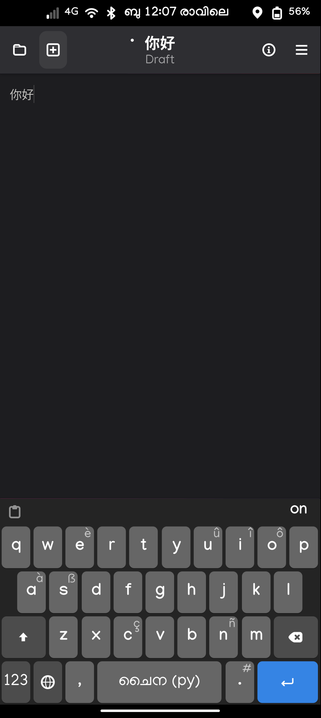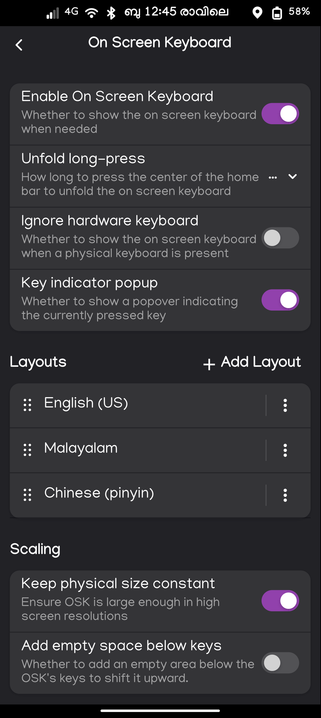
I am very sorry to say, but #fcitx seems to be bullshit. What the hell does it do, and why? And most of all: why not?

TIL that on fcitx5, hitting `Ctrl + Shift + U` allows you to directly input unicode codes as `U+2014` -> —

#til #keyboard #fcitx #unicode

Warum klappt #fcitx nicht?

Fcitx default keybinds also interfere with games, Ctrl+Space is the switch method hotkey, but is a pretty common thing to press in games, noticed while trying to crouch then jump in Overwatch.

Setting an environment variable to disable the IME for the game does seem to have done the trick (at least if you don't need to type with the IME in the game for chat) https://fcitx-im.org/wiki/FAQ/en#Minecraft

Also tried setting the switch hotkey to Super+Space as on Windows, but then IME switching just doesn't work at all anywhere.

#linux #LinuxMint #fcitx #mozc #YearOfTheLinuxDesktop

FAQ - Fcitx

Thought perhaps my keyboard was hexed today when I suddenly can't use the Ctrl-Alt-P hotkey in Sublime to switch projects.

After investigation: I installed the Japanese IME yesterday (Mozc) following the instructions to switch to the Fcitx input framework, and it looks like Fcitx overrides Ctrl-Alt-P globally for it's own use. Guess I can just rebind that, but at what cost...  

Side note, these projects have the worst names.

#linux #LinuxMint #fcitx #mozc #YearOfTheLinuxDesktop

A little cheatsheet for typing in Devanāgarī (देवनागरी) and IAST using Fcitx5 and US International AltGr keyboard layout https://codito.in/editing-sanskrit/

#sanskrit #hindi #indic #linux #fcitx

Inside Out | Editing Sanskrit text

Using fcitx and a keyboard layout for sanskrit text.

Why does changing the #ibus input method via hotkey not work anymore??? Do I really have to switch to #fcitx? imho ibus is much more comfortable. If it works.

How to show #fcitx input method icon on xfce?

## Add Indicator Plugin

1. Right-click on XFCE panel → **Panel** → **Add New Items**
2. Search for and add **"Indicator Plugin"**
3. The fcitx input method icon will appear in the indicator area

Thanks for the correction - the Indicator Plugin is indeed the proper way to show fcitx and other system indicators on XFCE panels.

Oh, BTW, setting up Japanese input was *soooooo* much easier on this version of #Linux that any version I've ever used before. Hallellujah!

And with my system fonts set to Adobe Source Han Sans (which is an open source font), everything looks so pretty!

Later on, I will sift through my stash of Japanese fonts and install more of them, for variety.

#LMDE6 #Mozc #Fcitx

Might try and fuck around with #Fcitx again because #Ibus is incredibly crash-prone when using ibus-rime for #Bopomo / #Zhuyin input, while ibus-chewing didn't work at all. Most unforgivably, Ibus takes my #Emacs session down with it in an unrecoverable crash. I don't want to close and restart Emacs just to indulge in Chinese writing, damn it 😣 Ibus-hangul is also annoying me because it evidently can't save the last state of language input, so I have to change back to Korean every time I move back into an application where I was typing Korean.

Fcitx is looking attractive again because it's billed as lightweight, development seems active and documentation is good, and it has a choice of Rime and Chewing for Bopomo input. The #ArchLinux wiki page even has a section on Emacs input! https://wiki.archlinux.org/title/Fcitx

I remember falling off Fcitx pretty hard the last time I tried it because the Hangul input was not working out in conjunction with Dvorak and I didn't want to fiddle with it anymore when Ibus was working out, but maybe I can get it working this time? 🤞 Alternately, if Chinese input works out on Fcitx but Hangul input sucks, I can switch between Ibus and Fcitx for Hangul/English and Chinese input. It's not the cleanest solution but I can set up shortcuts to make the transition fairly painless, and it's not like I type Chinese professionally or voluminously anyway.

Fcitx - ArchWiki