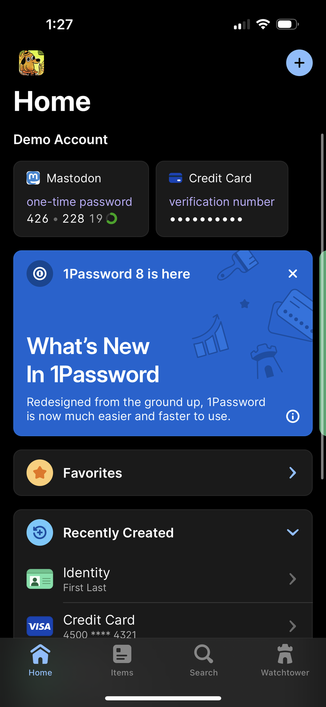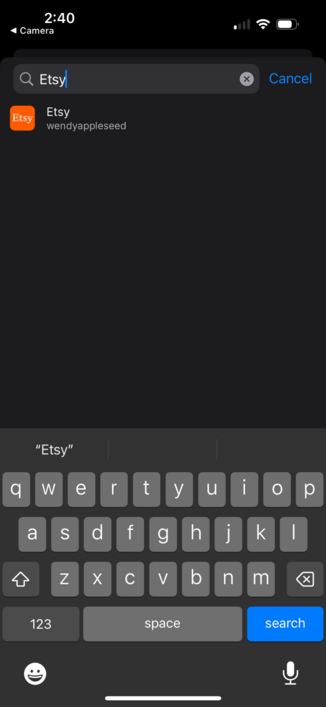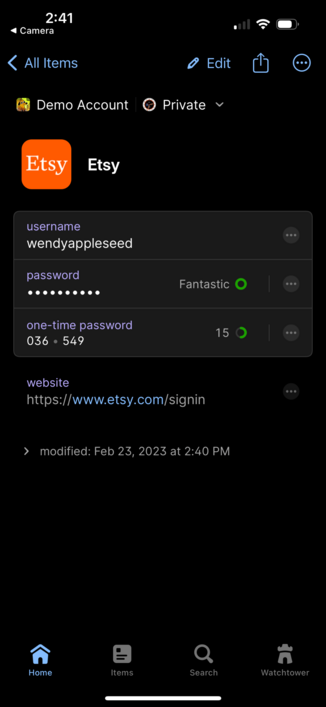
Did you know that in #1Password you can pin individual fields to the Home tab? It’s great if you need frequent access to a specific field like a one-time password.🧵
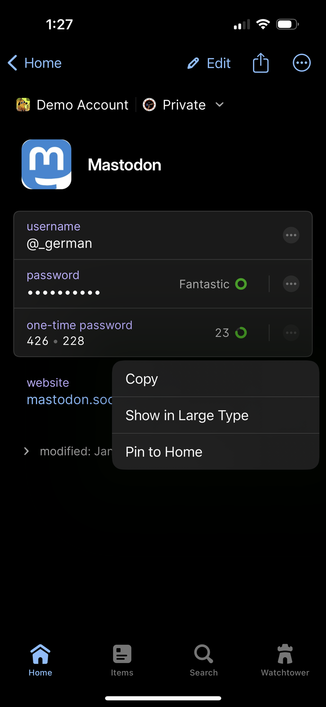
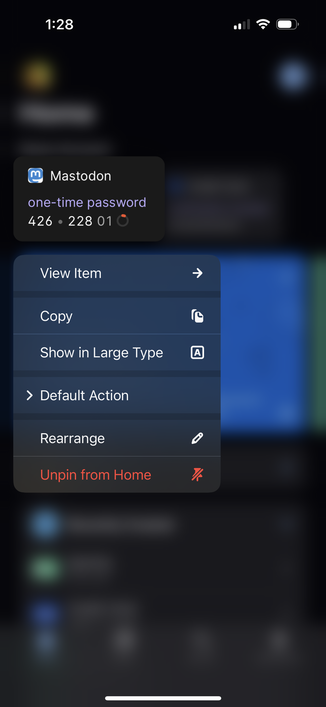
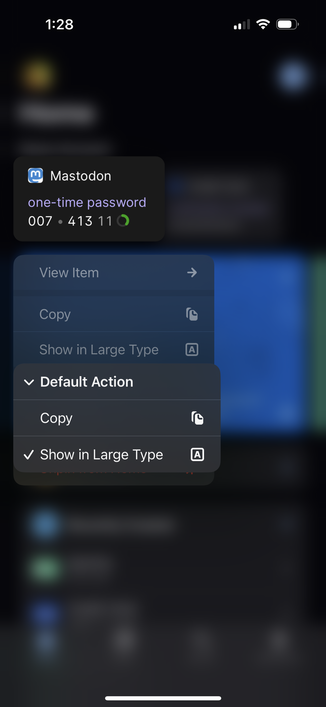
Did you know that in #1Password you can press and hold on Pinned Fields to get a whole bunch of options? You can even change what happens when you tap on it!

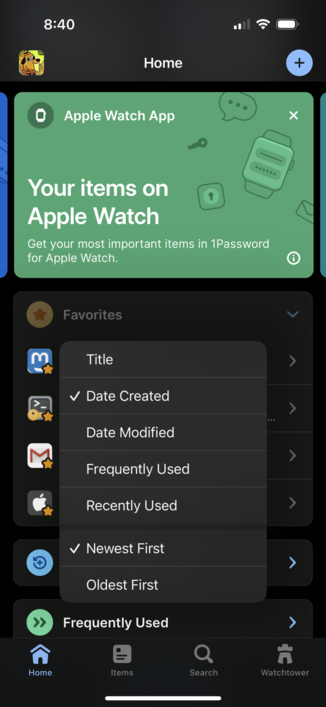
Did you know that in #1Password you can press and hold on the Favorites header to change the sort order? And of course 1Password will remember what you choose.

This was a highly requested feature from our community, so thank you to everyone for helping make 1Password even better! 💙
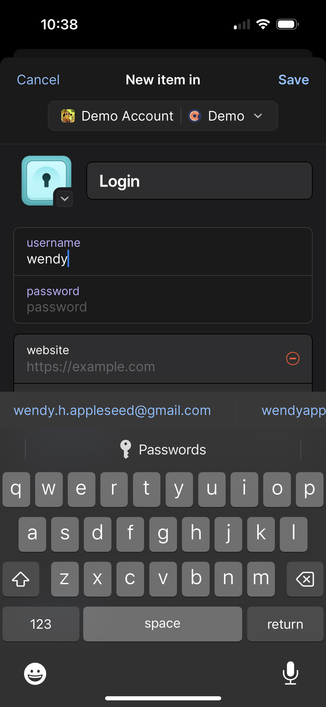
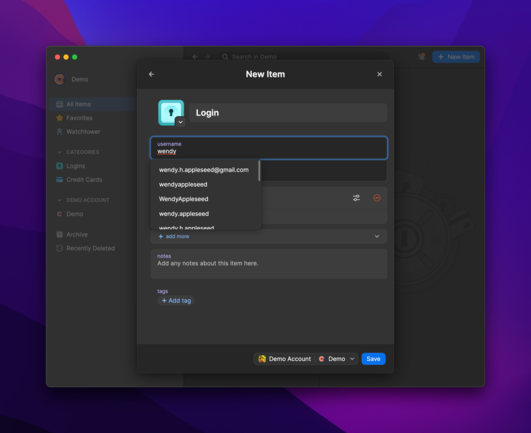
Did you know that #1Password will suggest your most commonly used usernames when you make a new login? This works great on mobile and desktop.
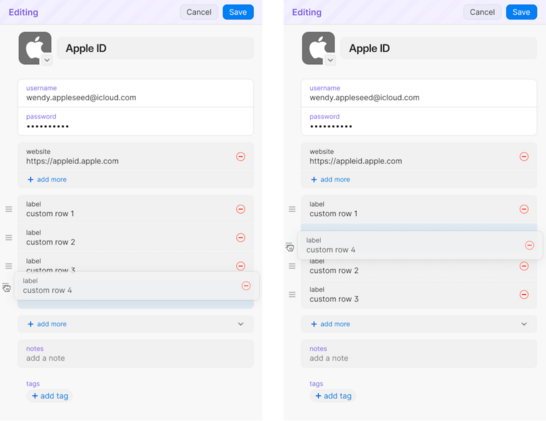
Did you know that #1Password is bringing Section and Field re-ordering to 1Password 8? Whether you’re on Mac, Windows, Linux, iOS, or Android, you’ll soon have a lot more control over the layout of your items.
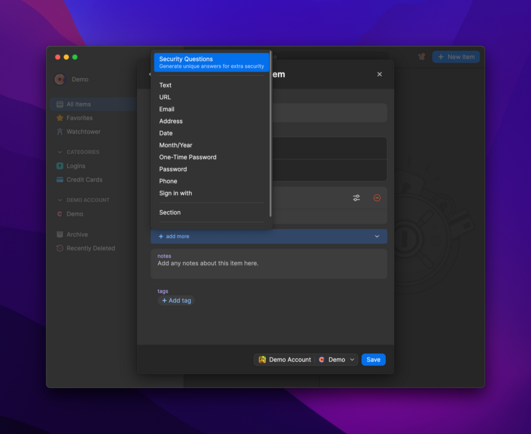
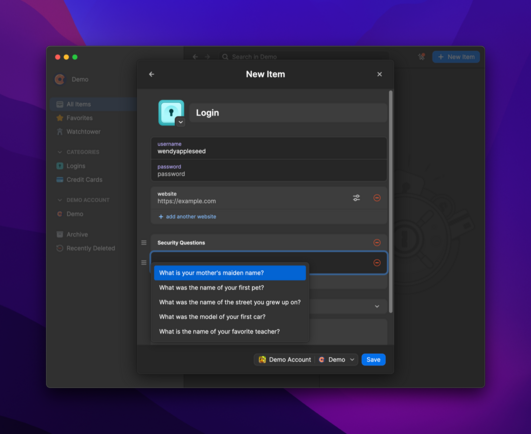
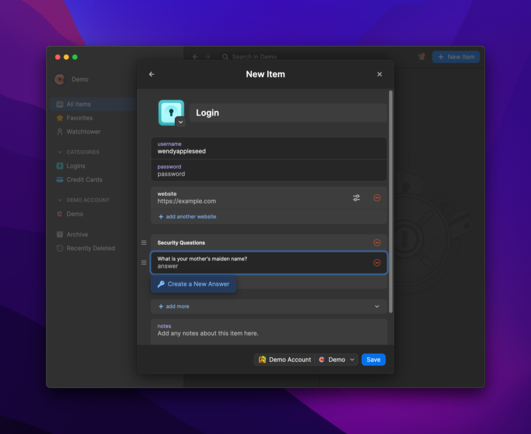
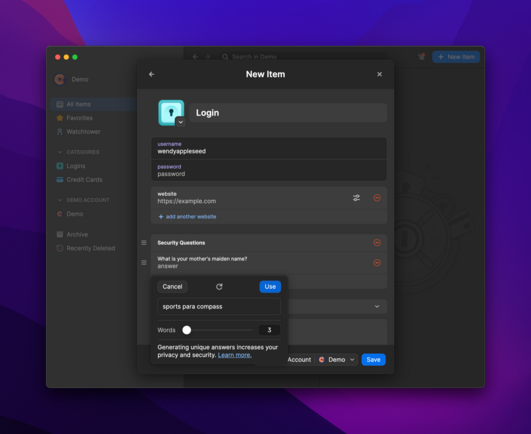
Did you know that #1Password can generate random answers to Security Questions? This makes it so easy to come up with privacy-protecting responses.Try it on mobile too!
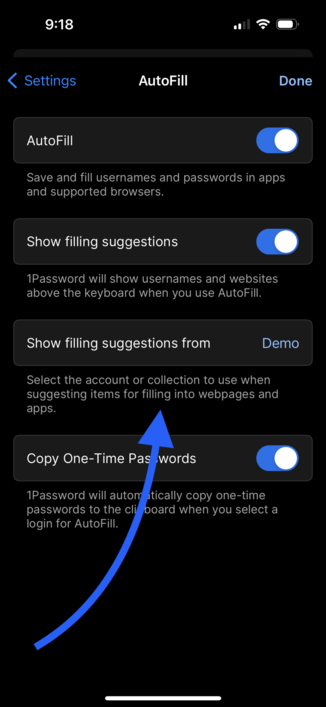
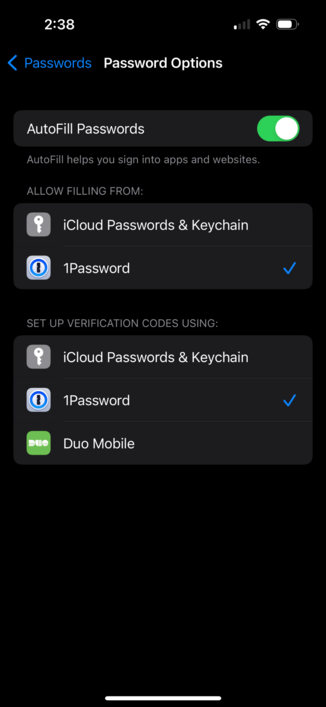
Did you know that #1Password for iOS has been given Password AutoFill super powers? Limit the suggestions on the QuickType bar to just those logins from a specific account or collection of vaults. No more logins from the Marketing team because they added you to their vault that time. 🦸
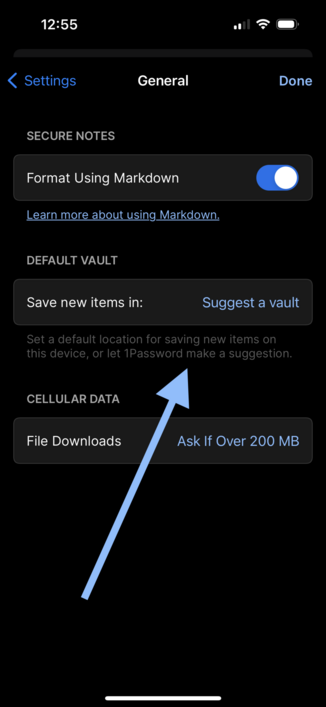
Did you know that the latest update to #1Password 8 includes a way for you to specify the default vault for new items? Pick a vault or let 1Password suggest one based on your current location in the app.

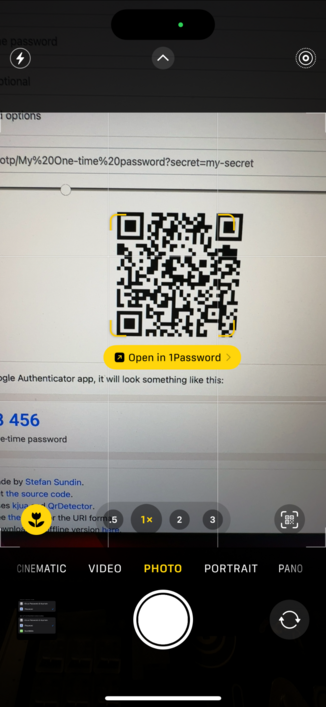
Did you know that #1Password 8 for iOS can now be set as the default app for opening two-factor URLs and QR codes?

Open with 1Password and select a login to have the one-time password attached automatically!
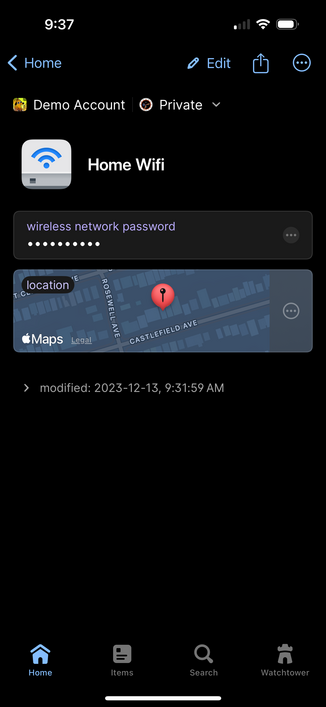
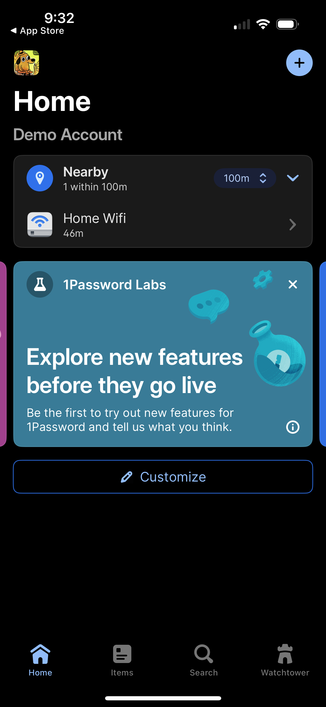
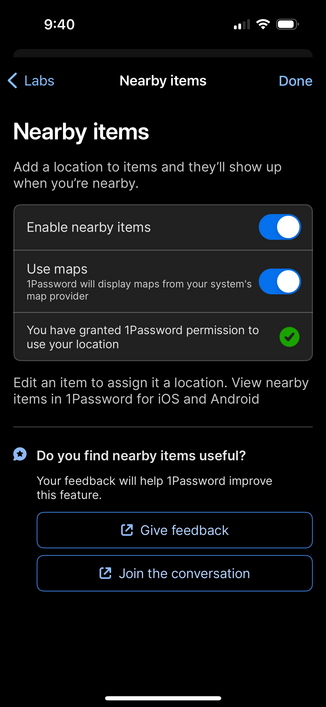
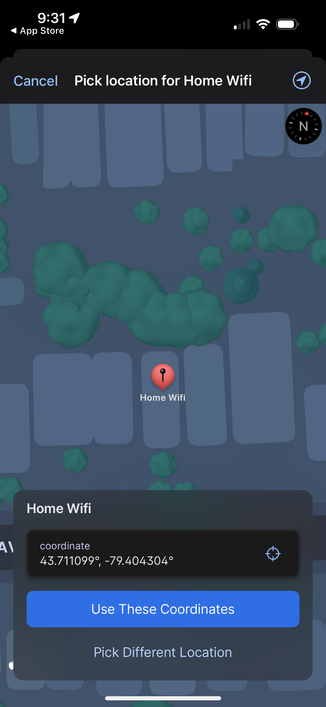
Did you know that in #1Password 8 you can now attach locations to items? Better yet, you can see a list of nearby items as soon as you open the app!

Don’t forget to enable this in Settings > Labs
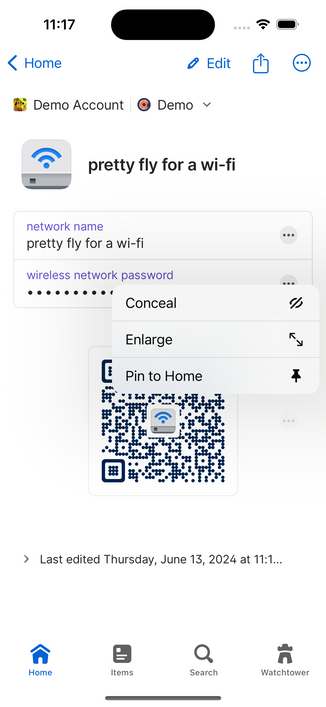
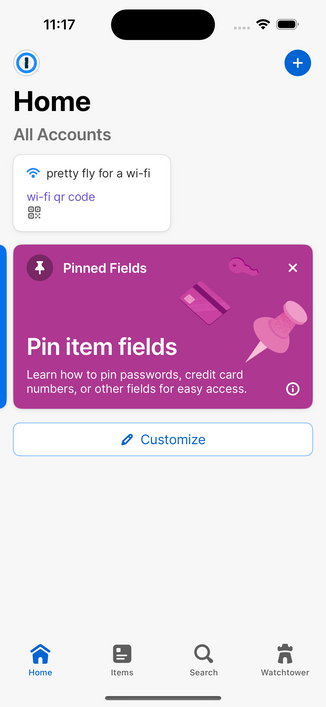
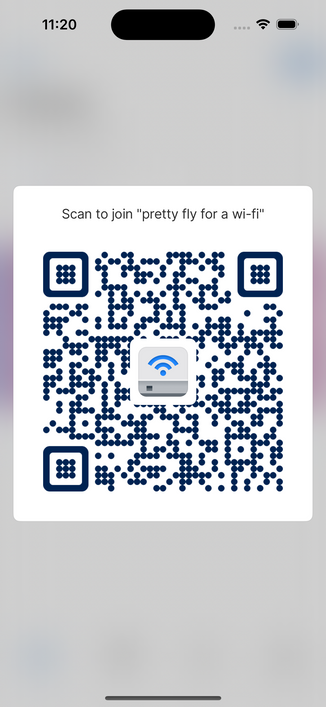
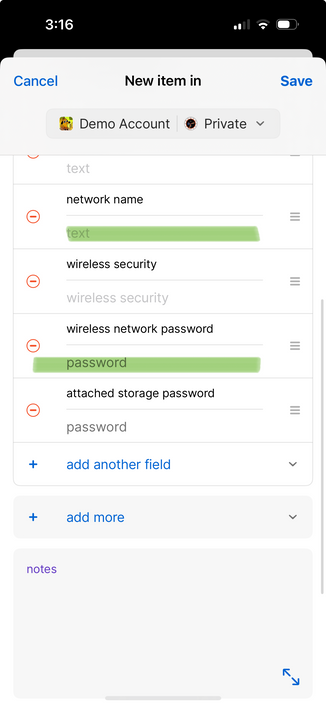
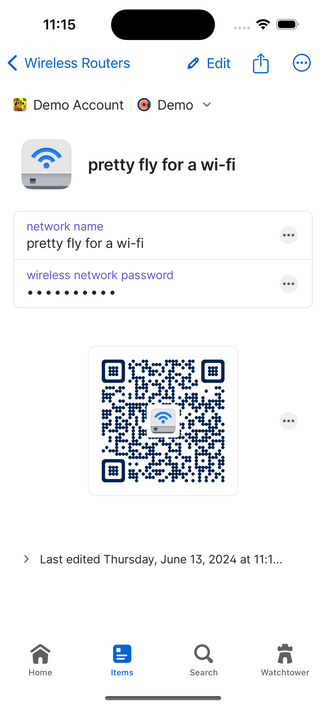
Did you know that now in beta, #1Password 8 can display a Wi-Fi QR code for your Wireless Router items?

Pin it to Home for quick access when a friend comes by and needs Wi-Fi access.
@_german how do I tell 1PW that a given entry is a WiFi passcode?
@standev (assuming you’re running the mobile or desktop beta builds of 1Password), you’ll need to fill out the network name and wireless network password fields of a Wireless Router item
@_german aha, I had it built as a generic Password item.
@standev ah, yeah it’s a bit difficult for us to pull the necessary context out of the (more) generic Password item type, so we require a Wireless Router item. Hope it wasn’t too much trouble!
@_german not at all, I was just looking for the setting in the wrong place!