 hoek 💎
 Cegorach
#Synology will mich mal wieder verarschen?
#VideoStation einfach mal ersatzlos gestrichen… ja, danke für nichts!
#Synology will mich mal wieder verarschen?
#VideoStation einfach mal ersatzlos gestrichen… ja, danke für nichts!
How to replace Synology Video Station with Jellyfin
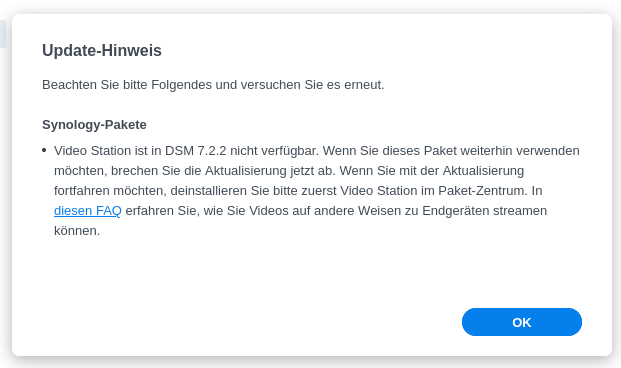
Unfortunately Synology has discontinued their support for Videostation starting from DSM version 7.2.2 as can be read in the Release Notes for DSM | Synology Inc.:
#6 Video Station is not available on DSM 7.2.2. Refer to this article for workarounds to stream videos to end devices.
Time to evaluate the alternatives …
Alternatives: Plex, Emby, Jellyfin
Synology recommends three alternatives: Plex, Emby and Jellyfin (the OpenSource fork of Emby). I tried all three now and ended up at Jellyfin. I only want to stream my videos from the NAS to an Android device or FireTV. I don’t need LiveTV and no other sources from the internet etc. I’m really just about serving local files.
Plex, is just too much for me. It also pushed for registering an account at Plex.tv and I didn’t immediately see a config for disabling all the internet sources.
Emby was just great! Just what I needed. Until I saw that I need to pay a ~5€/Month subscription to watch my movies on FireTV via the app. Using the WebBrowser would have been an option but I found that just a bit too cumbersome.
Jellyfin, looks just the same as Emby. At least in the first couple of minutes I didn’t see a difference and it also does exactly what I need. Yet, as my Synology NAS doesn’t support Docker, so I have to run it on a separate RaspberryPi.
Installing Jellyfin
Install Samba and mount Movies
Jellyfin can only stream from a local file source. So, movies from the NAS needed to be mounted via SMB to the Raspberry. All the infos can be found on Stackexchange as well. Don’t get confused why my directories are named ‘kodi’. Videos in my network just have a bit of history.
sudo apt-get install samba-common smbclient samba-common-bin smbclient cifs-utilssudo mkdir /mnt/kodiMount the NAS directory on startup:
sudo nano /etc/fstab//diskstation/kodi /mnt/kodi cifs user=...,pass=...,iocharset=utf8,rw,uid=1000,gid=1000 0 0uid and gid should be the same as your pi user’s uid/gid:
$ iduid=1000(pi) gid=1000(pi) groups=1000(pi),4(adm), .....Then just mount:
sudo mount -aIf you want to put the credentials into a separate file:
nano ~/.smbcredentialsusername=...password=...chmod 600 ~/.smbcredentialsAnd change the entry in /etc/fstab to:
I find it quite handy to reboot the RaspberryPi at this stage to ensure that mounting on startup REALLY works.
Installing Jellyfin
I took most the info from Installing Jellyfin to the Raspberry Pi – Pi My Life Up. Refer to it for more verbose explanation.
First, install prerequisites and add the Jellyfin Repository.
sudo apt install apt-transport-https lsb-releasecurl https://repo.jellyfin.org/debian/jellyfin_team.gpg.key | gpg --dearmor | sudo tee /usr/share/keyrings/jellyfin-archive-keyring.gpg >/dev/nullecho "deb [signed-by=/usr/share/keyrings/jellyfin-archive-keyring.gpg arch=$( dpkg --print-architecture )] https://repo.jellyfin.org/debian $( lsb_release -c -s ) main" | sudo tee /etc/apt/sources.list.d/jellyfin.listsudo apt updateNow finally, install Jellyfin:
sudo apt install jellyfinAfter finishing, Jellyfin is available from your browser under http://[hostname]:8096
All the rest is done in the browser and pretty self-explanatory. A walkthrough including screenshots etc can be found here as well: Installing Jellyfin to the Raspberry Pi – Pi My Life Up.
The FireTV- and Android-App immediately find the server and things just work like a charm.
If you experience that the library scan hangs somewhere, check out “How to fix: Jellyfin Library Scan Hangs“!
#DSM #Ember #Jellyfin #Opensource #Plex #RaspberryPi #Synology #Video #Videostation
#Synology downgrade process is still valid for moving from #DSM7 7.2.2 back to 7.2.1 in case anyone wants back the option to use #VideoStation with no custom scripts.
Ofc, use this method only as a last resort!
https://www.blackvoid.club/dsm-7-to-dsm-6-downgrade/
You can always run #DSM inside a #virtual machine using #VMM, or even #Docker
https://www.blackvoid.club/how-to-run-synology-dsm-via-docker/
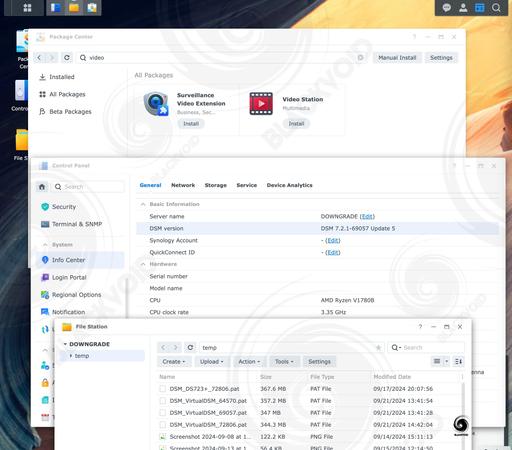
#Synology #VideoStation lost the internal battle of returning as the official #DSM72 supported app. EOL was the official decision on Friday.
Farewell VS!
Looks like the internal debate to return #Synology #VideoStation back (as part of 7.2.2. patch) is still ongoing. The official decision should be out by the end of the week.
Let's hope that will happen due to a large number of users requesting it!
@lisamelton It should be illegal for companies like #Synology to "upgrade" software running on YOUR DEVICE to remove features you bought WITH the hardware (#HEVC and #VideoStation)!
wrt:Synology 7.2.2

How to Restore Video Station and HEVC Support on DSM 7.2.2 The latest Synology DSM 7.2.2 update has removed Video Station and transcoding features, causing a stir among users who rely on their Synology NAS for multimedia playback. Without these features, streaming high-quality videos, especially th
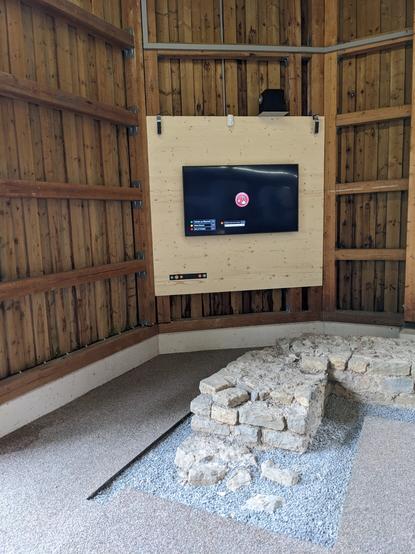
Nach rund 20 Jahren war der Austausch unserer alten Videostation überfällig. In Eigenleistung und mit Finanzierung durch den Förderverein konnten wir jetzt eine neue Videostation in Betrieb nehmen.
Wir haben Programmiert, CAD gezeichnet, 3D gedruckt und Elektronikbauteile verlötet.
Wir wissen, dass unseren Besuchern echte Knöpfe immer noch lieber als Touchdisplays sind, und deshalb blieben diese erhalten.
#multimedia #videostation #medienstation #display #museum #roemermuseum #roemerhaus
 The IT Blog
 BLACKVOID ⚫️
 (((Jann Gobble)))🏳️🌈
 Museum Römerhaus
 heise online (inoffiziell)