Multi-Mode MIDI Step Sequencer – CDR Format – Part 3

This post revisits the “CDR format” (CD Rack Format) panel version of my Multi-Mode MIDI Step Sequencer.

Warning! I strongly recommend using old or second hand equipment for your experiments.  I am not responsible for any damage to expensive instruments!

If you are new to Arduino, see the Getting Started pages.

Parts list

Panel Design

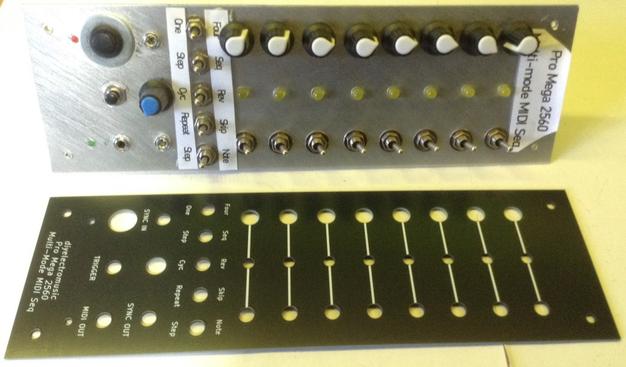
A key issue was that I hadn’t really documented the dimensions I’d used in the design of the original panel, but after finding the old cardboard cutout and comparing to my built panel I was able to reproduce the dimensions.

It also turns out that I haven’t really listed the hole sizes I’ve been using for panels either, so that was part of the first task too.

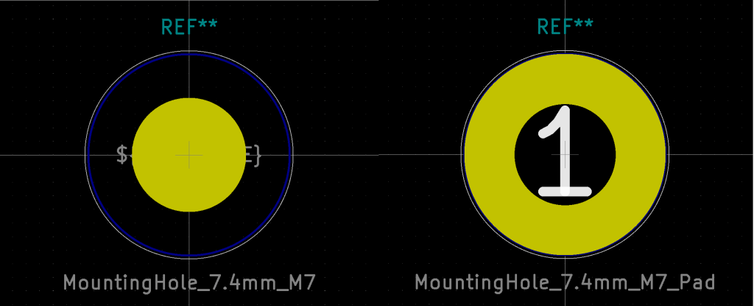
I had to create a custom KiCad part for an M7 hole. I based this on the existing M8 holes (one with a pad and one without).

The rest of the holes used, that match the connectors I’m using, are as follows:

PotentiometerM7 (7.4mm) mounting holeAudio OutM8 (8.4mm) mounting holeMIDI TRSM6 (6.4mm) mounting holeToggle SwitchM7 (7.4mm) mounting hole“Thonkiconn” Jack SocketM6 (6.4mm) mounting hole3mm LED3mm mounting hole5mm LED5mm mounting holePower Switch12.5mm diameter edge cut cutout

The key dimensions are indicated below. The whole panel is 250×80 mm with mounting holes 10x10mm from each corner and 20mm clearance top and bottom for mounting.

As I’m using a PCB design tool for the panel, I’ve included a rear GND zone, so left a small pad exposed near the bottom to solder to if required. I did think about using “pads” rather than plain holes to allow switches and potentiometers and so on to connect to the GND zone, but in the end opted for plain holes.

Note: there is one error on the final PCB – the toggle switch was designed with a M6 hole and actually I need an M7, so I had to widen it slightly.

There were a couple of complications with switching over, that I wouldn’t have had with a new build:

  • The power switch needed desoldering and resoldering as the nut is on the inside. Unfortunately I managed to damage the click mechanism and on first try, it was quite unreliable latching in the on position. I had to replace it completely.
  • Two of the three-way switches had their nut/shaft fail on me – I managed to do up the nut most of the way, but not completely and then the threaded shaft started rotating meaning I could neither do it up or undo it. They work, they are fixed in, but they are a little wobbly which is really annoying! But I’d need to desolder a fair bit to replace them. They’ll do for now. Sigh.

Some enhancements were possible too whilst updating the board:

  • I’ve added a 10nF capacitor across the terminals of the toggle switch to aid debouncing.

Other enhancements I’m considering that I might add at a later date:

  • Add capacitors across all pots for smoothing.
  • Add clamp Schottky diodes to the sync IN/OUT sockets, so they aren’t just a direct connection to the microcontroller’s GPIO ports. This was always something I meant to do anyway.

In fact, I might even add a proper buffer stage for the sync jacks anyway – a transistor input stage and protected output stage, as used in my Arduino Drum Trigger to MIDI Shield PCB and my Arduino Clock Generator Shield PCB. Or even include a buffer in the shape of a 74HC14 or similar.

Closing Thoughts

I thought this would be a straight swap and relatively straight forward to do. Unfortunately the use of cheap components caught up with me on this one.

Still, I think the result looks pretty good and it does all now work fine.

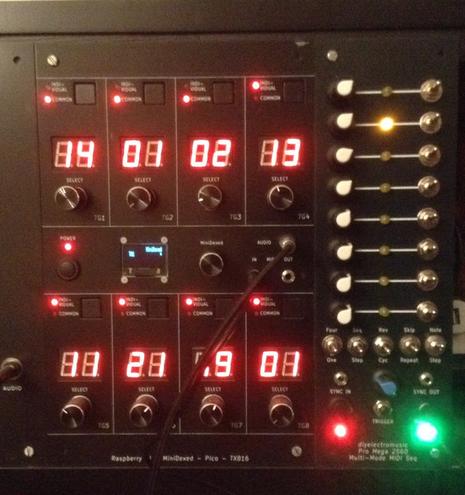
It certainly looks great next to my MiniDexed TX816.

Kevin

#ATmega2560 #cdrFormat #digitalPins #led #midi #pcb #potentiometer #ProMega2560 #sequencer #stepSequence

Vertical Modular Synthesizer “CD Rack Format”

I’m planning on building a series of MIDI synthesizer modules that will have a pretty simple means of hooking them together, but want something to house them. I also have a couple of IKEA CD …

Simple DIY Electronic Music Projects

In this posts I describe a version of the Arduino Euclidean Gate Sequencer that implements the same user interface and most of the features of HAGIWO’s brilliant build.

  • Part 1 covered all the theory and main functions of the code.
  • Part 2 included some hardware suggestions for connecting it to other devices.
  • Part 3 added a rotary encoder and I2C display and demonstrated by Arduino Clock Generator Shield PCB.
  • Part 4 reimplements HAGIWO’s original with a few tweaks and updates.

Also see the Arduino Clock Generator Shield PCB design.

https://makertube.net/w/vPXHnd69UifLhHyQangUr4

Warning! I strongly recommend using old or second hand equipment for your experiments.  I am not responsible for any damage to expensive instruments!

If you are new to Arduino, see the Getting Started pages.

Parts List

In principle this could use the same hardware as described in Part 3 but I’m using my PCB as it makes everything a lot easier to test and use.

Introduction and Core Functionality

There is a really good demonstration of HAGIWO’s build in this video: https://www.youtube.com/watch?v=lkoBfiq6KPY

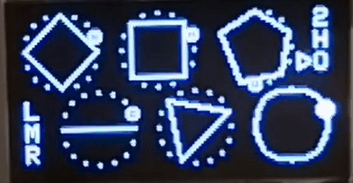
HAGIWO’s screen is shown above and has the following features:

  • 6 channel outputs each with 16 steps.
  • 16 different Euclidean patterns, represented by polygons on the display.
  • Patterns can be offset by up to 16 steps.
  • Patterns can have the number of steps reduced or limited down to a single step.
  • Channels can be muted.
  • There is a random mode that sets all parameters in a random, but still musically useful, way.

The menus are navigated by means of a rotary encoder and switch and it expects an external clock signal, as it is designed for use in a Eurorack setup.

I’m not bothered about the random mode, but I want to implement a built-in clock source with its own tempo control, similar to that shown in Part 3.

The Code

HAGIWO’s code is implemented in a single loop function, using IO interrupts with the Enc rotary encoder library, which means the encoder has to be on pins 2 and 3 on an Uno.

I want to keep my timer-driven GATE outputs and will be polling the encoder using the library from Matthias Hertel (https://github.com/mathertel/RotaryEncoder) which means essentially I’m going to be doing a re-implementation rather than a port of HAGIWO’s code to my hardware.

I’ve reused all the user interface design elements though (apart from the random mode) even though the implementation has been tweaked slightly.

Once again I have two main threads of code:

  • A 10mS tick that handles the GATE outputs and timings subject to the current selected tempo. I will also be using this to poll the rotary encoder too.
  • The main Arduino Loop() function which will manage the user interface, update the display and adjust the sequencer parameters as required.

By keeping the GATE handling in an interrupt routine it will not be affected by the slower I2C updates of the display.

I did wonder about a third level – perhaps a multiple of the main tick, to give me a thread for the encoder and one for the GATES, but it seems to work fine using the same 10mS tick for both.

The core sequencer parameters are:

  • seqTempo – tempo in beats per minute.
  • seqPatterns[] – pattern number for each channel (gate).
  • seqOffsets[] – start offset for each channel.
  • seqMute[] – if TRUE then channel is muted.
  • seqLimits[] – end step for each channel.
  • seqCounter[] – current playing step for each channel.

Timer Functions:

  • timerSetup() – initialise the TimerOne library with a 10mS tick to call timerLoop().
  • timerLoop() – calls the sequencerLoop() and uiScan() each tick.

Sequencer Functions:

  • sequencerSetup() – sets up the first patterns, tempo and any sequencer parameters that aren’t pre-initialised in code.
  • sequencerLoop() – uses tempoTickCnt to decide if a sequencer step is to be enacted or not and output the GATEs as required. Called from the timerLoop().

Gate Functions (all called from the sequencerLoop()):

  • gateSetup() – initialses the IO for GATE outputs.
  • gateClear() – turns off all GATEs.
  • gateOutput() – turns on all active GATEs.
  • gateUpdate() – works out which GATEs should be on for a particular step in a pattern using patternStepOn().

Pattern Functions:

  • patternStepOn() – returns TRUE if the indicated step of the current active pattern shows a GATE should be on for this channel.
  • patternRefresh() – caches the current active patterns for each channel, taking into account any seqOffset[] setting.

User Interface and Menu Functions:

  • uiSetup() – initialise the OLED display and encoder.
  • uiScan() – high speed elements of the interface, called from the timer interrupt and used to scan the encoder.
  • uiLoop() – lower speed elements of the interface, called from the Arduino’s main loop and handles the updates to the sequencer parameters from the encoder by calling updateMenu().
  • uiRequest() – used to signal a display refresh is required. Used when something changes due to the encoder or the playing step display needs updating.
  • uiUpdate() – redraws the screen to represent the current state of the interface and sequencer parameters.
  • updateMenu() – handles the main menu logic using the encoder increment/decrement and switch functions.

The main menu logic from the updateMenu() function has to manage 7 selection states as follows:

  • State 0: channel update
  • State 1: pattern update
  • State 2: offset update
  • State 3: limit update
  • State 4: mute on/off
  • State 5: reset sequence back to starting step
  • State 6: tempo update

Most of the states will add the (positive or negative) increment to the appropriate sequencer parameter and bounds check the result.

The exceptions are mute and reset which act immediately – mute being a toggle, and reset simply setting all seqCounters[] back to 0.

uiLoop() will act on the encoder switch using it to choose between moving between menus and selecting the functionality of one of the menu items.

uiUpdate() is the function that closely mirrors HAGIWO’s original as it has to reproduce the interface on the display. As already mentioned, I’ve not implemented a random mode, but I have added a tempo indication which I show by adding a blocked-out rectangle across the centre of the display with the current bpm tempo value shown.

I’ve also added code so that the currently selected menu item has a solid triangle when in parameter changing mode. This is mostly as HAGIWO’s original used an independent switch, so the sub-menu mode was active as long as the switch was pressed. As I’m using a switched encoder, I want the switch to be a latched toggle between modes rather than only active when pressed.

There is one bug that I can’t quite see why it happens. When showing the tempo there is a block of interference on the bottom right-hand corner. I’m using display.print() at the coordinate point indicated for the tempo text, so I’m not sure what is causing that. Once the tempo display disappears as the menu selection moves on, it goes away…

This seems to be a result of setTextSize(2) and using print(). I’ve no idea why, but switching over to using drawChar() directly for the three digits seems to solve the issue! Still no real idea why to be honest but must be some weird buffer bug in the libraries somewhere I guess.

// Note: default font has 6x8 characters, but we're using size=2
if (seqTempo >= 100) {
display.drawChar (46,24,'0'+seqTempo/100, OLED_ON, OLED_OFF, 2);
}
display.drawChar (46+12,24,'0'+(seqTempo/10)%10, OLED_ON, OLED_OFF, 2);
display.drawChar (46+24,24,'0'+seqTempo%10, OLED_ON, OLED_OFF, 2);

Update – Nov 2024

I realised what the issue is likely to be. The SSD1306 library has to allocate a chunk of memory on startup, as part of the display.begin() call and if that fails, but the code continues on anyway, then its behaviour will be quite unpredictable.

It requires the following amount of memory to run (from Adafruit_SSD1306.cpp):

(WIDTH * ((HEIGHT + 7) / 8))

So for 128×64 that is 1136 bytes of memory. I would imagine there is some kind of overrun going on – if not then it is probably something related to that.

Either way, I’ve added a test on startup to ensure that the display.begin() calls succeeds before proceeding just in case – something I should have been doing anyway.

Apart from these changes, I believe the interface is working as to HAGIWO’s original.

Find it on GitHub here.

Closing Thoughts

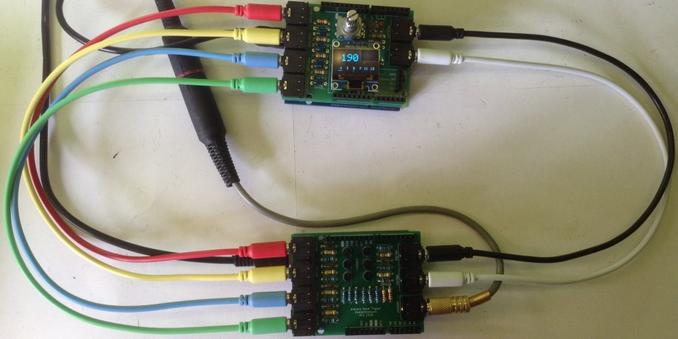
Once again the video shows my Arduino Clock Generator Shield PCB running the above code, driving my Arduino Drum Trigger to MIDI Shield PCB which is hooked up to a Roland TR-505.

When I first started messing around with Euclidean rhythms and thinking about an encoder and screen-based interface, I did think I’d just pick up and use the code from HAGIWO’s project pretty much “as is”. But in the end it was just the interface design I reused and reimplemented everything else myself so I could tweak and adjust things in the way I wanted.

So I consider this is another wheel dutifully reinvented here.

As always though, major thanks to HAGIWO for the project that inspired this one and for publishing the designs and code online for others to learn from.

Kevin

https://diyelectromusic.com/2024/10/28/arduino-euclidean-gate-sequencer-part-4/

#arduinoUno #euclidean #gate #midi #oledDisplay #rotaryEncoder #ssd1306 #stepSequence

Arduino Euclidean Gate Sequencer

I’ve always liked the idea of mathematics, algorithms and their application to music, so a Euclidean Sequencer has been on my list of things “to do” for a while. This is my take o…

Simple DIY Electronic Music Projects

This is another variant of my Arduino Euclidean Gate Sequencer this time using a rotary encoder and I2C display rather than a potentiometer for control.

  • Part 1 covered all the theory and main functions of the code.
  • Part 2 included some hardware suggestions for connecting it to other devices.
  • Part 3 added a rotary encoder and I2C display and demonstrated by Arduino Clock Generator Shield PCB.
  • Part 4 reimplements HAGIWO’s original with a few tweaks and updates.

https://makertube.net/w/s1cMmrCzW7tGm16NQQKH9w

Warning! I strongly recommend using old or second hand equipment for your experiments.  I am not responsible for any damage to expensive instruments!

If you are new to Arduino, see the Getting Started pages.

Parts List

  • Arduino Uno.
  • Switched Rotary Encoder – either a KY-040 module or an unmounted encoder.
  • 128×64 OLED I2C SSD1306 display.
  • Optional: LEDs and associated (e.g. 220Ω or 1K) resistors.
  • Breadboard and jumper wires.

The Circuit

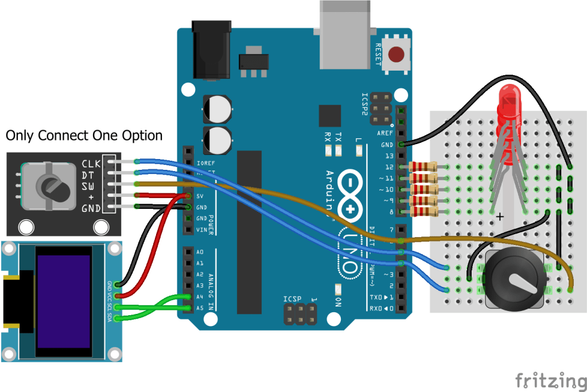
The above diagram shows how to connect two variants of rotary encoder. On the left is a common KY-040 switched encoder module. On the right is a common switched encoder directly connected to solderless breadboard. Only one encoder should be connected to D4, D5 with the switch on D6.

Note if it turns out the encoder is incrementing/decrementing values in the opposite way to what is expected, then usually the simplest thing to do is swap the IO pin assignments for the A and B connections in the code.

The diagram also shows how to connect a 128×64 I2C OLED display. These are the very common SSD1306 based displays. Note that the pinouts on these can vary with GND/VCC swapped or SCL/SDA swapped, but they must be connected to 5V, GND and A4 (SDA) and A5 (SCL).

The clock generator outputs are on D8-D13. I’ve not added an LED to D13 as it is wired to the internal LED, but that can be added too if required.

I’ve put together an Arduino Clock Generator Shield PCB which includes buffered outputs, a rotary encoder and I2C display connections.

The Code

This expands on the original code that is fully described in part 1 here.

There are two main threads of code as follows:

  • 10mS “tick” interrupt routine to ensure accurate GATE timings.
  • Back “loop” handling the encoder and display.

In order to ensure a responsive encoder the display is only updated when something actually needs to change.

Once again I’ve opted for Matthias Hertel’s simple RotaryEncoder library which can be found here: https://github.com/mathertel/RotaryEncoder. A detailed explanation of how it works can be found here. I’ve found this seems to work best for me for the cheap encoders I tend to buy. One the correct encoder type has been found I’ve found this to be very reliable, especially when simply polling IO pins for an encoder. There is a little more on the rationale for choosing this library in a previous project here: Arduino MIDI Rotary Encoder Controller.

For the I2C display, I’m using the SSD1306 implementation of the Adafruit GFX library which can be found here:

All of these should be installable from the Arduino Library Manager.

The core principles of operation are as follows:

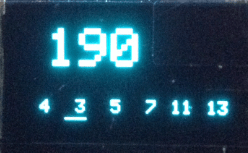
  • The display will show the tempo in beats per minute and which pattern is used for each of the 6 GATE outputs.
  • Clicking the encoder will change the focus between tempo and any of the six GATEs allowing them to be changed.
  • Note: although the tempo is in bpm the number of GATE pulses is actually running at 4 pulses per beat. This means that every 16-pulse sequence, regardless of pattern, will take 4 beats in time to run through.

This is the display I have. I’ve used a larger font for the tempo and underlining to show the active focus of the interface.

The display is managed by having lists of the coordinate points for “cursor” which map what I’ve used for positioning the text.

int cursor_x[GATES+1] = {10,30,50,70,90,110,20};
int cursor_y[GATES+1] = {60,60,60,60,60,60,35};
int cursor_l[GATES+1] = {12,12,12,12,12,12,54};

display.setTextSize(3);
display.setCursor(20,10);
display.print(tempo);

display.setTextSize(1);
for (int i=0; i<GATES ; i++) {
display.setCursor(10+20*i,50);
display.print(gatePatterns[i]);
}

display.writeFastHLine(cursor_x[uiFocus], cursor_y[uiFocus], cursor_l[uiFocus], WHITE);

Then when the encoder triggers a change, the main interface code essentially runs the following algorithm:

IF encoder signals UP THEN
IF focus is tempo THEN
Increment the tempo
ELSE
Increment the selected GATE pattern
ELSE IF encoder signals DOWN THEN
IF focus is tempo THEN
Decrement the tempo
ELSE
Decrement the selected GATE pattern

IF encoder switch is pressed
Move focus on between GATES or over to tempo

I did wonder if the encoder should be polled in its own timer-driver routine. For performance, many people might enable hardware pin interrupts, but these are only available on pins 2 and 3 on an ATMega328. But as the interface loop is essentially not doing much else, it will poll the encoder pretty quickly (at least compared to the speed a person can turn it) and performance is further enhanced by only writing out to the display if something has actually changed.

There are three #defines for the encoder IO pins. If the encoder seems to be doing the opposite to what is expected, just swap over the pins for ENC_A and ENC_B.

#define ENC_A 4
#define ENC_B 5
#define ENC_SW 6

The display is assumed to have an I2C address of 0x3C but that can be changed. It is also built for a 128×64 display but a 128×32 display could also be used if the coordinates for the text and cursors mentioned previously are changed accordingly.

#define OLED_ADDR 0x3C
#define OLED_W 128
#define OLED_H 64

There are two sets of IO pin definitions in the code. One provides a consecutive set of GATES on D8-D13 and one uses D2,D3,D10-D13 to match the requirements of my Arduino Clock Generator Shield PCB.

int gatePins[GATES] = {13,12,11,10,3,2}; // PCB variant
int gatePins[GATES] = {13,12,11,10,9,8}; // Consecutive pins

Find it on GitHub here.

Closing Thoughts

The video shows my Arduino Clock Generator Shield PCB running the above code, driving my Arduino Drum Trigger to MIDI Shield PCB which is hooked up to a Roland TR-505.

The only change required is for the GATE pins, which are slightly different for the PCB.

Kevin

https://diyelectromusic.com/2024/10/27/arduino-euclidean-gate-sequencer-part-3/

#arduinoUno #define #defines #euclidean #gate #midi #oledDisplay #rotaryEncoder #ssd1306 #stepSequence

Arduino Euclidean Gate Sequencer

I’ve always liked the idea of mathematics, algorithms and their application to music, so a Euclidean Sequencer has been on my list of things “to do” for a while. This is my take o…

Simple DIY Electronic Music Projects

I covered all the theory and main functions of the code for my Arduino Euclidean Gate Sequencer in my previous post. In this one I look a little more at some hardware that hopefully lets me use this to actually control something useful!

  • Part 1 covered all the theory and main functions of the code.
  • Part 2 included some hardware suggestions for connecting it to other devices.
  • Part 3 added a rotary encoder and I2C display and demonstrated by Arduino Clock Generator Shield PCB.
  • Part 4 reimplements HAGIWO’s original with a few tweaks and updates.

Warning! I strongly recommend using old or second hand equipment for your experiments.  I am not responsible for any damage to expensive instruments!

All of the key ideas along with a list of references for the main concepts used in this project were listed in my first post here: Arduino Euclidean Gate Sequencer.

If you are new to Arduino, see the Getting Started pages.

Experiment 1: Arduino to Arduino to MIDI

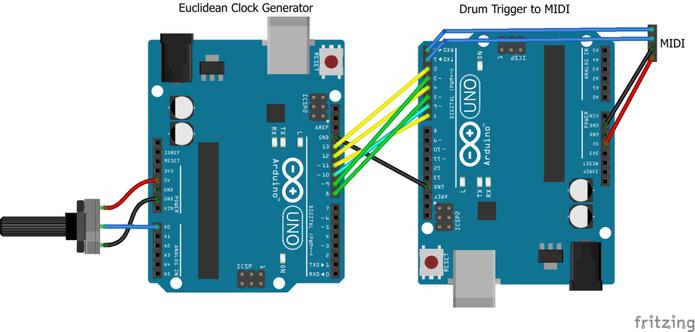
I could add MIDI functionality to my Euclidean clock generator, but instead opted to build a TRIGGER to MIDI converter using a second Arduino. This has several digital inputs setup to receive TRIGGER pulses and on reception will send out a preconfigured MIDI message.

The configuration is such that a NoteOn is sent for a specific drum on MIDI channel 10 which is typically used for percussion. Which drum corresponds to which input is configurable in the code.

Full details of this so far can be found here: Arduino Drum Trigger to MIDI. This is how I connected them up and it seems to work pretty well.

Arduino to GATE or TRIGGER Output

Here I’m setting up the board to be able to drive an external device.

As always, the standard warning applies – use second hand or disposable equipment for experiments. I am not responsible for damage to expensive instruments. Assess what I’m doing, decide for yourself how it will affect your equipment and then use at your own risk.

I’ve followed the design from HAGIWO’s GATE sequencer, which is detailed in full here: https://note.com/solder_state/n/n17c69afd484d

This recommends the following:

  • All outputs clamped to the Arduino’s 5V and GND using BAT43 Schotky diodes.
  • 470Ω resistor on the output to set an output impedance.

I’m wanting to plug this into my Korg Volca Sync In.

With an oscilloscope I examined the Sync Out signal and confirmed that it is a 5V pulse of 15mS. As I’m only plugging a 5V Arduino into the 5V accepting Korg, I’ve not bothered with the clamping diodes for my simple experiments, but if I build this up into a PCB then I’ll probably add them in to make it a little more universal.

The TRS jack is wired to be compatible with the Korg Volca Sync In port – i.e. using just the tip and shield. A stereo or mono 3.5mm jack to jack cable (as comes supplied with a Volca) can then be used to connect it up.

The blue jumper wire can be used to select which of the Euclidean clock outputs to use.

The code is built for TRIGGER mode, so each output is a single 10mS pulse. This is shorter than that produced by the Volcas but generally seems to work.

When first connected or when the tempo is changed I sometimes hear some spurious or irregular triggering, but once it has settled down it seems to work fine for my Volca Keys, Volca Modular, and Volca FM2.

Arduino to ESP32 Synth Thing Baby8

The “Baby8” CV Step Sequencer has an option to be driven by an external clock. If the INT_CLK jumper is removed then it will trigger off whatever is plugged into the CLK header pin (third down from the top of the header).

This means that, assuming the Baby8 is powered off 5V, then any of the Arduino GPIO clock outputs (D8-D13) can be directly connected as shown below.

This is directly connecting the Arduino’s GPIO OUTPUT pins (the clock) to the Baby 8’s 4017 timer CLK pin. As in general terms directly connecting an OUTPUT to an INPUT is deemed an ok thing to do (INPUTs are high impedance as I understand things), i.e. the output of a microcontroller, 555 timer, or NAND oscillator and so on are often set up to drive the CLK pin directly, then connecting it directly to an Arduino GPIO OUTPUT should be fine.

It is also possible to drive the actual Educational DIY Synth Thing itself as it includes 5V tolerant GATE and TRIGGER inputs, but having a regular clock pulse with no pitch CV information is somewhat limited.

But using the Baby8 as shown above with the Synth Thing too should work fine, although if the Baby 8 is powered off 5V then the top of the potentiometer’s range will be slightly too high for the Synth Thing which will top-out at around 3V3. It won’t damage the Synth Thing as the CV inputs are clamped to the 0 and 3V3 power rails.

Closing Thoughts

Naturally getting the logic signal doing the right thing on a GPIO port is only part of the equation. That is only useful if it is able to control something else.

This post looked at some options, from the hacky “quick and dirty” versions through to what ought to be done to do things properly.

I’m still chewing over the idea of some kind of trigger shield or similar PCB.

Kevin

https://diyelectromusic.com/2024/10/07/arduino-euclidean-gate-sequencer-part-2/

#arduinoUno #baby8 #euclidean #gate #midi #stepSequence #synthThing

Arduino Euclidean Gate Sequencer

I’ve always liked the idea of mathematics, algorithms and their application to music, so a Euclidean Sequencer has been on my list of things “to do” for a while. This is my take o…

Simple DIY Electronic Music Projects

I’ve always liked the idea of mathematics, algorithms and their application to music, so a Euclidean Sequencer has been on my list of things “to do” for a while.

This is my take on how to build one from an Arduino. This post focuses on the code and algorithms – some more useful hardware will come along later maybe in a future post.

  • Part 1 covered all the theory and main functions of the code.
  • Part 2 included some hardware suggestions for connecting it to other devices.
  • Part 3 added a rotary encoder and I2C display and demonstrated by Arduino Clock Generator Shield PCB.
  • Part 4 reimplements HAGIWO’s original with a few tweaks and updates.

Also see the Arduino Clock Generator Shield PCB design.

But before I get stuck in, first let me call out two very comprehensive and well implemented and documented DIY Arduino Euclidean Sequencers that do so much more than I’m thinking of doing:

Warning! I strongly recommend using old or second hand equipment for your experiments.  I am not responsible for any damage to expensive instruments!

These are the key tutorials for the main concepts used in this project:

If you are new to Arduino, see the Getting Started pages.

Introduction and Background

The basic idea is that splitting a number of steps in a sequence up into equal, but irregular timings, will generate interesting polyrhythms.

The “Euclidean” part comes from the original paper that recognised a similarity between two approaches to splitting up the sequence and a range of rhythms that were in use around the world. The trick is working out how best to evenly distribute the beats across the sequence. Easy when you have 4 beats across a 16 step sequence, but not so easy for 5, 7 or 13 (for example).

It turns out (see the references above) that there is a relatively simple algorithm to achieve this. In pseudo-code it looks like this:

steps = 16
beats = 7
counter = steps-beats OR 0 if beats = 0
FOR EACH step:
counter += beats
IF counter >= steps THEN this step is ON
ELSE this step is OFF
counter %= steps

Basically, we keep adding “beats” to a counter and every time the counter overflows the total number of steps, we log a beat to be played, and then have the counter wrap-around.

Note: ideally we want the counter = steps at the start to ensure our first step is ON, but as the first thing we do is counter += beats, the counter has to be set to steps-beats to achieve this. The exception is if for some reason beats is 0, then we need all outputs to be zero, so need the counter to be less than steps (so I just set it to 0 directly).

Here is how the above example plays out for 7 beats across 16 steps for each of the 16 steps:

Step Counter Output
0 16->0 1
1 7 0
2 14 0
3 21->5 1
4 12 0
5 19->3 1
6 10 0
7 17->1 1
8 8 0
9 15 0
10 22->6 1
11 13 0
12 20->4 1
13 11 0
14 18->2 1
15 9 0

So the optimal sequence for playing 7 beats evenly across 16 steps of a sequencer is:

1001 0101 0010 1010
OR
100 10 10 100 10 10 10

This algorithm can thus be used to work out any combination of beats up to a specific number of steps.

Here is some code for an Arduino that will output to the serial monitor all the sequences for a number of steps, in the form of a C language structure that can then be pasted into another Arduino sketch.

#define STEPS 16
void setup() {
Serial.begin(9600);
for (int i=0; i<=STEPS; i++) {
EuclideanPattern(STEPS, i);
}
}

void EuclideanPattern (int steps, int beats) {
if (beats > steps) return;

int cnt = 0;
if (beats > 0) {
cnt = steps - beats;
}

Serial.print(" {");
for (int i=0; i<steps; i++) {
cnt += beats;
if (cnt >= steps) {
Serial.print("1");
} else {
Serial.print("0");
}
if (i < steps-1) {
Serial.print(",");
}
cnt = cnt % steps;
}
Serial.print("}, \/\/ ");
Serial.print(beats);
Serial.print("\n");
}

void loop() {
}

Which gives the following output – all the Euclidean pattern combinations for a 16-step sequence.

{0,0,0,0,0,0,0,0,0,0,0,0,0,0,0,0}, // 0
{1,0,0,0,0,0,0,0,0,0,0,0,0,0,0,0}, // 1
{1,0,0,0,0,0,0,0,1,0,0,0,0,0,0,0}, // 2
{1,0,0,0,0,0,1,0,0,0,0,1,0,0,0,0}, // 3
{1,0,0,0,1,0,0,0,1,0,0,0,1,0,0,0}, // 4
{1,0,0,0,1,0,0,1,0,0,1,0,0,1,0,0}, // 5
{1,0,0,1,0,0,1,0,1,0,0,1,0,0,1,0}, // 6
{1,0,0,1,0,1,0,1,0,0,1,0,1,0,1,0}, // 7
{1,0,1,0,1,0,1,0,1,0,1,0,1,0,1,0}, // 8
{1,0,1,0,1,0,1,0,1,1,0,1,0,1,0,1}, // 9
{1,0,1,0,1,1,0,1,1,0,1,0,1,1,0,1}, // 10
{1,0,1,1,0,1,1,0,1,1,0,1,1,0,1,1}, // 11
{1,0,1,1,1,0,1,1,1,0,1,1,1,0,1,1}, // 12
{1,0,1,1,1,1,0,1,1,1,1,0,1,1,1,1}, // 13
{1,0,1,1,1,1,1,1,1,0,1,1,1,1,1,1}, // 14
{1,0,1,1,1,1,1,1,1,1,1,1,1,1,1,1}, // 15
{1,1,1,1,1,1,1,1,1,1,1,1,1,1,1,1}, // 16

This might typically be used something like the following:

#define PATTERNS (STEPS+1)
const uint8_t patterns[PATTERNS][STEPS] = {
... data goes here ...
};

int pattern = 7; // Choose pattern between 0 and 16 inclusive
for (int step=0; step<STEPS; step++) {
if (patterns[pattern][step]) {
// Play
} else {
// Skip
}
}

In a sequencer we’d probably want to include options for adjusting the starting point in the sequence too, but this is the basics of what is to follow.

Parts list

  • Arduino Uno R3
  • 10K potentiometer
  • Optional: LEDs and associated (e.g. 220Ω or 1K) resistors
  • Breadboard and jumper wires

The Circuit

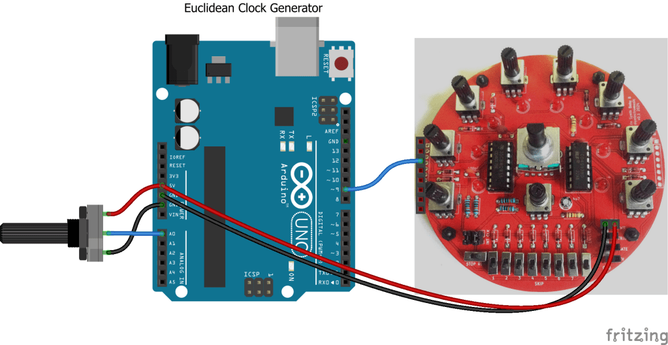
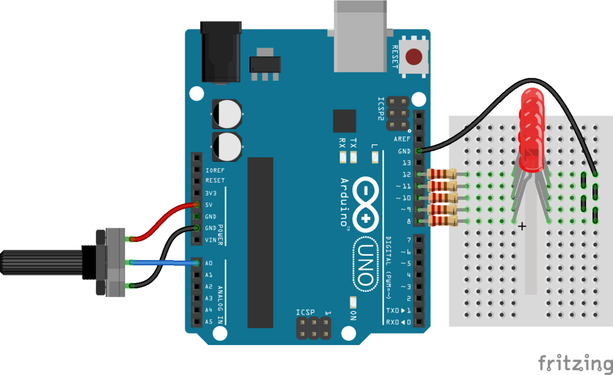
A potentiometer to control the tempo is connected to A0. There are five clock outputs on D8-D12. To illustrate the functioning of the clock patterns, each output is connected via a resistor to an LED and then onto GND, but this is optional. It just makes the output visible.

The outputs will be a 5V signal, but it is not buffered in anyway.

It might be possible to use the signal “as is” depending on what it is driving, but in order to avoid damaging the Arduino what is connected to it must not draw more than around 20mA of current.

In order to avoid damaging the thing you want to connect to it – my strong recommendation is not to connect it at all.

This is not a completely usable circuit, it is meant just to be proving the software.

The Code

The idea is to use a timer to provide a constant “TICK” for the system. The TEMPO (set with the pot) will determine how many TICKs are in each STEP. And the Euclidean algorithm will determine which STEPs have a GATE on and which are off. This will be supported for a number of GATE outputs allowing different Euclidean patterns to be present on each output.

Things that are still missing that would make this a possibly useful sequencer are:

  • There is no way to select the pattern for any GATE output.
  • There is no hardware buffering or electronic protection on the outputs – they are just a microcontroller GPIO logic output so for an Arduino Uno R3 this means they are limiting to being to provide around 20mA of current.
  • There is no visual display or feedback on what is happening, but the LEDs are optionally provided as a temporary output.
  • It might be useful to be able to get its main clock signal from an external source.

There are several sections within the code:

  • GATE IO and Euclidean patterns definitions.
  • Timer routines.
  • Sequencer GATE handling routines.
  • Standard Arduino setup() and loop().

Taking each in turn.

The GATE IO and Euclidean pattern definitions list which GPIO pins are being used and has the definition of the 17 Euclidean patterns for all combinations of 16 STEPS (including for 0 steps).

I’ve also included a function to essentially answer the question “is this step in this pattern on or off”.

The patterns are stored in the Arduino’s PROGMEM memory area as they are constant and this will conserve the Arduino’s limited dynamic memory. But this means to get access requires the use of pgm_read_byte() and will be slower than just reading memory directly.

#define GATES 5
int gatePins[GATES] = {8,9,10,11,12};

#define STEPS 16
#define PATTERNS (STEPS+1)
#define DEFAULT_PATTERN 4
const uint8_t patterns[PATTERNS][STEPS] PROGMEM = {
... data here ...
};

bool patternStepOn (unsigned pattern, unsigned step) {
int stepstate = pgm_read_byte(&(patterns[pattern][step]));
if (stepstate) {
return true;
} else {
return false;
}
}

I’m using the TimerOne library to provide a regular TICK for the system. I’m aiming to support 4 STEPS per BEAT with a TEMPO range of around 20 BEATS per minute up to around 240 bpm.

Getting a little hand-wavy, this means that the shortest STEP interval has to support 240*4 = 960 STEPS per minute or 16 STEPS a second, giving it a period of around 63mS.

The longest STEP interval will be around 80 STEPS per minute or 0.75 STEPs a second which is around 1.3 seconds per STEP.

Given the above, I’ve gone for a 10mS TICK from the TimerOne library and a minimum TEMPO of 3 TICKS per STEP. I’ll scale an Arduino pot reading to a value between 0..127 which means the number of TICKS per STEP will be between 3 and 130 giving a range of 30mS to 1300 mS.

#define TIMER_PERIOD 10000 // Period in uS
#define TEMPO_MIN 3 // 30mS minimum

void sequencerSetup (void) {
Timer1.initialize(TIMER_PERIOD);
Timer1.attachInterrupt(sequencerLoop);
}

The sequencerLoop() function will be responsible for working out what core sequencer action is required according to the TEMPO and which STEP we’re on.

tempoTickCounter starts with a value between 3 and 130

sequencerLoop():
tempoTickCounter--

IF tempoTickCounter == 0:
outputGates()
updateGates()
reset tempoTickCounter back to its starting value

I’m splitting up the output and update of the GATE values from the sequencer as I’m anticipating the updating taking a bit longer. This means that each update will get the values ready but they will only be reflected in the GPIO at the start of the next TICK. The idea is that any jitter that might have been introduced due to the code calculating values and retrieving them from PROGMEM will be “soaked up” between TICKs and the actual transitions will remain accurate to the 10mS TICK resolution.

There is one other consideration though. When generating GATE signals they are meant to be HIGH as long as an output is required. But if there are consecutive STEPS then the GATE signal won’t change – it will remain HIGH between STEPS. This means that anything being driven by the sequencer won’t see a new transition between STEPS.

I’ve considered two options here:

  • Swap to TRIGGERS rather than GATES. This means each STEP is simply a TRIGGER pulse HIGH for a fixed length (e.g. 1 10mS TICK) rather than HIGH for the whole STEP.
  • Ensure there is a small gap (e.g. 1 10mS TICK) between each STEP to ensure the GATE stops and restarts.

Actually, I’ll add a TRIGGER output shortly, but I still want the option for a GATE, so to achieve this, I ensure that all GATES are turned off for the last TICK before the TEMPO dictates the next GATE update. I don’t know if 10mS will be enough yet, but some experimentation with some proper hardware should give a pretty clear idea, but that is a task for another time.

In code this means adding an additional IF clause as follows:

IF tempoTickCnt == 1:
clearGates()

In order to support either GATE or TRIGGER, I need a way to essentially invert the GATE behaviour and have the TRIGGER HIGH for just one TICK. I’ve included a #define to choose one or the other and swap the code around accordingly.

The final sequencerLoop() is thus as follows:

tempoTickCounter starts with a value between 3 and 130

sequencerLoop():
tempoTickCounter--

IF tempoTickCounter == 0:
IF TRIGGER MODE clearGates()
IF GATE MODE outputGates()
updateGates()
reset tempoTickCounter back to its starting value

IF tempoTickCnt == 1:
IF TRIGGER MODE outputGates()
IF GATE MODE clearGates()

The TRIGGER is fixed to a single TICK, so 10mS, but the TICK is easily adjusted if a longer TRIGGER is required. I suspect this is a lot simpler than coding for the TRIGGER to stay on for several TICKS.

The sequencer GATE handling routines will set up the Arduino’s digital IO for GATE outputs.

int stepCnt; // Current step count
int gateStep[GATES]; // Current step output value for this GATE
int gatePatterns[GATES]; // Which pattern is used for this GATE

void setupGates () {
for (int i=0; i<GATES; i++) {
pinMode (gatePins[i], OUTPUT);
digitalWrite(gatePins[i], LOW);
gatePatterns[i] = 0;
gateStep[i] = 0;
}
stepCnt = 0;
}

void clearGates () {
for (int i=0; i<GATES; i++) {
digitalWrite(gatePins[i], LOW);
}
}

void outputGates () {
for (int i=0; i<GATES; i++) {
digitalWrite(gatePins[i], gateStep[i]);
}
}

The main logic all happens in the updateGates() function which sets the values in gateStep[] for the next STEP to be “played” when the outputGates() function is next called.

void updateGates () {
stepCnt++;
if (stepCnt >= STEPS) {
stepCnt = 0;
}

for (int i=0; i<GATES; i++) {
if (patternStepOn(gatePatterns[i], stepCnt)) {
gateStep[i] = HIGH;
} else {
gateStep[i] = LOW;
}
}
}

The main Arduino setup() and loop() functions just have to call the appropriate setup functions for the different sections, set up the range of patterns required per GATE output by initialising gatePatterns[] and updating the reset value for the tempoTickCounter according to the value read from the potentiometer on A0.

Find it on GitHub here.

Closing Thoughts

I was struggling to translate the original paper on Euclidean rhythms over to an Arduino, and there didn’t seem to be much explanation out there on how it works, but I think I got there in the end.

I’ve not wanted to plug these signals into anything yet, so next I’ll work on some hardware (even it just a way to wire up some sync jacks) and attempt to actually get it working.

I might try to add a means of configuring a pattern for each GATE and some kind of visual output, but to be honest, nothing will beat the implementation already put together by HAGIWO, so I might end up just using that if want anything more sophisticated.

Kevin

https://diyelectromusic.com/2024/10/04/arduino-euclidean-gate-sequencer/

#arduinoUno #define #euclidean #gate #stepSequence
Arduino Euclidean Gate Sequencer

I’ve always liked the idea of mathematics, algorithms and their application to music, so a Euclidean Sequencer has been on my list of things “to do” for a while. This is my take o…

Simple DIY Electronic Music Projects