 NP3QL
NP3QL 
https://www.youtube.com/watch?v=1ajxMYEhtiY&t=753 #net #radioaficion #radioaficionpr #arrl #np3ql #kp4


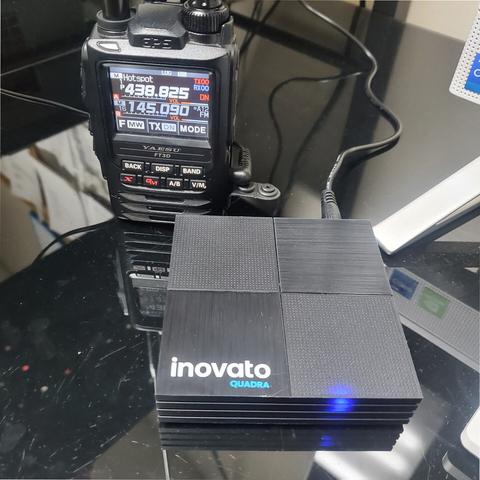

This is the start of an effort to get KM4ACK's build-a-pi working on the Quadra. The plan is that if we can get enough working, this will be combined into a single script you can run before installing build-a-pi using the normal method on Jason's site. So far, I am sure not everything will work, but we'd love to know what does and doesn't (reply to this post) and we'll keep working on it. I don't have much radio equipment here (just a couple of Baofengs) and am newly licensed so this hasn't been tested much. But the flsuite apps appear to load, as does Direwolf, HamClock, Chirp and Conkey, at least. When trying to use Direwolf, I get an error when trying to transmit "Audio input device 0 error code -77: File descriptor in bad state", followed by "Terminating after audio input failure", and "Read error from TCP KILL TNC. Terminating". Anyone seen anything like this before? This also happens on my Pi 4. Have configured direwolf.conf for PTT as described in various posts/videos. The Baofengs start to transmit, but then get this error and never stop transmitting until I turn them off. I need an Elmer! (I will be out the next two weeks but will continue looking at this when I get back). Step 1. Change the sudo timeout so it doesn't prompt you for your password during the build. Type: sudo visudo And change this line; Defaults env_reset to: Defaults env_reset,timestamp_timeout=600 Exit with ctrl-x and confirm you want to write the changes. Step 2. Remove a file left over from the menu editor that prevents the Hamradio menu from displaying properly: rm ~/.config/menus/xfce-applications.menu Step 3. Install xterm and lxterminal as Build-a-Pi uses these. sudo apt install xterm lxterminal Step 4. Remove brltty as it will prevent using serial ports sudo apt remove brltty Step 5. Install build-a-pi as usual. If it doesn't complete normally (your screen locks or you are back at the login screen instead of the usual "reboot" dialog), don't worry at this point as you can run the build-a-pi Update-Tool at the end to install anything missing. Step 6 (Optional) . If you'd like the "Build-a-PI' wallpaper, you can set it using the "Desktop" app under "Settings" in the "Applications" menu. Click on the up/down arrow next to "Folder" and select "other". Then select the "pi-build" folder and click the open button at the upper right of the dialog. You should see a mostly back box (that is the wallpaper reduced to a small size) and the KM4ACK logo. Select the mostly black box and when the wallpaper changes, click the "close" button. Step 7. If build-a-pi installation didn't complete normally, run the Build-a-Pi Update-Tool and select anything missing. If it keeps failing, then select them one at a time and let us know what fails so we can work on it. Step 8. Reboot and test! Thanks for your help!