Quick Post #1: Google Search Options
I heard on a podcast the idea of posting short, 10 minute posts with useful tips or information, rather than always a long article. I liked the idea, so this is the first one.

Did you like the old Google search, without an AI summary, ads, and other extra material at the top? You can get it back. The key is to adding &udm=14 at the end of your search string
https://www.mcgurrin.info/robots/1960/
#Uncategorized #DuckDuckGo #Google #QuickPost #search

Quick Post #1: Google Search Options | The Aspiring Roboticist

Last week I participated in a new webinar offered by WordPress.com Learn on designing your own theme with Patterns.

You might be familiar with Patterns as pre-configured sets of blocks that you can insert in your page or post and then swap out the sample content with your own. That concept has moved into the Full Site Editor and a newish feature exclusive to WordPress.com, the Site Designer.

Open the Site Designer from Appearance>Themes

Before the Site Designer arrived on the scene, the most frequent advice given to site owners was to pick a Full Site Editing/Block Theme that was closest to what you want for your site and then use the Site Editor to adapt that theme’s templates to your own needs. I still think this is great advice for most anyone interested in using a Block theme.

https://jetpack.com/blog/wordpress-block-themes/

The Site Designer, however, is a whole other thing where you can create a one-of-a-kind, custom theme from scratch for your site.

UPDATE: Sadly it appears that this feature was retired sometime mid-2024. However, you can still create a new template in any Site Editor theme and use patterns to customize its design.

Because the information in this webinar was incredibly dense, I’m taking it a second time and will likely be watching the reruns a few times as well. You can watch it here with me:

I’ve toyed with the idea of redesigning wpcommaven from the ground up, but hesitate to do so while the site is live. It’s my understanding from the answer I received during the webinar that it’s not possible to “export” a theme created this way, like from a test site, but only copy/paste the templates you create from the test site to the actual site. Not really a good experience overall.

UPDATE: Even between last week’s session and today’s (Wednesday’s) session there’s been another feature added to the Site Designer. You can now choose to include additional Pages, like an About page, a blog, a contact page, etc., when creating a new custom theme. You won’t be able to edit those pages in the Site Designer, but in the Site Editor instead.

Pro Tip: Using Styles really makes the custom theme you create in the Site Designer pop, but Styles can only be applied with the Premium plan and up upgrades…

or the CSS Add-on

Click here to start your own WordPress.com website today!

What do you think about Full Site Editing/Block Themes? Do you feel comfortable with them yet? Do you think you’d give the Site Designer a try?

As always, the information in this post is correct as of publication date. Changes are inevitable.

https://wpcommaven.com/2023/11/27/design-your-own-theme-a-webinar/

#blockPatterns #Design #FullSiteEditing #QuickPost
Block Patterns

Block Patterns are a collection of predefined blocks that you can insert into pages and posts and then customize with your own content.

WordPress.com Support

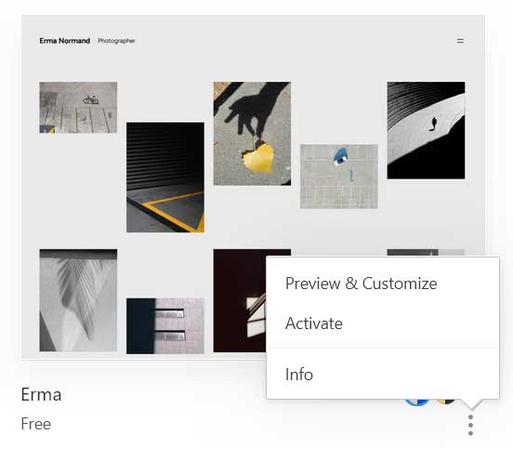
Head to your dashboard’s Appearance>Themes and click the three dots on any free FSE/Block theme to reveal the menu. No longer “View Demo Site” or “Live Demo”, but “Preview & Customize”! Huzzah!

Update: As of February 2024, theme previews on all themes have inexplicably been removed from the Default Theme dashboard.

The ability to Preview a Block theme with our own site content has been, without a doubt, the longest-standing request from (and stumbling block to) users wanting to easily switch from a Classic, Hybrid, Universal, whatever theme to a full Block theme.

Currently it looks like Previewing/Customizing is available only on free Block themes. Premium, Partner and Community themes still show a link to “Demo Site” and that’s also what you’ll see if you’re looking at the full Theme Showcase while logged out of your WordPress.com site, for obvious reasons.

Oddly, not all free themes that were introduced prior to the Site Editor have a Preview or “Try & Customize” option. Will need to check my archives about that.

Because this feature is so new, I might be going out on a limb by publishing this, but still, this is a major and much wanted improvement towards adopting FSE/Block themes.

Now if we could get this option on the rest of them…because, to be honest, I find it difficult to part with money for a Premium theme, let alone upgrading to Business in order to use Partner and Community themes if I can’t understand what my current content will look like in that theme first.

Do you think this change will encourage you to explore more and possibly switch to a full FSE theme?

As always, the information in this post is correct as of publication date. Changes are inevitable.

Featured Photo by Felicity Tai on Pexels.com

https://wpcommaven.com/2023/10/26/preview-and-customize-for-free-full-site-editing-themes-is-here/

#Blocks #QuickPost #Thoughts #WordPressCom

Let Them Eat Cake

In the not-too-distant past, the majority of themes on WordPress.com were ready-to-use Classic themes or Hybrid themes, with paint-by-number typography, multiple color palettes and and an overall &…

WPcomMaven