NVDA Coach: From First Keystroke to Confidence—A Free Tool Changing How NVDA Is Learned https://blindabilities.com/?p=9490

Khronos
- 80 Followers
- 100 Following
- 2.5K Posts
I'm into computers, radio, technology, history.
From a Screen Reader User’s Perspective – FLASHNOTE: it’s like Notepad on Steroids For Windows https://blog.blackspheretech.com/?p=505
I had a tree I wanted removed because it was too close to the house.
I called a tree guy. He came out and did a nice job cutting down the tree. He asked me what I thought. I said, "It's nice, but what about the stump?" He informed me that he was just a tree guy who cut down trees, if I wanted the stump removed, I would need to call a stump guy.
I found a highly recommend stump guy. He came and got the stump out. He says, "There you go." I asked him about the hole. He says, "I'm a stump guy and just remove stumps. I don't fill in the holes." He told me I would need to call a landscaper.
I get ahold of a landscaper and I tell him, "I'm fixing to leave town on a trip. I don't care what you do, just fix the hole and make it look nice."
I got back today and found out he planted a friggin tree.
I called a tree guy. He came out and did a nice job cutting down the tree. He asked me what I thought. I said, "It's nice, but what about the stump?" He informed me that he was just a tree guy who cut down trees, if I wanted the stump removed, I would need to call a stump guy.
I found a highly recommend stump guy. He came and got the stump out. He says, "There you go." I asked him about the hole. He says, "I'm a stump guy and just remove stumps. I don't fill in the holes." He told me I would need to call a landscaper.
I get ahold of a landscaper and I tell him, "I'm fixing to leave town on a trip. I don't care what you do, just fix the hole and make it look nice."
I got back today and found out he planted a friggin tree.
 Michael Babcock
Laser vs RF: How Artemis II is Revolutionizing Space Communication https://www.youtube.com/watch?v=o5HW3Nq-eWw

Laser vs RF: How Artemis II is Revolutionizing Space Communication
 9to5Google.com
These Android phones support AirDrop sharing with iPhone and Mac https://9to5google.com/2026/04/11/android-airdrop-list-of-supported-devices/?utm_source=dlvr.it&utm_medium=mastodon
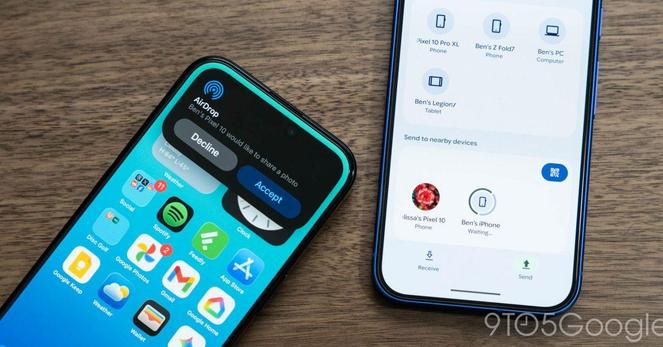
@JamminJerry Here you go:
***
## REDRAGON – Warranty & User Manual
**Horus Wired / 2.4G / Bluetooth Mechanical Gaming Keyboard**
***
### Dear User
Thank you for choosing **REDRAGON**. To protect your rights and provide better customer service, please note our warranty rules:
1. Within the warranty period, repair is guaranteed for failures due to electrical circuit problems.
**Not covered**: man‑made damage such as disassembly, impacts, water submersion, incorrect voltage/current, or damage caused by fire, flood, earthquake, etc.
2. Consumable parts (such as foot pads) and spare‑part replacement are **not** included.
3. Please fill out the warranty card. The warranty card is valid only with the retailer’s stamp.
4. Lost warranty cards will **not** be reissued. Please keep it safe.
***
## OS Support
* Windows XP
* Windows Vista
* Windows 7
* Windows 8
* Windows 10
***
## Connecting the Keyboard
### Wired Connection
1. Slide the **ON/OFF switch** on the left side of the keyboard to **OFF**.
2. Use the supplied **USB‑A to USB‑C cable** to connect the keyboard to your computer.
3. Press **FN + 5 (USB)**.
The **M indicator LED** will blink 5 times to indicate a successful connection.
4. The computer will recognise and configure the keyboard automatically.
**Charging (Wired Mode)**
* M LED = **Red** while charging
* M LED = **White** when fully charged
***
### 2.4G Wireless Connection
1. Slide the ON/OFF switch to **ON**.
2. Press **FN + 4** for about **3 seconds**.
The M LED will flash **green rapidly**.
3. Plug the USB receiver into a USB port on your computer within **20 seconds**.
4. The computer will recognise the keyboard automatically.
**Battery status**
* Low battery: M LED flashes **Red**
* Charging: **Red**
* Fully charged (2.4G mode): **Green**
***
### Bluetooth Connection
1. Slide the ON/OFF switch to **ON**.
2. Press:
* **FN + 1** for Bluetooth device 1
* **FN + 2** for Bluetooth device 2
* **FN + 3** for Bluetooth device 3
The M LED flashes **Blue / Cyan / Magenta**.
3. Enable Bluetooth on your computer or phone and select:
* **“BT3.0 Keyboard”** or **“BT5.0 KB”**
4. The keyboard connects automatically.
**Battery status (Bluetooth)**
* Low battery: **Red flashing**
* Charging: **Red**
* Fully charged: **Cyan / Magenta**
***
## Function Introduction
1. Works with **USB, 2.4G, and Bluetooth** without installing drivers.
2. **20 backlight effects** supported.
3. **FN key combinations**:
| Shortcut | Function |
| -------------- | ------------------------------------- |
| FN + Ins | Change backlight mode |
| FN + Del | Change backlight colour |
| FN + + | Increase backlight speed |
| FN + – | Decrease backlight speed |
| FN + Tab | Set backlight to white |
| FN + Win | Enable / disable Windows key |
| FN + W | Swap WASD and arrow keys |
| FN + 1 / 2 / 3 | Select Bluetooth device |
| FN + 4 | Switch to 2.4G mode (hold 3s to pair) |
| FN + 5 | Switch to wired mode |
| FN + Esc | Reset keyboard to default settings |
***
## Scroll Button (Top‑Right Corner)
* **Backlight Brightness**
* Press **( + )** → LED turns white
* Rotate scroll wheel to adjust brightness
* **Volume**
* Press **( 🔈 )** → LED turns off
* Rotate scroll wheel to adjust volume
***
## Multimedia Keys (F9–F12)
| Shortcut | Function |
| -------- | ---------- |
| FN + F9 | Browser |
| FN + F10 | Search |
| FN + F11 | Calculator |
| FN + F12 | E‑mail |
***
## Shortcut Media Keys
* ⏮ Previous track
* ⏭ Next track
* ▶ / ⏸ Play / Pause
***
## Macro Recording
**Profiles:** M1–M4
**Macro Keys:** G1–G5
**Total Macros:** 20
### Record a Macro
1. Press **M1 / M2 / M3 / M4** to select a profile.
2. Press **MR** (MR lights up).
3. Press **G1–G5**.
4. Enter the key sequence.
5. Press **MR** again to finish.
*Example:*
`M1 → MR → G1 → ABC → MR`
***
### Play a Macro
1. Select profile (M1–M4).
2. Press G1–G5.
***
### Delete a Macro
1. Select profile (M key flashes).
2. Press **MR** (MR flashes).
3. Double‑press **G1–G5** (light turns off).
4. Press **MR** to save.
***
## Recharging the Keyboard
Use the supplied USB‑A to USB‑C cable.
* M LED = **Red** while charging
* M LED = **Red** when battery is empty
***
## WASD / Arrow Key Swap
* Press **FN + W** to swap **WASD** with arrow keys.
* Press again to restore defaults.
***
## FAQ
1. If the keyboard doesn’t respond, check the USB connection or try another port.
2. If liquid spills on the keyboard:
* Disconnect immediately
* Dry with a cloth
* Leave in a warm, dry place before reuse
***
## Regulatory Information
### FCC Statement
This device complies with **Part 15 of the FCC Rules**.
Operation is subject to:
1. The device may not cause harmful interference.
2. The device must accept any interference received.
***
### California Proposition 65
**WARNING:**
Risk of cancer and reproductive harm.
See: **[www.P65Warnings.ca.gov](http://www.P65Warnings.ca.gov)*
@JamminJerry Okay, so pressing FN+windowsKey will enable/disable the Windows key. I don't see the benefit of that, but there you go. Lol! Did you want the manual? I got CoPilot to scan it for me
 JamminJerry
@mcourcel found it. here you go.
Redragon K618 PRO 3-Mode Wireless RGB Mechanical Keyboard, BT/2.4Ghz/Wired Low Profile Win/Mac Gaming Keyboard w/Ultra-Thin Design, Dedicated Media Control & Linear Red Switch
Reading emails in Thunderbird with JAWS and encountering way too many tables, which really shouldn't be seen? Press JAWSKey+6, while you're in the Thunderbird window. Arrow down to, and expand Web / HTML / PDFs, then down to and expand reading. Down arrow to Configure Web Verbosity Levels, and expand that. Spacebar on the verbosity level that you use. Many options/check boxes to toggle, but the one you are looking for is, tables or grids. YOu can press t to get there quickly, or downarrow through the selections. Uncheck tables or grids one, tab to okay and you're done.