I need a break from everything so I'm going to attempt playing #Diablo I or II tonight on #ZorinOS!

Looks like I can't install Battle.net but there is an equivalent "#Lutris" - let's see if that works...

Edit: 2h later, I managed to launch Diablo II (main) and Torment once (a gog game), with some graphics bug and can't figure out how to start them again. The semi-solution that best worked so far was to download their windows installer and then run that in Steam as a "non-steam game" with the compatibility tool Proton.

Edit 2: after looking at this tutorial I understood that 1) every game installed this way in Steam is within its own little environment, some kind of sandboxing? that replicates the structure of Windows and 2) once I've installed the game as a non-steam game I need to update the path in the game properties to where the game launcher actually is.

problem is because of the sandboxing, I can't install Diablo II LOD extension because it needs to recognise the already -installed DII.. unsure how to fix that

otherwise it seems to be working except that I get scintillating bands in all the games I've installed this way.. yes it's probably a problem of NVIDIA drivers πŸ˜“

#LinuxGaming

How to install Battle.net on Linux, SteamOS and Steam Deck for World of Warcraft and Starcraft

Want to get Battle.net on your Linux system like SteamOS and Steam Deck? Here's a guide giving you the options to play World of Warcraft and Starcraft.

GamingOnLinux
oh great. apparently this is coded with genAI.. quoting @Natanox
https://chaos.social/@Natanox/116222559592865899
Natanox πŸ‡ΊπŸ‡¦πŸ‡΅πŸ‡Έ (@[email protected])

Content warning: Lutris dev crashout, AI, slurs

chaos.social
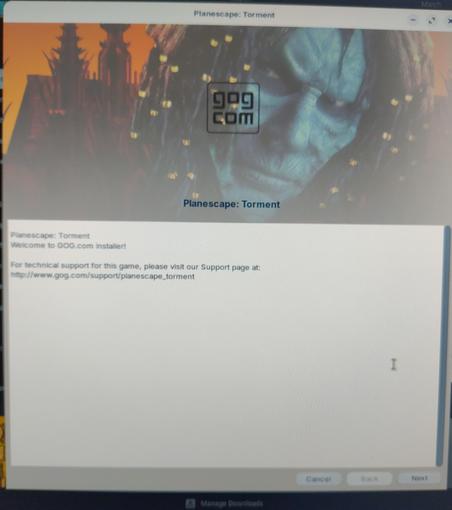
I'm not sure DII will work (downloaded my install files from Battle net and trying to install them through Lutris but it seems really slow) so I'm also trying Torment (from Gog) in parallel! apparently they provide a Ubuntu-compatible version!
gog gave me a ".sh" file for Torment.. Will it "just work" if I double-click it? Nope - it starts an app called "builder" that doesn't seem to do anything and that I can't close.
Hmm..
@elduvelle Not sure what you know - if you've already checked this, disregard: Make sure the executable bit is set (chmod +x ./<script.sh>)
@roknrol I never remember the Linux commands so any help is welcome! Thanks!
I typed that in the command line (replaced "script.sh" by the name of my script) and it did absolutely nothing..

@elduvelle Chmod doesn't give you feedback unless there's an error; try running your script now

Either " <path>/<script.sh>" or if that fails, try "sh <path>/<script.sh>"

@roknrol Ooh I understand! chmod makes it executable?

this seems to be maybe working...

it completed the install.. but then went away.
I found the name in my startup menu and clicked on it.. but it's just showing me a black screen now..

@elduvelle It's a little complicate to explain, but I'll give you the bones of it here. There are a LOT of much better primers that explain Linux permissions though, so I encourage you to seek them out.

Linux permissions are Group based. If you're at the command line in any directory and you type "ls -l" (ell ess space dash ell) it will give you a "detailed" list of what's in the directory. You'll see something like this:

-rw-r--r-- 1 roknrol roknrol 11290 Oct 19 2023 subscriptions.csv

The very first dash signifies whether the file is a directory (D) or a symbolic link (L).

The other permissions are broken into three groups of three (in the example above, "rw-", "r--", "r--".

If my file were executable, some of those hyphens would show an "x" to indicate its executable. As it stands, my file is:

Read/Write for the owner (the first name listed is the owner, here "roknrol").

The second set of three is the group (my group also happens to be "roknrol", which is the second iteration that you see there. The Group permissions here are "read only" (note, there's no "w" in the second group of letters there).

The third set of characters show the permissions for "everyone else", here again, it's read-only.

For almost all basic commands that you can run in linux, there are software manual pages that you can read to give you some help. For the commands that I've had you run, you can see what all they can do:

"man ls"
"man chmod"

and you'll probably want to take a look at "man chown" as well.

It *sounds* more complicated than it is...take a look at a few files and I think you'll start understanding it a bit better.

Sorry if that wasn't as clear as I'd hoped lol

@roknrol that's a great explanation - thanks!!