This, of course, is only possible thanks to incredible work of volunteers from Asahi Linux and OpenBSD.
The installation is relatively straightforward:
1. Resize your MacOS drive to have enough space for a new OS,
2. Get Asahi Linux installer,
3. Install UEFI-only,
4. Get OpenBSD install79.img and record it on a USB stick (with dd or whatever)
5. Boot Asahi UEFI, it will pick up the stick
6. Install with default settings (skip configuring the network)
7. Mount /dev/sd0i as /boot, find FIRMWARE.TAR on the disk, unpack WiFi firmware to /etc/firmware/apple-bwfm
8. Configure network as usual, install whatever stuff you want, be it xenodm, xfce4, firefox-esr, chrome, etc etc
9. Bonus: configure GDK_SCALE=2
10. Bonus: configure touchpad through /etc/wsconsctl.conf
11. Bonus: configure firefox unveil through /etc/firefox
 Nina Kalinina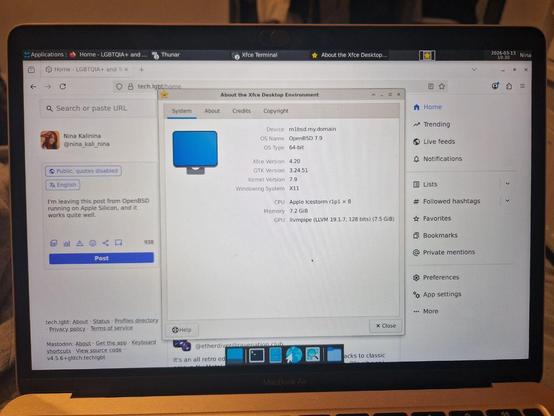
 Eric
Eric