 whereami
@Iconfactory I’m on iOS 18.6.2, in dark mode with light icons. For both Tot and Tapestry, the appearance of icons is inconsistent between the home screen, the selector in the app, and on the “You have changed the icon” message that results when selecting one. E.g. in Tot the automatically adapting icons correctly show light versions on the home screen but are dark in the app and message; and the classic light Dot icon is dark in the message and light elsewhere. Is this an app bug or an iOS bug?
 The Iconfactory
@whereami Tot’s classic icons are not adaptive. Only the new versions are. They will not change properly when you adjust themes. There’s a note right in the settings specifiying this. Hope this helps.
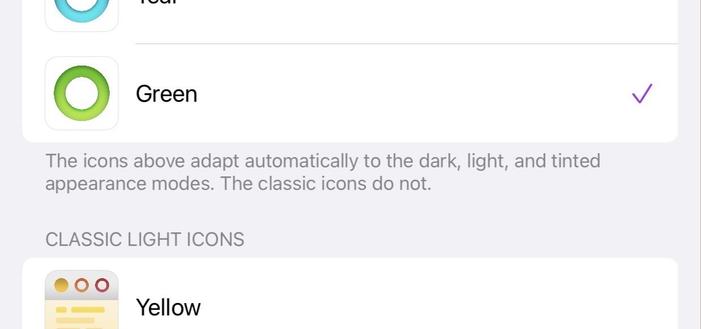
@Iconfactory I understand that. I’m asking why this classic light icon is dark when it should be light. The text you referenced says it does not “adapt automatically”, so it should always be light, right?
@Iconfactory and why all of the adaptive icons are dark in the app and message when I have icons set to light, not dark:
@whereami tap and hold on the iOS home screen, and then tap edit in the upper left to get to the home screen customizations. Do you have dark set there or automatic?
@whereami Please show me this setting on your device. Should be set to automatic.
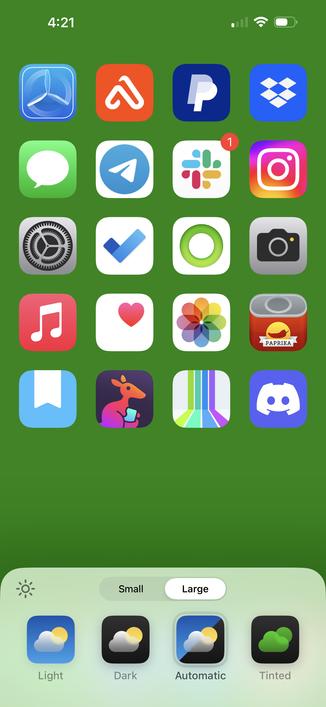
@Iconfactory It’s set to light. Here’s a full demo.
@whereami I know Apple makes this confusing but everything is working correctly here. There are two controls to themes: The overal iOS theme which you have set to dark. And the Homescreen icon customization which you have set to light.
The theme setting is displaying apps (like Tot in the vid) in dark mode. When you switch to the home screen both Tot and Tapestry’s dark icons are overridden by light. Yes, that’s the “light” version of Tapestry’s icon there.
@Iconfactory I understand that too. What I’m asking is why the Dot and Baton Rouge icons, which correctly appear light on the home screen and in the app, are incorrectly shown as dark in the confirmation dialogue; and why the adaptive icons in Tot are incorrectly shown as dark within the app and in the confirmation dialogue.
@Iconfactory Surely icons shown in apps should respect the icon appearance setting, not always be shown in dark mode even if you have icons set to light (I understand that Apple potentially hasn’t made this possible, which is why I asked in my original message whether it’s an app bug or an iOS bug); and the confirmation dialog showing the icon you’ve just changed should surely show you what the icon actually looks like now?
@Iconfactory the Dot case is particularly confusing because it can never actually be dark on the home screen regardless of what settings I select, so why does the dark version of it shown in the confirmation dialogue even exist at all?
@whereami They’re not incorrect. You have your iPhone set to dark mode in the video. Hence the UI and the icons are shown in dark on the confirmation.
You are *overriding* the icons’ dark mode look by setting the Home Screen icon settings to light. So when you go out to the Home Screen they appear light.
@Iconfactory please see my further replies to the message you’re replying to here. Your description of what is happening is true, but it should not be. The selectors and confirmation dialogue should show you what the icon actually looks like now, taking overrides into account.
I’ve also found that regardless of system dark/light, when icons are either Dark or Automatic, the Dot icon is shown as dark on the home screen, despite the text in the app saying that this icon will not do this.
 Amy Worrall
@whereami @Iconfactory I don't think third party developers have access to that setting. So your feature request needs addressing to Apple rather than Iconfactory.
@amyworrall @Iconfactory I thought that might be the case for some of the issues, which is why my original question asked whether it’s a bug in iOS or in the apps. I would understand if the menu within the app didn’t have access to that setting, but isn’t the confirmation dialogue a system prompt that the app doesn’t control? The Dot icon being dark there or on the home screen under any combination of settings seems wrong, based on the text in the app saying it does not adapt.
@whereami @amyworrall Not sure how I can explain it any clearer. Here’s what the confirmation looks like when the home screen icons are not overridden. It displays properly both in the app and on the Homescreen. My settings here are set to Automatic, not light or Dark, FYI.
@Iconfactory @amyworrall Here I’ve set the system to Dark and the icons to Automatic. Then I change Tot’s icon to the *classic light icon* Dot, which the settings explain *does not* adapt automatically to dark mode. So why is it dark on both the confirmation dialogue and the home screen?
@whereami @amyworrall That I’m unsure about. Since the classic icons only have one set of resources iOS must be getting confused and displaying the wrong version, defaulting to the primary dark asset in the app? This one def seems like an Apple bug.
@Iconfactory @amyworrall Note that it only happens for Dot, it doesn’t happen for any other classic light icons in Tot. Is there maybe something about that particular icon asset that differs from the others, or potentially something it has in common with the classic dark Dot icon that the other classic light icons don’t have in common with their classic dark counterparts?
@Iconfactory @amyworrall I apologise, I wasn’t intending for this interaction to turn into the saga that it has, I know you must be busy with more important things right now. Please be reassured that I’m not angry with you and that I offer feedback because I genuinely like your apps.