 ExtremeDullard
Any way to prevent letters being "crushed" on first layer
Hmmm… This setting looks like it could be the soruce of the issue:
 mortalic
Yeah that’s a really tall first layer. What size nozzle are you using? I have an XL and the default for a .4mm nozzle is .20mm. I’ll sometimes go .24 or .25 but never higher
Those are extrusion widths, looks like they’re using the .2mm height profile
Ahh yup hadn’t had my coffee yet, good catch
Seaech for elephants foot.
Or first initial layer expansion (or somethink like that) in settings.
I tried with 0.2 mm elephant foot compensation, as well as no compensation. It doesn’t do anything.
Also, whatever compensation should happen with both heads. This problem is one color bleeding into the other.
Maybe adjust the line thickness?
Can you change it only for the 1st layer? Because it’s correct for the rest of the part.
I don’t think so. From my understanding that setting should only change how thick each individual line is though so in total the printer will make more lines
 petur 😶🇺🇦🇵🇸🇹🇼
@ExtremeDullard I would try to underextrude on the first layer(s) - but I'm no expert at all
 LovesTha🥧
@ExtremeDullard thinner first layer (many profiles default to a thicker first layer), colour sequence too.
Those would be the first things I'd try.
How do you change the color sequence? I couldn’t find anything in the settings.
 Mr Intergalactic Keyboard
@ExtremeDullard small text is notoriously difficult to print. These are face down? I’ve had some success making a slight gap, so the letters aren’t even touching the print bed. So they would be like .1mm inset. Haven’t tried it with dual extrusion though. You might want to have the gap extend into the black as well. Should be easy to do with Inkscape or Affinity designer and boolean using Blender.
A smaller extruder nozzle (.2mm vs standard .4mm) might help as well. Good luck! ✌️
A smaller extruder nozzle (.2mm vs standard .4mm) might help as well. Good luck! ✌️
small text is notoriously difficult to print
Actually, when printed topside, even 3mm letters are quite decent. They’re only one line thick, but they come out quite nicely considering. They’re not flawless by any stretch of the imagination, but they’re perfectly legible.
When printed face down however, they completely disappear into the black. I had to increase the size to 3.5mm - the maximum before the markings run off the models - to make them legible at all.
@ExtremeDullard single line thick is awesome! Are you enabling Arachne lines? I find it makes for nicer lines in some scenarios. Curious if it would help with this txt. I still think it’s worth trying making the text and surrounding black slightly inset, so it doesn’t touch the print bed. It’ll droop but in the past when I’ve done this with single filament prints it made for nicer text. For the inset, just stroke the text in a vector app and use the stroke + text to create the inset. Not sure what you’re using to apply text in this print.
Under the “printer” settings tab there is a setting for z height. I’ve found keeping it at 0.04 is the best to prevent the first layer from squishing when printing multiple colors.
I’ll try that, thanks!
 spicy pancake
Lower the “first layer multiplier” this adds extrusion width to ensure proper adhesion (and causes elephant’s foot to a lesser extent). This is normally around 110%, go as low as you need, while testing adhesion.
Good tip. I shouldn’t have too much problem with adhesion with the XL, since it’s a coreXY printer. But then, I left 256 parts printing at work on Friday, and this is what the printer cam shows today (I’m at home at the moment):
So yeah, even printers that don’t shake the bed can have adhesion issues.
I never thought shaking the bed would cause adhesion issues 🤔 always thought it was far more the head crashing/clipping or scraping the surface of the part while printing.
What about wall thickness settings? Is that wider? I think the slicer would consider those walls
Skip the letter infill and use nail polish :-3
I was thinking you could inset the letter boundaries on the letters first setup, but it looks like you only get 2 walls out of the slicer. Maybe try setting it to not outline the walls at all in letter first mode?
Edit: supposed to be on the followup post
 Kernel Bob
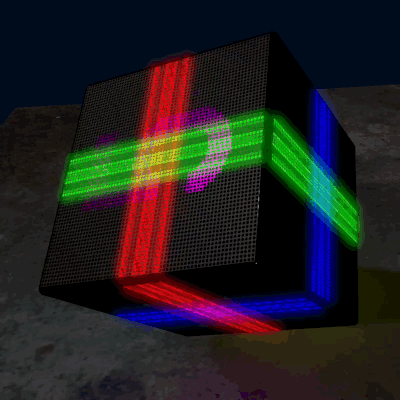
@ExtremeDullard I found the answer this morning because I ran into the same problem this morning. IF using PrusaSlicer, print the white first by putting it on a lower-numbered extruder.
https://forum.prusa3d.com/forum/prusaslicer/order-of-colors-in-multicolor-print/#post-619241

@ExtremeDullard Here's my problem. On the caps, "North" has red before white. "South" has white before blue. I didn't know.
@kbob @ExtremeDullard wow the order makes a big difference! Reminds me of traditional (paper) printing and overprinting and trapping:
@kbob @ExtremeDullard
I used this advice about filament order to get some beautiful text printed, thanks!
https://sfba.social/@mrintergalactickeyboard/114689421548326437

Mr Intergalactic Keyboard (@[email protected])
Attached: 1 image From left to right: prints 2-5. looking much better than print 1! These PETG sheets will be dropped into a transparent TPU dice box while printing to give the TPU stiffness.. The text is printed in transparent pink and reversed so it gets the smooth bed surface finish. In print 5 the final .1mm layer is printed in white. The white + trans pink gives a resin like top coat to the characters. Not sure yet how well it will read through the TPU. Gift for a friend. #Tashkent #3dprinting