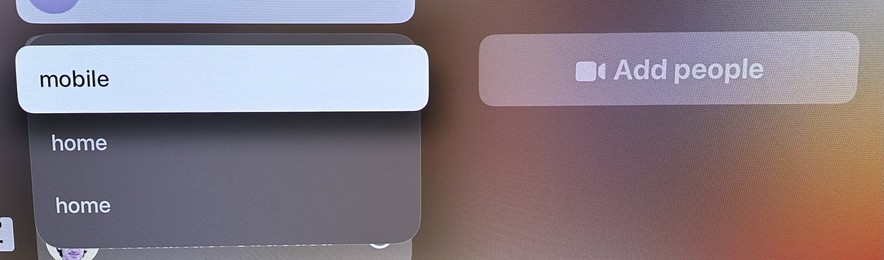
The team responsible for the FaceTime app on tvOS needs a VERY stern talking-to. Just for starters, take a look at the menu that appears when trying to start a call with a person.

Now imagine if it actually showed the emails or phone numbers for any of these choices. But no, you just have to guess! It’s on a giant TV screen! There’s plenty of room! It is MADDENING!
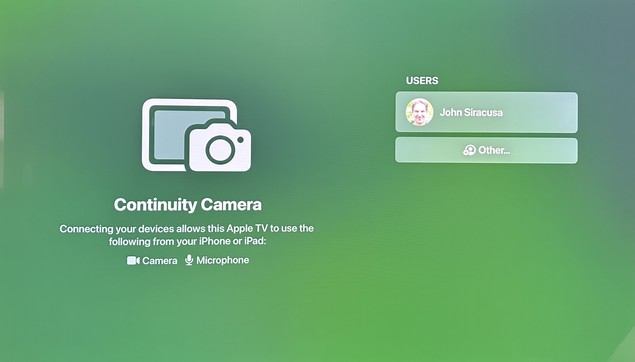
Launching the app often shows this screen, in which no button presses or swipes on the remote will do ANYTHING. Like, nothing. No item changes appearance. No actions can be triggered. Force-quitting the app and re-launching it usually “fixes” it.

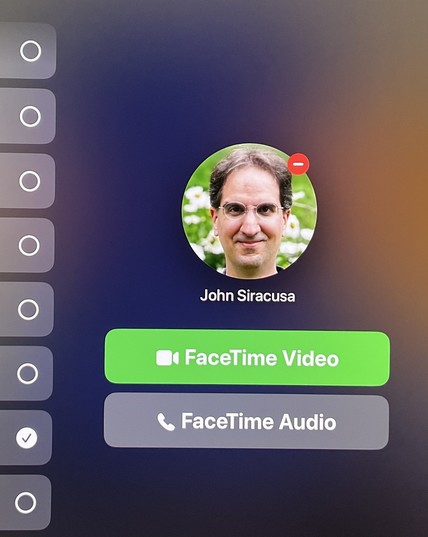
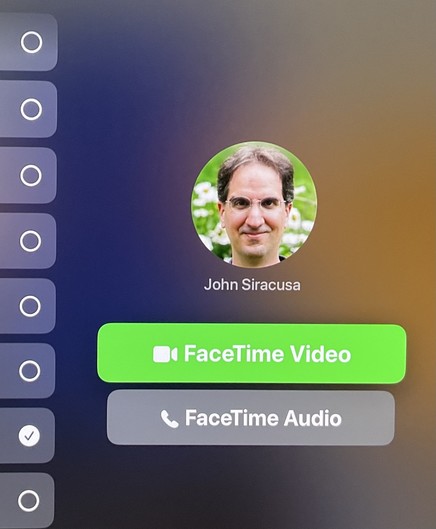
Once you pick from one of the mystery “home” or “mobile” or whatever contact methods for a person, you often get this screen, which makes it seem like you can press the main (touchpad) button on the remote to press the green button and initiate a FaceTime Video call. That is NOT the case.

Pressing the button on the remote actually moves the selection focus back to the user list! (You can figure out why if you look closely.)

Here’s what the screen has to look like in order for a button press on the remote to actually click the “FaceTime Videol button. No, this is not the same screenshot as before.

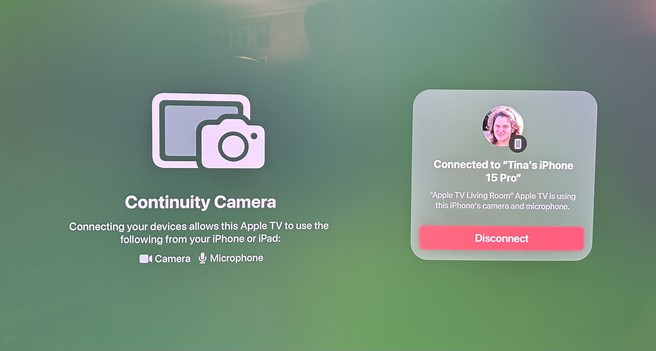
If you actually manage to start a FaceTime call, it will periodically (every few minutes) be stopped entirely, displaying this baffling screen. The only possible action is to click the red “Disconnect” button.

After that, you have to reconnect Continuity Camera, which means getting up from the couch and picking up the phone to manually accept the connection, even though the phone and the Apple TV are both signed into the same Apple ID and the phone was already being used as a camera earlier.

@siracusa I’ve never had continuity drop during a call. My Apple TV is hooked up to Ethernet, maybe that’s a factor.
@shac Mine is too. Also, DID it drop? Look at the text on that screen! It says “Connected to Tina’s iPhone”!