Tip #632

View and open your synced tabs from the Windows Panel.

The Windows Panel lists tabs from all your Windows and Workspaces, as well as tabs you’ve recently closed. Also, if you’ve chosen to synchronize your open tabs, in addition to the Synced Tabs button on the far side of the Tab Bar, you’ll find them in the Windows Panel.

To open synced tabs from the Windows Panel:

  • Log in to Sync in Vivaldi on all devices you want to keep in sync.
  • Start syncing all data or make sure Tabs are selected for syncing.
  • Open the Windows Panel.
  • Find the Synced Tabs section.
  • Double-click on the tab you want to open.
  • #sync #Tabs #windowPanel

    https://vivaldi.com/blog/tips/tip-632/

    Windows Panel | Vivaldi Browser Help

    Vivaldi’s Windows Panel offers an easy way to manage multiple tabs at once. Tab management has never been easier!

    Vivaldi Browser Help

    Tip #613

    Try out the different ways you can search open tabs and switch to them.

    With amazing tab management features, the Vivaldi browser is a tab hoarder’s paradise. In this tip, we list all the ways you can search for open tabs and switch to them.

    • Start typing the tab’s name or URL in the Address Field and click on “Switch to this Tab” in the Open Tabs section in the Address Field drop-down menu.
    • Open Quick Commands and start typing the tab’s name or URL. In the Tabs section, click on the tab you want to view.
    • Open the Windows Panel and start typing the tab’s name or URL in the search field at the top of the panel. (Double)-click on the tab you want to switch to.

    #addressBar #quickCommands #tabs #windowPanel

    https://tips.vivaldi.net/tip-613/

    Address Field | Vivaldi Browser Help

    Address Field is a section on the Vivaldi Browser’s Address Bar where you can see the URL of the page and access a lot of useful information and features.

    Vivaldi Browser Help

    Tip #398

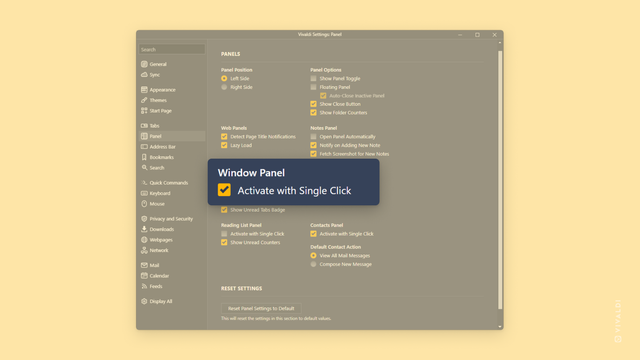
    Open Tabs from the Window Panel with a single click instead of a double click.

    By default, to switch tabs using the Window Panel, you need to double click on an entry to activate it. If you’d like to switch tabs with only one click, like on the Tab Bar, you’ll need to enable a setting for it.

    To enable single click tab switching in the Window Panel:

  • Go to Settings > Panels > Window Panel.
  • Enable “Activate with Single Click.
  • #panels #tabs #windowPanel

    https://tips.vivaldi.net/tip-398/

    Settings | Vivaldi Browser Help

    Use settings to customise Vivaldi browser. Find out how to access the settings menu or open the settings menu in a separate tab.

    Vivaldi Browser Help

    Tip #216

    Move tabs from one window to another using the Window Panel.

    Have you opened multiple windows with numerous tabs in each and now things look a bit too chaotic. The best place to organize your Tabs across Windows is the Window Panel.

    To move tabs from one window to another:

  • Open the Window Panel.
  • Expand the folders listing your tabs in each window.
  • Click and hold down the mouse button on a tab you want to move.
  • Drag the tab to another window.
  • Using drag and drop it’s also easy to reorder tabs within the same window.

    #tabs #window #windowPanel

    https://tips.vivaldi.net/tip-216/

    Category: Desktop | Vivaldi Browser Help

    Vivaldi Browser Help