Thanks for following along with the #adventOfiOSAccessibility series! Here's to building more accessible iOS apps in 2025! 🎉

If you’d like to revisit or share the series, I’ve compiled all the posts here: https://dadederk.github.io/post/2024-12-06-01/
Dani Devesa | Advent of iOS Accessibility

Dani Devesa

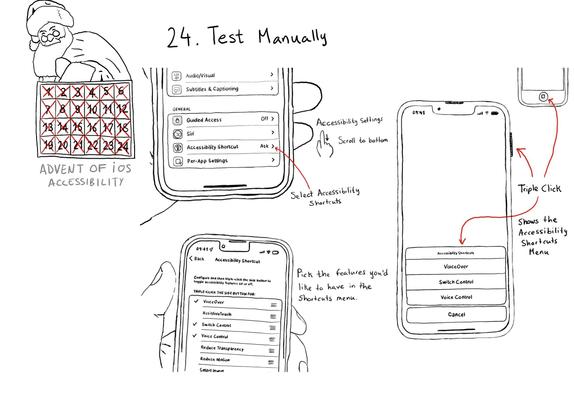
Day 24 - #adventOfIOSAccessibility. Test manually. Familiarise yourself with different assistive technologies. I find it useful to start with VoiceOver but check out Voice Control, Full Keyboard Access, and others... Remove friction, configuring shortcuts can help. Happy festive season everyone!

#365DaysIOSAccessibility

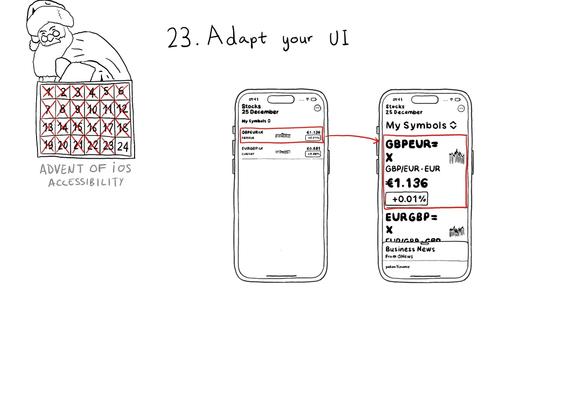
Day 23 - #adventOfIOSAccessibility. Sometimes your UI will just not optimally scale for large text sizes. Simple changes, for accessibility sizes, like composing elements vertically instead of horizontally, reducing the number of columns, and allowing more lines of text, can do the trick most times.

#365DaysIOSAccessibility

Day 22 - #adventOfIOSAccessibility. Make sure you support Dynamic Type up to the largest text size available. Take into account that there are five extra accessibility sizes available from the Accessibility Settings. It can make a huge difference for lots of users.

#365DaysIOSAccessibility

Day 21 - #adventOfIOSAccessibility. There are a few accessibility settings you can check for, or get notifications in case these preferences change. This is especially important when developing custom components as they will mostly work with UIKit and SwiftUI controls.

#365DaysIOSAccessibility

Day 20 - #adventOfIOSAccessibility. There is an option for the user to request an experience with Reduce Motion, and we should honor it. If your app has animations, make sure to check if the user has this setting on. Here are three examples where Apple does a great job.

UIKit: https://developer.apple.com/documentation/uikit/uiaccessibility/isreducemotionenabled

SwiftUI: https://developer.apple.com/documentation/swiftui/environmentvalues/accessibilityreducemotion

#365DaysIOSAccessibility

isReduceMotionEnabled | Apple Developer Documentation

A Boolean value that indicates whether the Reduce Motion setting is in an enabled state.

Apple Developer Documentation

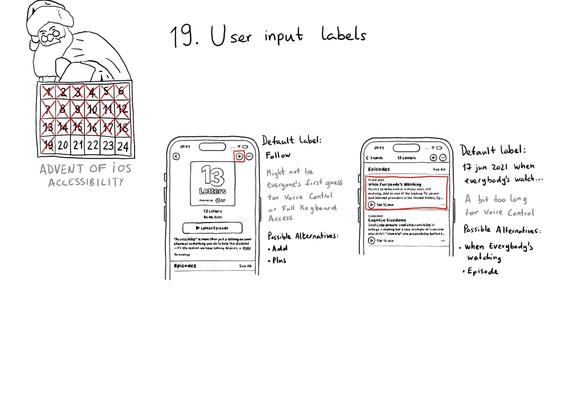
Day 19 - #adventOfIOSAccessibility. Accessibility labels might not be the best input labels, used for example to find or interact with elements with Voice Control or Full Keyboard Access. In those cases, you can provide accessibility user input labels.

To know more about accessibilityUserInputLabels checkout: "Improving Accessibility: Voice Control" by @bas: https://basbroek.nl/improving-voice-control

#365DaysIOSAccessibility

Improving Accessibility: Voice Control

Having improved an app for VoiceOver means you’ll have made some major steps to also support its sibling: Voice Control. Whereas VoiceOver is a screen reader, reading what’s on the screen, Voice Control lets users navigate their devices by voice.

Bas’ Blog

Day 18 - #adventOfIOSAccessibility. When building custom components, or if not relying on UIControl's attributes to configure state, it can be easy to forget to specify the right accessibility traits. These are indispensable for a good experience with VoiceOver, Switch Control, Voice Control, Full Keyboard Access...

#365DaysIOSAccessibility

Day 17 - #adventOfIOSAccessibility. Check the traversal order of elements in your app. Sometimes the default top-left to bottom-right order might not be the most logical one. Sometimes you may consciously want to tweak the order. Other times, grouping is the answer.

#365DaysIOSAccessibility

Day 16 - #adventOfIOSAccessibility. A reminder that the more modes we use to convey important information, the more likely it is that all users will perceive it. Consider a combination. of color, icons, messages, sound, haptics, animations, etc.

#365DaysIOSAccessibility